An order is considered a new order when a customer places an order for either a delivery or a pick-up. Customers may place orders over the phone, through online platforms, or by visiting the store. To understand the different types of orders that can be placed, refer to Types of Orders.
When you enter a new order for delivery, it is placed in New status or Pending Delivery status. It immediately shows up under pending deliveries for the selected date.
TABLE OF CONTENTS
- Steps to Create a New Delivery Order
- Step 1: Access the Order Entry Page
- Step 2: Select Shop and User
- Step 3: Add Customer & Recipient Information
- Step 4: Enter Delivery Details
- Step 5: Enter Order Details
- Step 6: Add Product Information
- Step 7: Apply Tax & Source Details
- Step 8: Enter Payment Details
- Final Step: Place the Order
- Step 9: Confirm Order Submission
Steps to Create a New Delivery Order
Step 1: Access the Order Entry Page
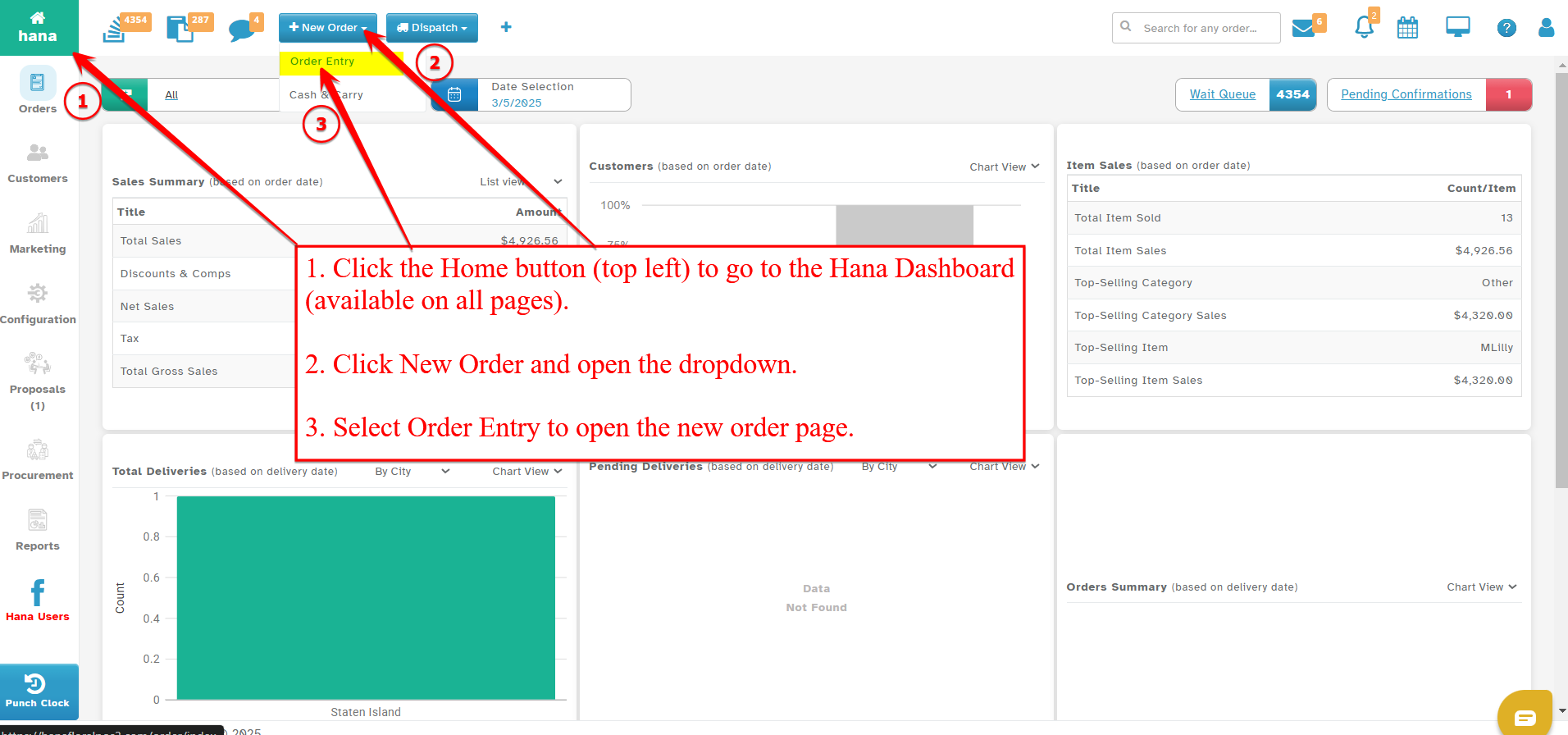
On the Dashboard, click New Order and select Order Entry from the dropdown list.
This feature is accessible from all pages within Hana POS, allowing for quick order creation.
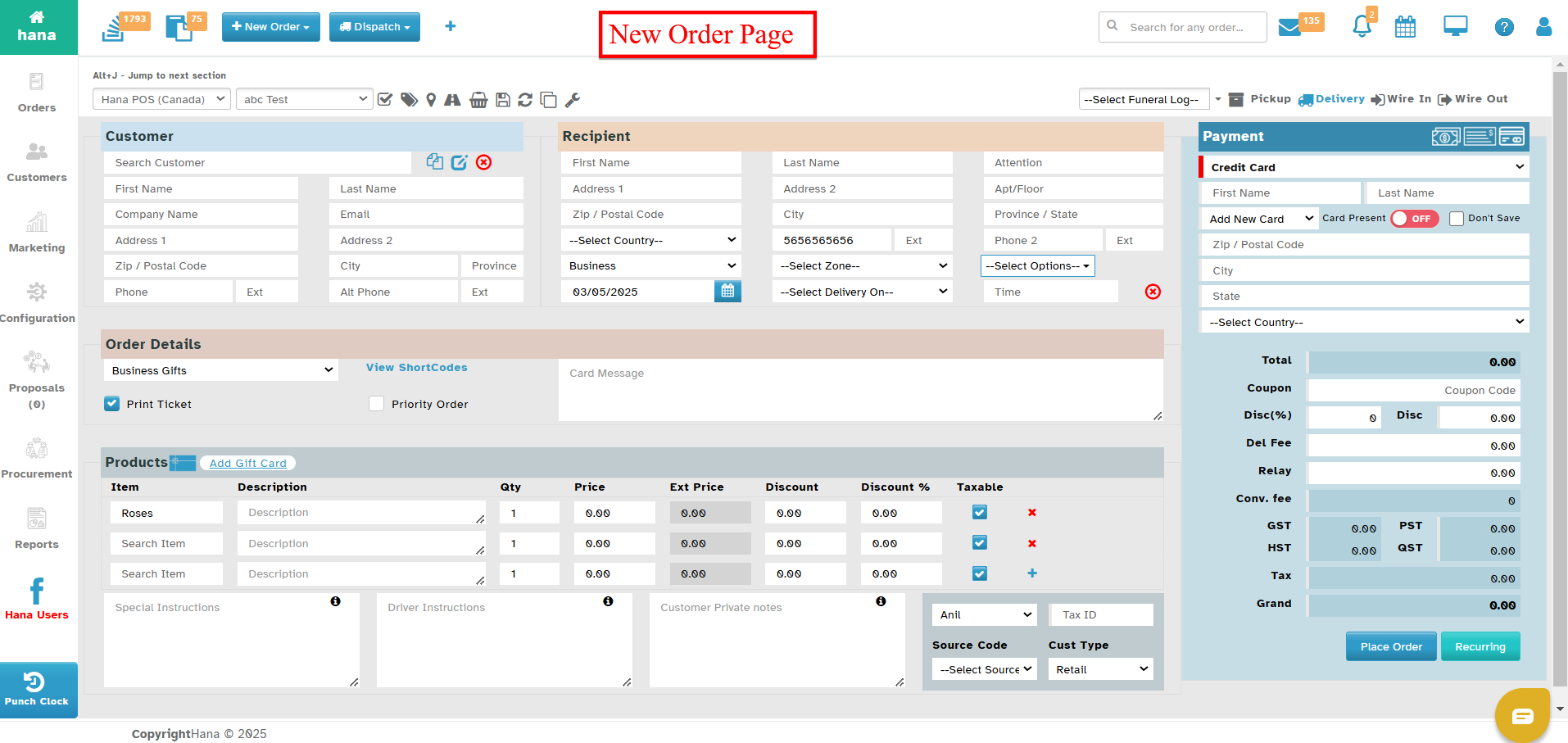
The Create New Order page will now be displayed.
Step 2: Select Shop and User
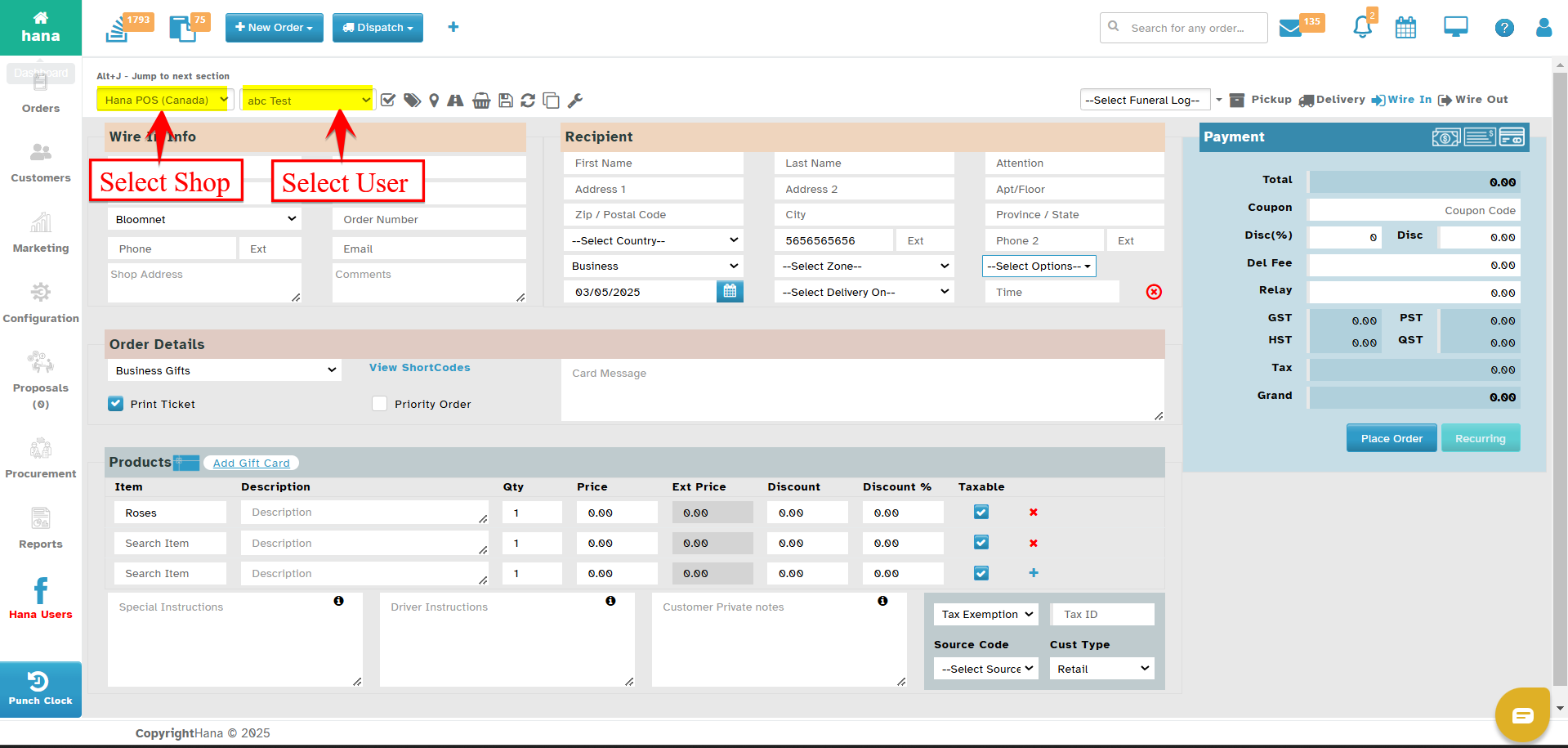
In the top row, choose the florist shop from the Select Shop dropdown list.
Select the user handling the order from the Select User dropdown list.
Step 3: Add Customer & Recipient Information
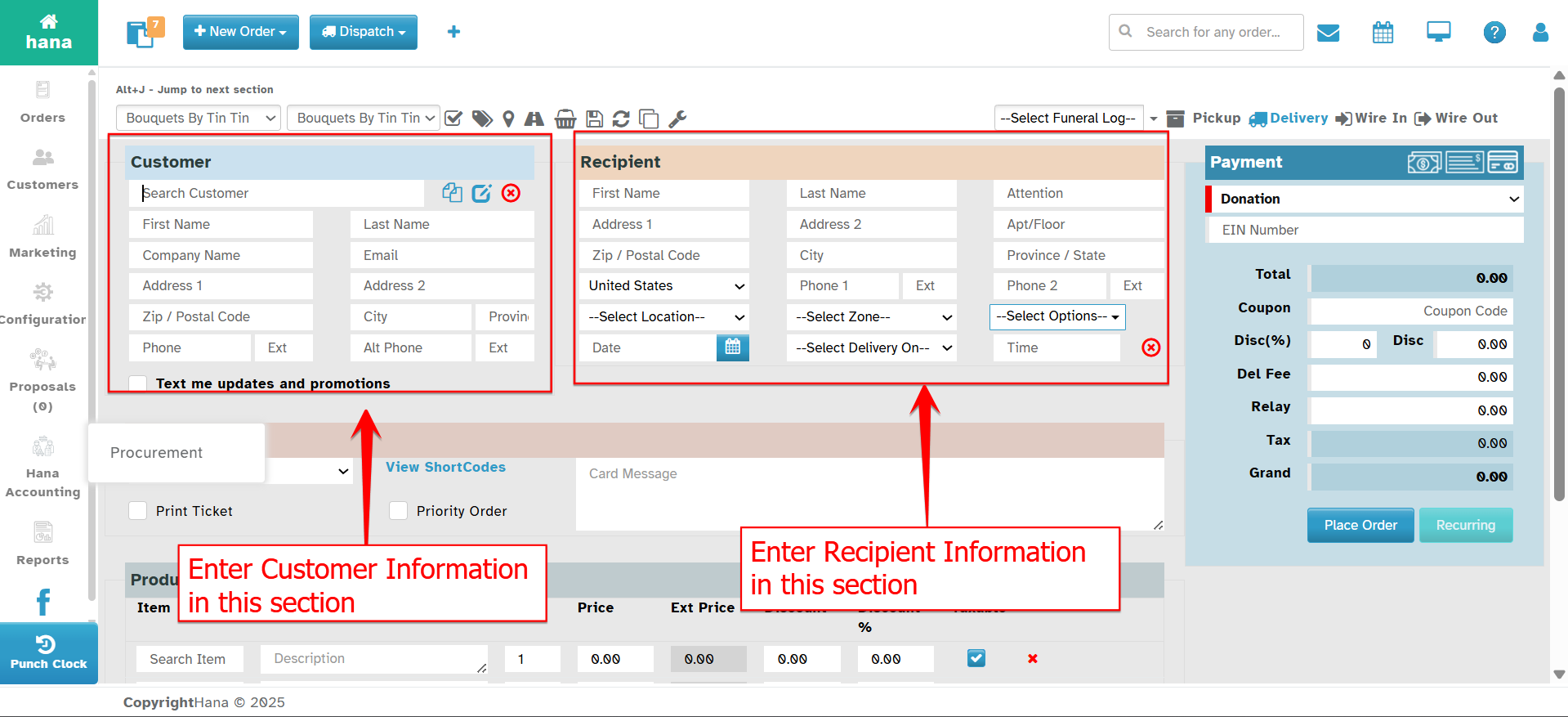
In the Customer section, either search for an existing customer or add a new one. (For more details, refer to How to Search for/Add a Customer?)
In the Recipient section, search for or add recipient details. (For more details, refer to How to Search for/Add a Recipient?)
Select a special note about the order from the dropdown list (e.g., Confidential, Save Funeral, Frequent Address).
Step 4: Enter Delivery Details
- Choose the delivery date using the calendar.
- Select the preferred delivery time from the Select Delivery On dropdown list. Available options include: After, Around, Before, Exactly At, AM, PM, and Any.
- Select the exact delivery time using the time clock.
Step 5: Enter Order Details
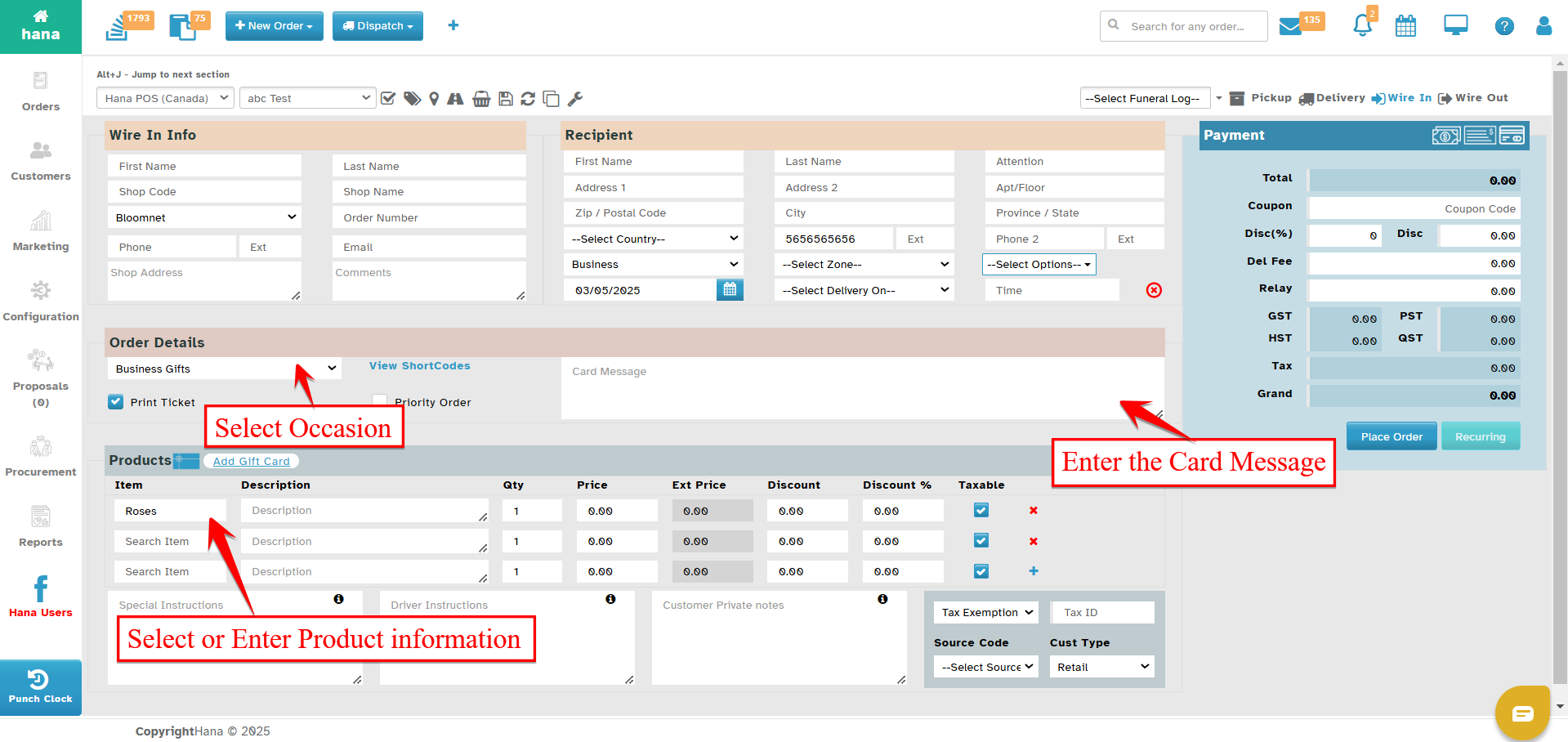
In the Order Details section, choose the occasion from the Choose Occasion dropdown list.
To send automatic reminders for birthdays or anniversaries, check the Send Reminder box.
Use short codes in the card message area by clicking View ShortCodes. (For more details, refer to How to Add a Short Code?)
Enter a message in the Card Message field. Click the browse icon to view suggestions. Drag the resize icon to adjust the field size.
Check the Print Ticket box to print the order ticket upon creation.
Step 6: Add Product Information
In the Products section, add order items. Click the gift card icon or Add Gift Card link to include a gift card. (For more details, refer to How to Add a Gift Card?)
- Note: Once a gift card is added, the system auto-populates details such as Item, Description, Qty, Price, Ext Price, Discount, Discount %, and Taxable.
Search for an item in the database or add a new one if unavailable. (For more details, refer to How to Search for/Add an Item? and How to Create a Recipe?)
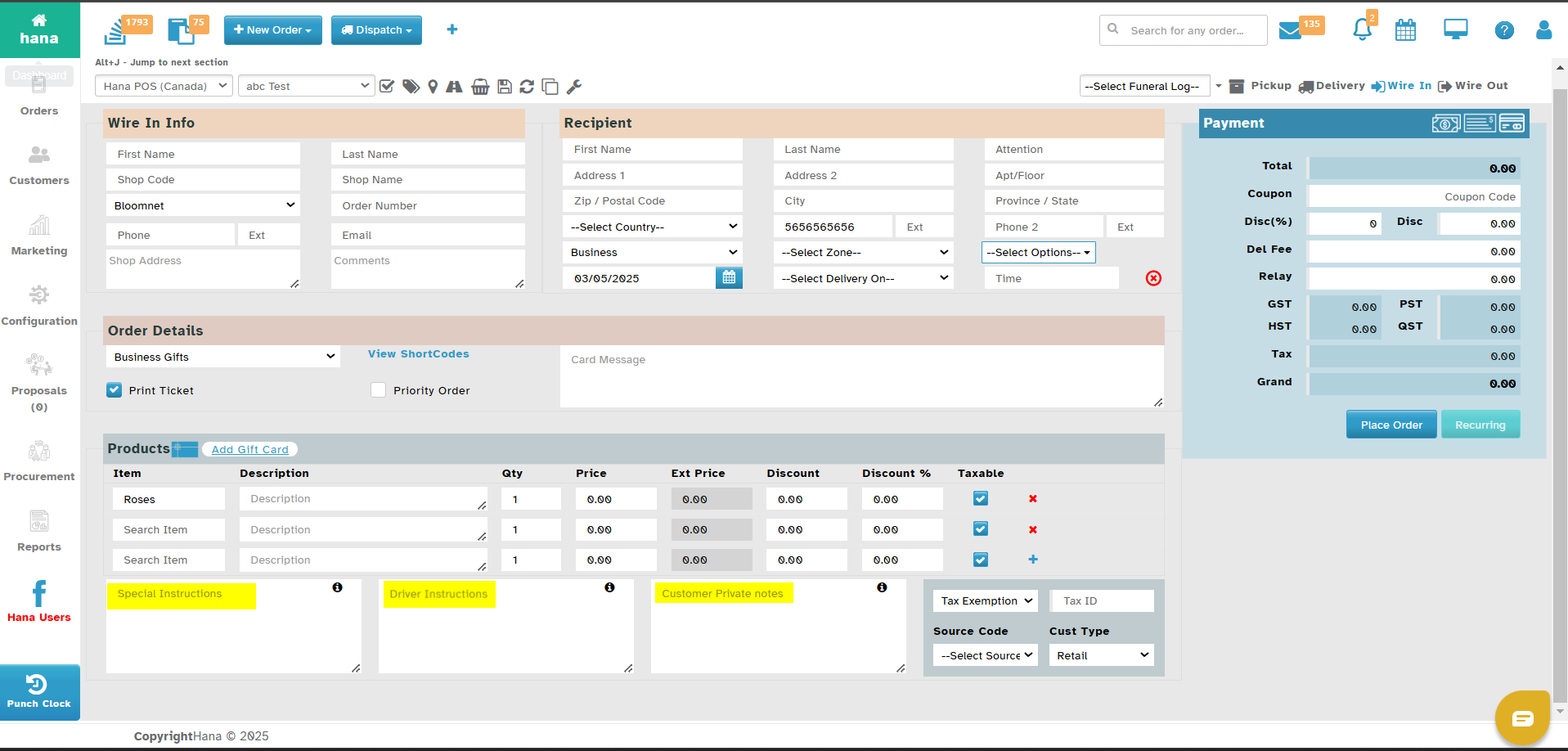
Enter any special instructions in the designated field.
Add driver instructions if necessary.
Enter customer private notes, which are visible only to the florist.
Step 7: Apply Tax & Source Details
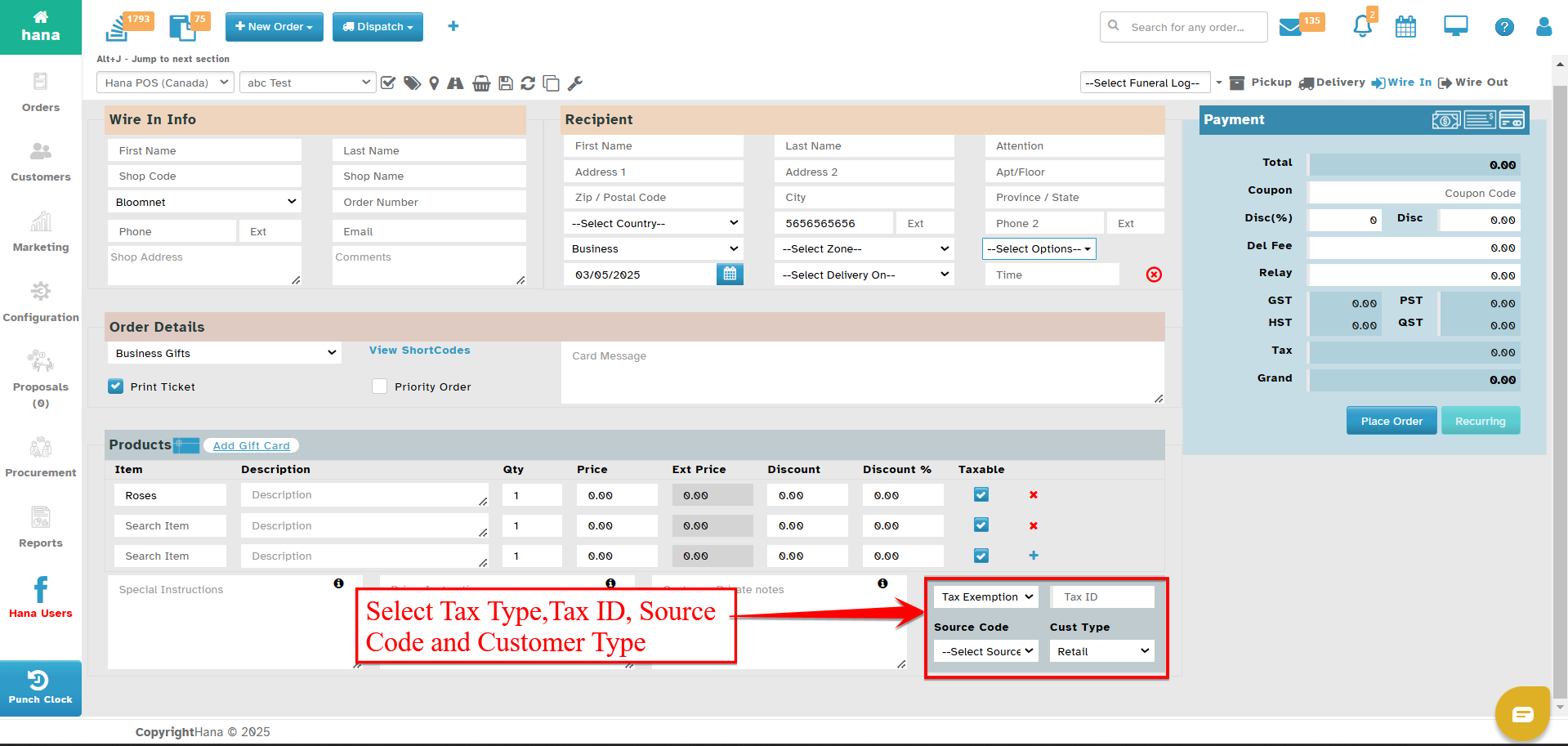
Select the item tax type from the Select Tax Type dropdown list (Standard Tax or Tax Exemption).
Enter the Tax ID in the field provided.
Select the source from which the customer found Hana using the Source Code dropdown list (Friend, Newspaper, Social Media).
Choose the customer type from the Cust Type dropdown list (Wire Service, Corporate, Florist, Other Location, Staff, Retail).
Step 8: Enter Payment Details
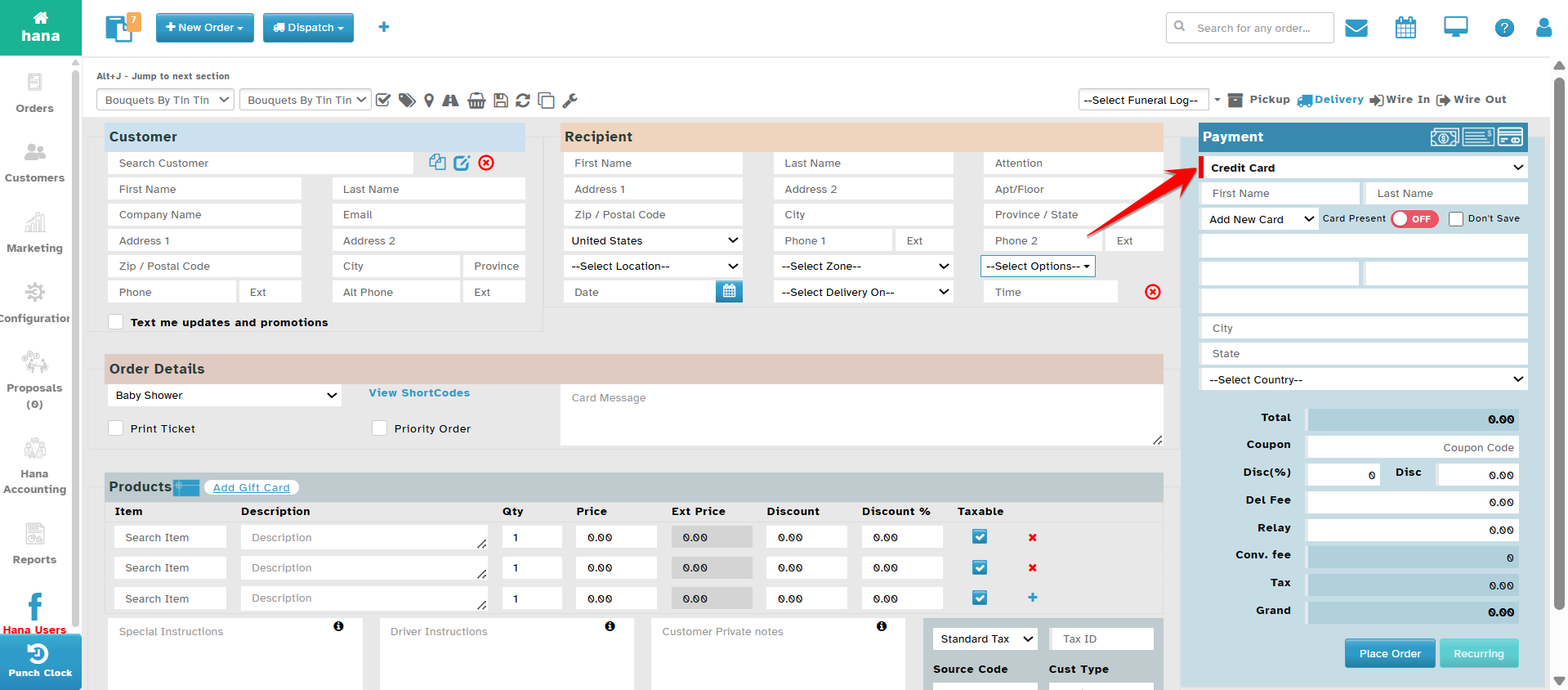
Add payment information in the Payment section. (For more details, refer to How to Add Payment Information?)
Final Step: Place the Order
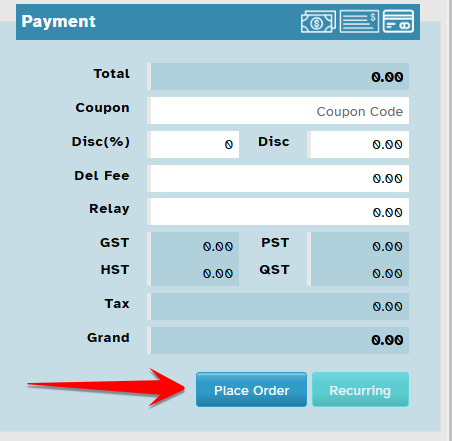
Click Place Order to complete the process.
- Note: You can also schedule an order on a recurring basis, eliminating the need for manual input each time. (For more details, refer to How to Set an Order as Recurring?)
The order is now successfully scheduled in the queue!
Step 9: Confirm Order Submission
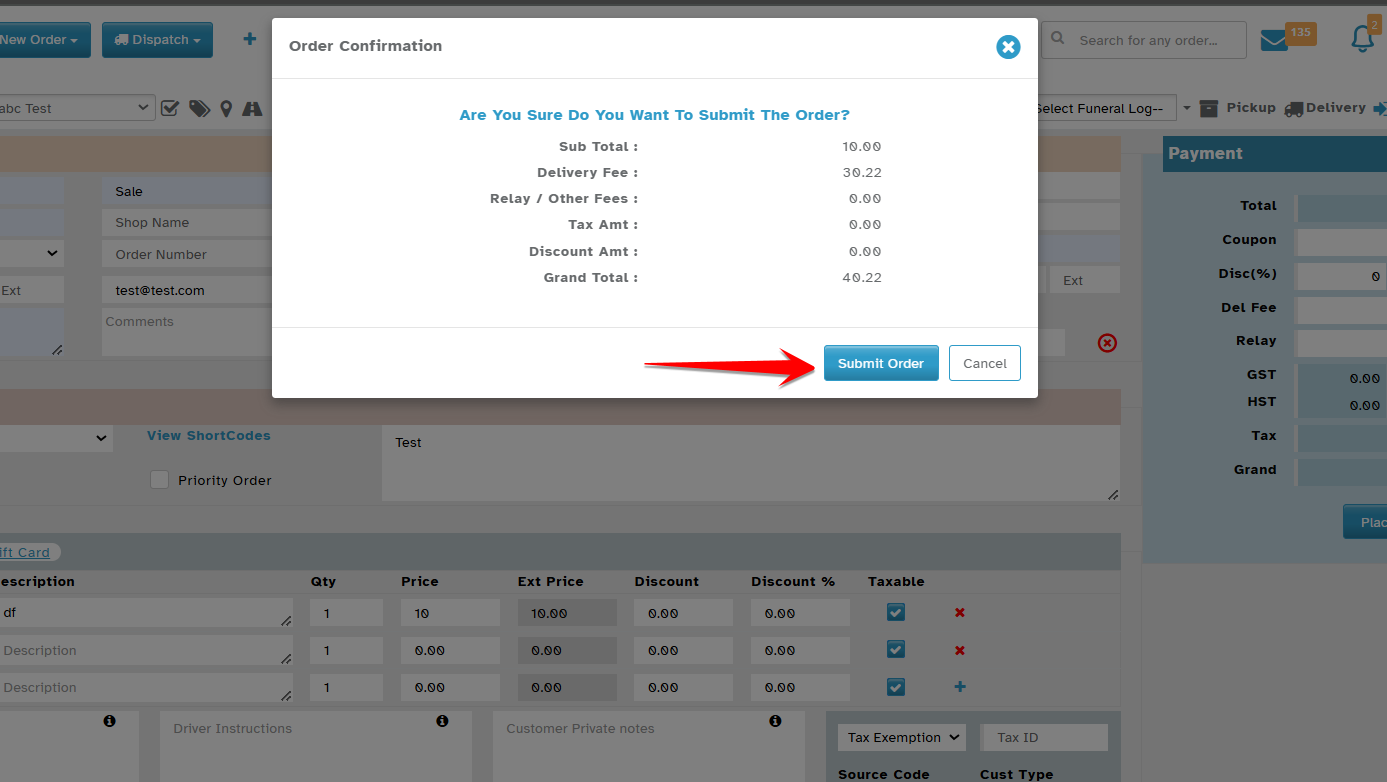
The Order Confirmation dialog will be displayed.
Click Submit to finalize the order.
The order is now successfully placed!
Was this article helpful?
That’s Great!
Thank you for your feedback
Sorry! We couldn't be helpful
Thank you for your feedback
Feedback sent
We appreciate your effort and will try to fix the article