Adding and managing items on the Order Entry page is a crucial step in processing an order efficiently. The system allows you to either search for an existing item or add a new one, ensuring accurate pricing, tax calculations, and discounts. This guide provides detailed steps to perform both actions within Hana POS.
Steps to Search for/Add an Item
Step 1: Access the Order Entry Page
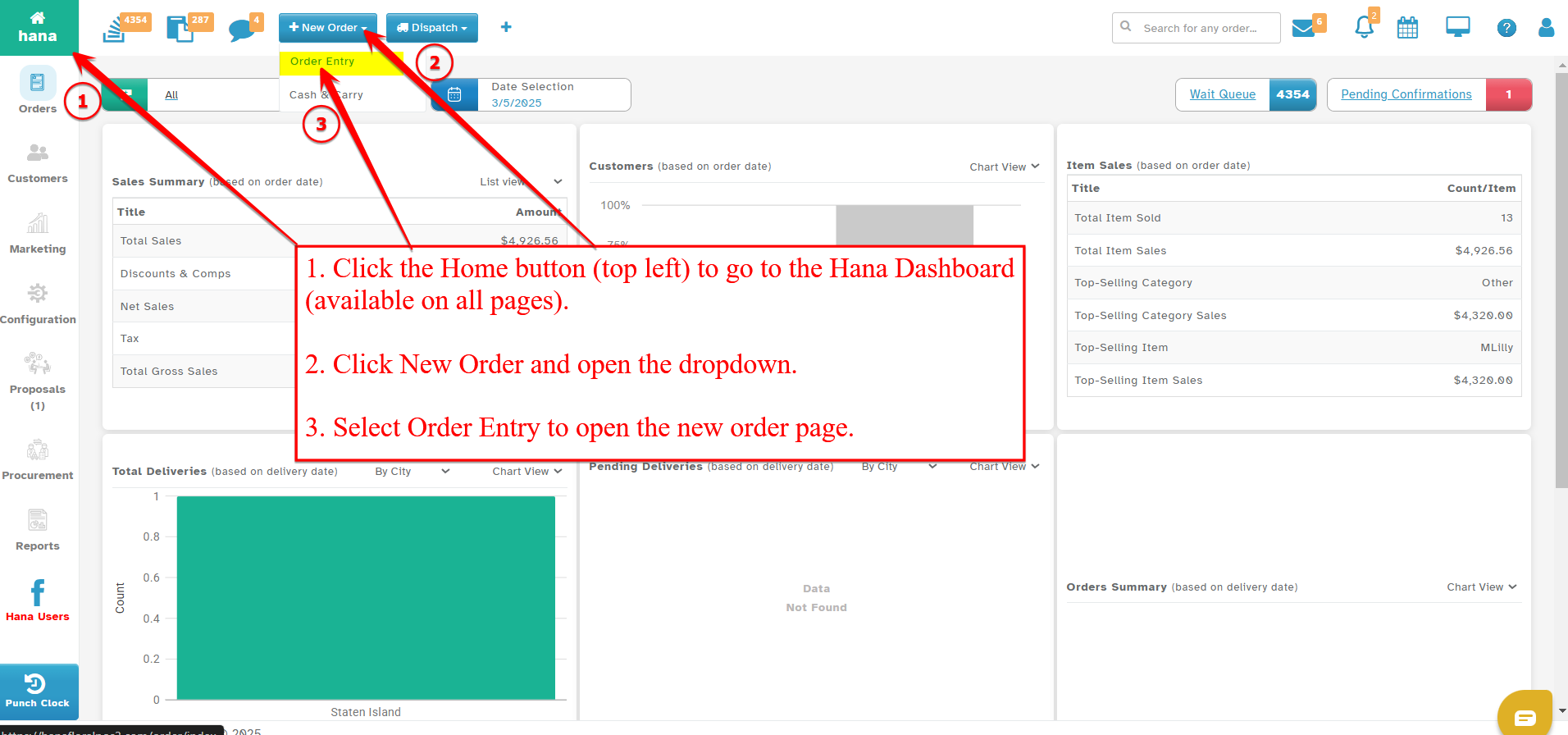
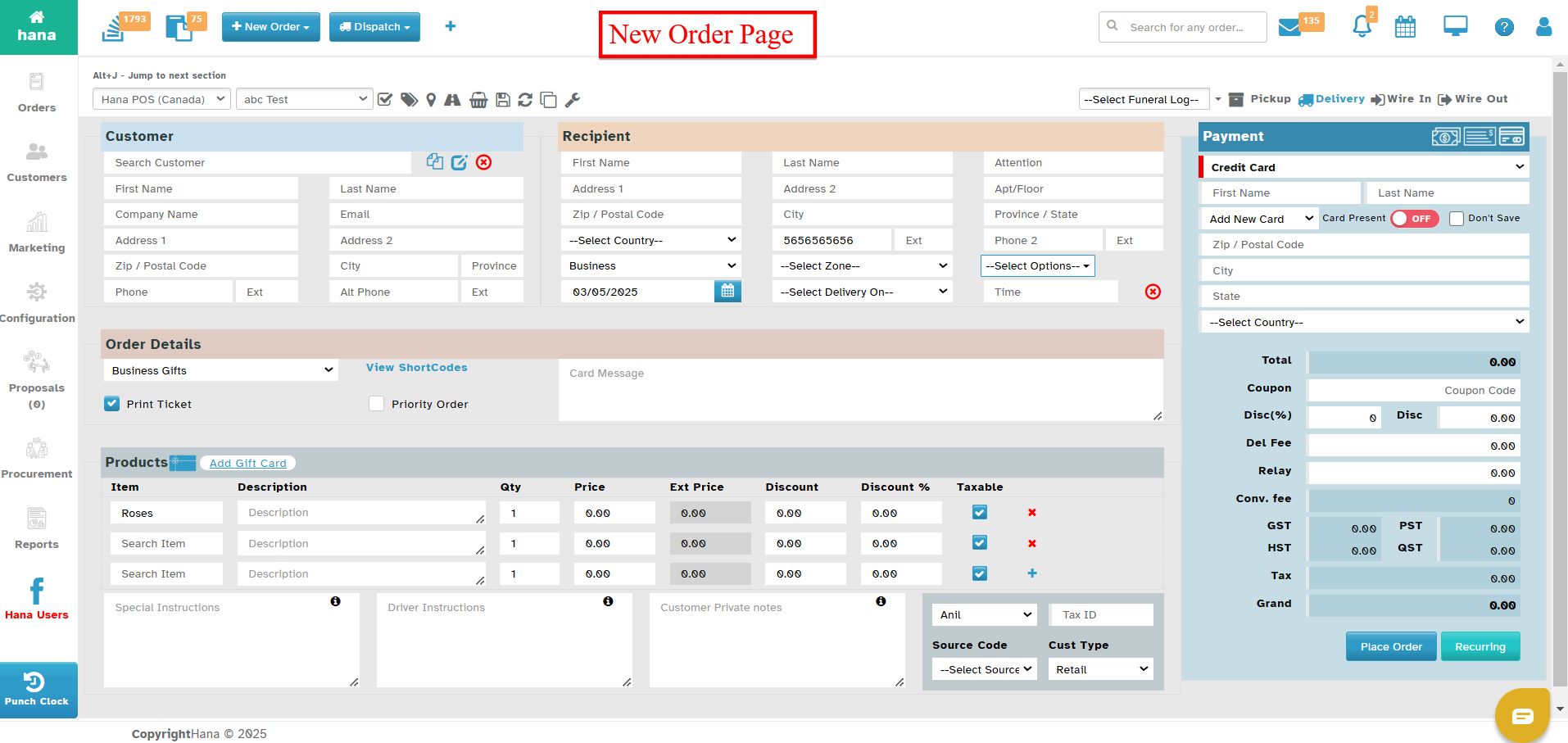
On the Dashboard, click New Order and select Order Entry from the dropdown list.
Navigate to the Products section.
Step 2: Search for an Existing Item
In the Search Item field, enter the first few letters of the item name.
A list of matching items will appear. Select the correct item from the list.
Once selected, the Description and Price of the item will be displayed automatically.
Note: You can modify the Quantity, Discount, Discount %, and check the Taxable box if applicable.
Step 3: Add a New Item
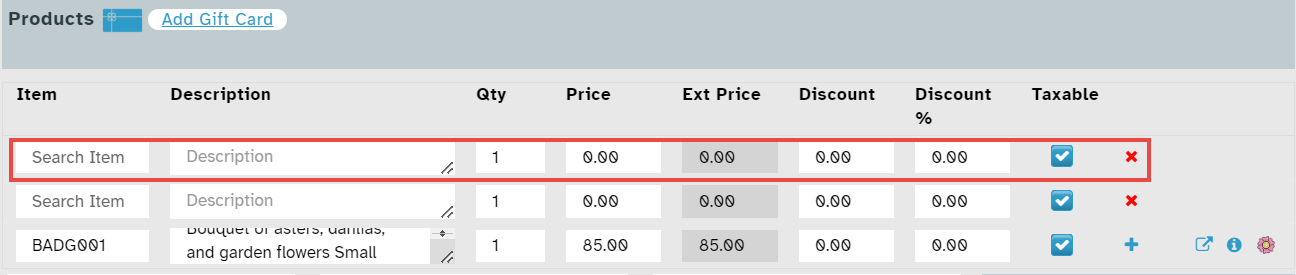
If the item is not in the database, manually enter the following details:
Item Name – Enter the product name.
Description – Provide details about the item.
Quantity – Specify the number of units.
Price – Enter the price per unit.
Discount – If applicable, enter the discount amount.
Discount % – Enter the percentage of discount.
Taxable – Check or uncheck the box to indicate if the item is taxable.
Step 4: Review and Save
Note: To view the full description, you can:
Drag the resize icon to expand the box.
Click the up or down arrow to reveal hidden text without resizing the box.
Once the order is created, the item details will be automatically saved for future use.
Was this article helpful?
That’s Great!
Thank you for your feedback
Sorry! We couldn't be helpful
Thank you for your feedback
Feedback sent
We appreciate your effort and will try to fix the article