Hana POS allows you to check an order's status, including its current state and the date and time of related status updates. This helps track order progress and ensures timely fulfillment.
This guide outlines the steps to check order status and view status history.
Steps to Check Order Status
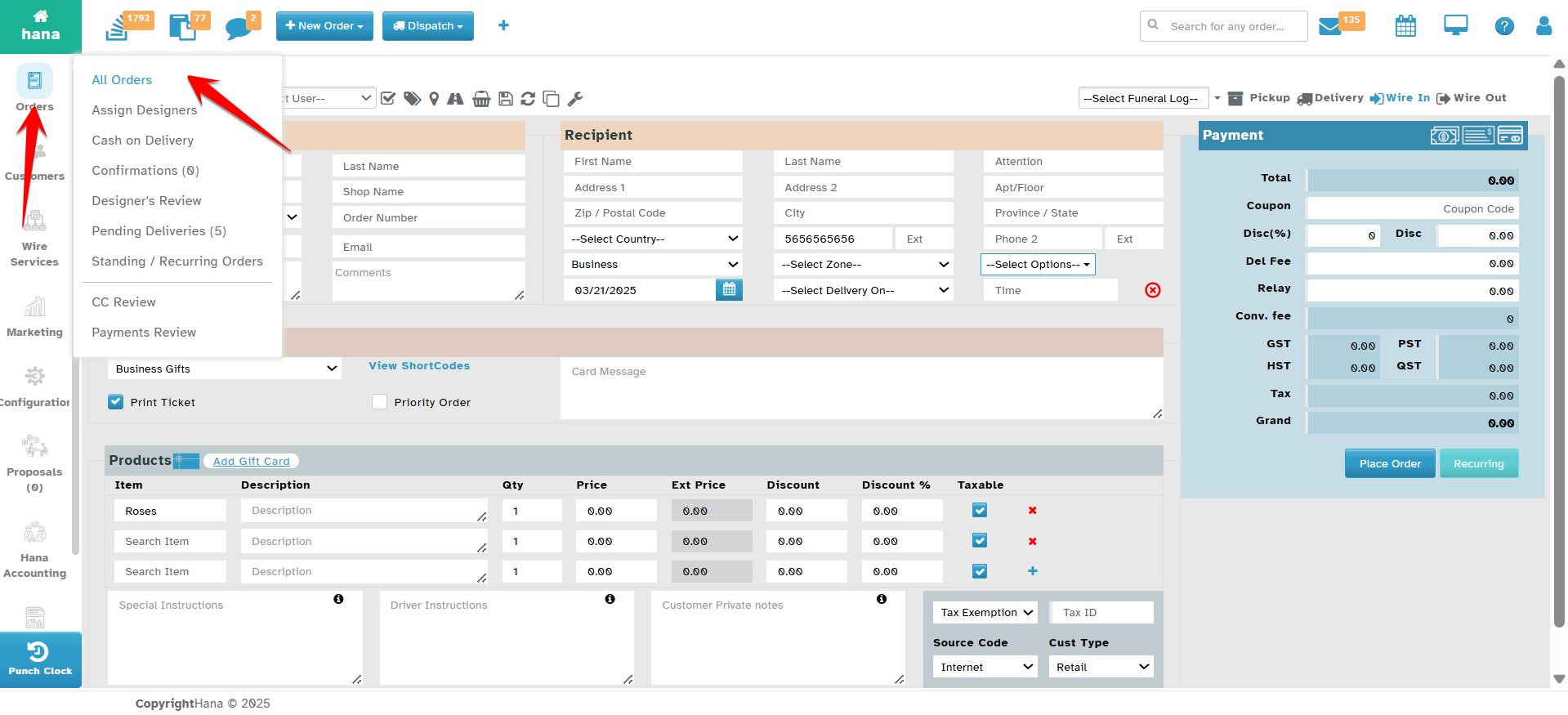
Step 1: Access the Orders Page
Navigate to All Orders.
The Orders Page will be displayed.
Step 2: View Order Status
The Status Column in each order row shows a brief summary of the order’s current status.
Click the order row of the order you wish to check.
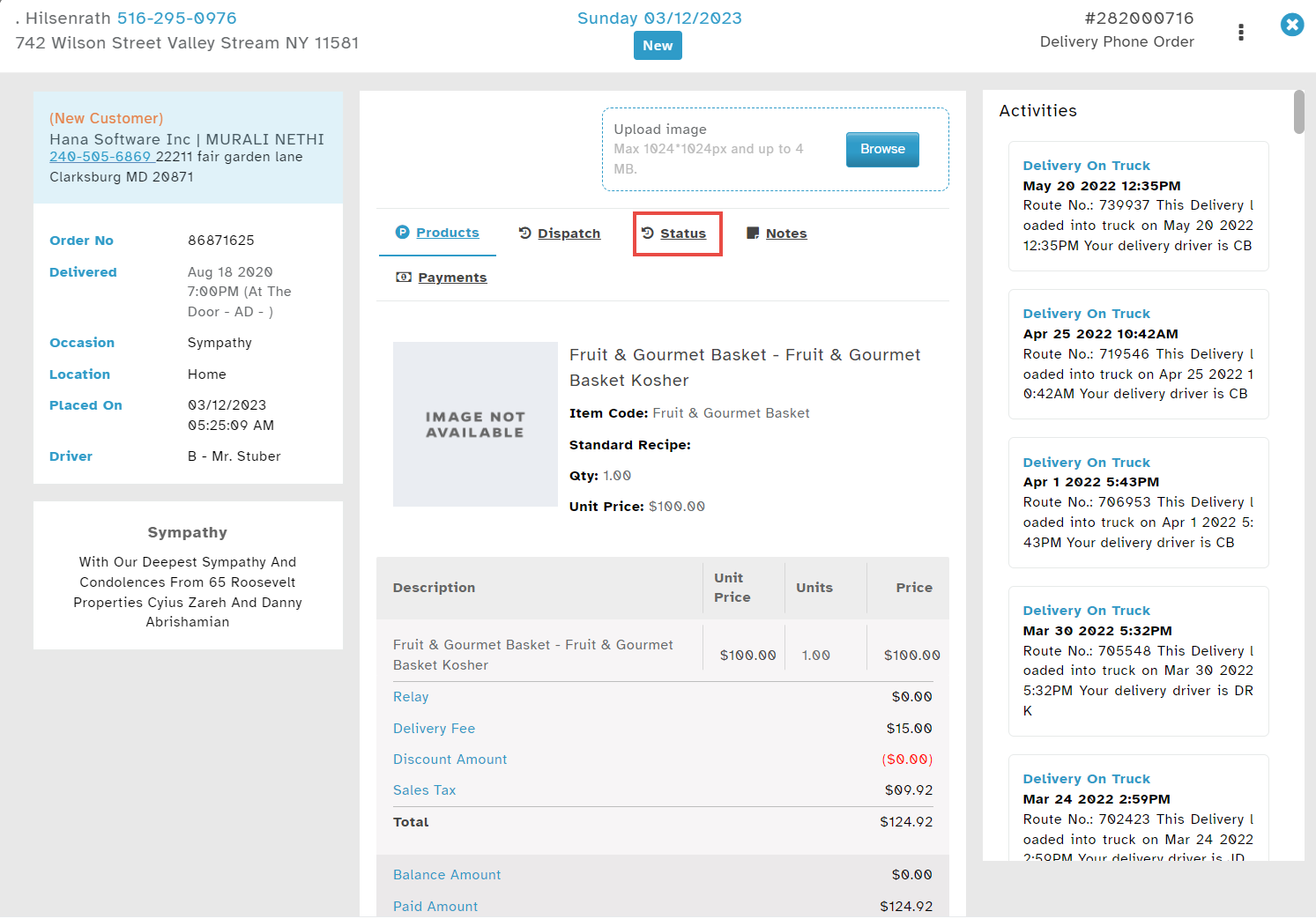
The Order Details Dialog will appear.

Step 3: View Status History
Click Status.
The Status History of the order, including date and time updates, will be displayed.
By following these steps, you can efficiently track order status and history, ensuring smooth order management within Hana POS.
Was this article helpful?
That’s Great!
Thank you for your feedback
Sorry! We couldn't be helpful
Thank you for your feedback
Feedback sent
We appreciate your effort and will try to fix the article