Generating customer monthly statements is essential for managing house accounts and accounts receivable.
Payment terms include Net 0, Net 15, Net 30, and Net 60, where the number indicates the days before the invoice is due. For example, Net 15 means the customer has 15 days from the statement generation date to pay before a late fee applies.
Remember that an invoice's due date is set ONLY after you generate statements.
TABLE OF CONTENTS
Steps to Generate Customer Statements
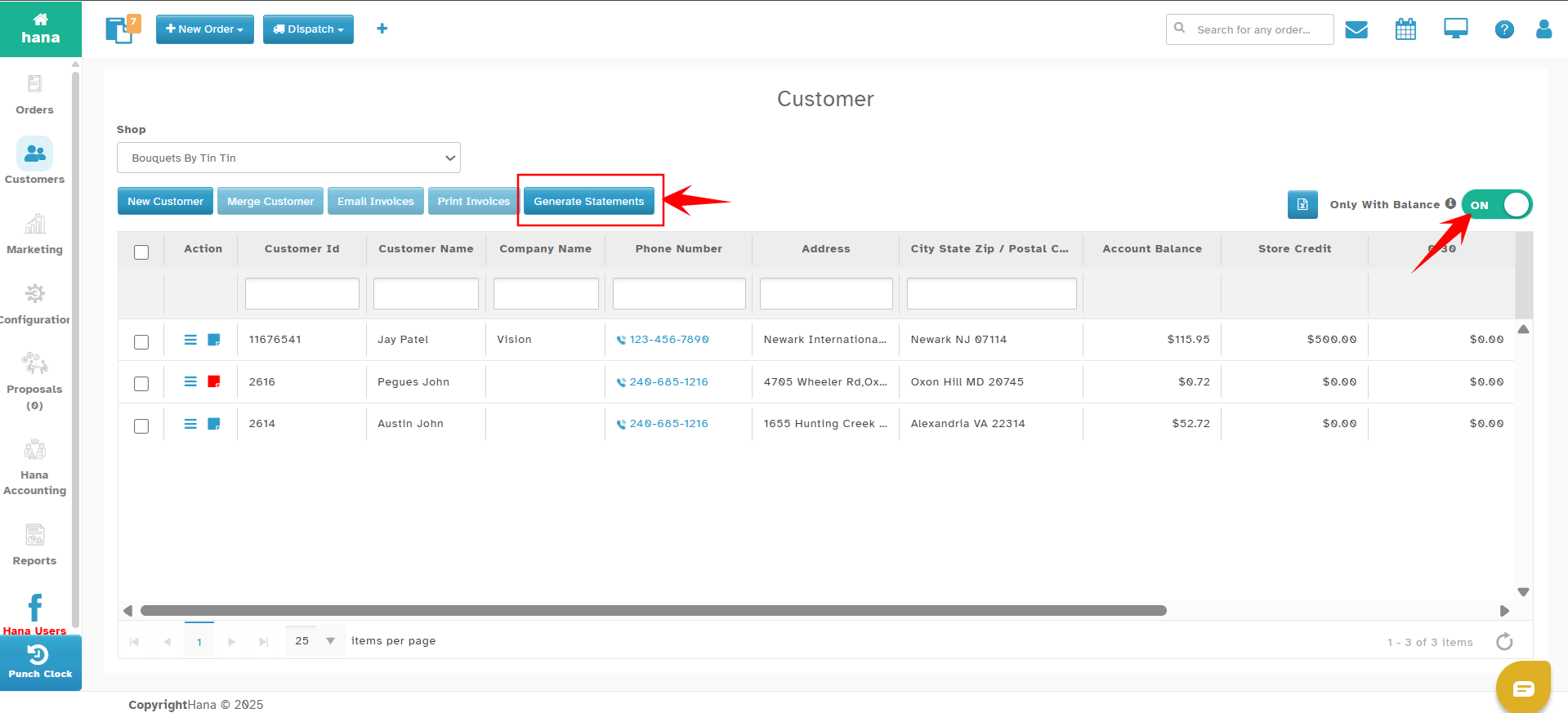
Step 1: Navigate to Customer Page
Go to Hana POS > Select Customers to open the Customers page.
Click on the Generate Statements button as shown below.
Step 2: Configure Statement Options
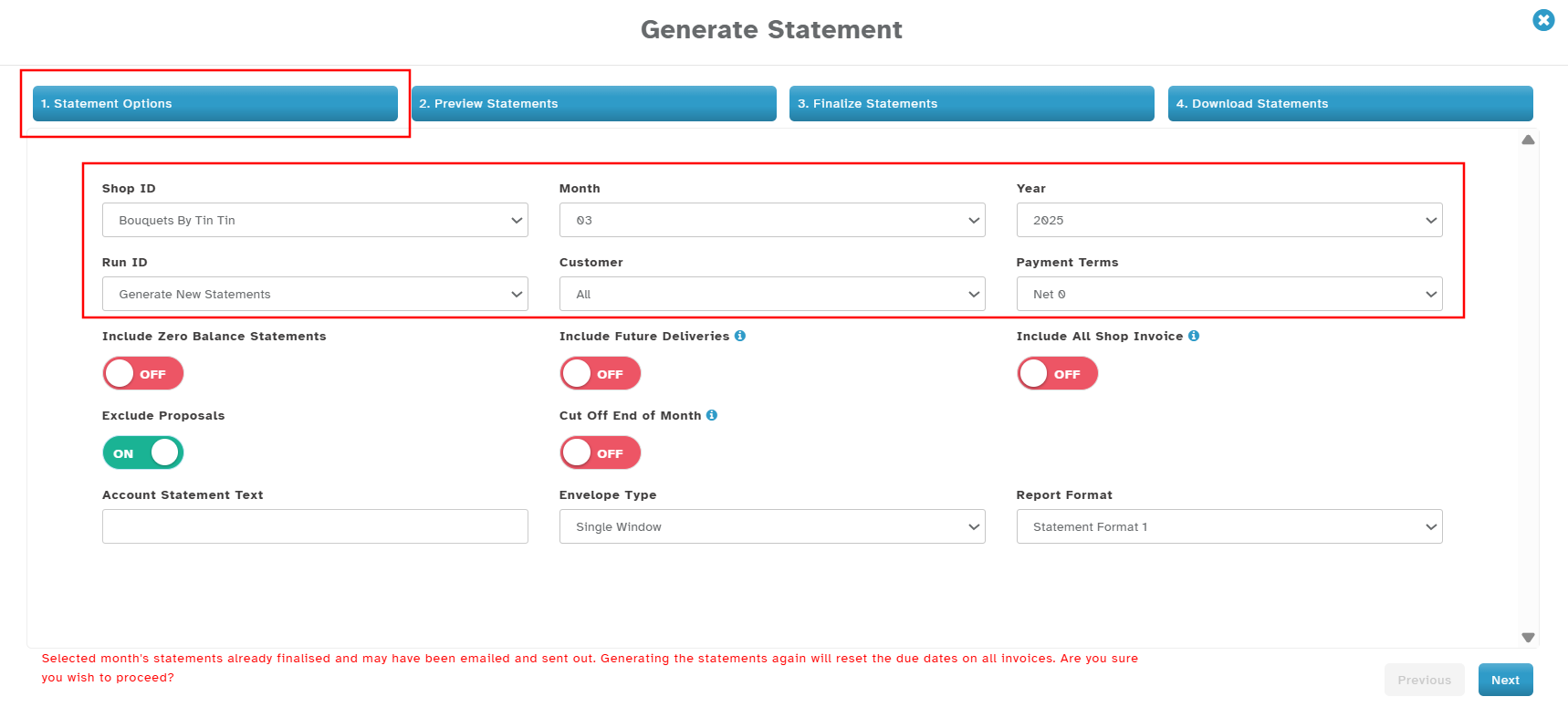
The Generate Statement page will now be displayed. Complete the following fields:
Shop ID: Select your shop from the dropdown.
Month Dropdown: Select the month for which you are generating statements.
Year Dropdown: Select the year for which you are generating statements.
Run ID: By default, it will be auto-generated.
If you generated statements earlier and want to continue and finalize the previous run, you can choose the run ID from the drop-down.
Statement Run IDs help you save your work and continue later. For example, suppose you looked through several customer accounts, adjusted some accounts, and removed a few accounts from the statement generation, but would like to continue later. In that case, you can save, exit, and continue where you left off by choosing the previous Run ID.Customer Dropdown: Select either All Customers or a specific customer.
Payment Terms: Based on your business model, choose Net 0, Net 15, Net 30, etc.
Step 3: Configure Additional Options
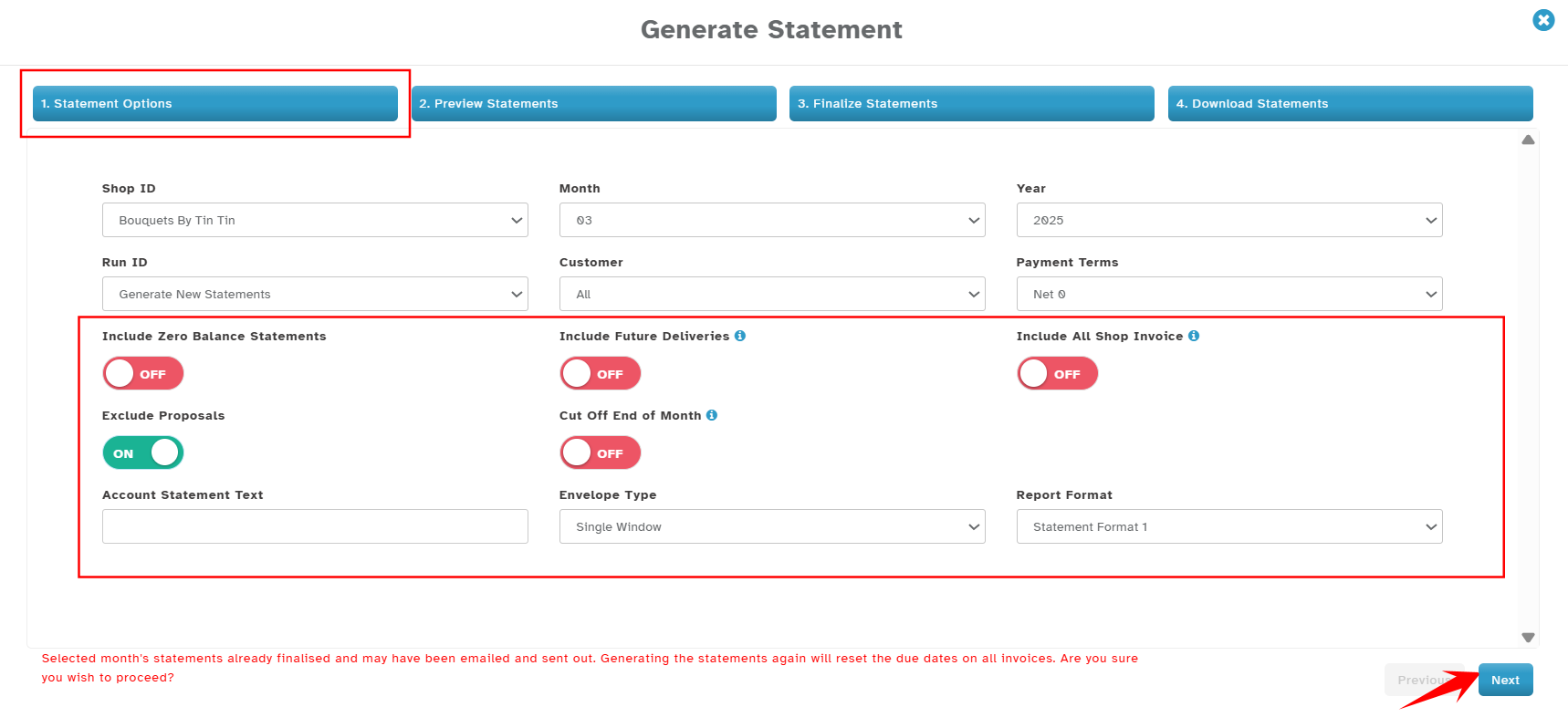
Toggle the following options as needed:
Include Zero Balance Statements: Generate statements even for customers with zero balances.
Include Future Deliveries: Include orders placed within the billing period but not delivered.
Include All Shop Invoices: If enabled, a single statement per customer will be generated, consolidating transactions from all shops. This feature helps multi-shop operations to send a single consolidated statement for each customer.
Please contact Hana Support to enable this feature for your Corporate account before using it. Hana Support also needs to set up your Shops for Consolidated Statements before you use this feature.Exclude Proposals: Exclude wedding and event proposals from statements.
Cut-Off End of Month: Include only deliveries made within the calendar month.
Envelope Type: Select either single window or double window envelope format.
Report Format: Choose the statement format. Hana POS offers several different statement formats. Please review and choose the format that fits your needs.
Account Statement Text: Enter a custom message to be displayed on all the statements (e.g., "Thank you for your business! Payment is due within 15 days.").
Account statement text can also be configured at the shop level so that you need not enter it each month.
Account statement text can be configured for each month following navigation below.
Configuration > Customer Management > Month based Statement Text
Click Next to proceed.
Step 4: Preview Statements
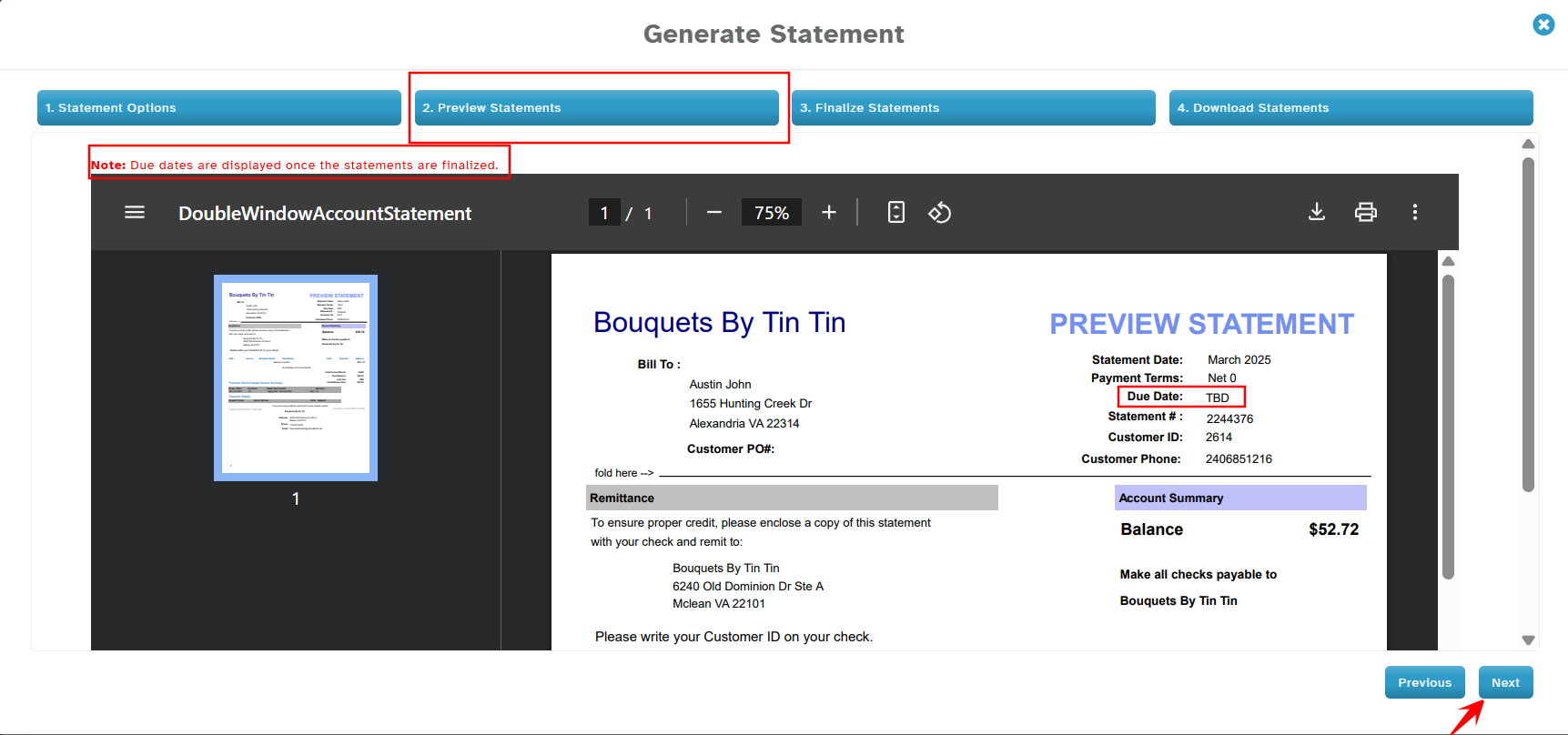
The preview page will display the statements.
Note: Due dates are assigned when you finalize the statements and are not displayed in preview.
Please look over the details and click Next to continue.
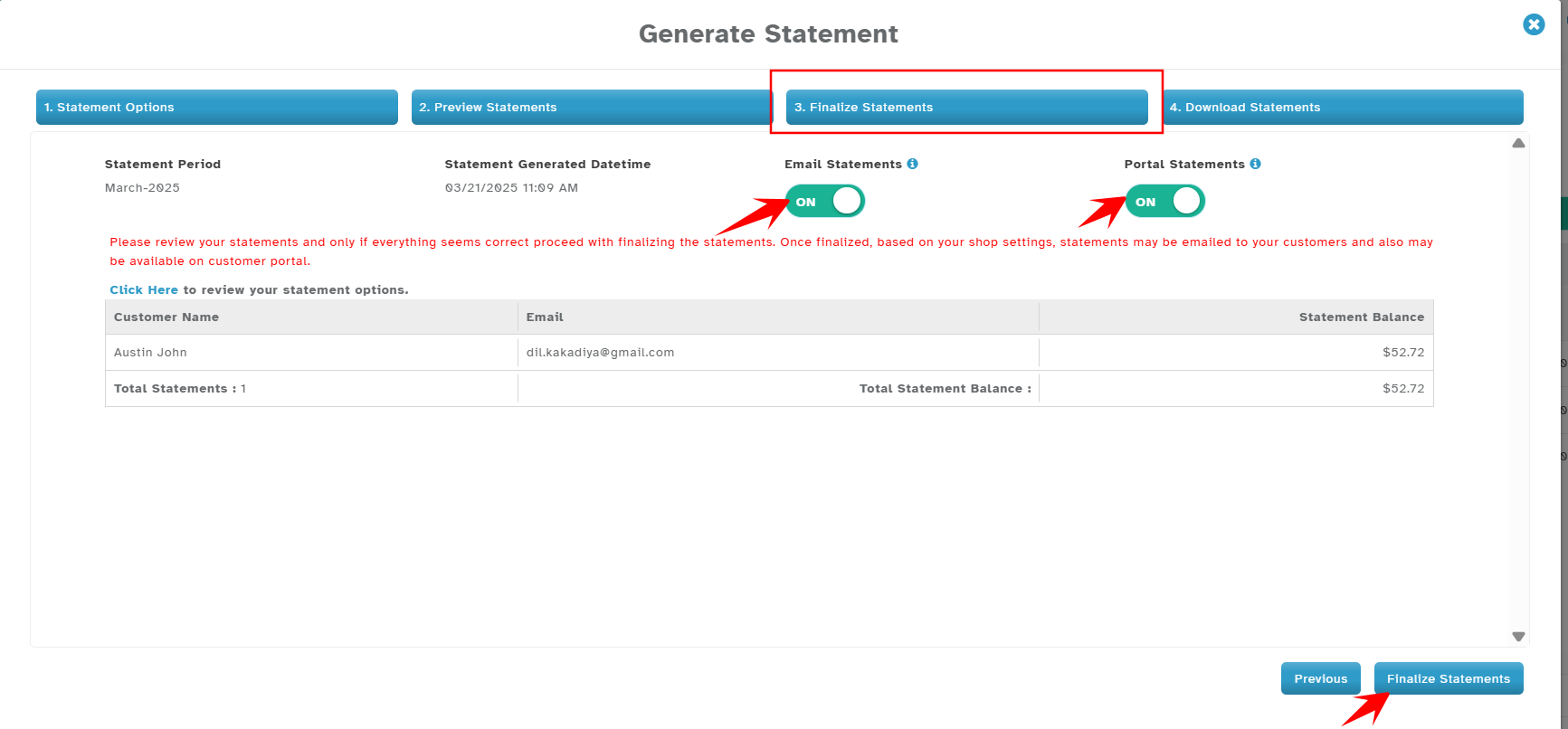
Step 5: Finalize Statements
A final summary of customer statements is displayed.
Statement Delivery Options:
Email Statements: Enable the automatic emailing of statements to customers.
Portal Statements: Enable customers to access their statements via the online portal.
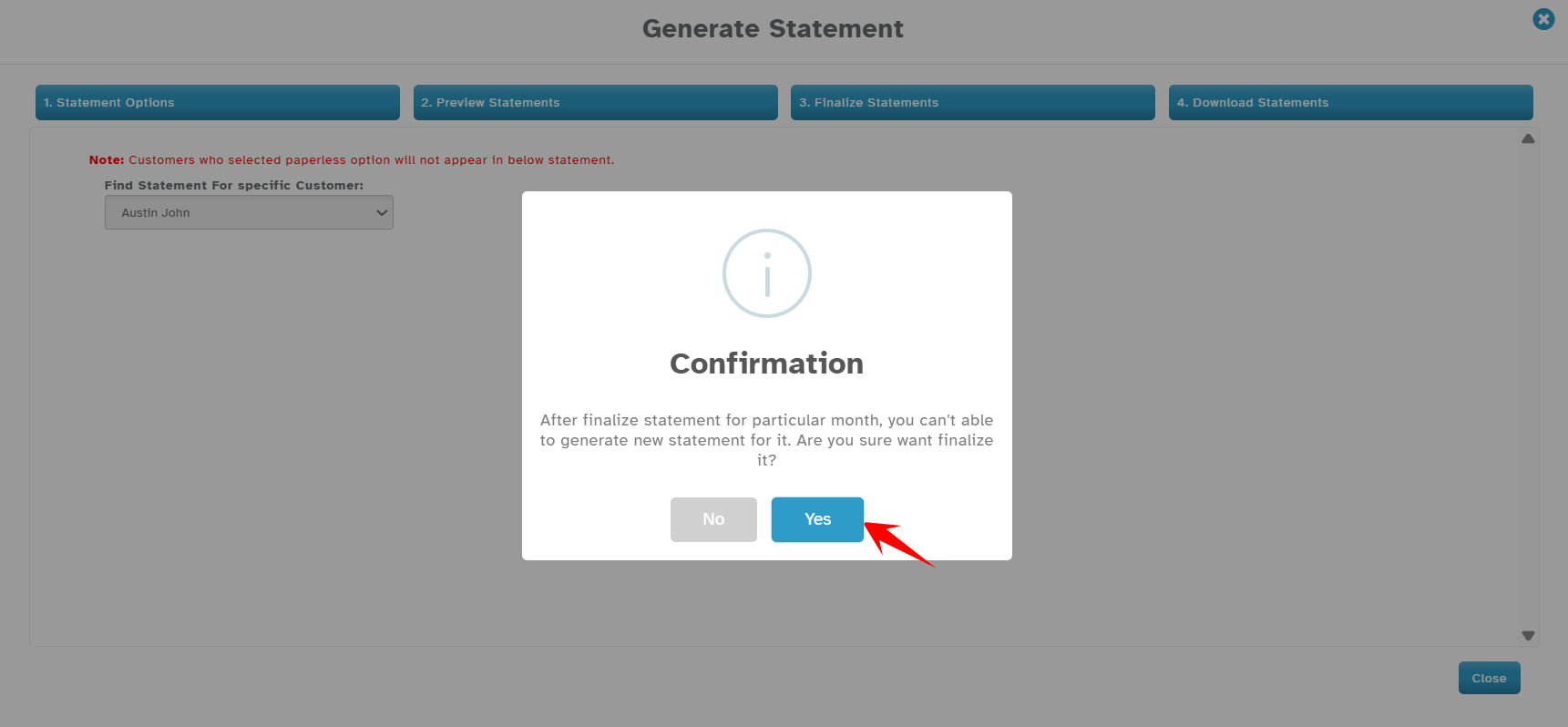
Click Finalize Statements, and follow the on-screen instructions.
Step 6: Download and Print Statements
Once finalized, due dates will be set based on the selected Net terms.
Options available:
Download PDFs of statements.
Print statements.
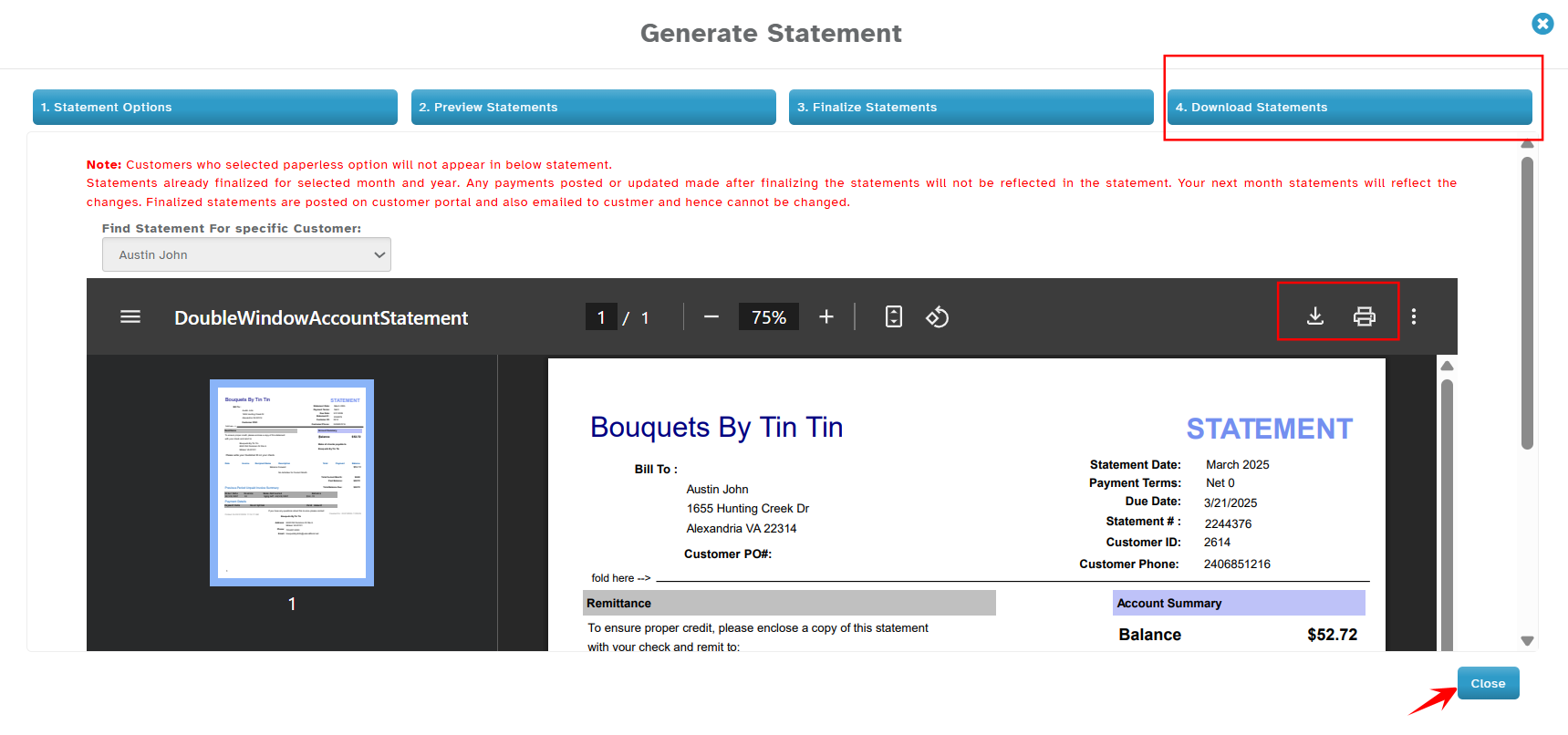
The process is now complete, and customer statements are ready for distribution. Once you have completed the process, click "Close."
Was this article helpful?
That’s Great!
Thank you for your feedback
Sorry! We couldn't be helpful
Thank you for your feedback
Feedback sent
We appreciate your effort and will try to fix the article