This article helps you get acclimatized to the Hana POS Dashboard and easily find your way around Hana POS.
The Hana POS dashboard provides a comprehensive suite of tools for managing daily floral business operations. From order processing to customer management, marketing, accounting, and reporting, this platform streamlines workflow and enhances efficiency. Below is an in-depth explanation of each menu option and its functionalities.
Main Menu Sections
Orders
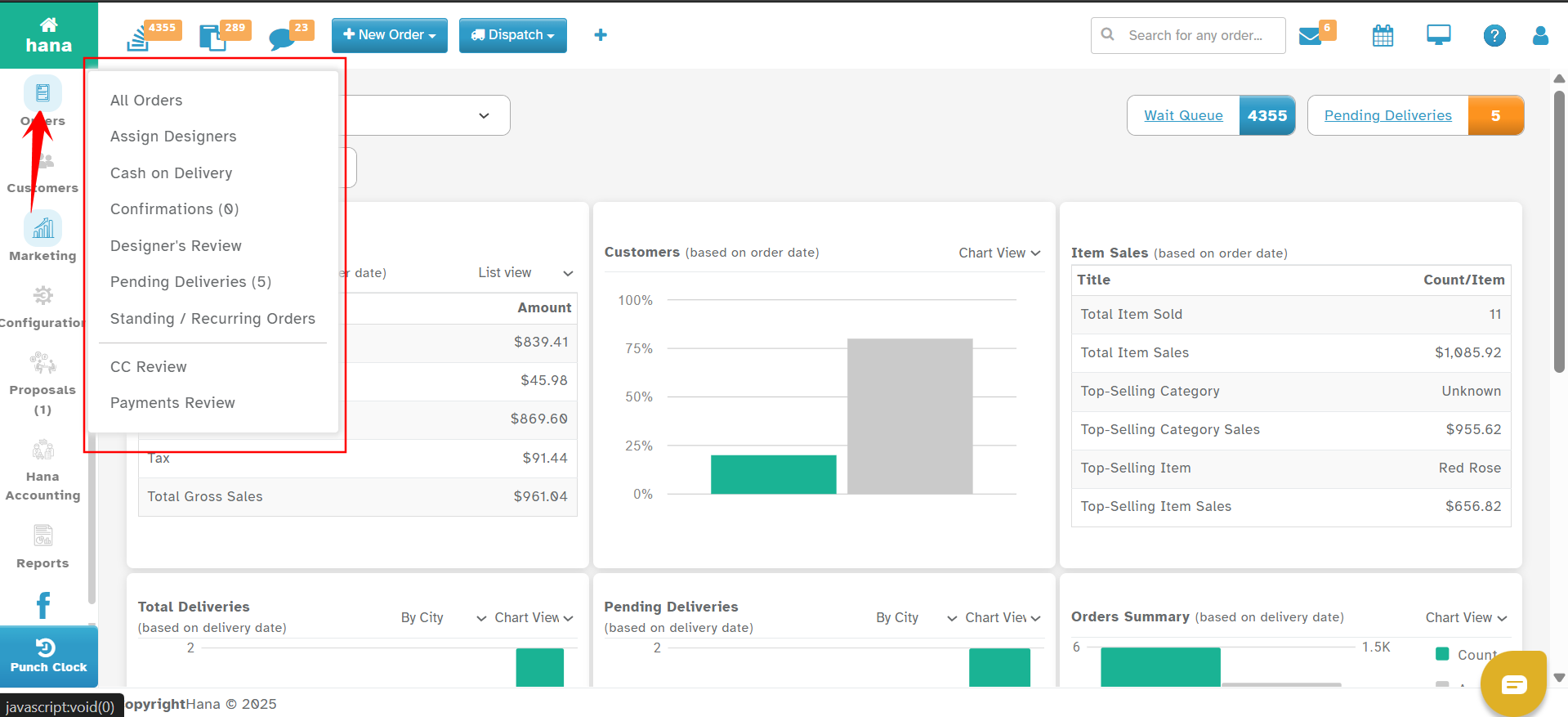
This section allows florists to manage all incoming and ongoing orders efficiently. It includes the following functionalities:
View and Manage Orders: Access a list of all active and completed orders, update order statuses, and make modifications as needed.
Assign Designers & Confirm Order Details: Allocate orders to floral designers and ensure order details, including products, delivery times, and payment status, are accurate.
Track Pending Deliveries & Confirm Completion: Monitor deliveries in real time and confirm successful deliveries.
Recurring/Standing Orders Management: Set up and oversee repeating orders for customers who require regular floral arrangements.
Credit Card Review: Review all credit card transactions to track and manage payments securely.
Payment Review: View all house account payments, verify transactions, and cancel any incorrectly posted payments.
Customers
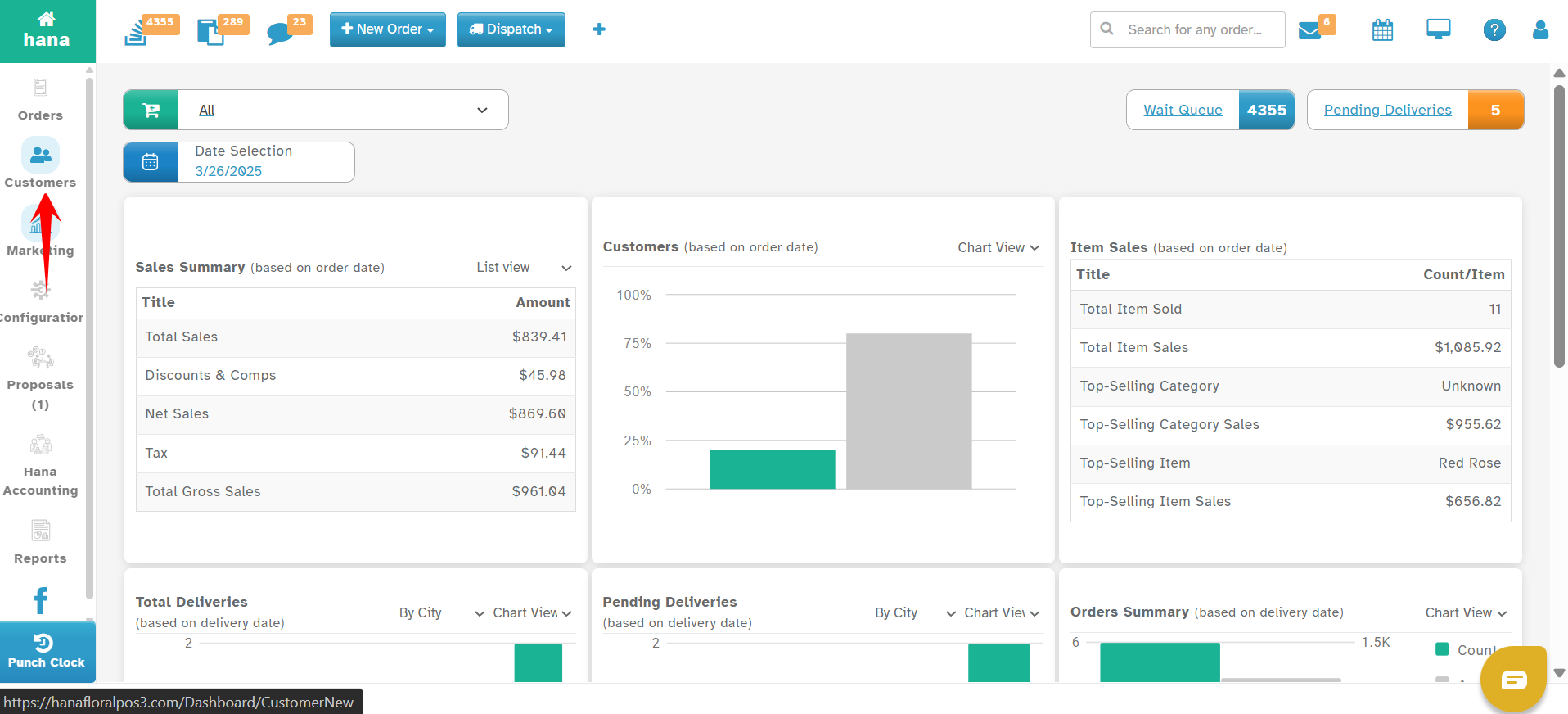
This section provides tools to manage customer information and order history efficiently:
Customer Details & Order History: Access customer profiles, including past orders, preferences, and contact information.
Invoice & House Account Management: Manage invoice payments for house accounts, generate monthly statements, and track outstanding balances.
Marketing
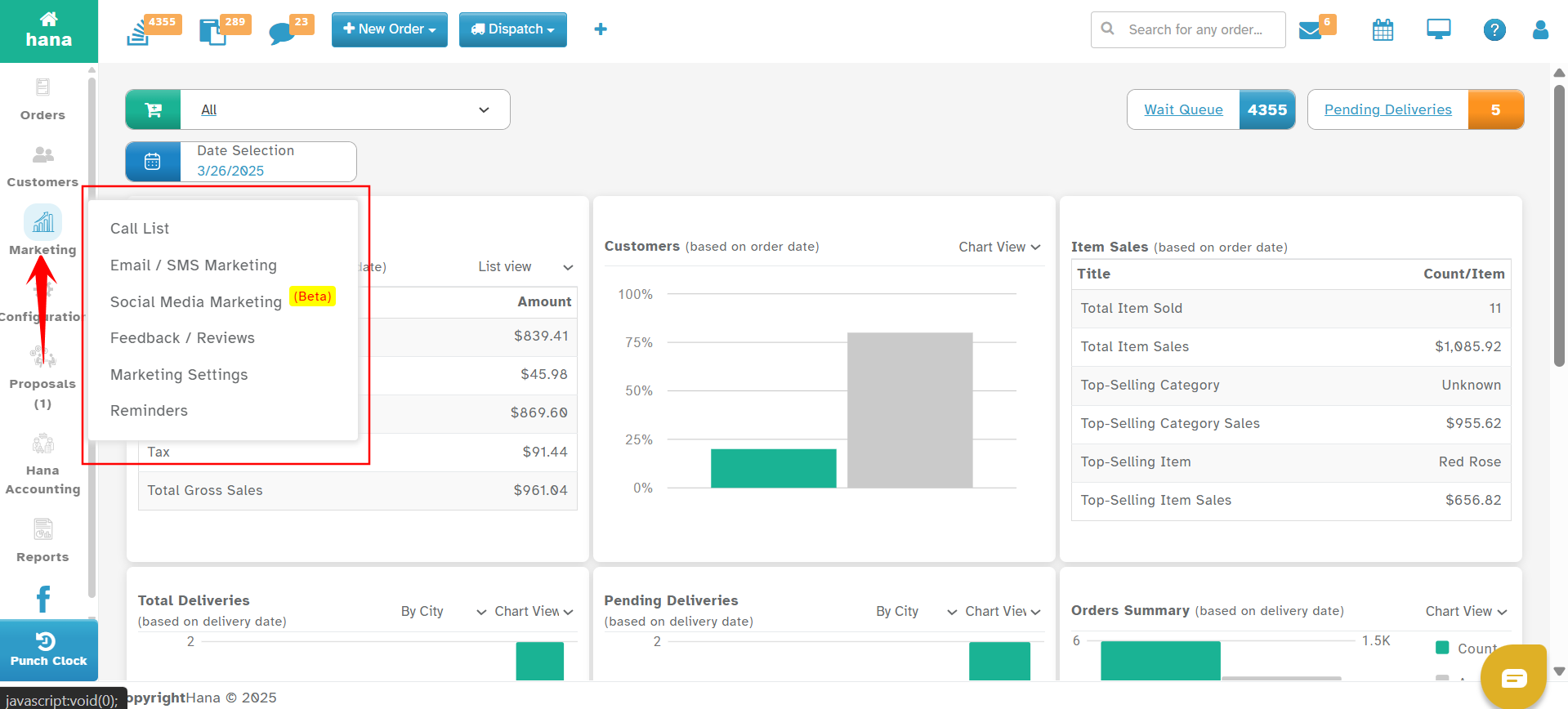
Boost sales and customer engagement through targeted marketing strategies:
Email Marketing & Promotions: Set up promotions and special offers through automated email campaigns.
Call List Feature: Utilize an automated call list during peak floral seasons to upsell products and increase sales.
Hana Social Media Marketing: Seamlessly integrate Hana POS with social media platforms like Facebook, Instagram, Twitter, YouTube, Pinterest, and TikTok. Schedule and publish posts directly from the POS system or mobile app.
Feedback & Reviews: Automatically send post-delivery confirmation emails to collect customer feedback. Businesses can enable or disable automated feedback requests.
Marketing Settings:
Template Management: Design and format email templates that Hana sends to customers.
Reminder Settings: Configure birthday and anniversary email reminders for customers.
SMS Management: Review and manage automated SMS notifications sent to customers.
Reminders Management: Create and manage custom reminders to improve customer engagement and retention.
Configuration
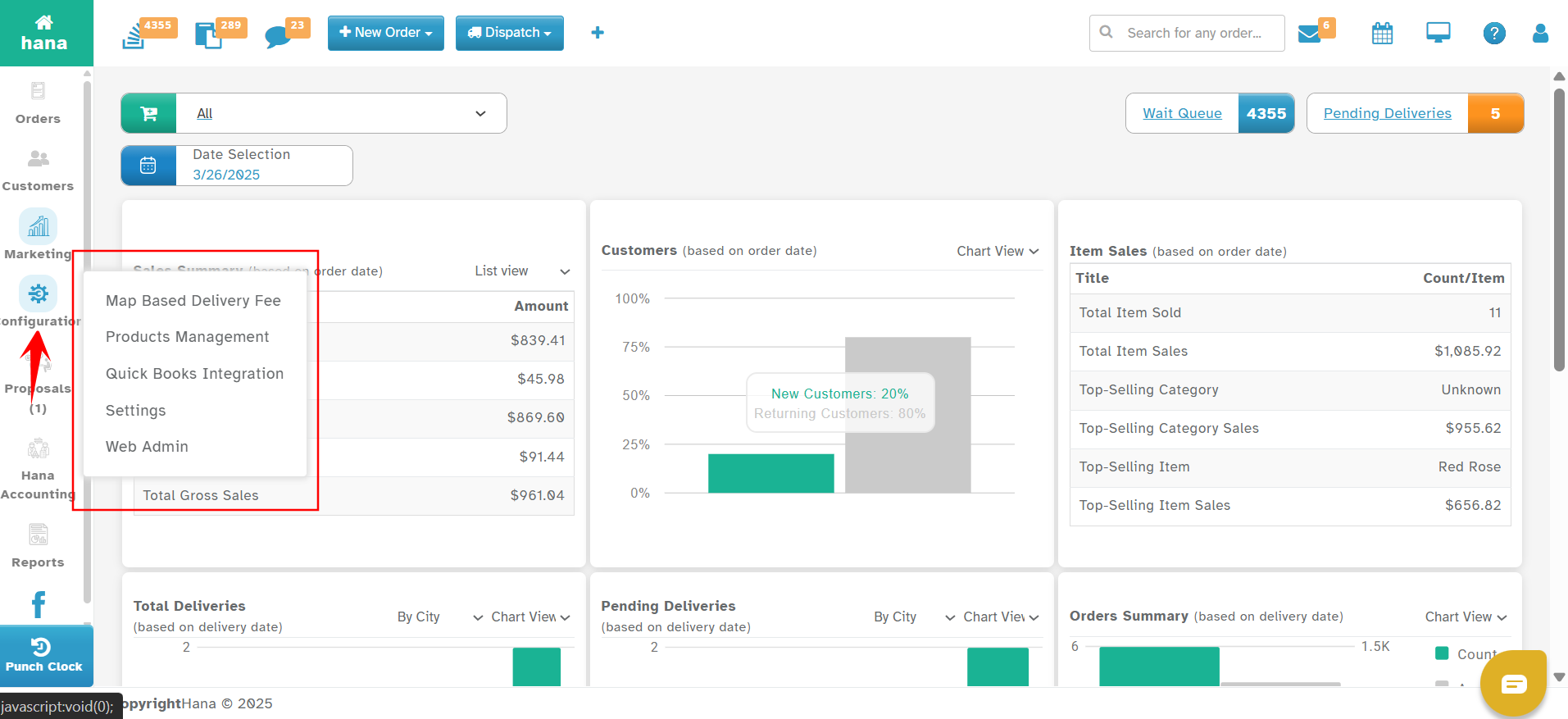
Customize settings to align with business requirements:
POS Settings & Customization: Configure system settings, tax rates, and delivery charges.
User Roles & Access Management: Assign employee roles and control access permissions for different features.
Delivery Fee Management: Set up dynamic delivery fees based on location using a map-based delivery fee system.
Product Management: Add, edit, or remove products, adjust pricing, and update product images.
Web Admin Controls: Manage website-related features such as product listings, categories, pricing, store business hours, and holiday closures.
QuickBooks Integration: Enable or disable QuickBooks integration, sync financial transactions, and review transaction logs.
Proposals
Streamline event and wedding floral proposals:
Create & Manage Proposals: Design detailed floral proposals for weddings, corporate events, and other occasions.
Track Approvals & Modifications: Monitor customer responses and make necessary changes to proposals.
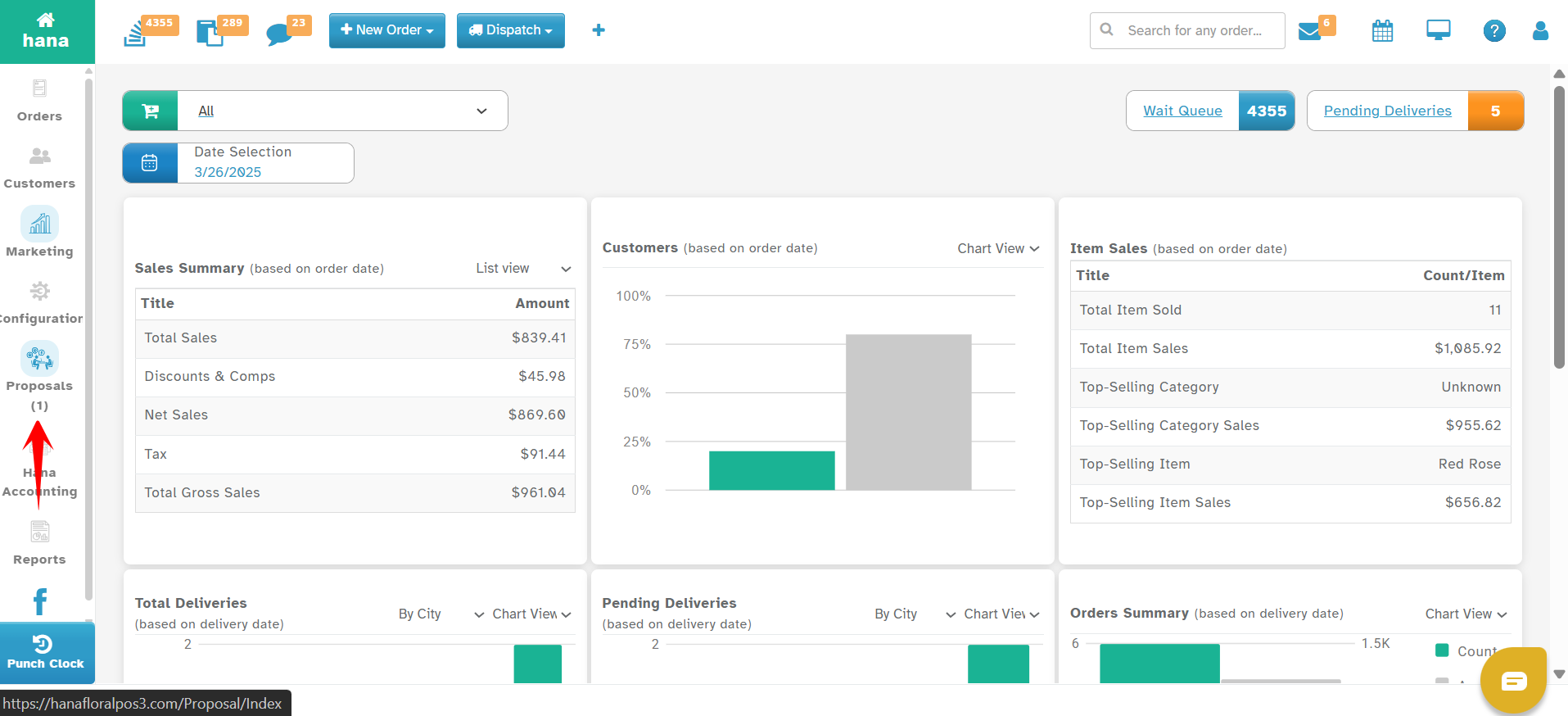
Hana Accounting
Gain insights into business finances with real-time accounting tools:
Financial Transaction Monitoring: Track invoices, payments, and outstanding balances.
Sales Revenue & Expense Tracking: Analyze revenue streams and manage business expenses effectively.
Financial Reports: Generate tax and bookkeeping reports for business financial health assessment.
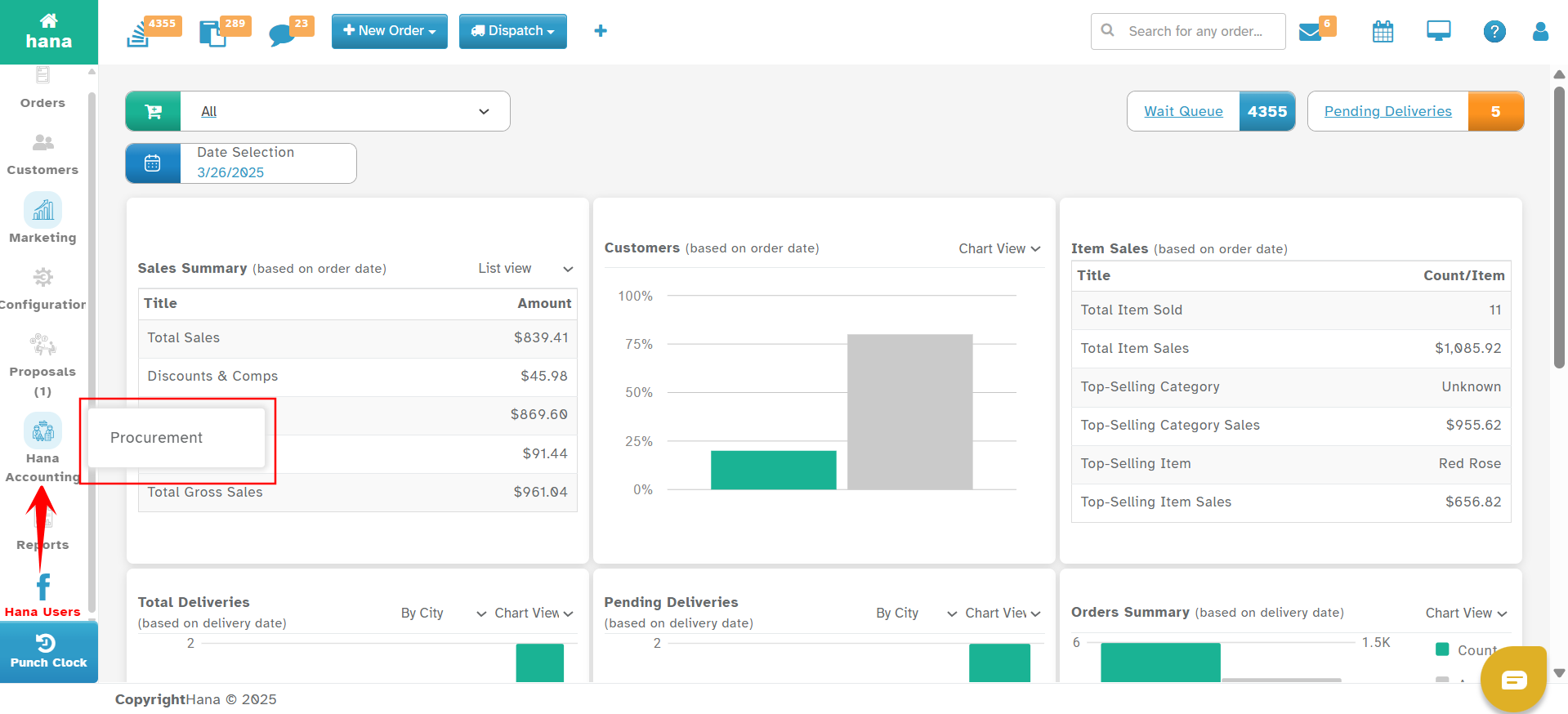
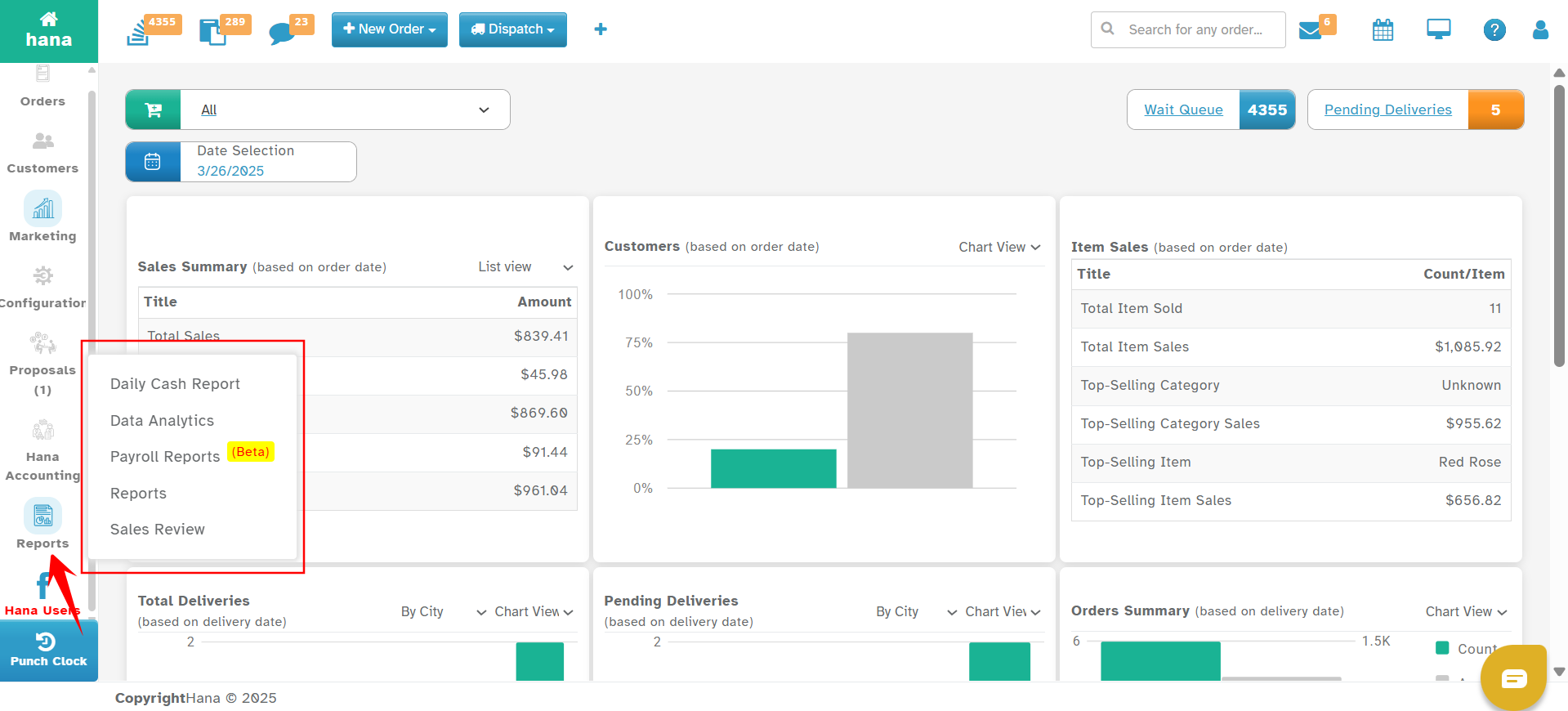
Reports
Access valuable business performance insights through detailed reporting tools:
Sales Reports: Generate daily, weekly, and monthly sales reports categorized by date range and order type.
Revenue Analysis: View revenue breakdowns based on payment methods, order channels, and customer categories.
Order Trends & Performance Metrics: Analyze sales trends to optimize inventory and marketing strategies.
Reconciliation Reports: Perform end-of-day and end-of-month financial reconciliations to ensure accounting accuracy.
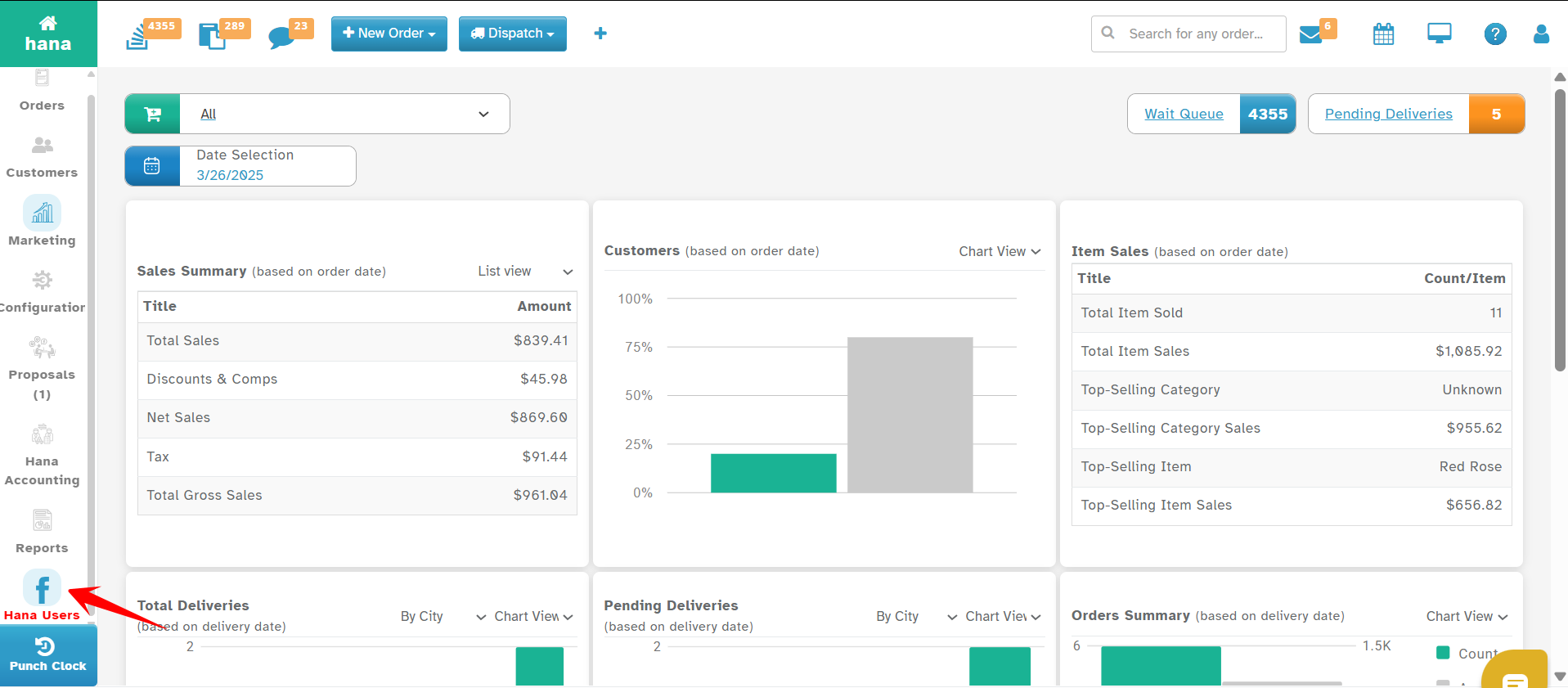
Hana Users Community
Join the Hana Facebook Group: Connect with fellow Hana florists, share insights, and exchange best practices for floral business success.
Top Right Icons and Additional Features
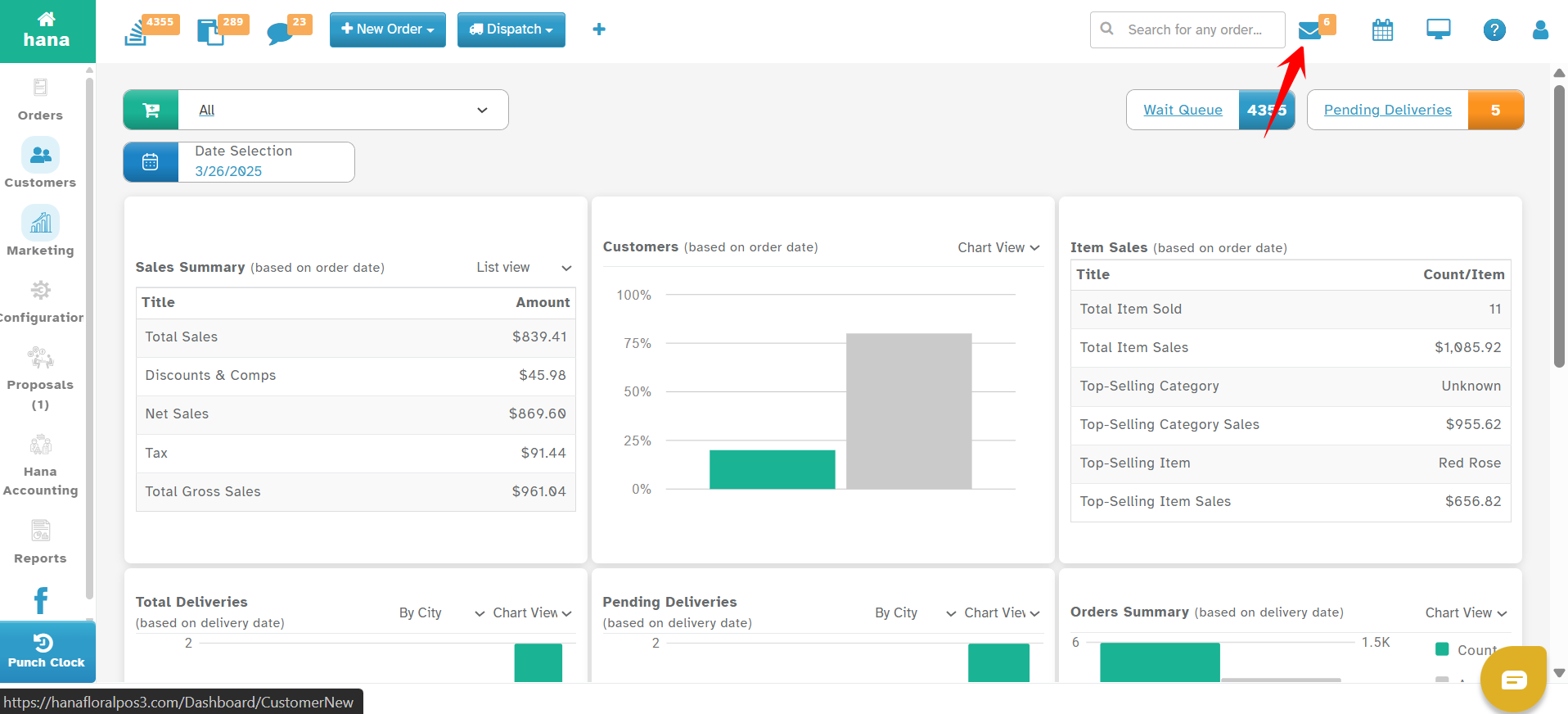
Email Integration
The Email Integration feature allows your shop to seamlessly connect its email system with Hana POS through auto-forwarding. Once configured, all forwarded emails will appear within this section, ensuring efficient order tracking and enhanced customer communication. This feature helps consolidate customer inquiries, online orders, and confirmations within your POS system for better organization and response management.
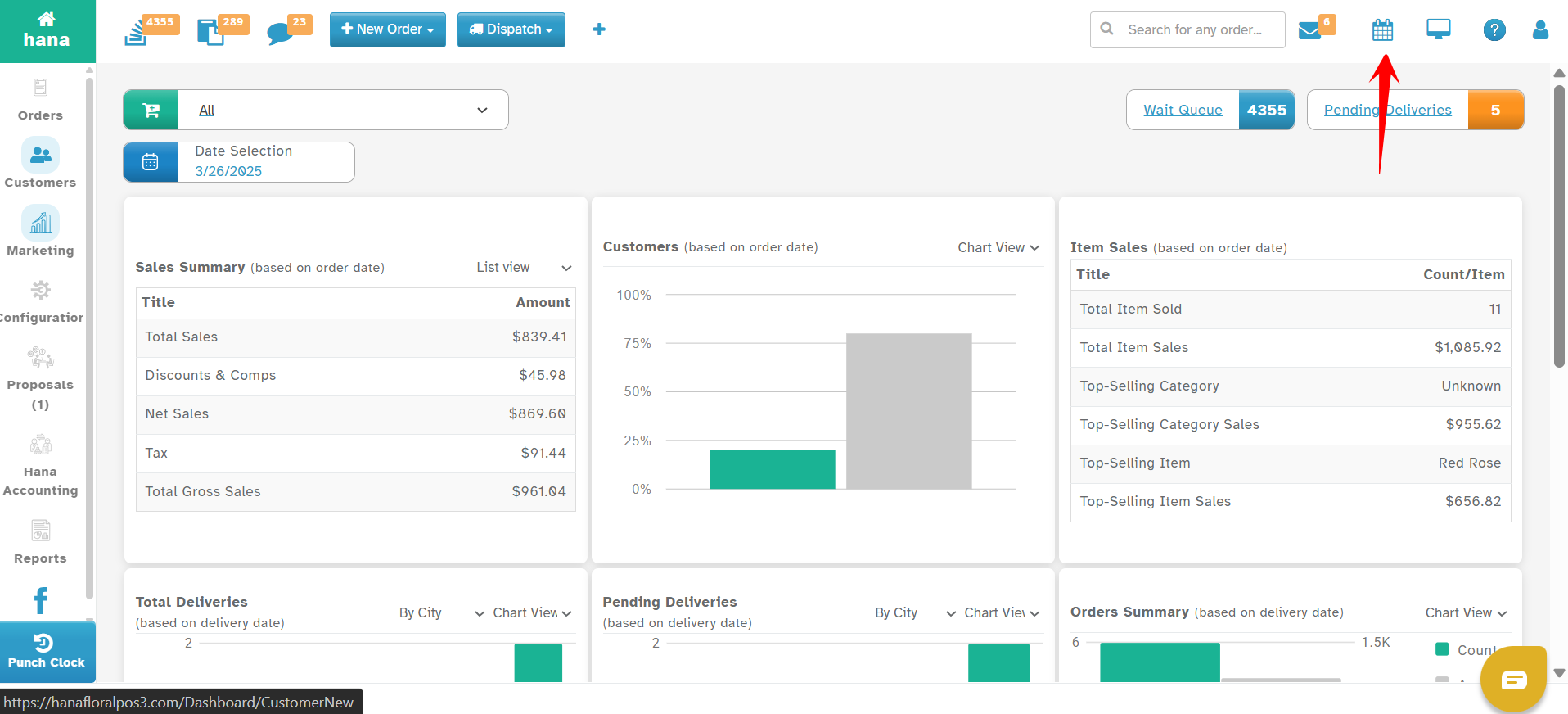
Google Calendar Integration
This integration enables automatic synchronization between Hana POS and Google Calendar, allowing you to schedule follow-ups for orders and proposals effortlessly. When a follow-up is created within Hana, it is automatically added to your Google Calendar, ensuring you never miss an important client interaction or event. This feature helps streamline workflow management by keeping your scheduling in one centralized location.
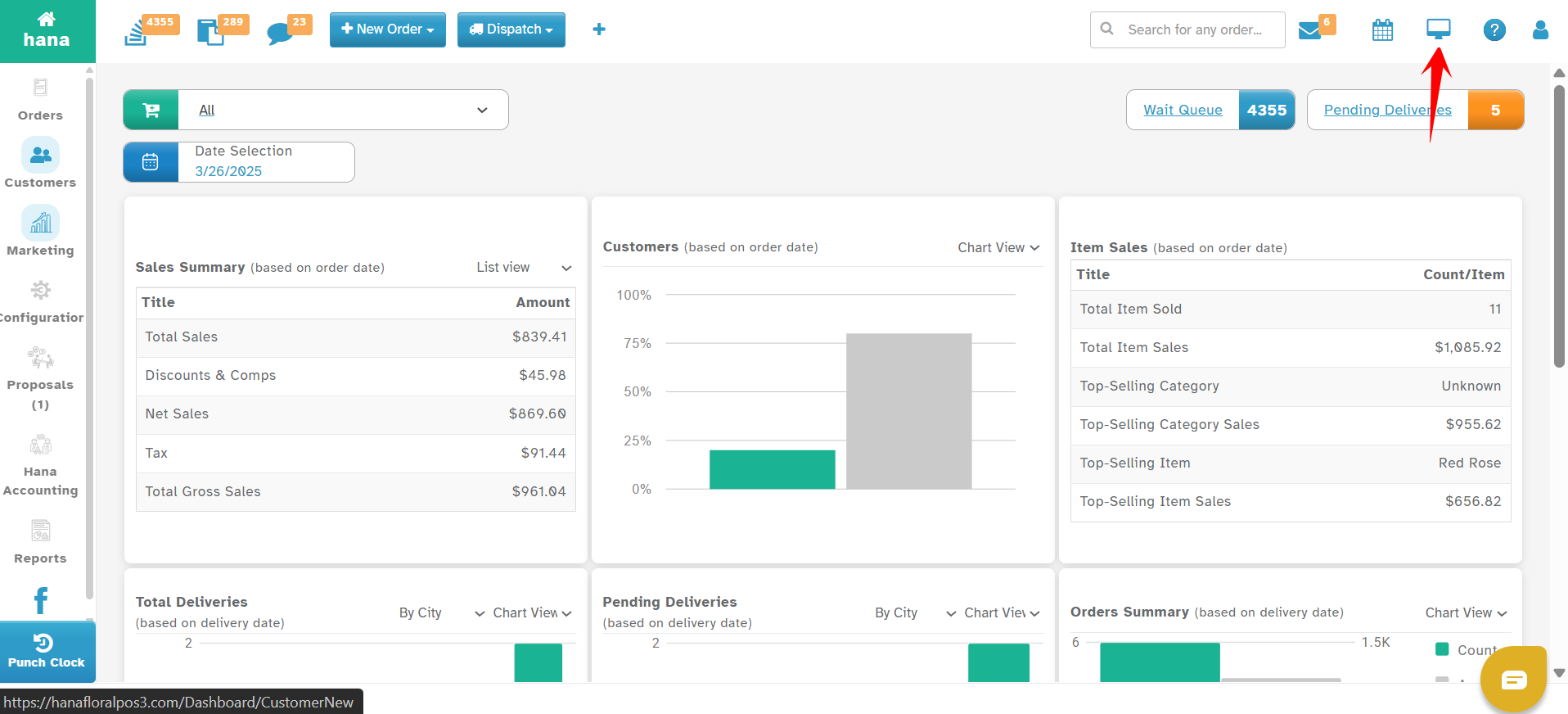
Remote Support
The Remote Support option grants the Hana Support team secure access to your system for troubleshooting and issue resolution. This feature enables technicians to diagnose and fix problems directly within your POS setup, ensuring a faster resolution without requiring in-person support. It is particularly useful for resolving system errors, technical difficulties, and configuration issues efficiently.
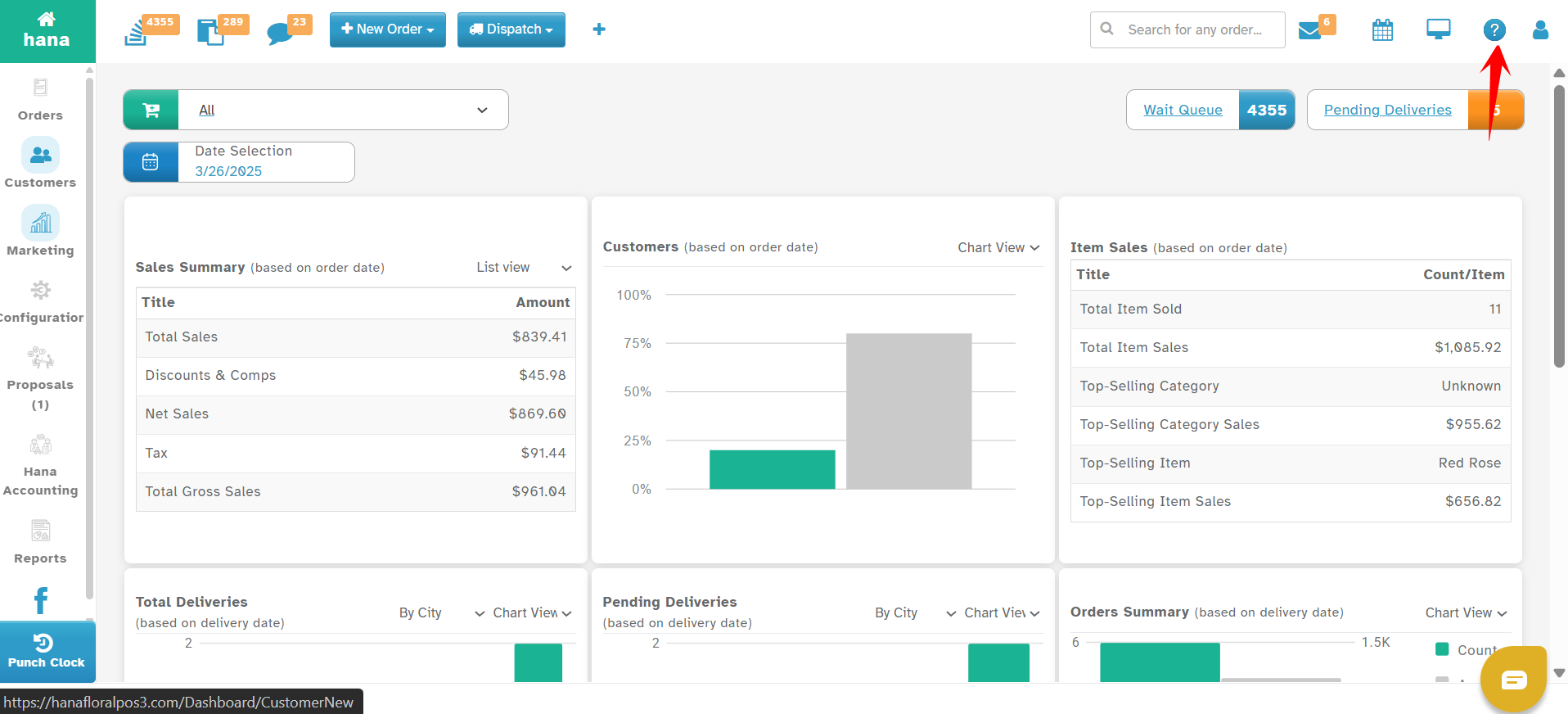
Help Icon
The Help Icon provides quick access to various support resources, including:
Hana Support Portal – Submit and track support tickets for any technical issues.
FAQs and Troubleshooting Guides – Find solutions to common problems without waiting for support assistance.
User Guides and Documentation – Access step-by-step instructions for using different Hana POS features.
This section is designed to empower users with self-help options before reaching out to customer support.
Profile Icon
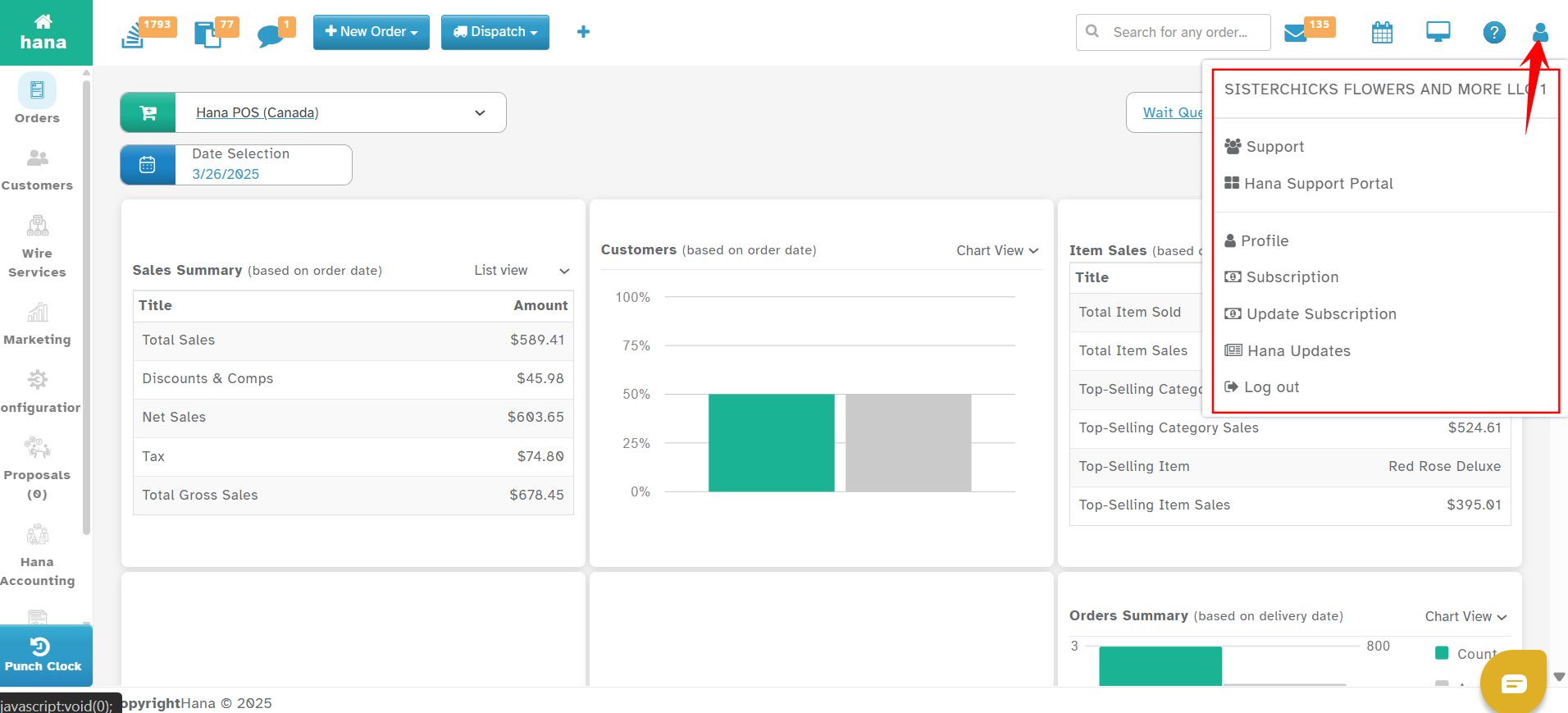
Clicking the Profile Icon opens a menu with several important options:
Support Portal – View all open and past support tickets, along with their resolution status.
Shop Profile – Manage your business details, store preferences, and user access permissions.
Subscription & Billing – Track POS subscription payments, view invoices, and update billing details.
Update Subscription – Modify your current POS plan if business needs change.
Hana Updates – Stay informed about recent bug fixes, new feature releases, and software improvements to enhance your POS experience.
Log Out - This option securely logs you out of the Hana POS system when your session is complete. Logging out ensures that your business data remains protected, especially on shared or publicly accessible devices
Top Left Icons & Additional Features
The top left section of the Hana POS interface includes essential tools to manage orders, communications, and dispatch operations efficiently.
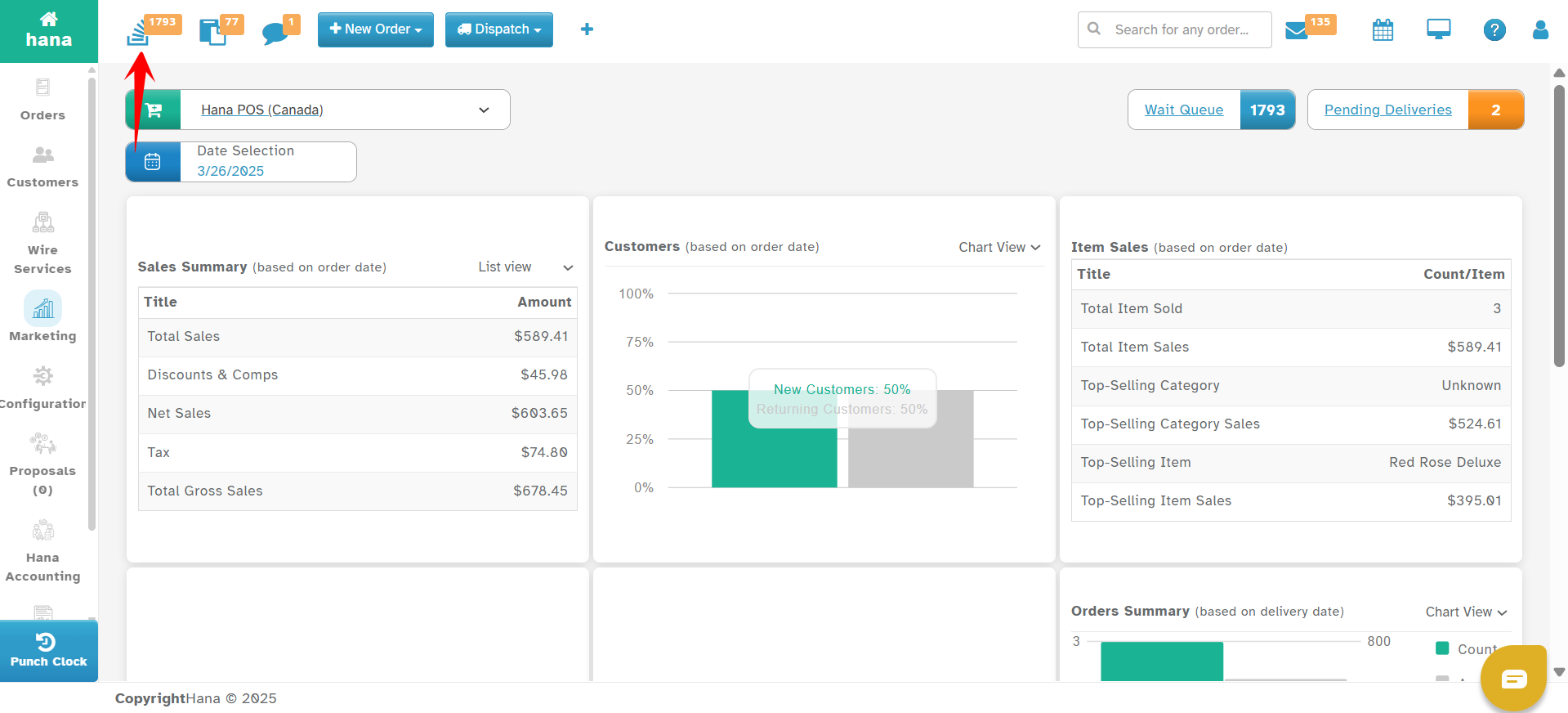
Wait Queue
The Wait Queue helps manage incoming orders before they are accepted. It allows florists to review, adjust, and negotiate order details before confirming them.
Key Features:
Review incoming orders before accepting or rejecting them.
Modify order details, such as pricing, delivery time, and product availability.
Hold orders until both sending and receiving shops mutually agree on pricing for wire-in orders.
Enable or disable the Wait Queue from the Configuration Settings based on business preferences.
View Drafts
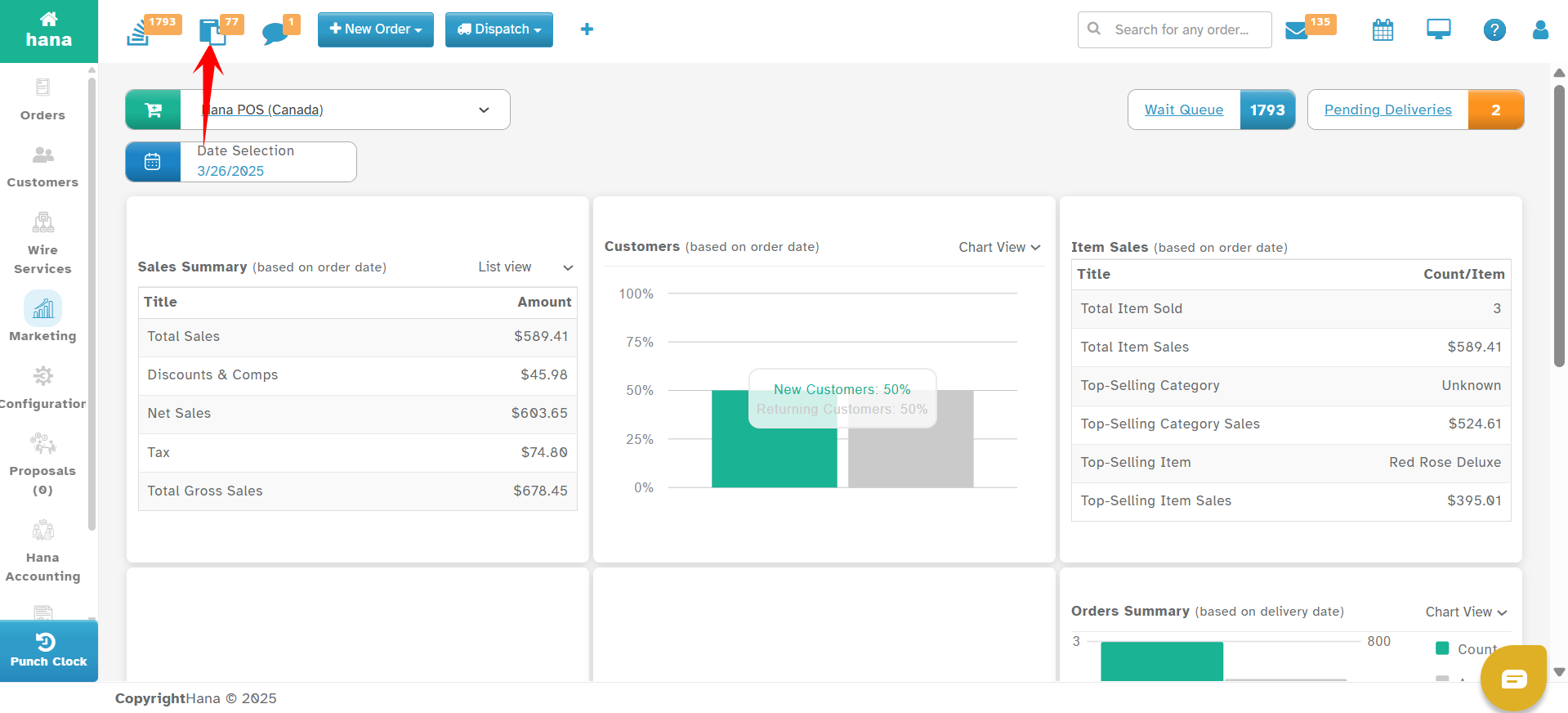
This section stores incomplete orders that have been saved as drafts, allowing users to retrieve and finalize them later.
Key Features:
View a list of all saved draft orders.
Open a draft, which automatically pre-fills all previously entered details in the order entry screen.
Print, email, or delete drafts as needed.
Easily complete the order without needing to re-enter details.
Messages
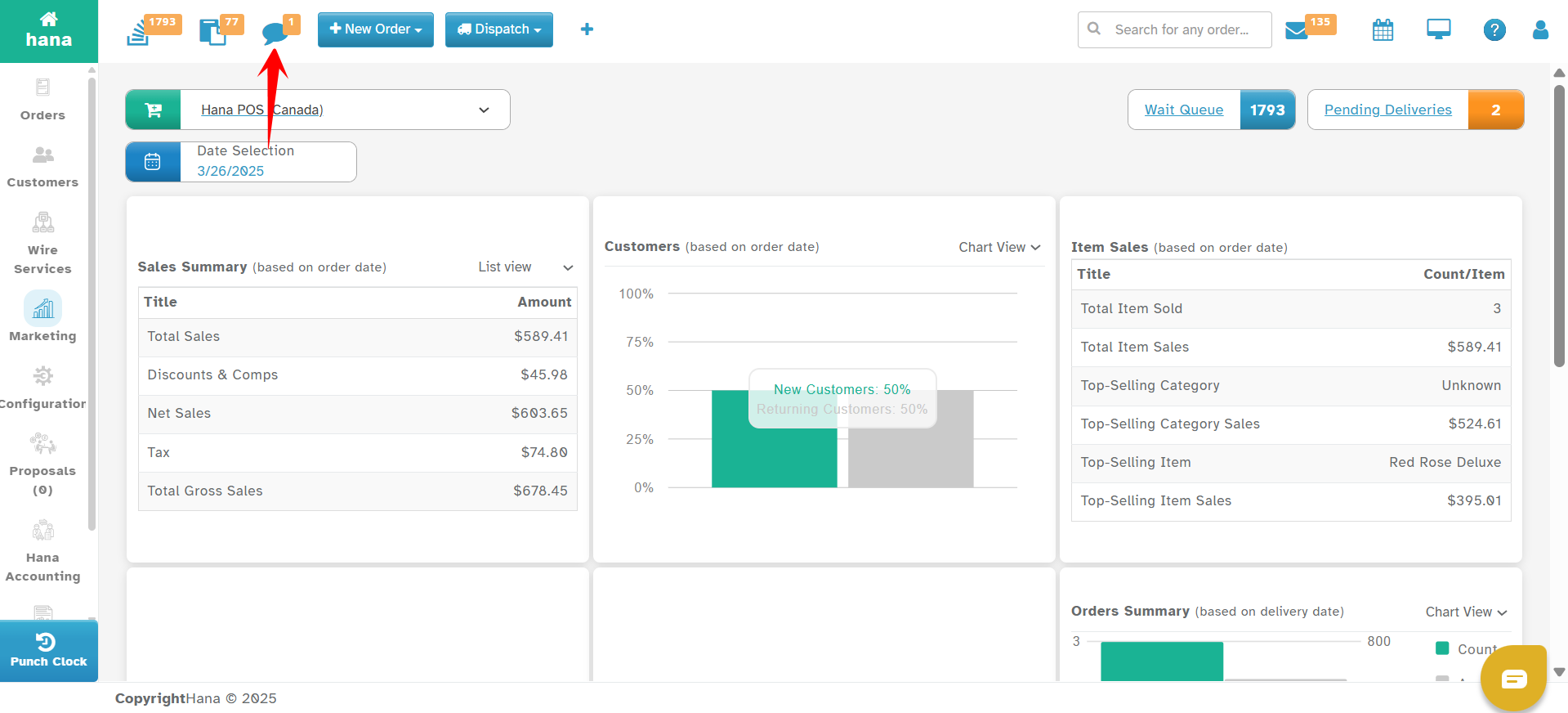
This section displays important incoming messages from wire services and notifications related to payment failures or recurring orders.
Key Features:
View notifications from wire services regarding incoming or outgoing wire orders.
Receive alerts about payment failures on web orders.
Monitor recurring order updates and take necessary action.
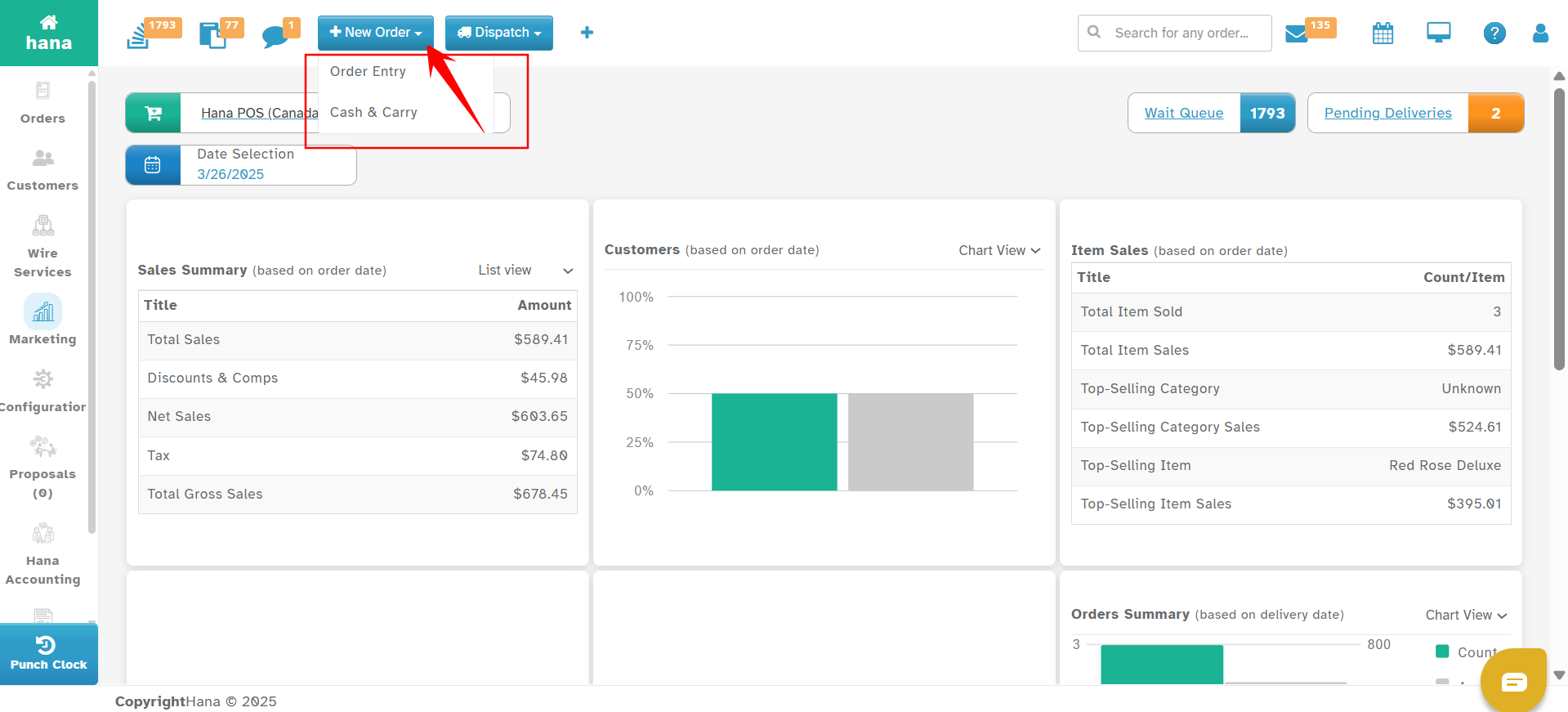
New Order
The New Order option allows florists to create a new order for delivery, pickup, or walk-in sales.
Key Features:
Order Entry: Create new delivery or pickup orders.
Cash and Carry: Process walk-in sales quickly and efficiently.
Seamless Order Management: Enter order details, assign designers, and track order progress.
Dispatch
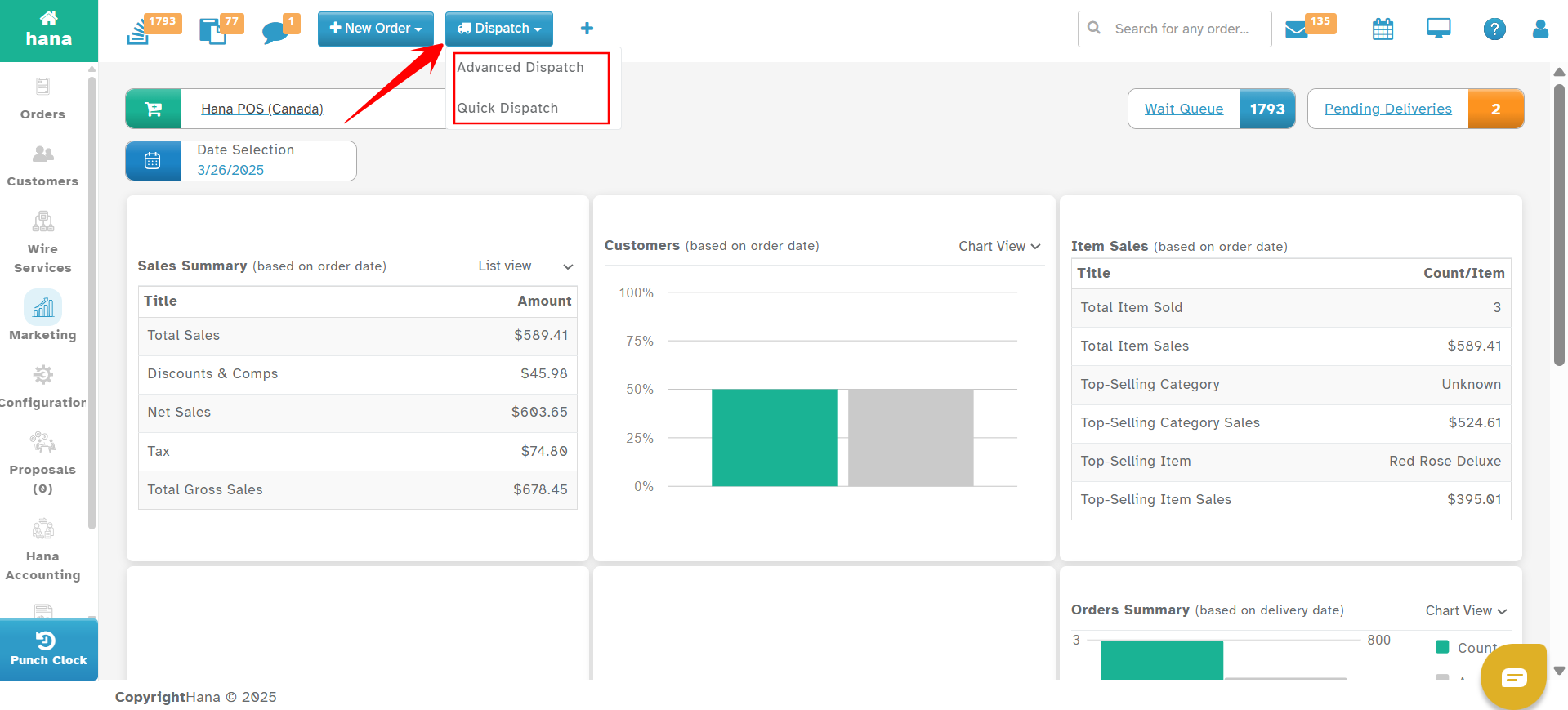
The Dispatch section helps manage deliveries efficiently, ensuring all orders are assigned to drivers and tracked in real-time.
Key Features:
Choose between Quick Dispatch and Advanced Dispatch based on business needs.
Advanced Dispatch:
Displays Google Maps integration for real-time delivery tracking.
Pinpoints delivery locations and provides driver tracking.
Shows the current status of deliveries to ensure timely fulfillment.
Assign orders to delivery drivers and monitor their progress.
Bottom Left Corner: Punch Clock
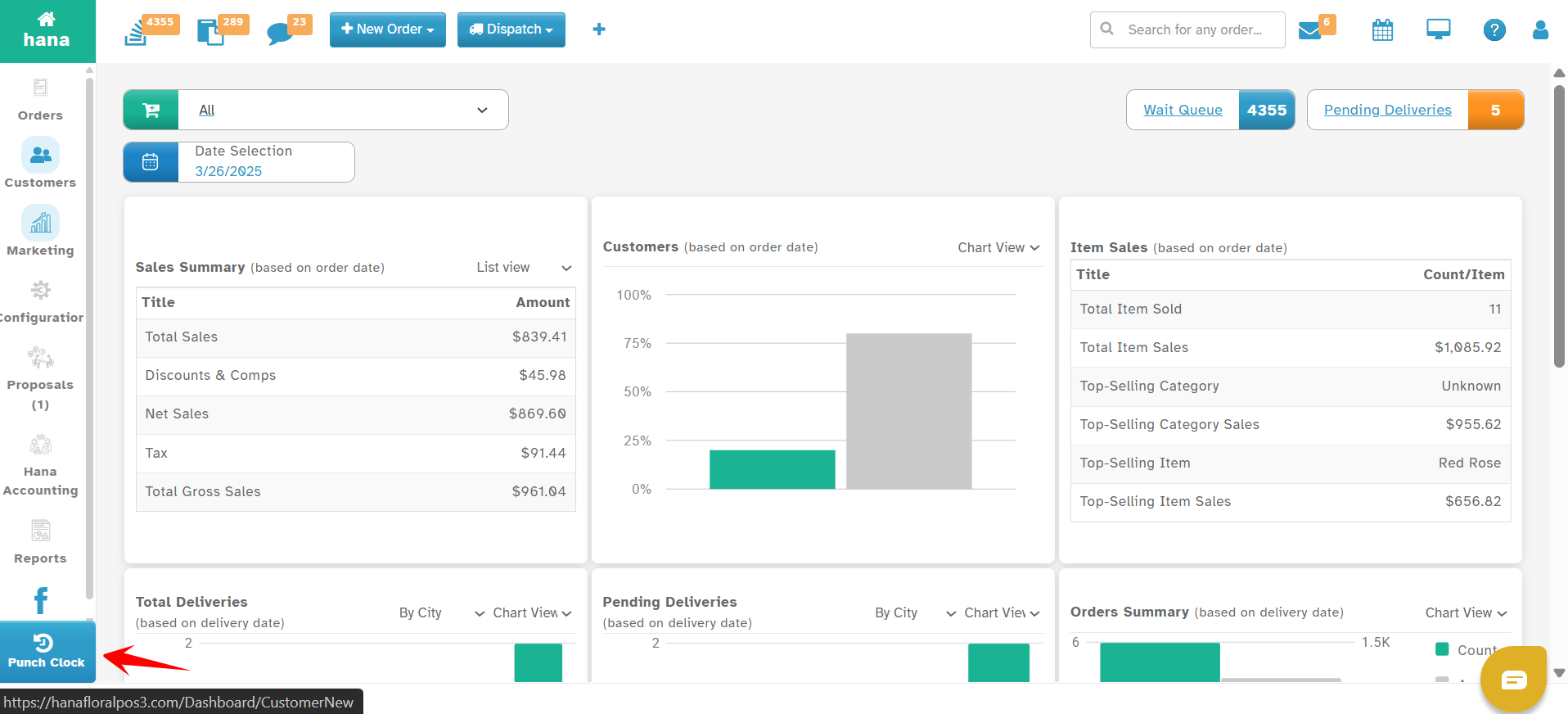
Punch Clock
This section allows employees to clock in and clock out.
Helps track employee working hours for payroll and performance management.
Owners and managers can monitor attendance, overtime, and shift hours.
Ensures accurate records for wage calculations and compliance with labor policies.
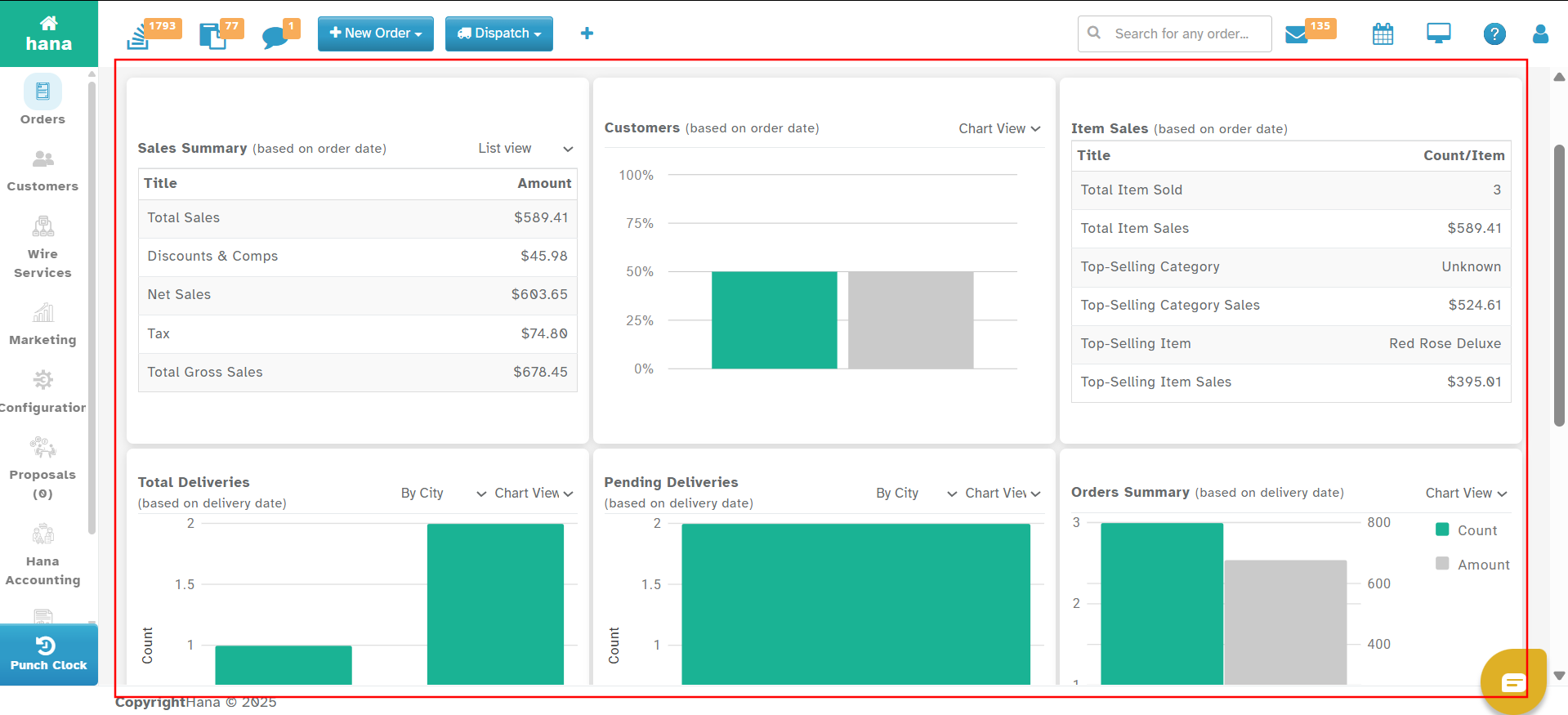
Sales Charts & Delivery Operations
The Dashboard Middle Section provides a real-time summary of key business metrics, offering a quick yet detailed view of daily sales performance, order status, and customer insights.
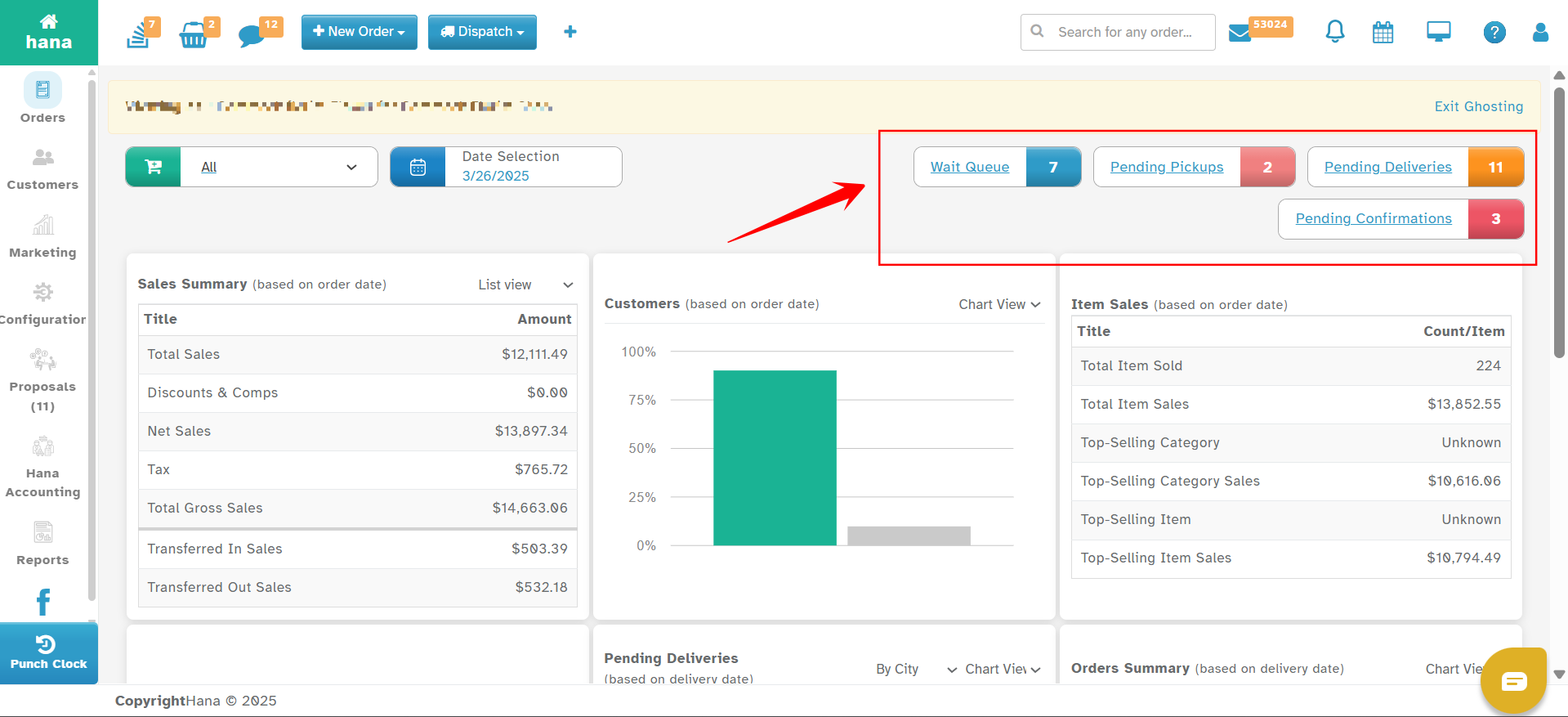
Orders Summary
This section highlights all orders current status, ensuring delivery operations remain on schedule.
The Orders Summary displays a snapshot of all pending deliveries, pending confirmations, pending pick ups, wait queue, and Non-delivery orders for the day.
View and manage pending deliveries in real time.
Assign delivery drivers and update order statuses.
Track completed and delayed deliveries to ensure efficiency.
Quickly identify unfulfilled orders that require action.
Ensure smooth order processing by monitoring daily activity.
Sales Charts Overview
The Sales Charts section provides real-time data visualization for tracking business performance. Florists can customize this section to display relevant charts based on their specific needs.
Need Help? Contact Us
Chat Support
The Chat Support feature allows florists to connect with the Hana Support Team for assistance with any issues or inquiries related to the POS system.
Key Features:
Get real-time support from Hana’s customer service team.
Typical response time: 2 to 5 minutes.
Quickly resolve technical issues, order concerns, or system navigation queries.
Access expert guidance without disrupting your workflow.
You can contact Hana Support through the following channels as well:
Phone: 503-445-3059
Email: support@hanasoftware.com
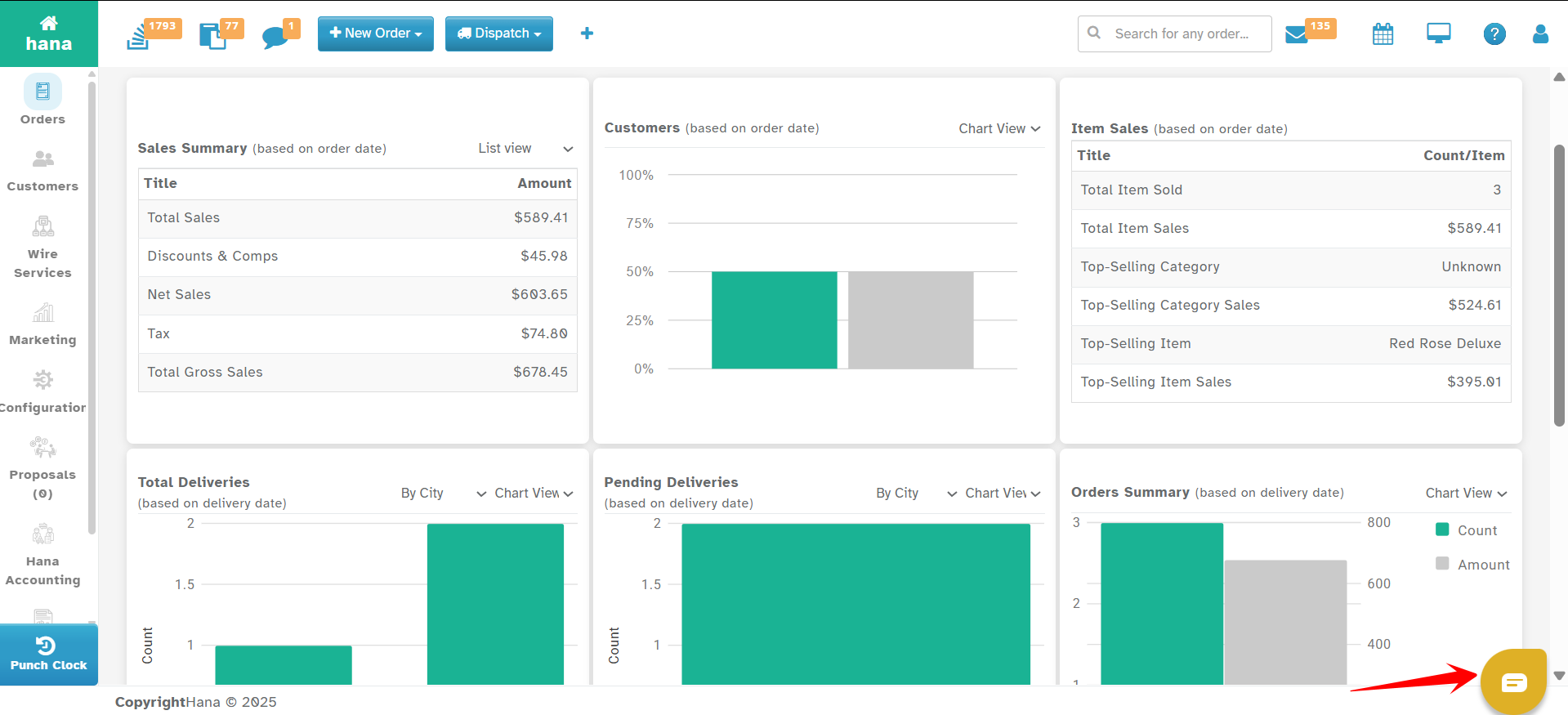
This feature ensures that help is always available when needed, minimizing downtime and enhancing business efficiency.
By understanding the Hana POS Dashboard, you can efficiently manage your floral business and optimize daily operations. Explore each section to make the most of its powerful features.
Was this article helpful?
That’s Great!
Thank you for your feedback
Sorry! We couldn't be helpful
Thank you for your feedback
Feedback sent
We appreciate your effort and will try to fix the article