HANA POS allows florists and staff to add and view notes attached to any order, helping teams stay informed of special instructions, delivery requirements, or customer requests.
This ensures smooth coordination between the front desk, designers, and delivery staff, ultimately improving customer satisfaction.
You can view existing notes, identify which orders have notes at a glance, and add or update notes as needed.
Why Use Order Notes?
Order notes are helpful for:
Providing special delivery instructions (e.g., "Leave at front desk," "Call before delivery")
Recording customer preferences (e.g., "Customer prefers pink roses only")
Notifying designers about customization (e.g., "Add extra lilies")
Clarifying time-sensitive requests or changes
How to View and Add Notes to an Order
Step 1: Access the Orders Page
Log in to HANA POS.
Navigate to the Orders section from the main navigation menu.
The Orders Page will load, displaying a list of recent and in-progress orders.
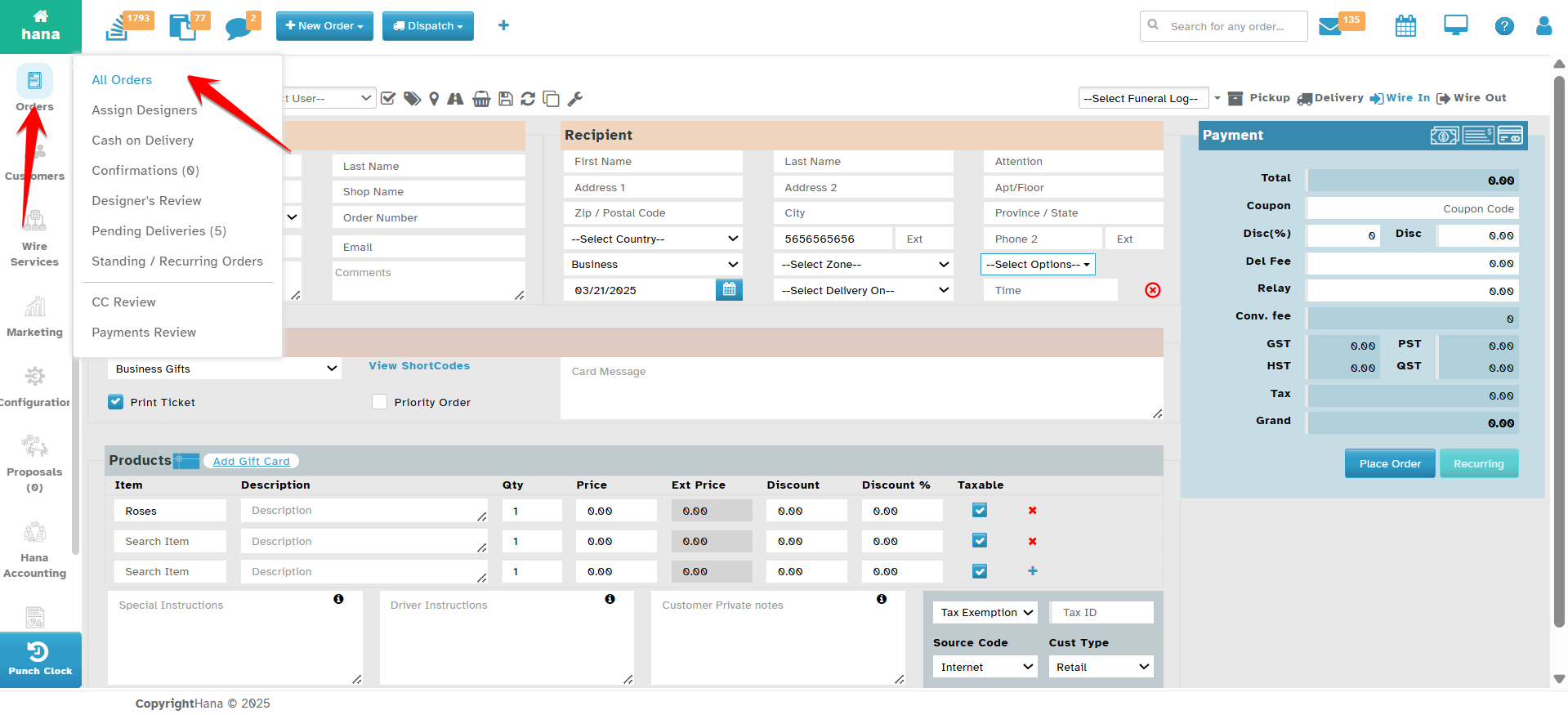
Step 2: Identify Orders with Notes
In the list of orders:
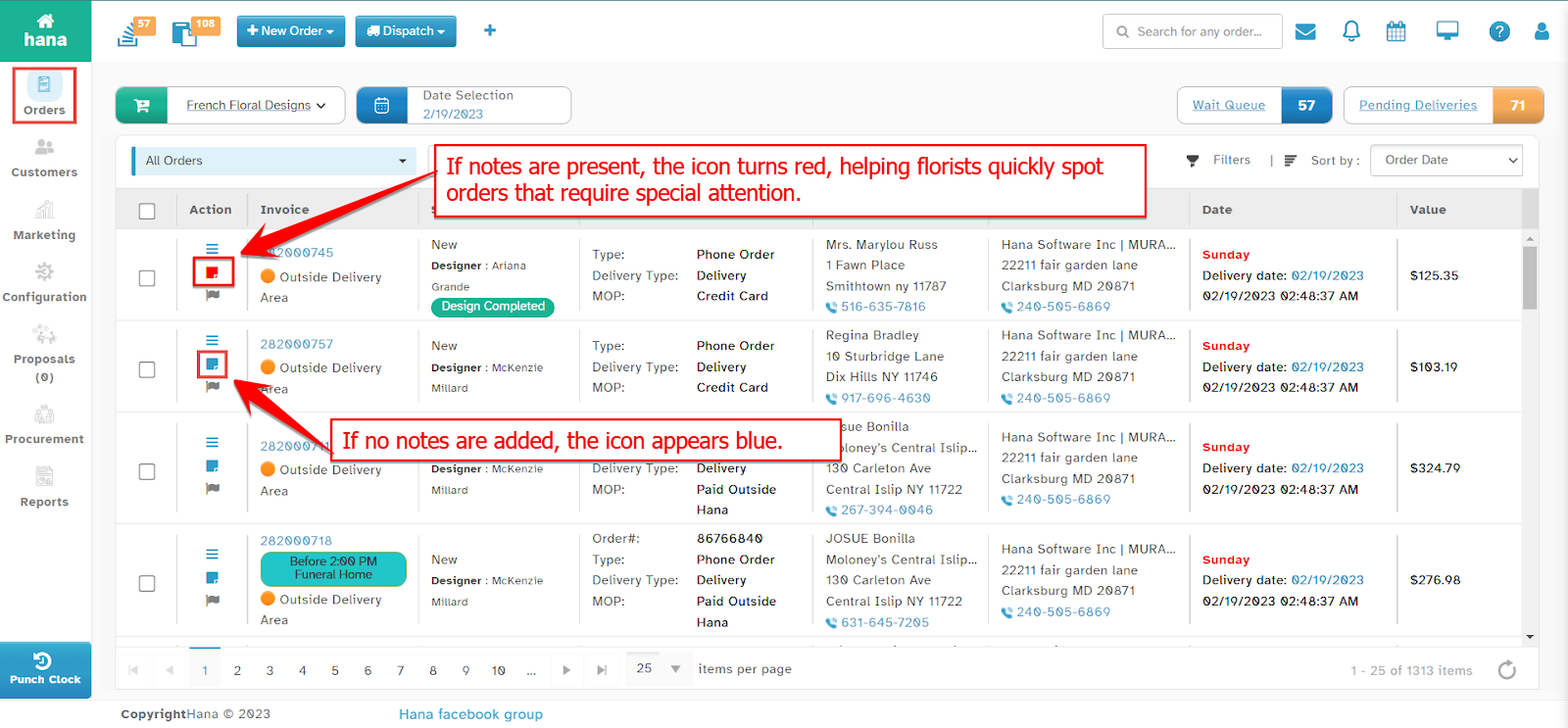
Each row contains a Notes icon.
If no notes are added, the icon appears blue.
If notes are present, the icon turns red, helping florists quickly spot orders that require special attention.
This visual cue helps your staff know which orders need to be reviewed for additional instructions without clicking into each one.
Step 3: View Existing Notes
There are two ways to view notes on an order:
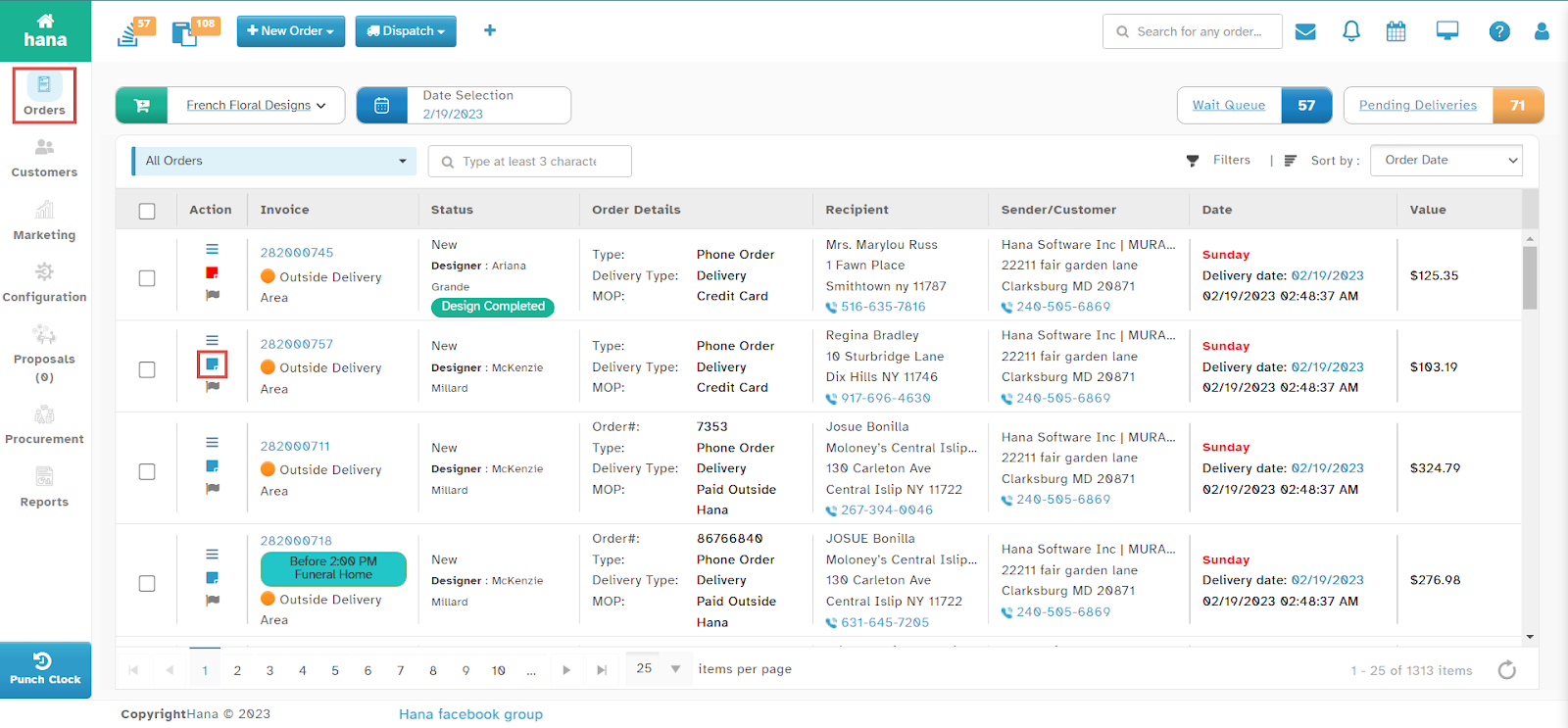
Option 1: Click the Notes Icon
Click the Notes icon directly in the row of the desired order.
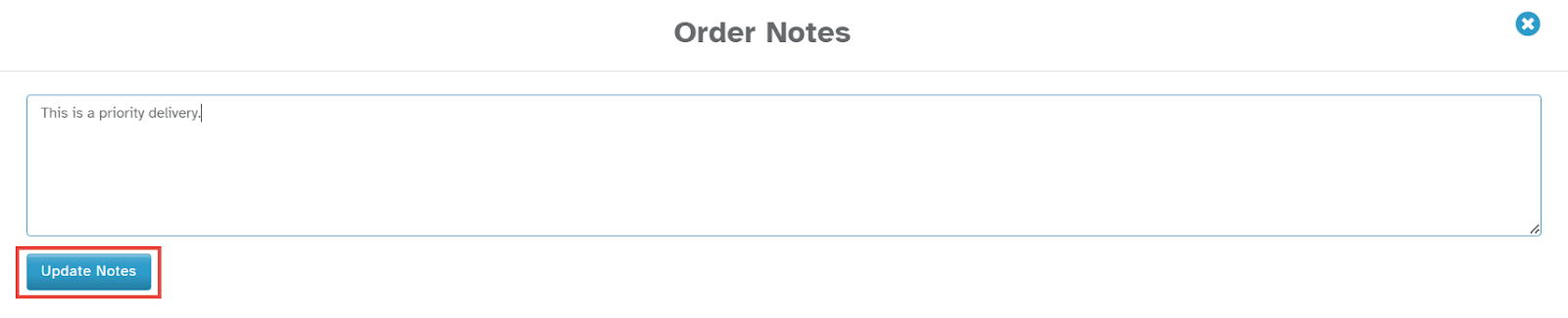
The Order Notes Dialog will appear.
If notes were previously added, they will be shown here in the text box.
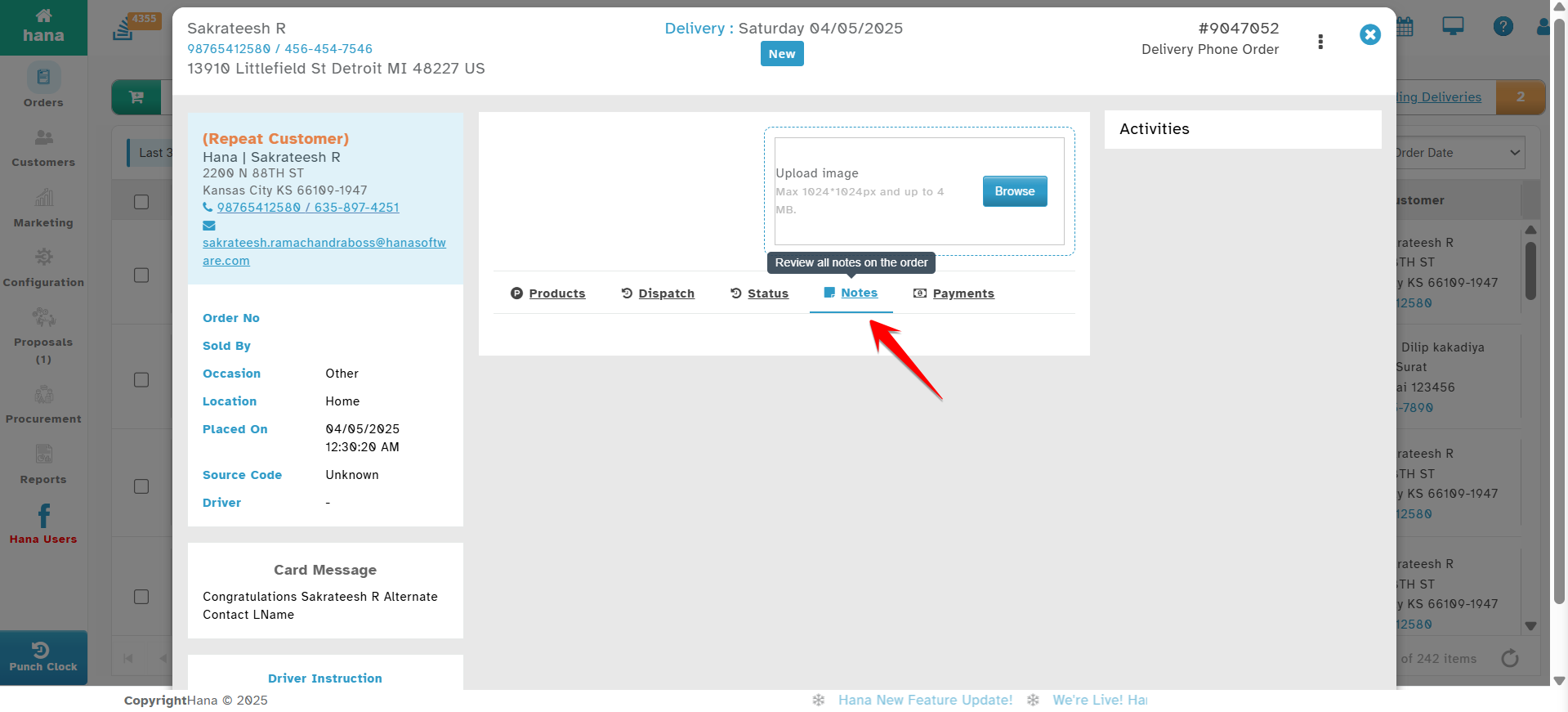
Option 2: Open the Order Details Page
Click anywhere on the order row (excluding the icons) to open the full Order Details page.
Navigate to the Notes tab at the top of the Order Details screen.
All existing notes will be visible.
Step 4: Add or Update Notes
In the Order Notes Dialog , locate the notes text area.
Enter any special instructions or comments relevant to the order.
Examples:
“Customer will pick up at 5 PM”
“Avoid using lilies—recipient is allergic”
“Leave at side door if no one answers”
Click Update Notes to save your entry.
- A success notification will confirm the update. Once saved, the Notes icon on the order row will turn red, indicating that a note exists.
Best Practices
Be specific and concise in your notes to avoid confusion.
Use precise language that can be understood by all team members, including delivery drivers.
Please update notes as soon as possible if changes happen (e.g., if a customer changes pickup time).
Avoid adding sensitive information, such as credit card details or personal customer data.
Conclusion
Using the Order Notes feature in HANA POS allows for better coordination and fewer errors. By knowing how to view and update these notes effectively, your team can provide a smoother, more personalized customer experience.
Was this article helpful?
That’s Great!
Thank you for your feedback
Sorry! We couldn't be helpful
Thank you for your feedback
Feedback sent
We appreciate your effort and will try to fix the article