HANA POS provides a flexible delivery confirmation workflow to suit different types of florists, whether they use the HANA Dispatch module or manually manage deliveries.
The delivery confirmation process allows shops to mark orders as delivered and maintain accurate delivery records for both internal tracking and customer service.
This guide explains multiple ways to access the Delivery Confirmation page, confirm deliveries, and what configurations affect how this workflow functions for different shops.
⚠️ We highly recommend using the Dispatch and Designers features in HANA. These tools provide a structured workflow to manage order design, assignment, dispatching, and final delivery — ensuring better visibility, accountability, and operational control.
Why Confirming Deliveries is Important
Ensures accurate delivery records
Updates order status for reporting and tracking
Enables customer service teams to confirm successful deliveries
Helps florists monitor driver performance and route completion
Ways to Access the Delivery Confirmation Page
Depending on your workflow and dispatch system usage, you can access the Delivery Confirmation Page in multiple ways.
Method 1: Via the Confirmations Page
Navigate to HANA > Orders > Confirmations
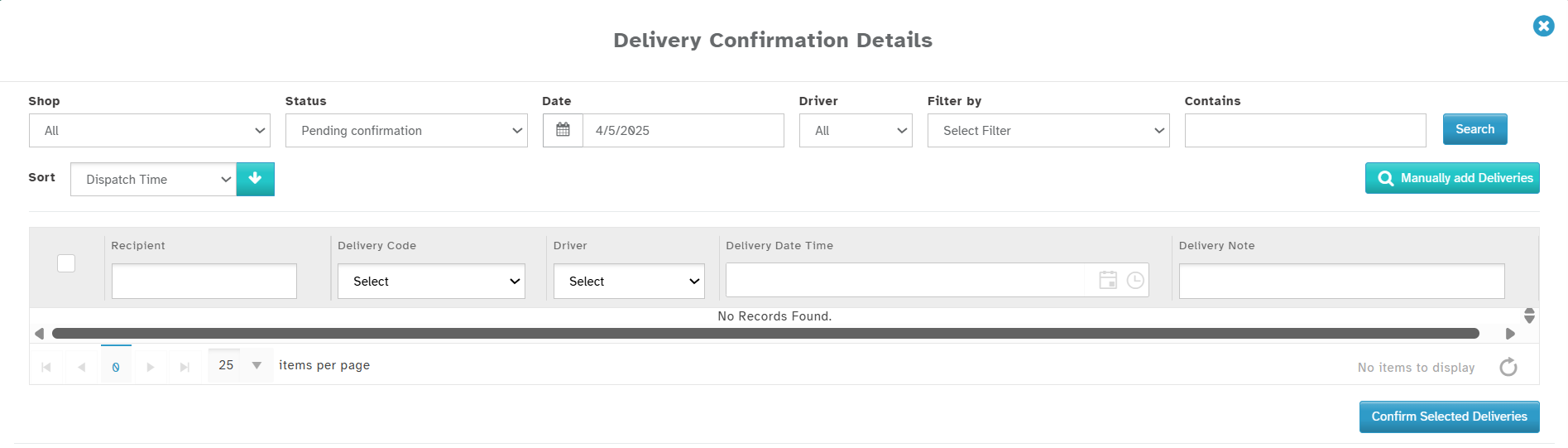
The Delivery Confirmation Details Page will open directly
This method is useful for shops who want quick access without filtering through pending orders.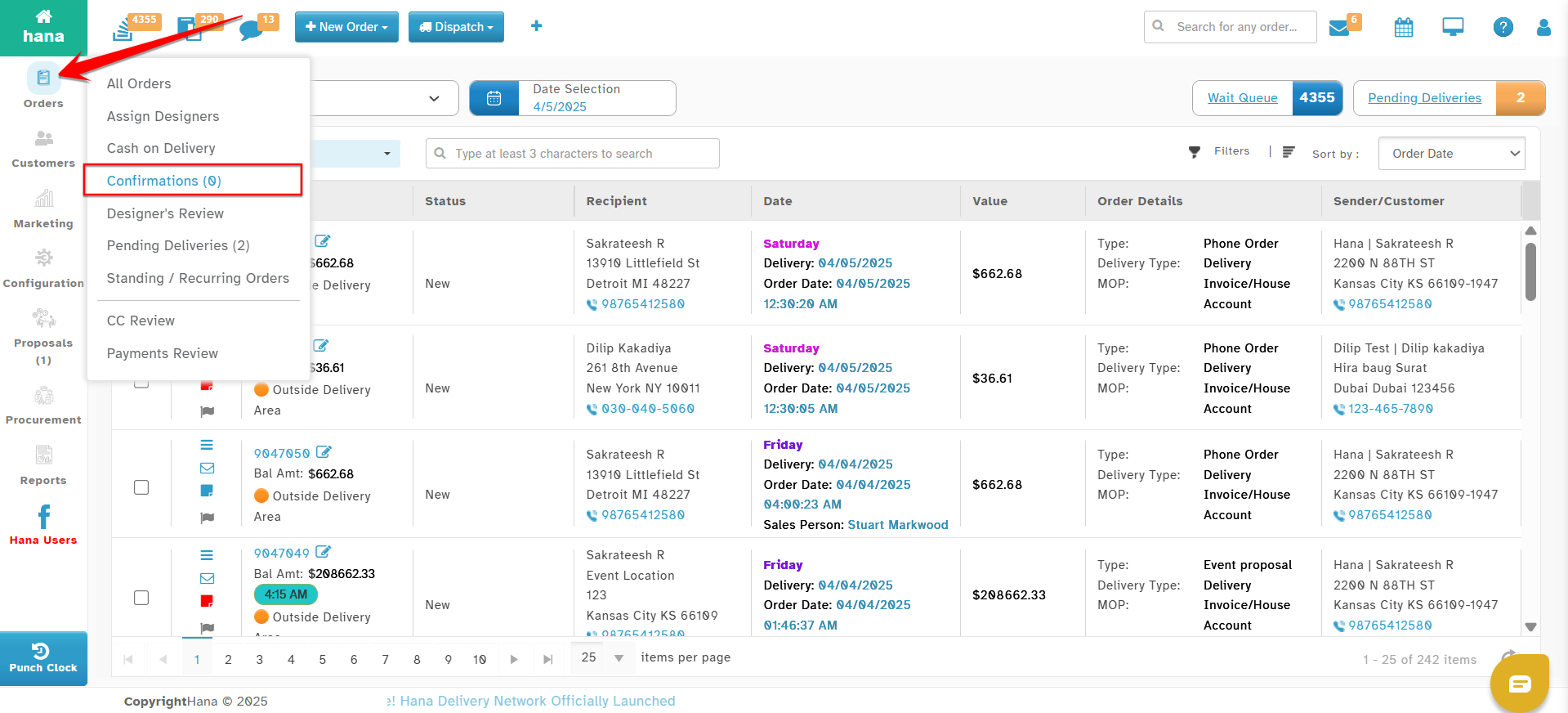
Method 2: Via the Pending Deliveries List
Go to HANA > Orders > Pending Deliveries
The Pending Deliveries Page will open, showing a list of all orders ready to be confirmed for delivery.
From here, you can select one or more orders and confirm them.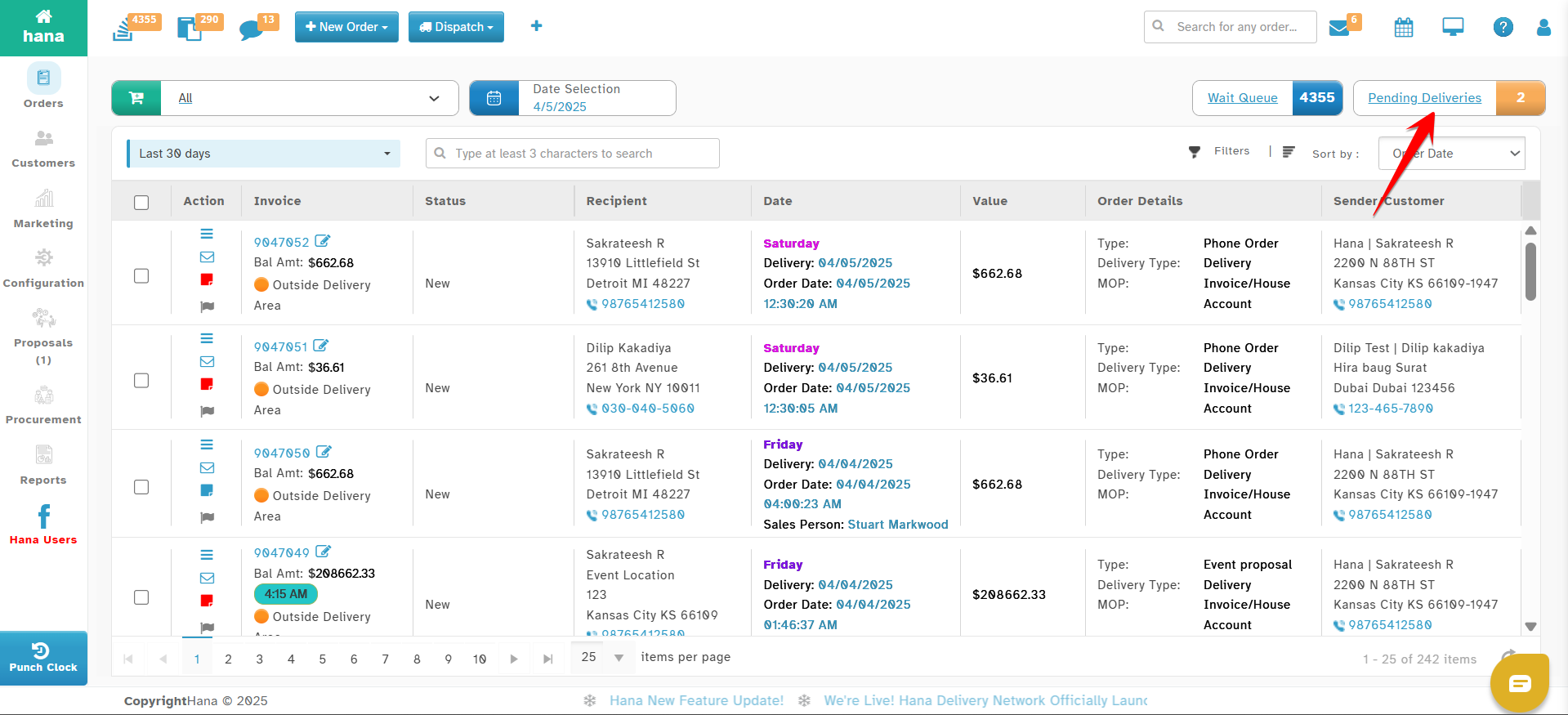
Method 3: Via the Views Dropdown on the Orders Page
Go to HANA > Orders
On the top-left corner of the screen, click the “Views” dropdown
Select “Pending Confirmations.”
The Pending Confirmations Page will appear
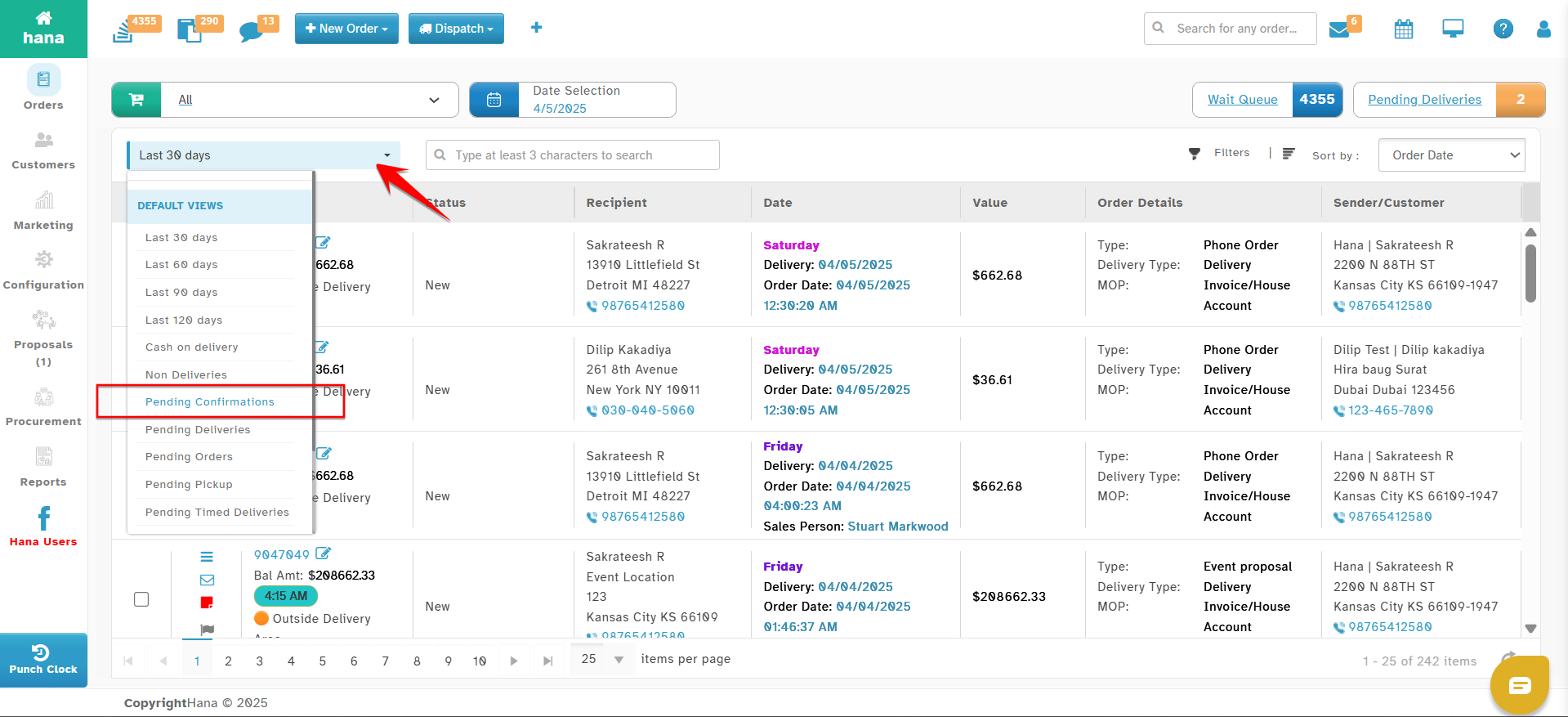
This method is primarily used by florists who utilize the HANA Dispatch module.
Method 4: HanaViewers2 mobile app
Your delivery personnel can also use the HanaViewers2 mobile app( Apple and Android) to confirm deliveries.
For details, please follow the link below.
How to Confirm a Delivery in HanaViewers2
Steps to Confirm Delivery of an Order
Once you’re on any of the above pages (Confirmations / Pending Deliveries / Pending Confirmations), follow these steps:
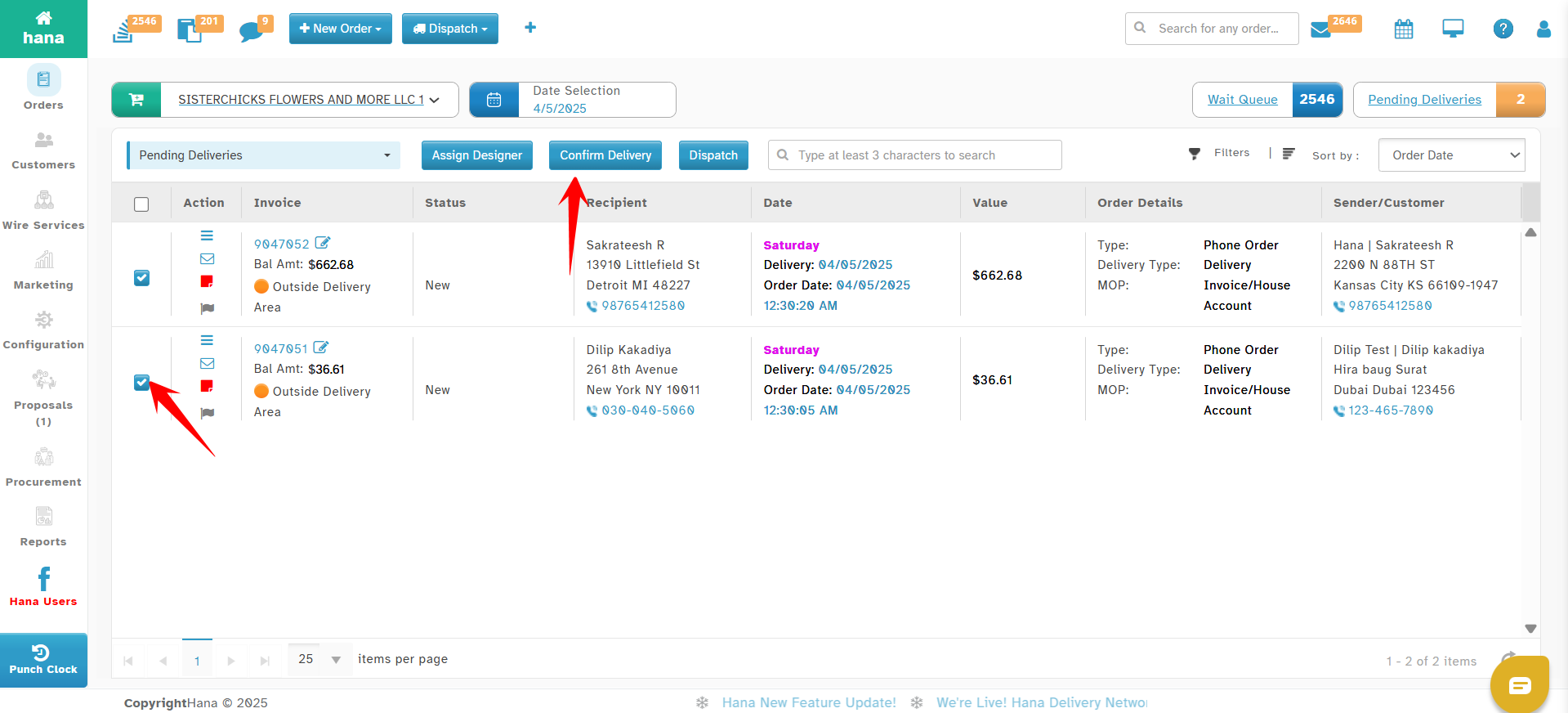
Step 1: Select Orders to Confirm
Check the box(es) next to the orders you want to confirm in Pending Deliveries page
Click Confirm Delivery
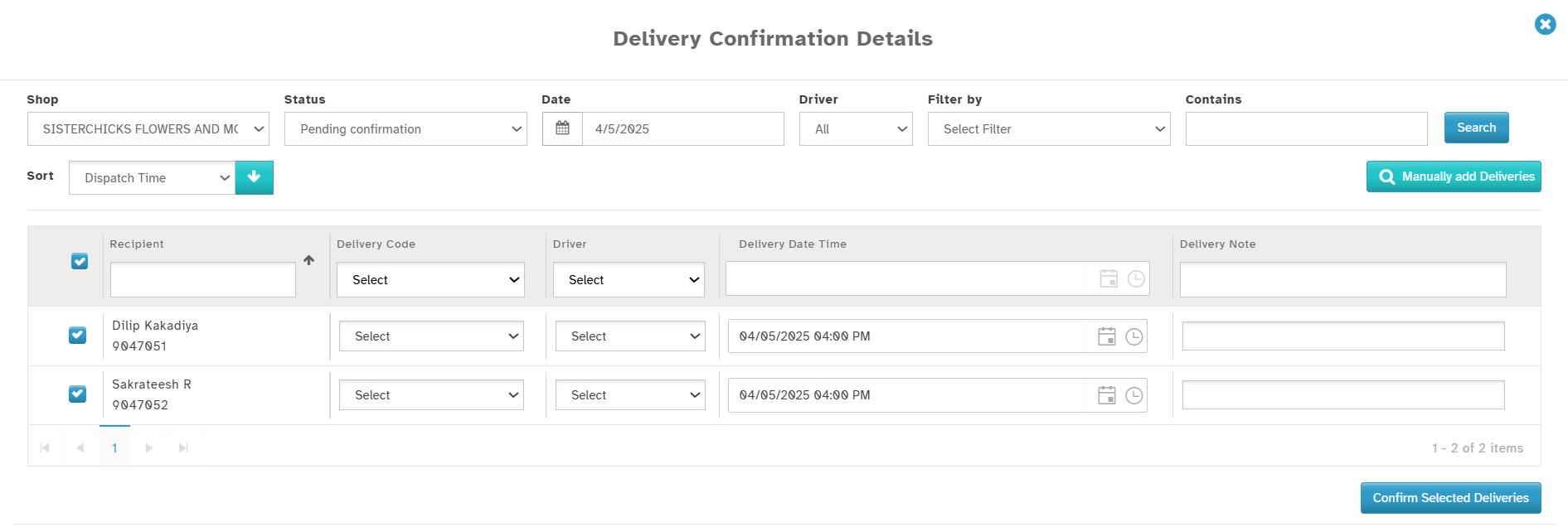
This opens the Delivery Confirmation Details dialog
Step 2: Fill Out Confirmation Details
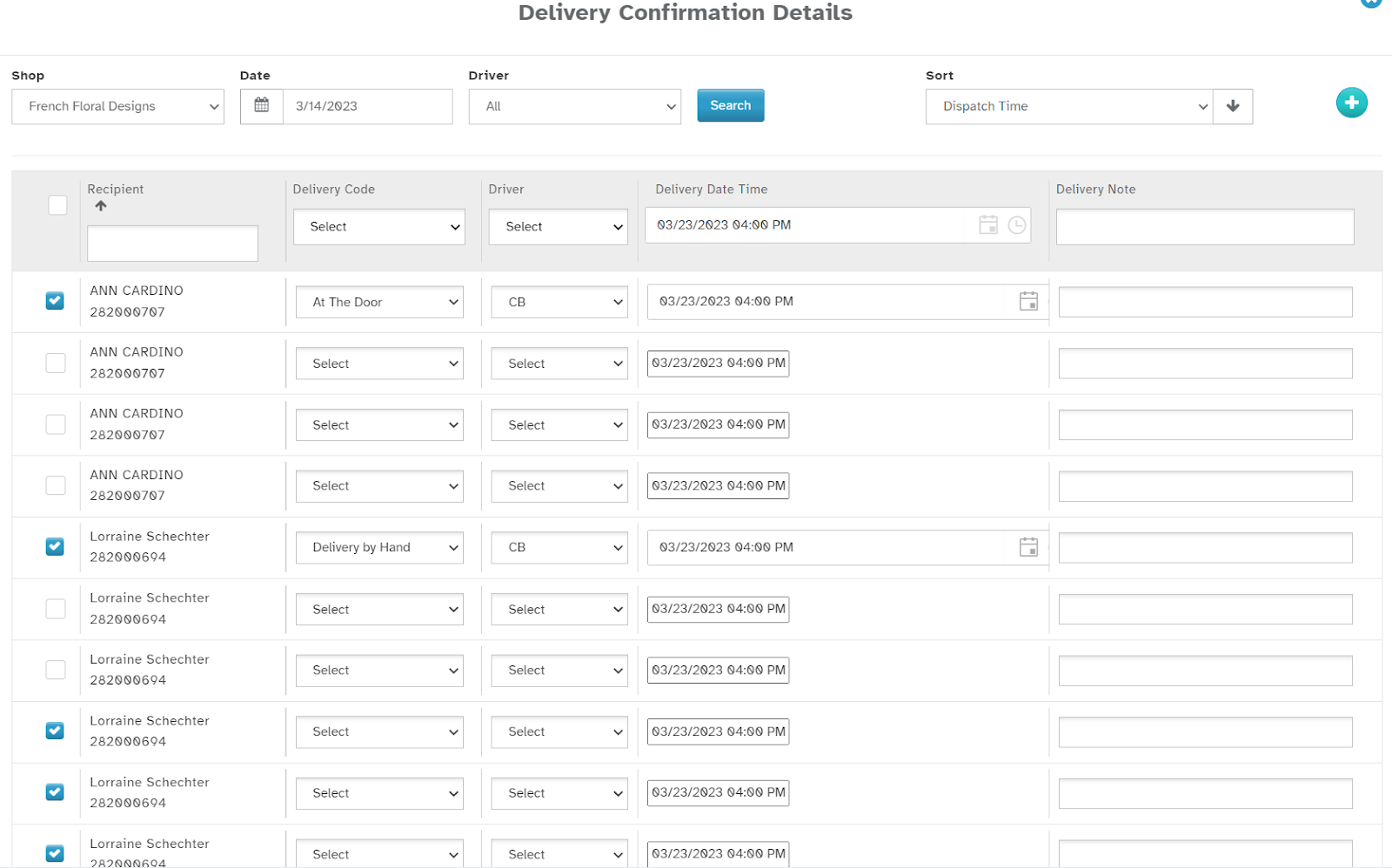
In the Delivery Confirmation Dialog, complete the following fields:
Recipient Selection: Check the box next to the recipient(s) you are confirming
Delivery Code: Select a delivery status (e.g., Delivered, Left at Door, Customer Not Available)
Driver: Choose the delivery driver responsible for the order
Delivery Date & Time: Select the actual delivery date and time
Delivery Notes: Enter any comments or notes related to the delivery
Step 3: Save the Confirmation
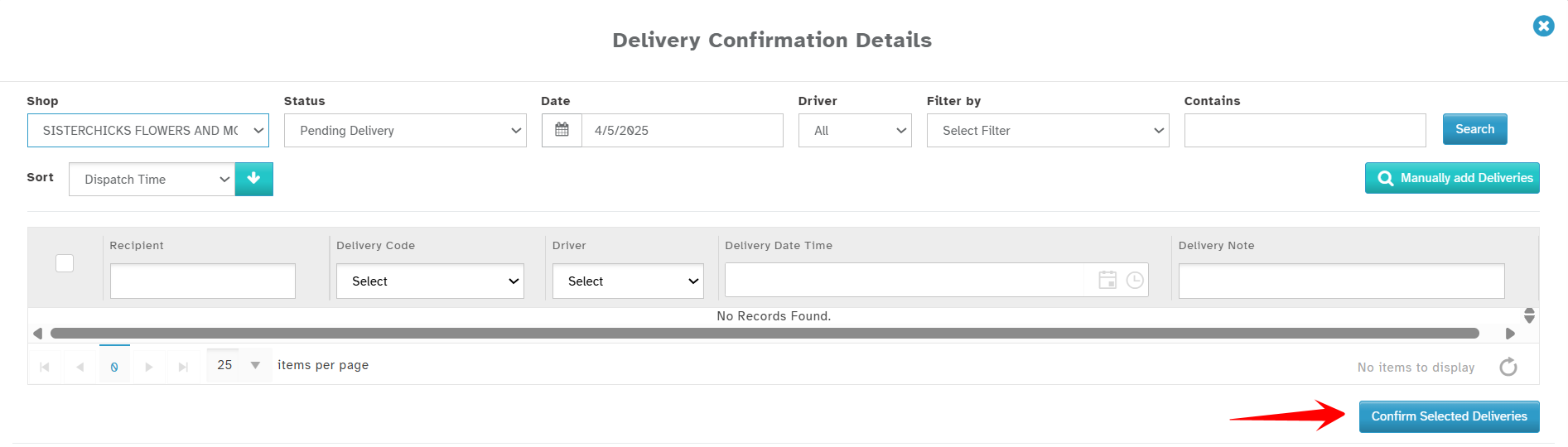
Click Confirm Selected Deliveries
A success message will confirm that the delivery has been recorded
The order will now be marked as “Delivered” in HANA and moved out of the pending list
Special Notes for Shops That Do Not Use HANA Dispatch
If your shop does not use the HANA Dispatch module, you can still use the Pending Deliveries or Confirmations page to confirm deliveries directly.
Important Configuration Setting
To allow this behavior, make sure the following setting is turned ON:
Navigate to:Configuration > Dispatch > Dispatch Settings
Enable →
Confirm Without Dispatch: ✅
This allows orders to be confirmed even if they haven’t gone through the Dispatch workflow.
What if You Do Not Use Designer Review?
For shops that do not assign designers or use the HANA Designer Review workflow, there’s another setting to be aware of:
Navigate to:Configuration > Dispatch > Dispatch Settings
Disable →
Dispatch Only Filled Orders: ❌
If this is enabled, only orders marked as “Filled” will appear in the Dispatch module and consequently in delivery confirmation searches.
If your team doesn’t use the “Filled” status, you may want to turn this setting OFF, so that all orders can appear for confirmation regardless of fill status.
Summary Table of Access and Settings
| Scenario | How to Confirm | Required Setting |
|---|---|---|
| Uses HANA Dispatch | Pending Confirmations via View dropdown | N/A |
| Does NOT use Dispatch | Confirmations or Pending Deliveries | Confirm Without Dispatch: ✅ |
| Does NOT use Designer Fill Tracking | As above | Dispatch Only Filled Orders: ❌ |
Conclusion
Confirming deliveries in HANA POS is essential for transparent and accurate order fulfillment.
Whether you use HANA’s Dispatch workflow or a manual system, the platform offers multiple flexible options tailored to your shop’s process.
By setting the correct configurations and understanding the delivery confirmation flow, your team can ensure every order is completed and tracked correctly.
Was this article helpful?
That’s Great!
Thank you for your feedback
Sorry! We couldn't be helpful
Thank you for your feedback
Feedback sent
We appreciate your effort and will try to fix the article