The Funeral Log in Hana POS is a powerful tool that allows florists to manage funeral-related orders efficiently. It enables you to store commonly used funeral service information and reuse it for future orders without re-entering all the details. This helps save time, reduce errors, and ensure timely and accurate delivery of sympathy arrangements.
What is the Funeral Log?
The Funeral Log serves as a centralized record of funeral services, including delivery addresses and key contact details. It works with Hana's Common Address feature, allowing users to quickly retrieve frequent delivery locations (e.g., hospitals, churches, funeral homes) during order entry.
Instead of typing in addresses for each funeral order, you can pull the details directly from saved funeral log entries.
Where Is the Funeral Log Used?
During order entry, to auto-fill address details
For record-keeping and tracking of funeral service orders
To manage high-volume orders related to a single funeral service
Ways to Add Orders to the Funeral Log
There are two primary ways to add funeral-related orders into the Funeral Log:
1. Save an Order as a Funeral Order (From New Order Page)
While creating a new order:
Enter all order details
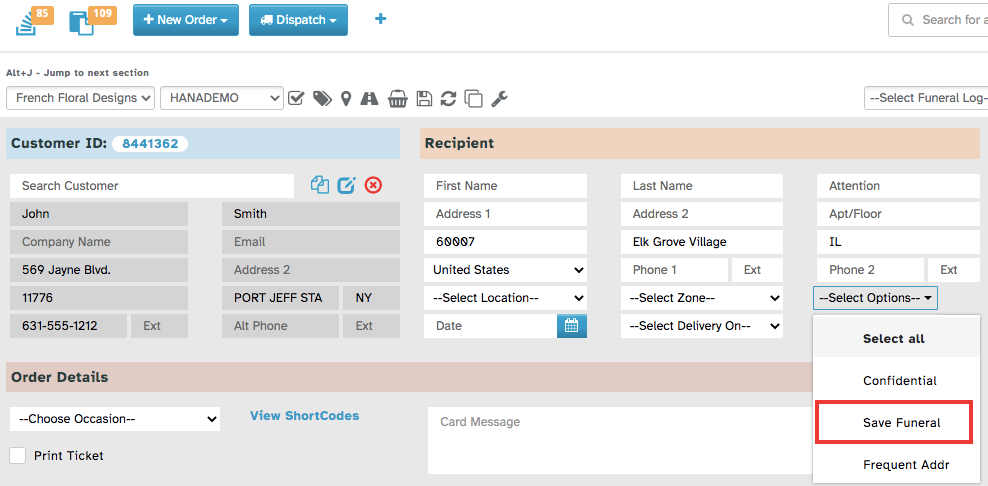
Select Save Funeral under the Options menu
The order’s delivery and funeral information will be stored in the Funeral Log for future reuse
This is the fastest way to save a funeral log entry while actively working on an order.
2. Manually Create a Funeral Record from the Funeral Log Section
You can also add a new funeral log manually on the configuration page.
Option 1: Add Funeral Log from the Order Entry Page
This option allows you to add funeral details while creating a new order.
Steps:
Go to Hana Dashboard.
Navigate to New Order > Order Entry.
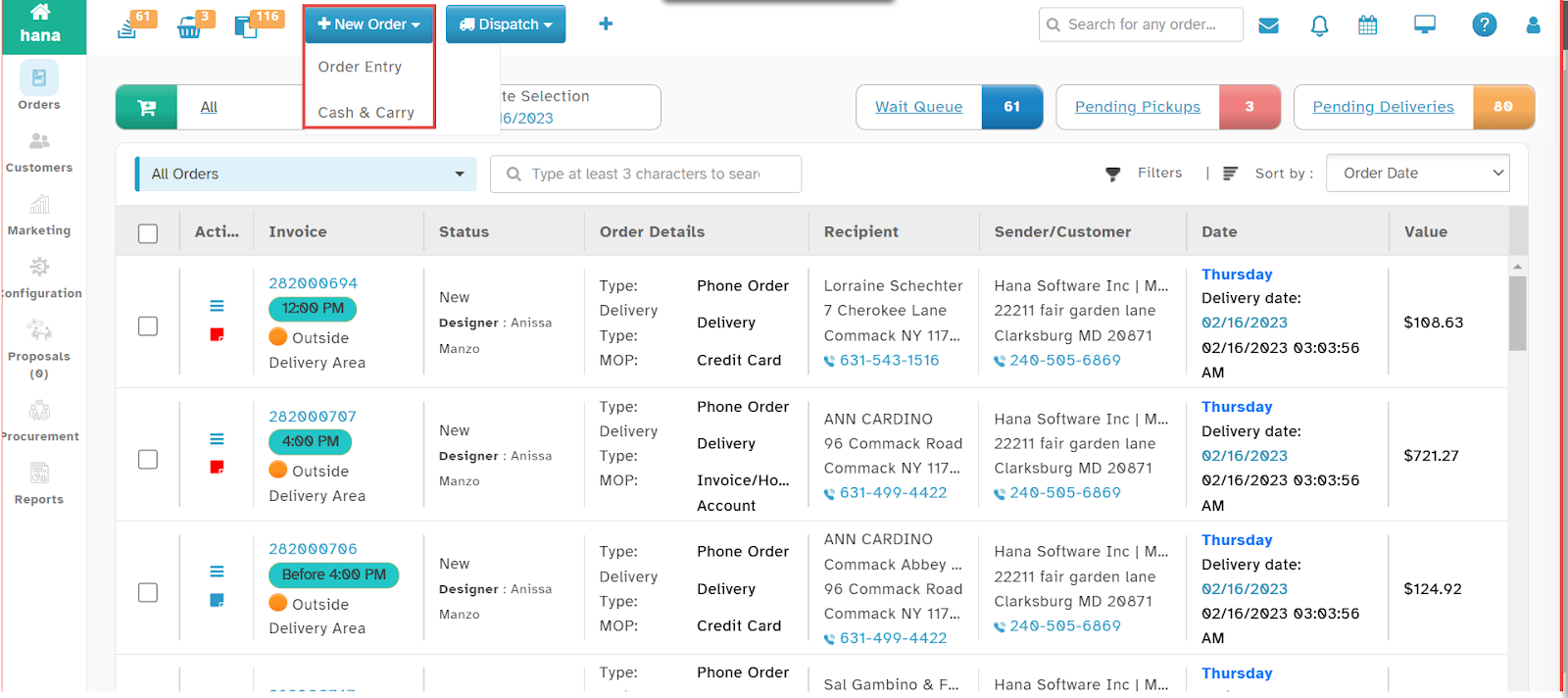
Enter all required details for the order (recipient information, items, payment method, etc.).
For a full guide on creating orders, refer to: How to Place a New Order in Hana POS
Scroll down to the Recipient Info section, click the Select Options dropdown, and choose Save Funeral from the list.
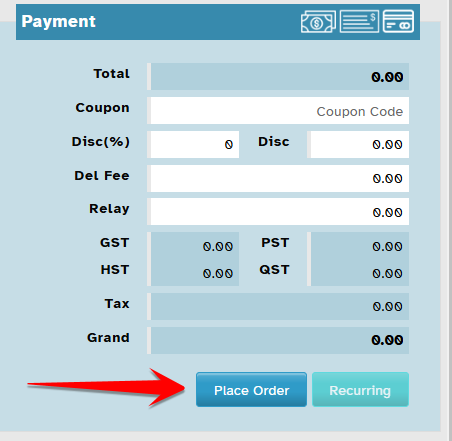
Click Place Order to submit the order.
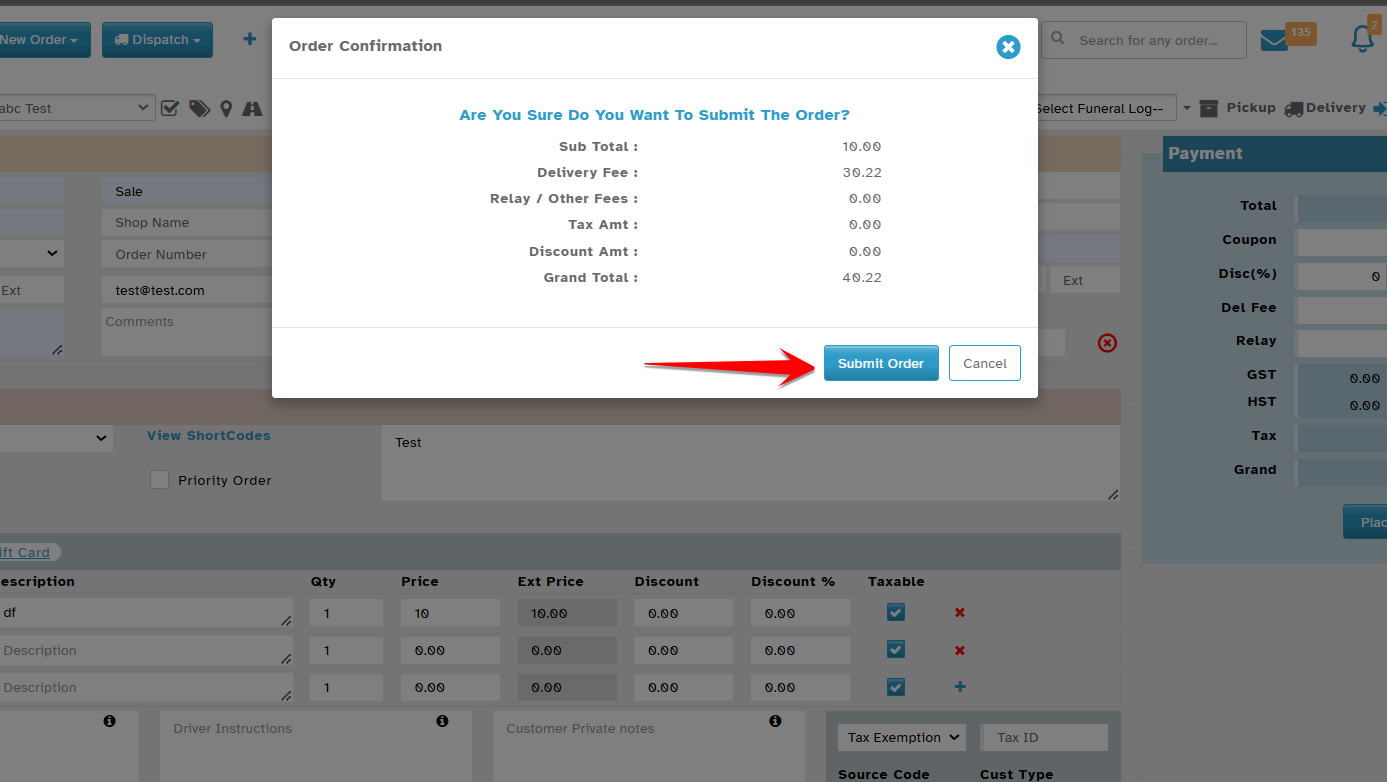
A confirmation dialog will appear. Click Confirm to save the order and add the funeral log automatically.
The funeral information (name, address, delivery time, etc.) will be saved to the Funeral Log and available for future reuse during order entry.
Option 2: Add Funeral Log from the Configuration Page
This option allows you to manually create a funeral log record without placing an order. It's useful for setting up frequently used funeral locations in advance.
Steps:
Method A: Via Toolbar Icon
Go to the Order Entry screen.
On the top toolbar (next to the Shop and Sales Person dropdowns), click the Funeral Log icon.
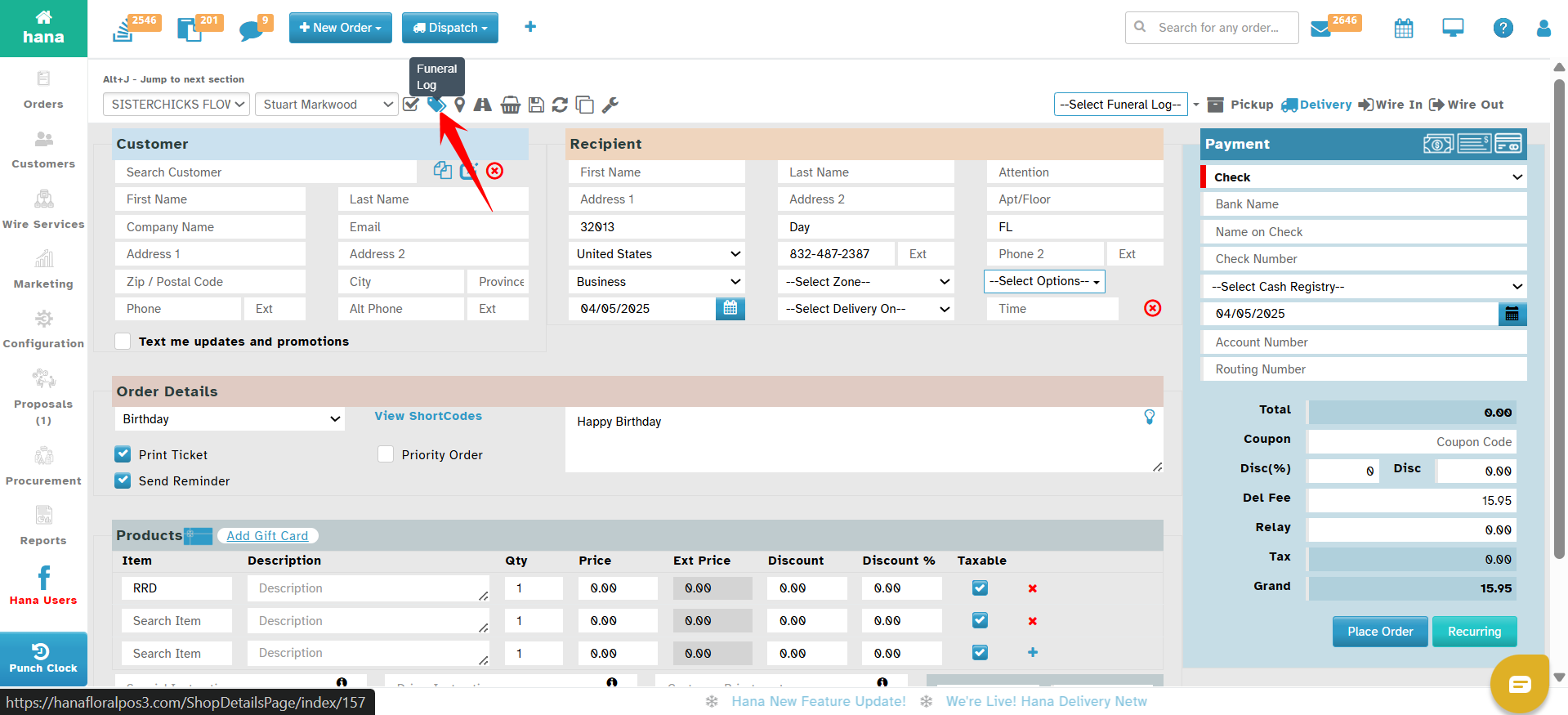
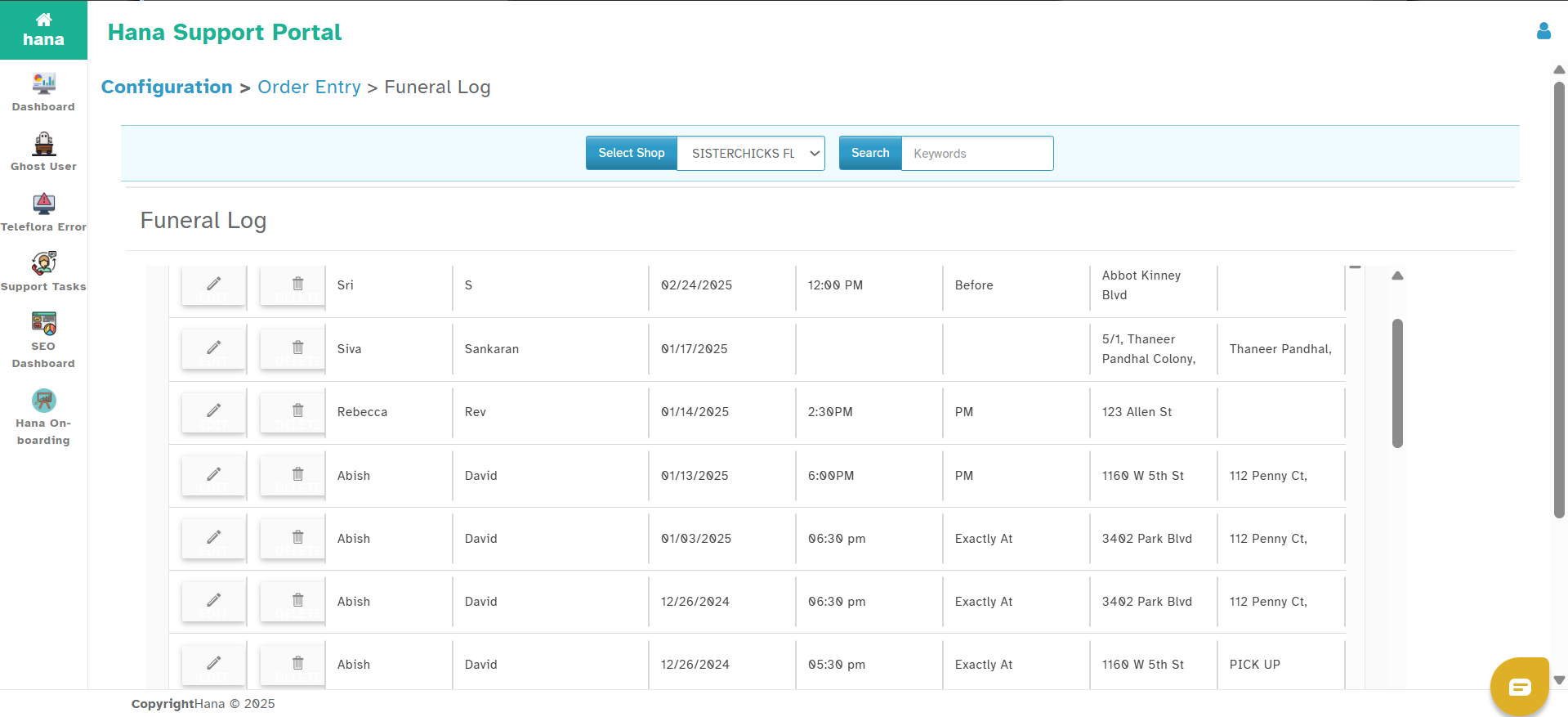
The Funeral Log configuration page will open.
Method B: Via Settings Menu
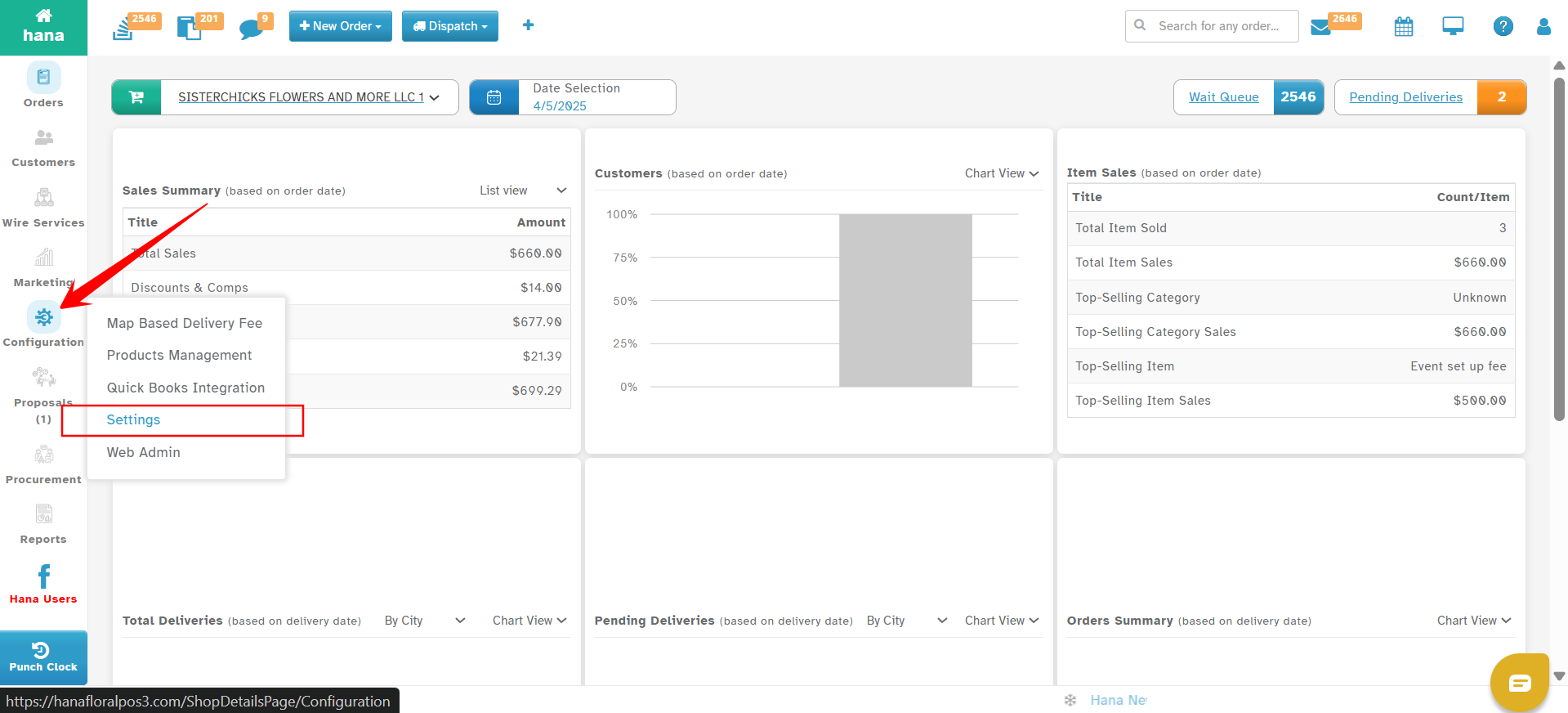
Go to Hana Dashboard and Click Configuration and Select Settings
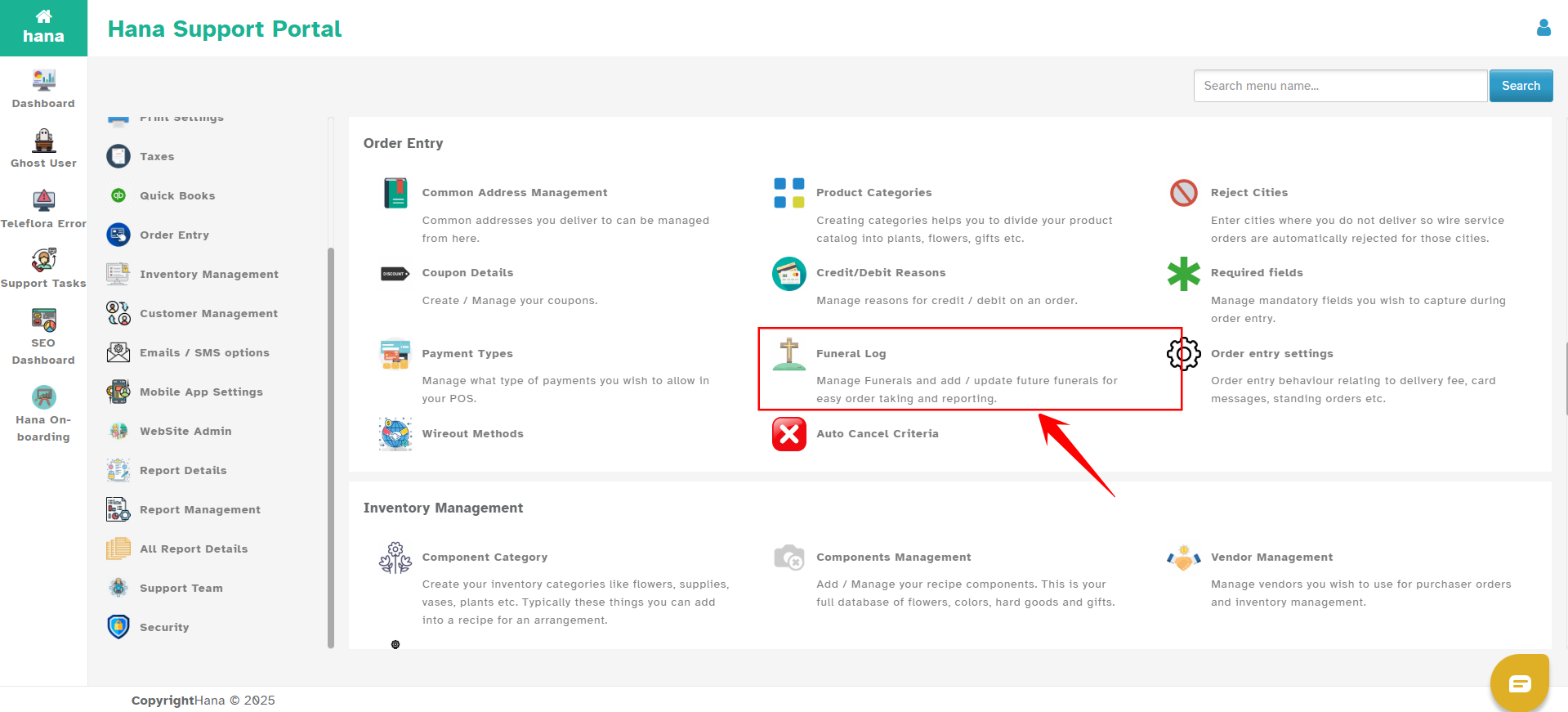
Click Order Entry.

Choose Funeral Log.
The screen will display a list of existing funeral logs.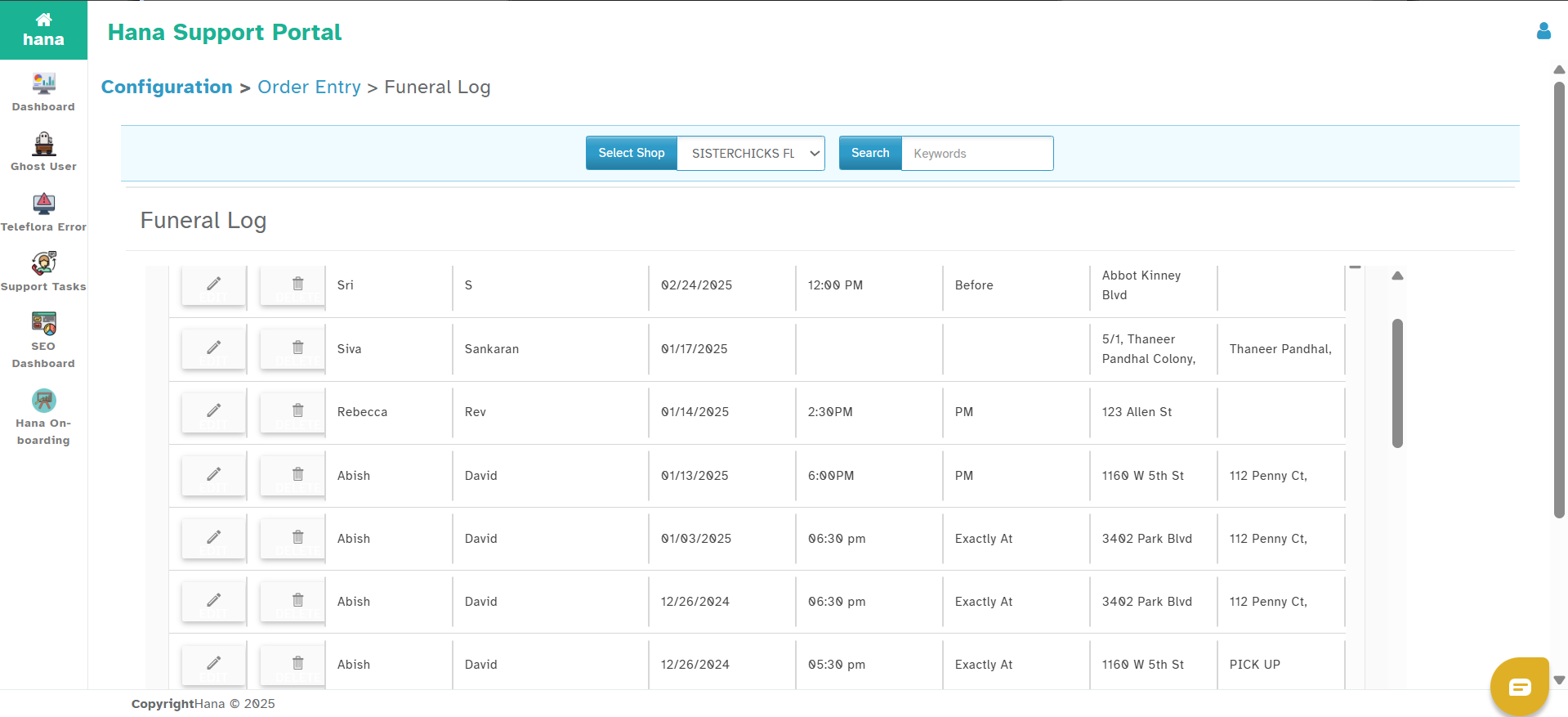
To add a new funeral record:
Click Add New.
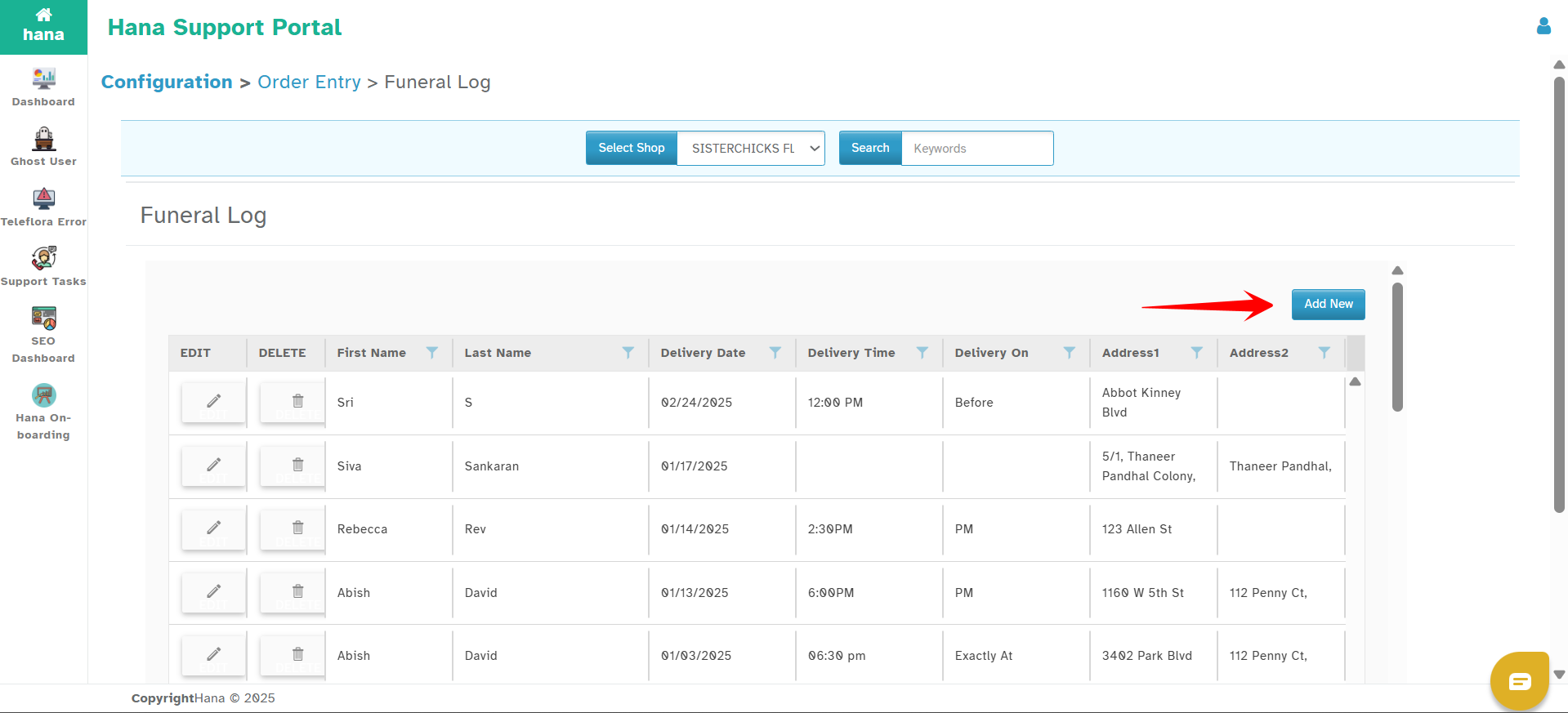
Fill in the required information:
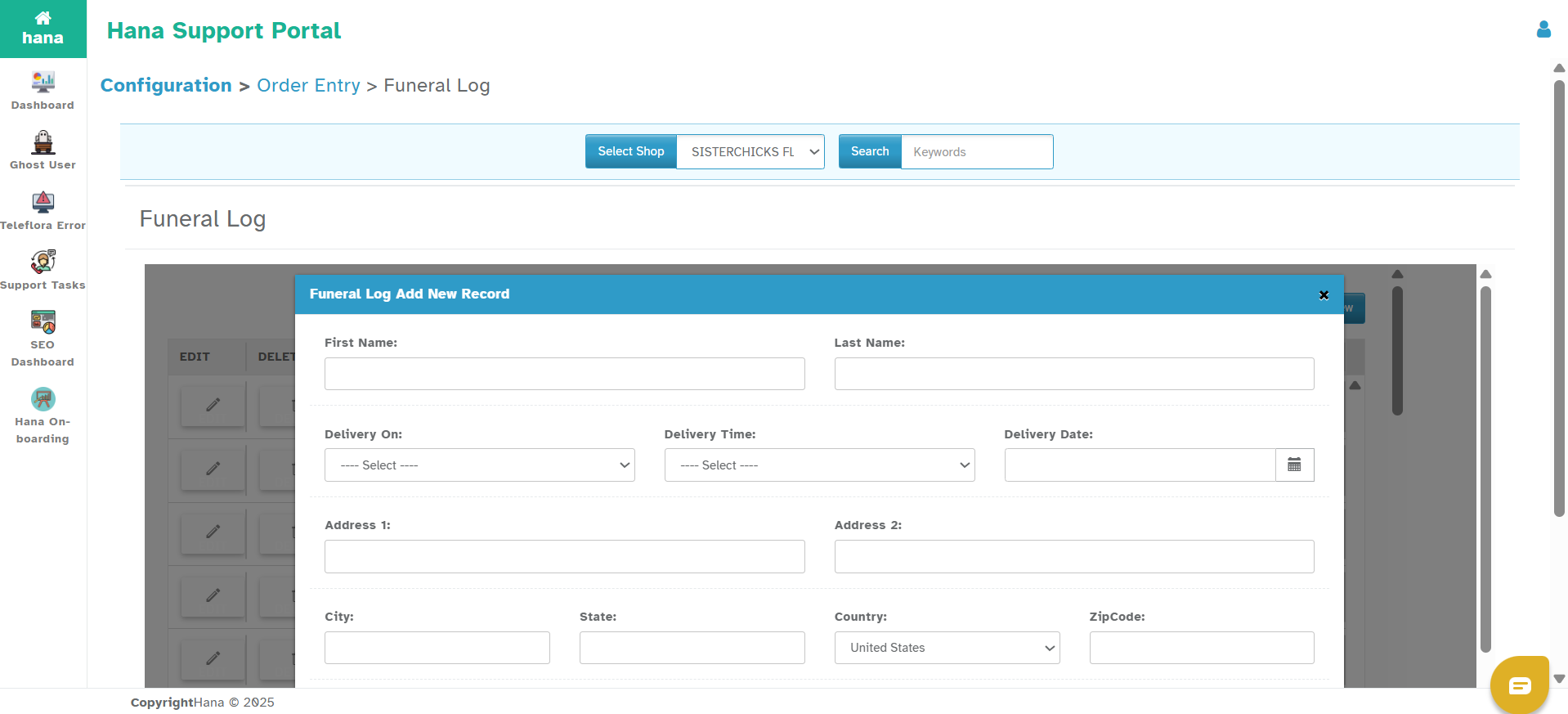
| Field Name | Description |
|---|---|
| First Name | First name of the deceased or recipient |
| Last Name | Last name of the deceased or recipient |
| Delivery On | Choose whether delivery is to home, chapel, etc. |
| Delivery Time | Select preferred delivery time |
| Delivery Date | Select delivery date |
| Address 1 / 2 | Street address details |
| City / State / Zip | Location details |
| Country | Typically defaults to United States |
| Phone No / Alt No | Contact details for the funeral home |
| APT / Location | Optional internal details |
| Zone | Delivery zone (if applicable) |
| Special Instructions | Any notes for the delivery team |
Once complete, click Save.
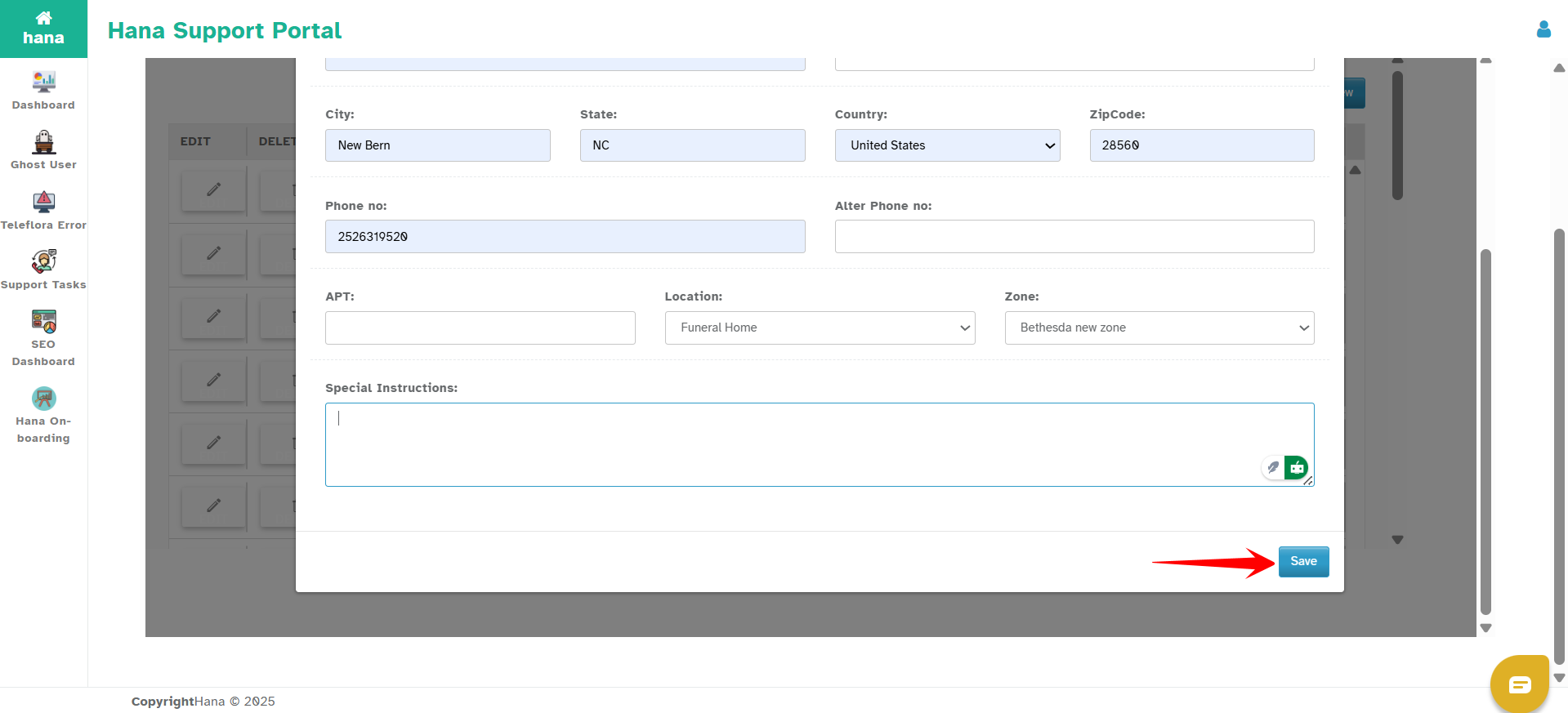
This funeral log will now be available to select during future order entries using the Attention field.
How to Use Funeral Logs During Order Entry
When creating a new order:
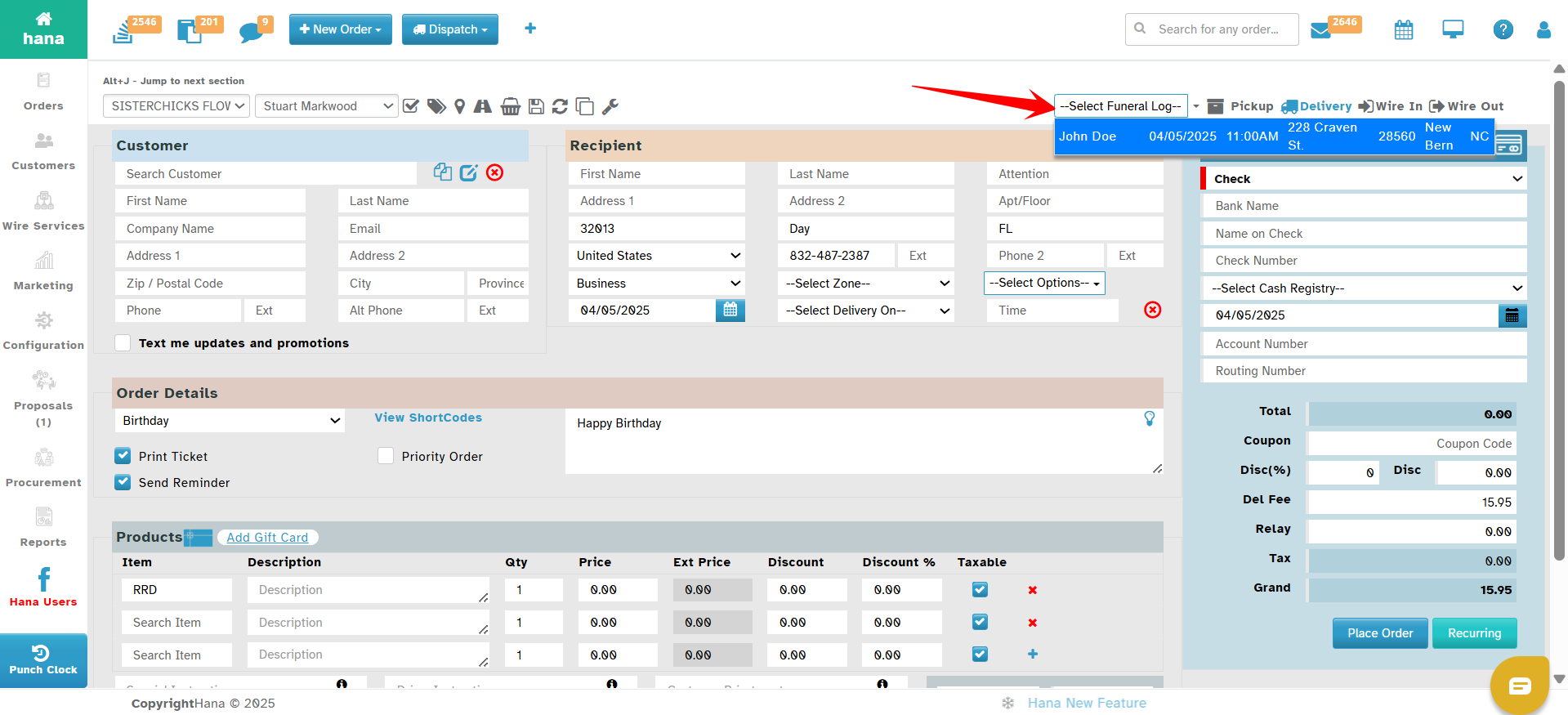
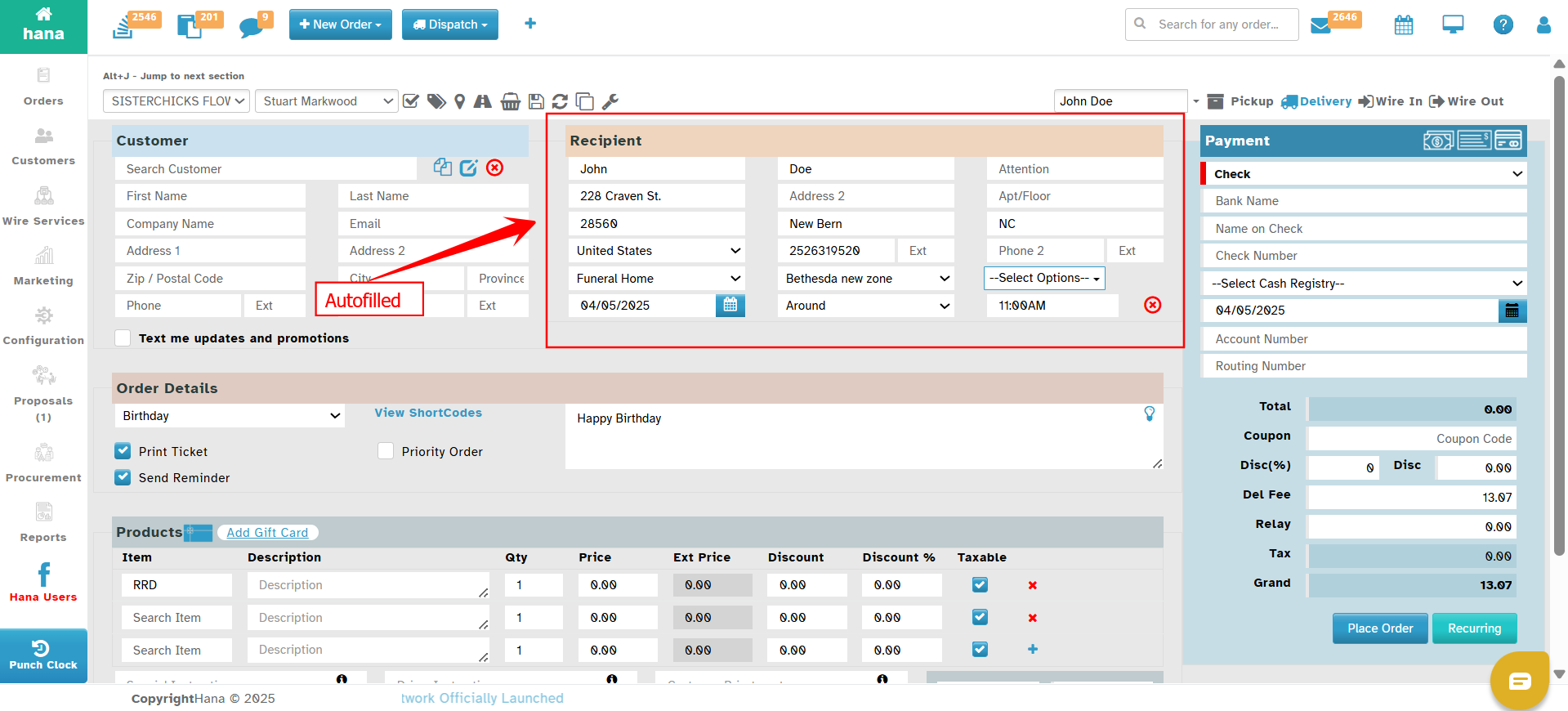
At the top left of the Order Entry page, there is a Funeral Log dropdown. This dropdown displays a list of all funeral logs scheduled for delivery today. Only funeral records with the current date as the delivery date will be shown.
Select a funeral log from the dropdown—once selected, the Recipient Info section in the order entry page will be automatically filled in with the funeral details.
Benefits of Using Funeral Log
| Feature | Benefit |
|---|---|
| Centralized Record Keeping | All funeral-related orders in one place |
| Fast Reuse of Data | Avoid retyping addresses and instructions |
| Error Reduction | Prevent typos or missing information during busy times |
| Better Customer Service | Ensure timely and respectful delivery for sensitive occasions |
| Integration with Order Flow | Quickly add or retrieve funeral info during new order creation |
Key Notes
You can create a new funeral log from the Configuration menu or during order entry.
Funeral logs can be updated anytime using the Edit option.
Make sure Google Lookup is turned off if you want to see your saved addresses during entry.
You can use the Funeral Log as part of the Common Address system for any frequently used location.
Was this article helpful?
That’s Great!
Thank you for your feedback
Sorry! We couldn't be helpful
Thank you for your feedback
Feedback sent
We appreciate your effort and will try to fix the article