Adding a recipient is an important step in processing an order efficiently. Recipients can either be selected from the existing customer database or added as new entries. This ensures accurate delivery details and a seamless order fulfillment process.
This guide outlines the steps to search for or add a recipient in the system.
TABLE OF CONTENTS
Steps to Search for/Add a Recipient
Step 1: Access the Order Entry Page
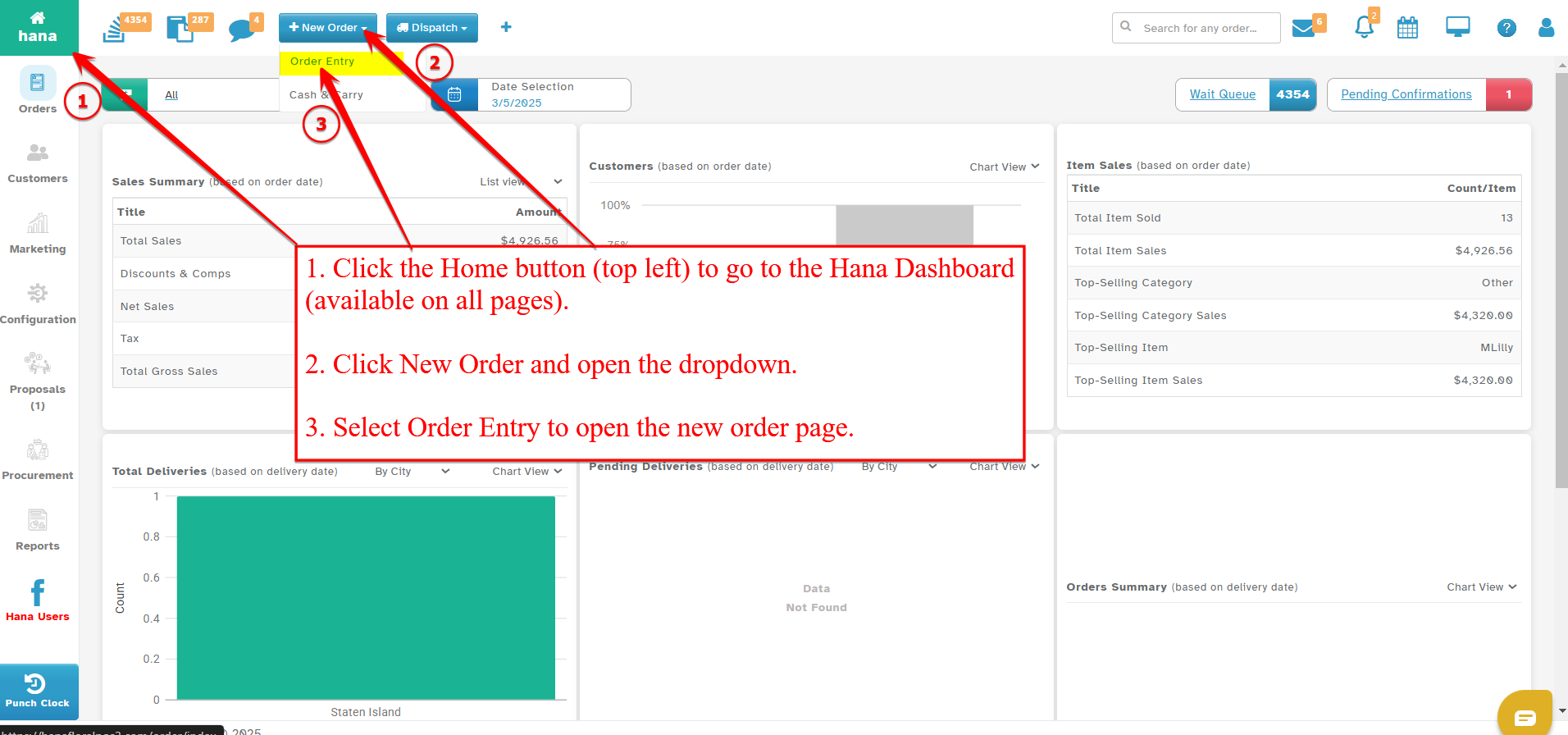
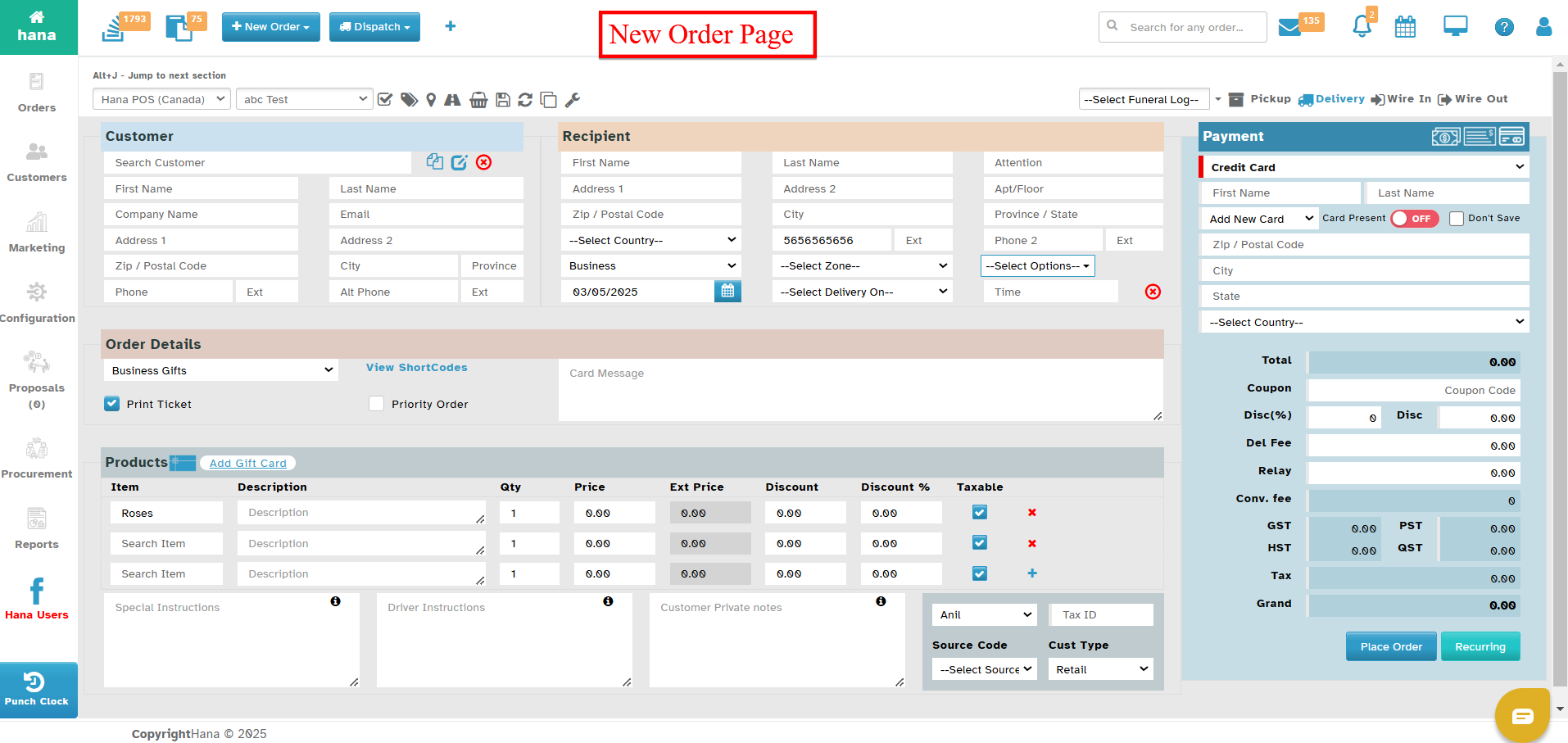
On the Dashboard, click New Order and select Order Entry from the dropdown list.
Step 2: Search for an Existing Recipient
In the Recipient Section, enter the first few letters of the recipient's name in the Name field.
A list of matching recipients will appear. Select the appropriate recipient from the list.
Step 3: Add a New Recipient
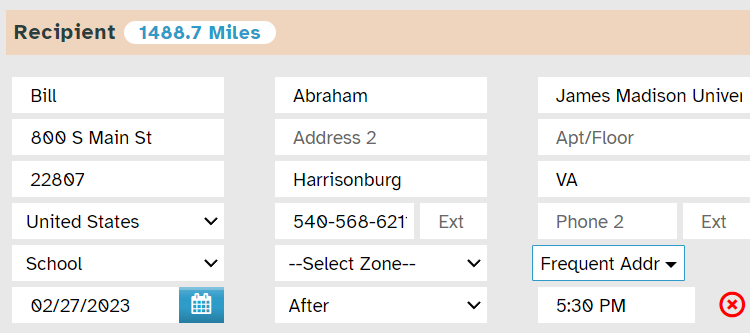
If the recipient is not in the database, enter the following details:
First Name
Last Name
Address
Phone Number
If the recipient is associated with a business or company, enter the first few letters in the Attention field. A dropdown list will appear with available matches; select the relevant name.
The Address Fields will be automatically updated based on the selection.
Step 4: Define Recipient Location type
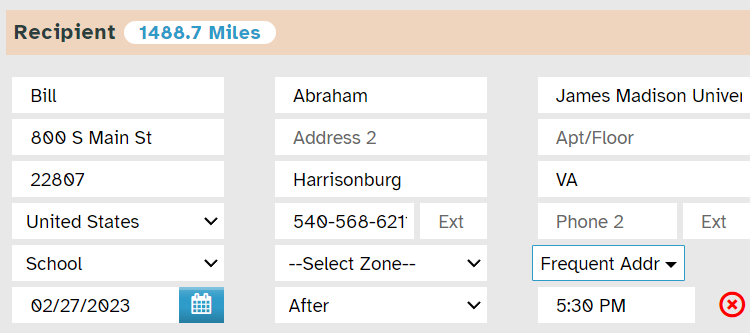
Select the recipient’s Location from the Select Location dropdown list.
Always make sure to choose the correct Location type from the drop-down like Home, Hospital, Church, Business, School etc. This helps Hana in alerting you about timed deliveries.Choose the corresponding Zone from the Select Zone dropdown list.
Automatic Location Assignment: Hana dashboard tries to detect the location type-based details in the recipient address. Below is the criteria for automatic location detection.
When RECIPIENT ATTENTION and RECIPIENT ADDRESS Contain the below keywords they will be marked as Follows
'CHURCH' THEN the Location will be marked as Church
'Chapel' THEN the Location will be marked as Church
'Funeral' THEN the Location will be marked as Funeral Home
'Service' THEN the Location will be marked as Funeral Home
'Memorial' THEN the Location will be marked as Funeral Home
'Suite' THEN the Location will be marked as Business
'inc' THEN the Location will be marked as Business
'llc' THEN the Location will be marked as Business
'School' THEN the Location will be marked as School
'Hospital' THEN the Location will be marked as Hospital
'Retirement Home' THEN the Location will be marked as Retirement Home
If on any order if automatic location assignment is wrong, simply assign the location manually and Hana dashboard will show it accordingly.
Final Step: Save the Recipient Information
Note: Once the recipient information is added, it is automatically saved for future use.
Was this article helpful?
That’s Great!
Thank you for your feedback
Sorry! We couldn't be helpful
Thank you for your feedback
Feedback sent
We appreciate your effort and will try to fix the article