Walk-in settings in Hana POS allow you to configure order processing for walk-in customers, ensuring faster transactions. By setting up clerks, printers, and payment integration, you can streamline in-store orders.
This guide provides step-by-step instructions for configuring Walk-in Settings in Hana POS.
Steps to Configure Walk-in Settings
Step 1: Access the Cash & Carry Settings
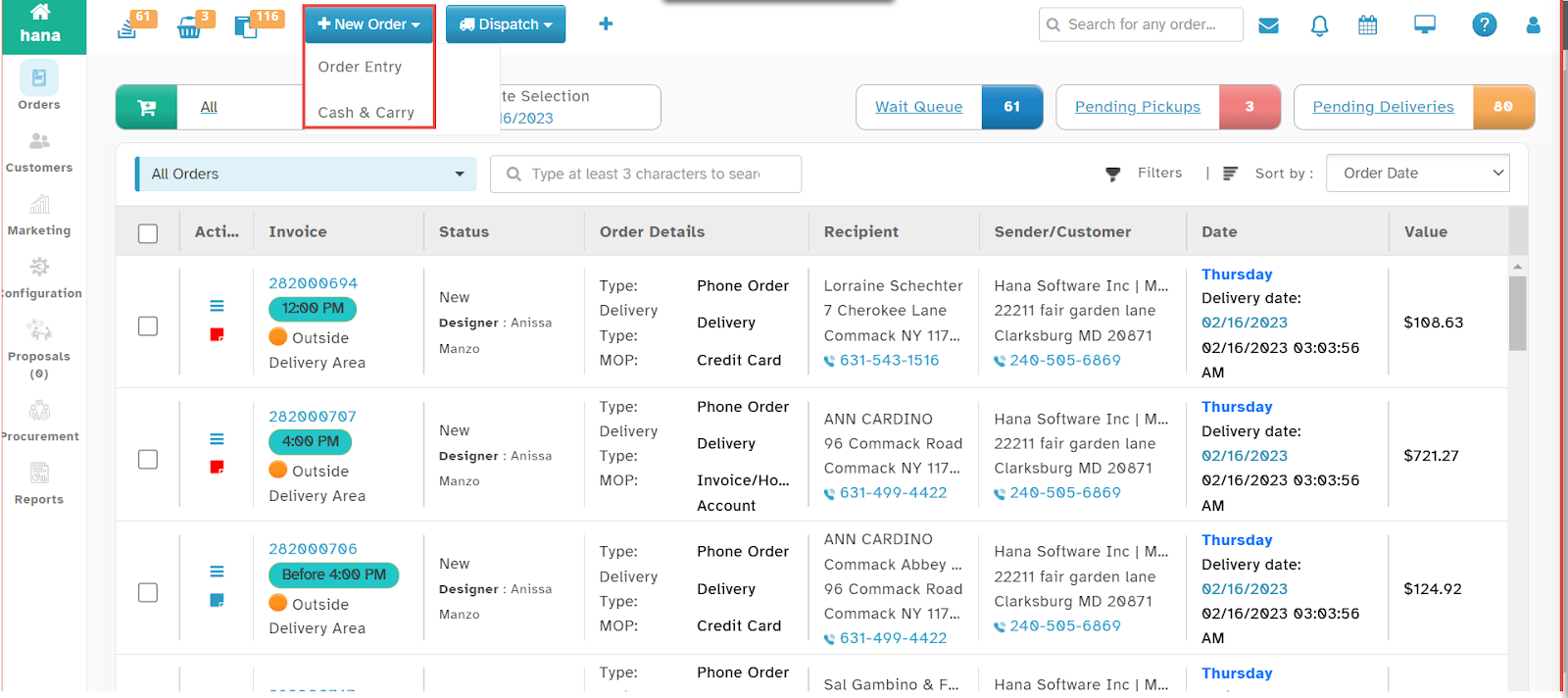
Navigate to New Entry > Cash & Carry from the dropdown list.
Note: This feature is available on all pages of Hana POS, allowing quick order creation from any screen.
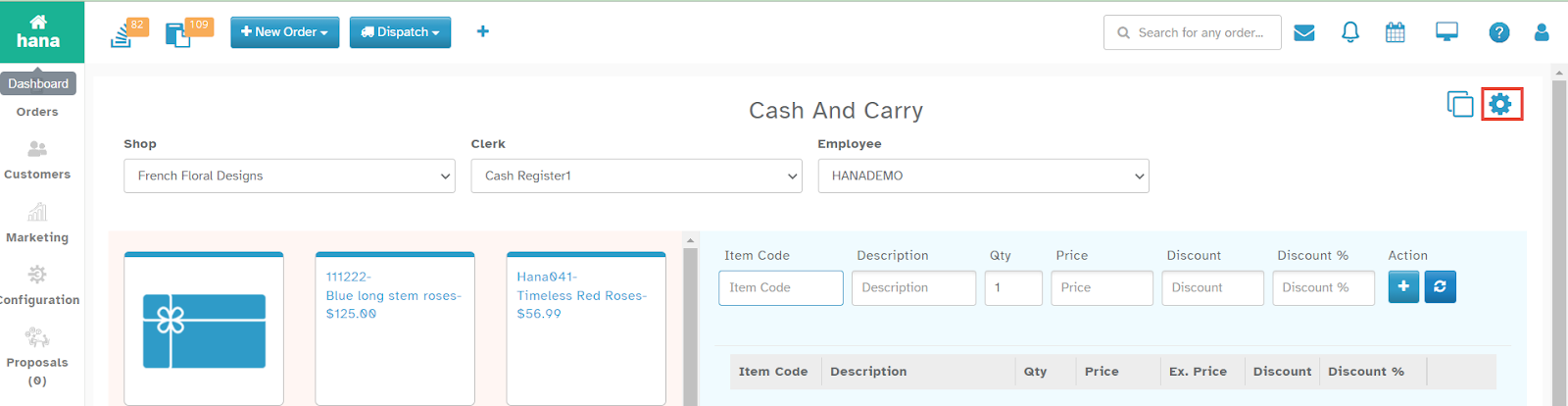
The Cash & Carry Page will be displayed.
Step 2: Open Walk-in Settings
Click the settings icon.
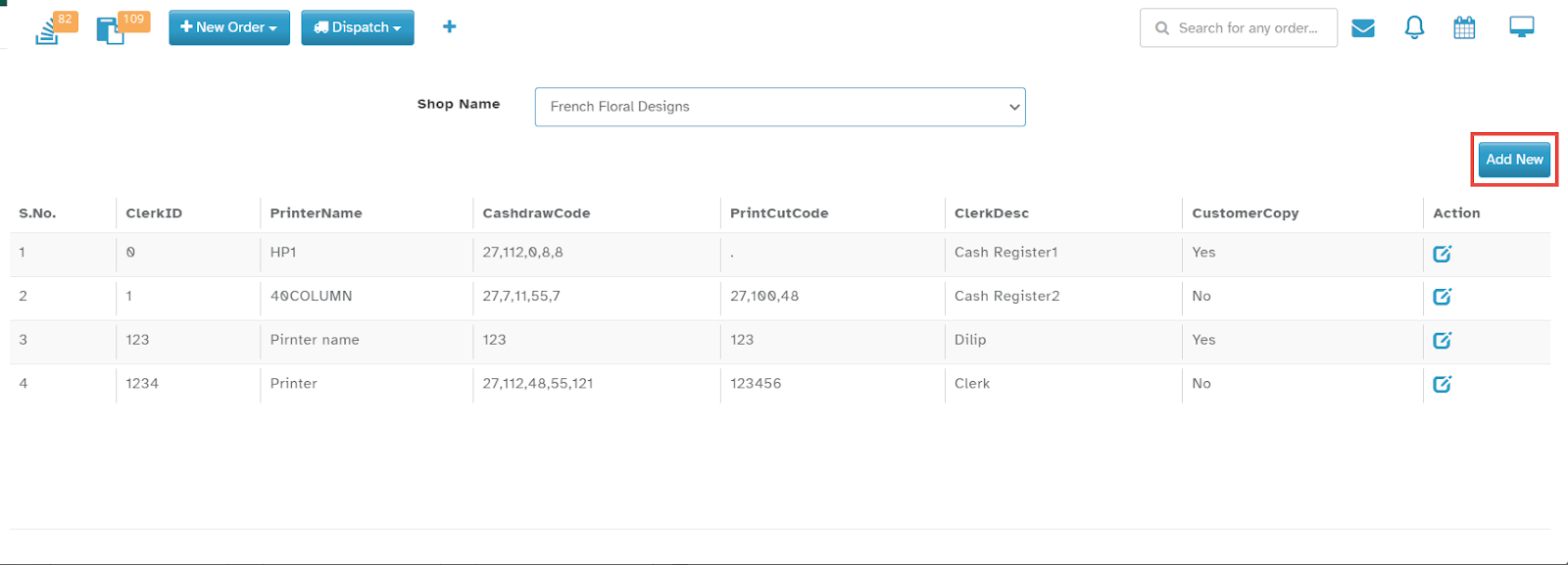
The Settings Dialog will be displayed.
Click Add New.
The Walk-in Settings Dialog will appear.
Step 3: Enter Walk-in Configuration Details
Fill in the following details:
Clerk ID and Clerk Description
Printer Name, Manufacturer, and Model
Cash Drawer Code (to open the cash drawer)
Printer Cut Code (to cut the print receipt after cash drawer opens)
Clearnet API Key and Clover Device ID (if applicable)
Step 4: Enable Printing and Receipt Options
Check Enable Clover Printer if needed.
Check Customer Copy to print a receipt for the customer.
Check Merchant Copy to print a receipt for the business.
Enter any notes for:
Customer Copy
Merchant Copy
Step 5: Save the Settings
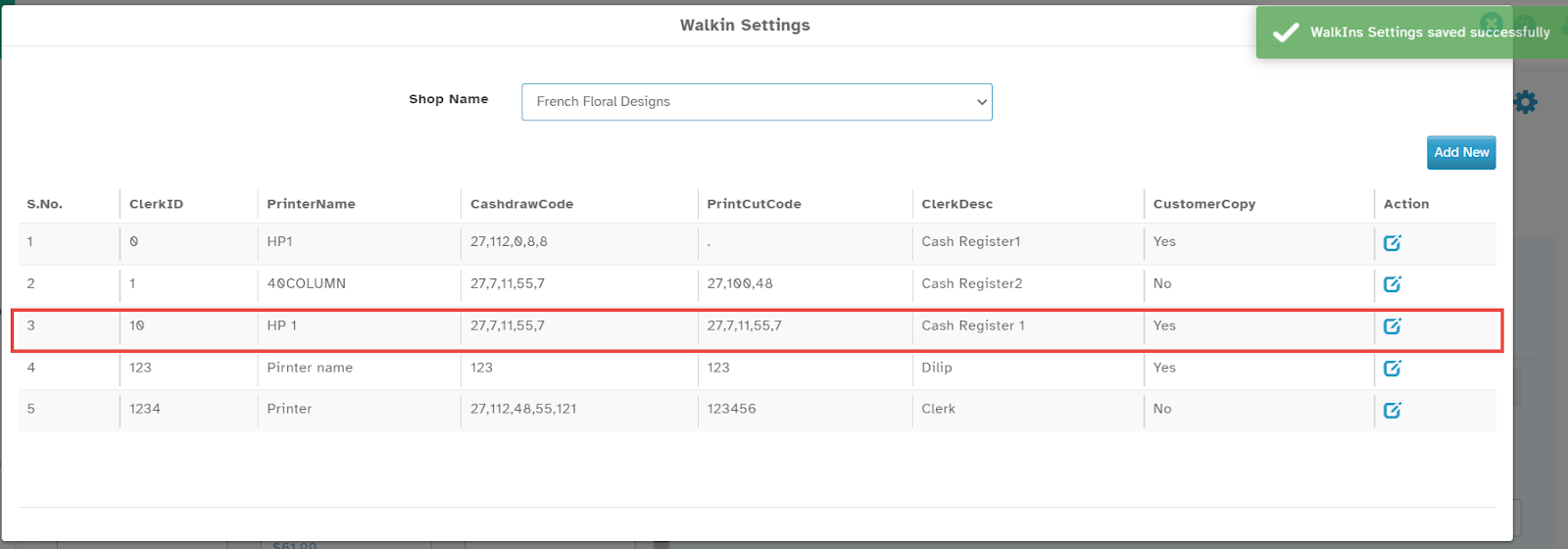
Click Save.
A success notification will confirm that the setting has been added to the Walk-in Settings List.
Managing Walk-in Settings
To edit a setting, click the edit icon in the row of the setting you wish to modify.
By following these steps, you can optimize walk-in order processing and improve checkout efficiency in Hana POS.
Was this article helpful?
That’s Great!
Thank you for your feedback
Sorry! We couldn't be helpful
Thank you for your feedback
Feedback sent
We appreciate your effort and will try to fix the article