Hana POS allows you to set default values for various fields on the Cash & Carry Page, helping to streamline daily order processing and reduce repetitive data entry.
For example, you can set the default quantity to 1, the default occasion to "Other," and preselect fields like Bank Name or Sales Person so they auto-populate whenever a new Cash & Carry order is initiated.
This guide outlines the steps to set and manage default values for the Cash & Carry page.
Steps to Manage Default Values on the Cash & Carry Page
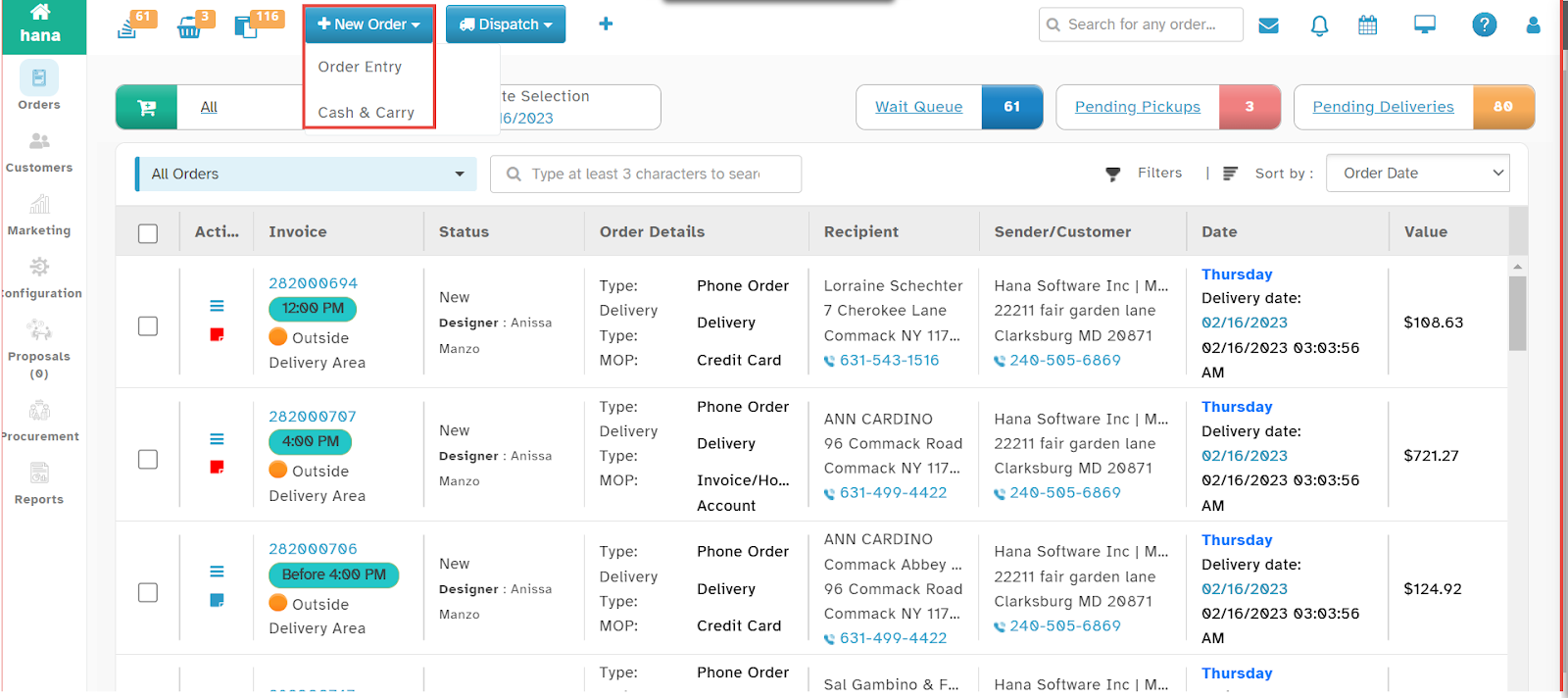
Step 1: Access the Cash & Carry Page
Log in to Hana POS.
Navigate to New Entry > Cash & Carry.
The Cash & Carry page will load.
Step 2: Open the Default Values Dialog
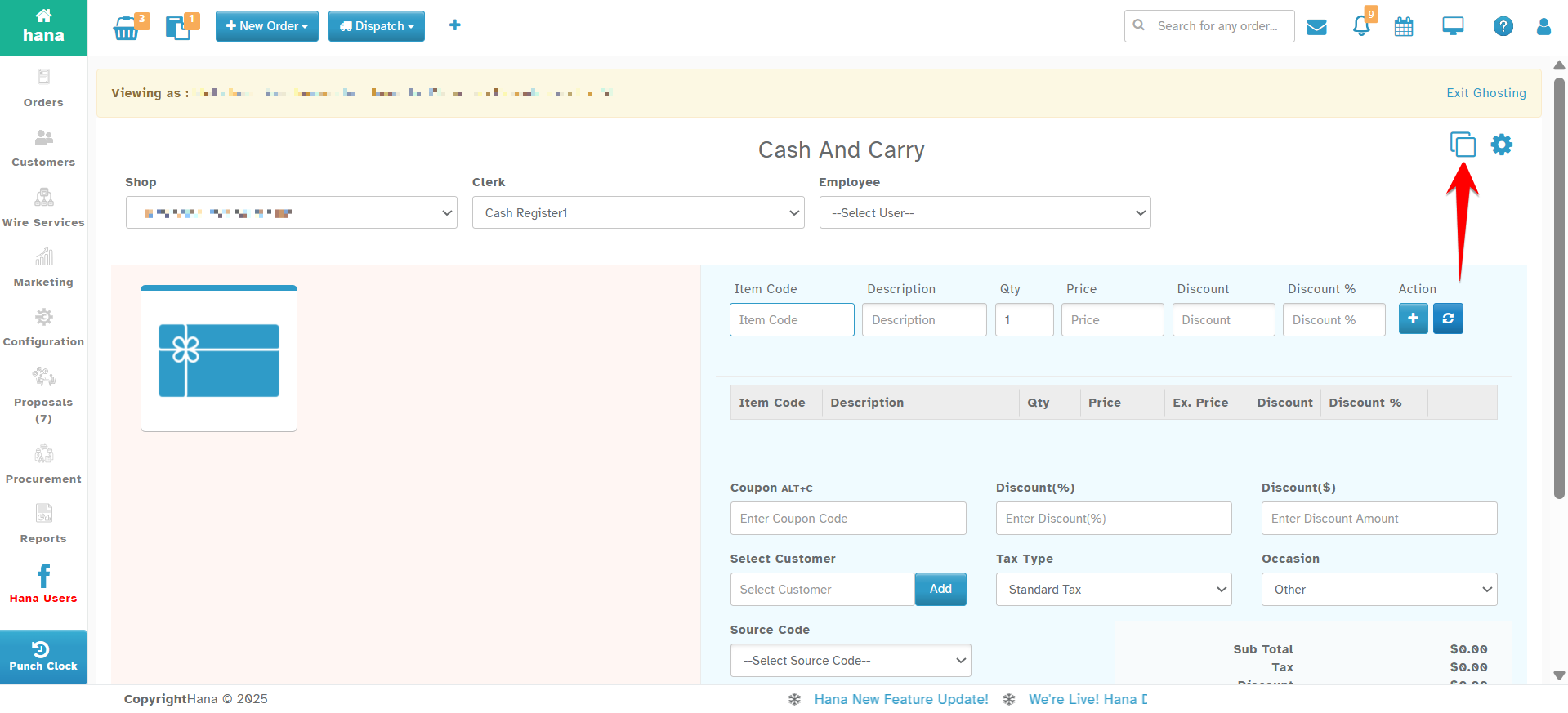
On the top right corner of the Cash & Carry page, click the Default Values icon.
The Choose Page Default Values dialog will open.
Step 3: Set Default Values
Within the Choose Page Default Values window, you can configure the following: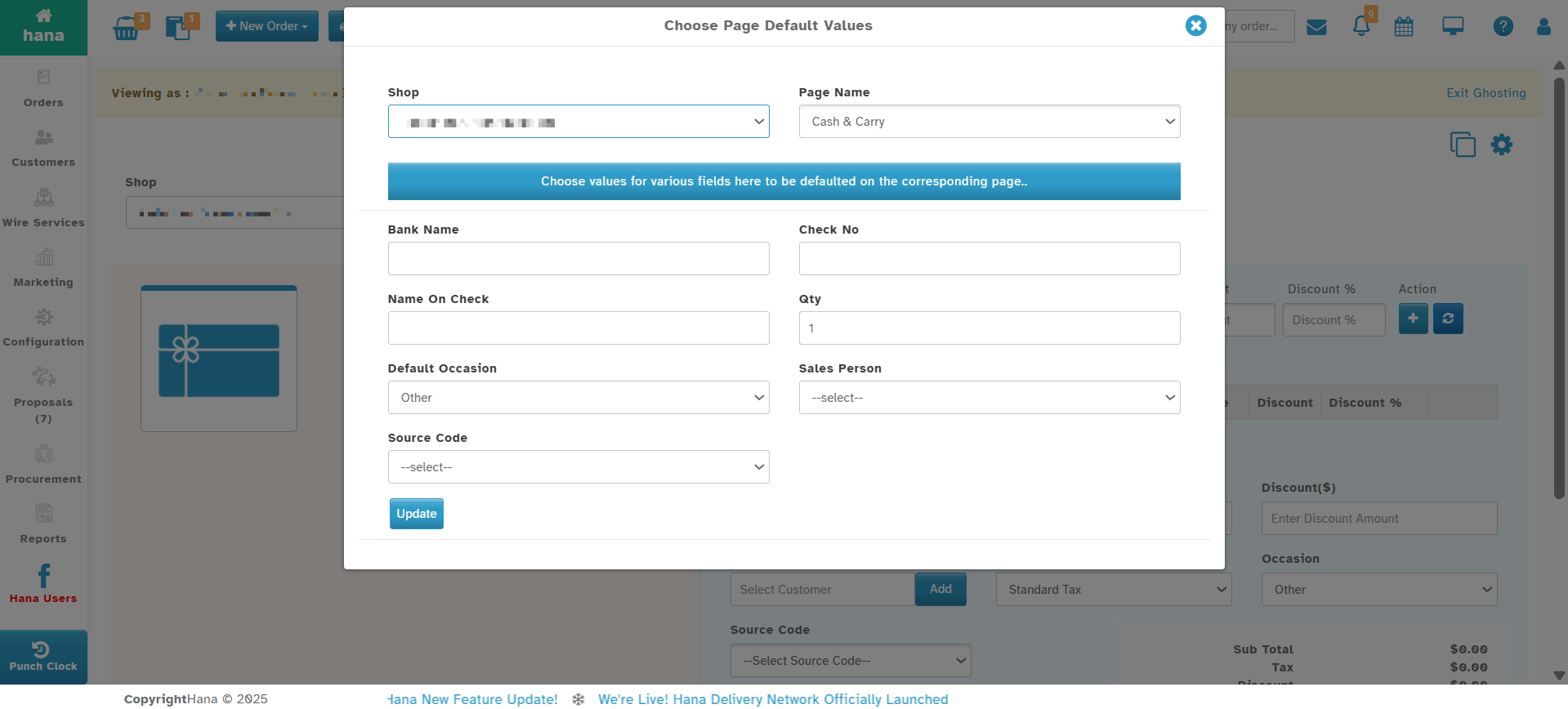
Shop
Select the active shop where the defaults will apply (e.g., Pletschers Greenhouses Inc).Page Name
Set to Cash & Carry to define defaults specific to this screen.Bank Name
Set a default bank name for check payments.Check No
Pre-fill a standard placeholder or starting check number, if applicable.Name on Check
Enter a default name to display in check-related transactions.Qty
Set the default item quantity (e.g., 1) to auto-fill when adding products.Default Occasion
Choose a default occasion such as Birthday, Anniversary, or Other.Sales Person
Preselect a sales person to auto-assign to each walk-in order.Source Code
Set a default source code to track how the sale was initiated (e.g., In-store, Phone Inquiry).
These values will automatically populate when creating a new Cash & Carry order, reducing the time required to fill out forms.
Step 4: Save the Default Values
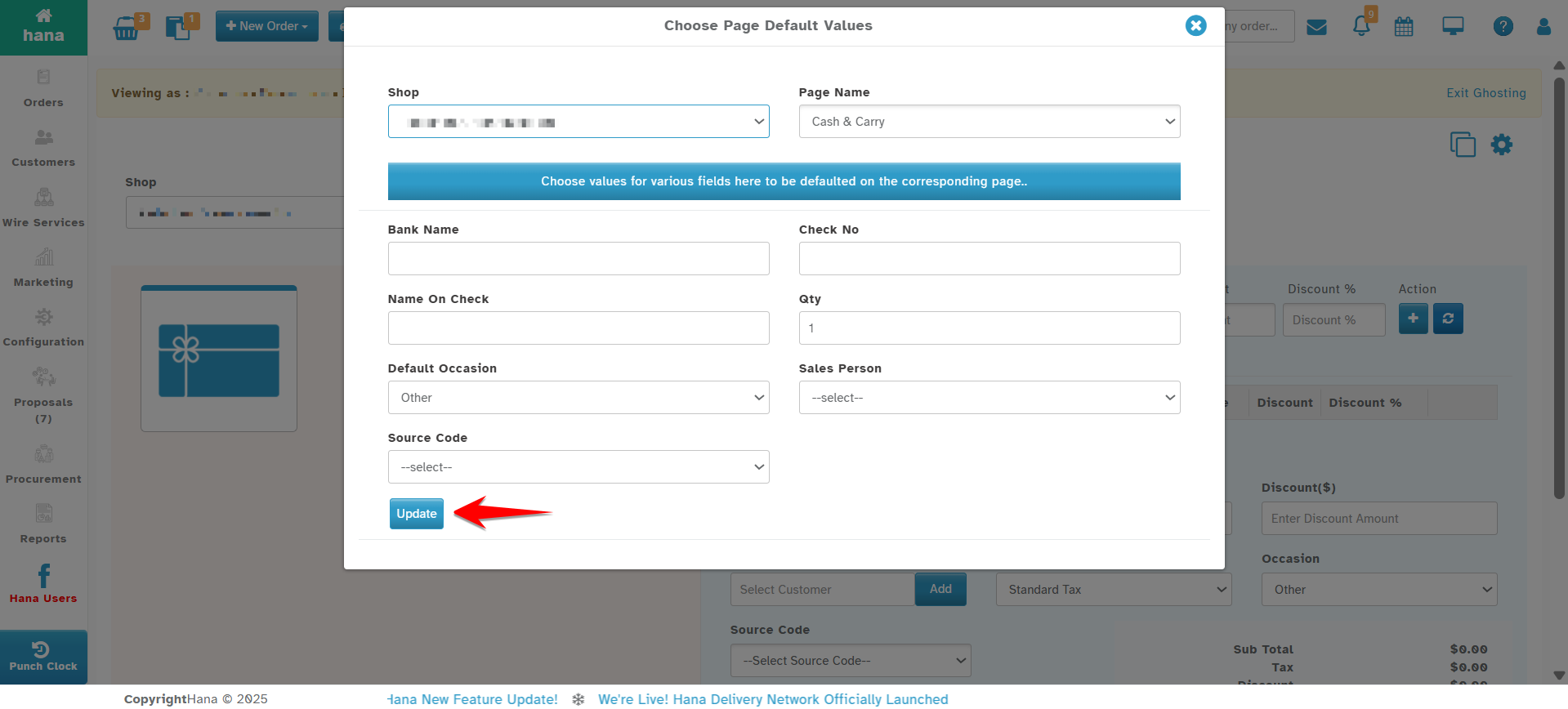
After selecting your preferred default settings, click Update at the bottom of the dialog.
A confirmation will appear, and the default values will be applied.
- The next time you access the Cash & Carry page, these fields will load with your saved defaults, simplifying order entry and ensuring consistency.
Best Practices
Update default values periodically based on staffing, promotions, or recurring customer behavior changes.
Use a neutral default for fields like Occasion or Source Code if they vary frequently.
Only authorized users should modify these settings to ensure data accuracy.
Conclusion
Setting up default values on the Cash & Carry page allows you to accelerate transactions and maintain consistency in data entry. It’s especially useful for high-volume walk-in shops that handle frequent repeat orders or in-store purchases.
Was this article helpful?
That’s Great!
Thank you for your feedback
Sorry! We couldn't be helpful
Thank you for your feedback
Feedback sent
We appreciate your effort and will try to fix the article