Reconciliation is a critical daily task in retail and floral businesses using HANA POS.
It ensures that the cash drawer is accurately balanced at the end of each day and that the system’s financial records align with the actual cash on hand.
It also helps set the starting balance for the next business day.
This article provides a complete breakdown of the Reconcile Cash Drawer Balance feature, available on the Cash & Carry Page. It includes how each field works and what to expect during reconciliation.
Why Reconciliation Matters
Reconciling your cash drawer allows you to:
Detect any discrepancies between actual and system-calculated cash
Log cash inflow/outflow activity, including payouts
Prevent financial errors or missed transactions
Start the next business day with a clean, verified balance
Step-by-Step: How to Reconcile the Cash Register
Step 1: Access the Cash & Carry Page
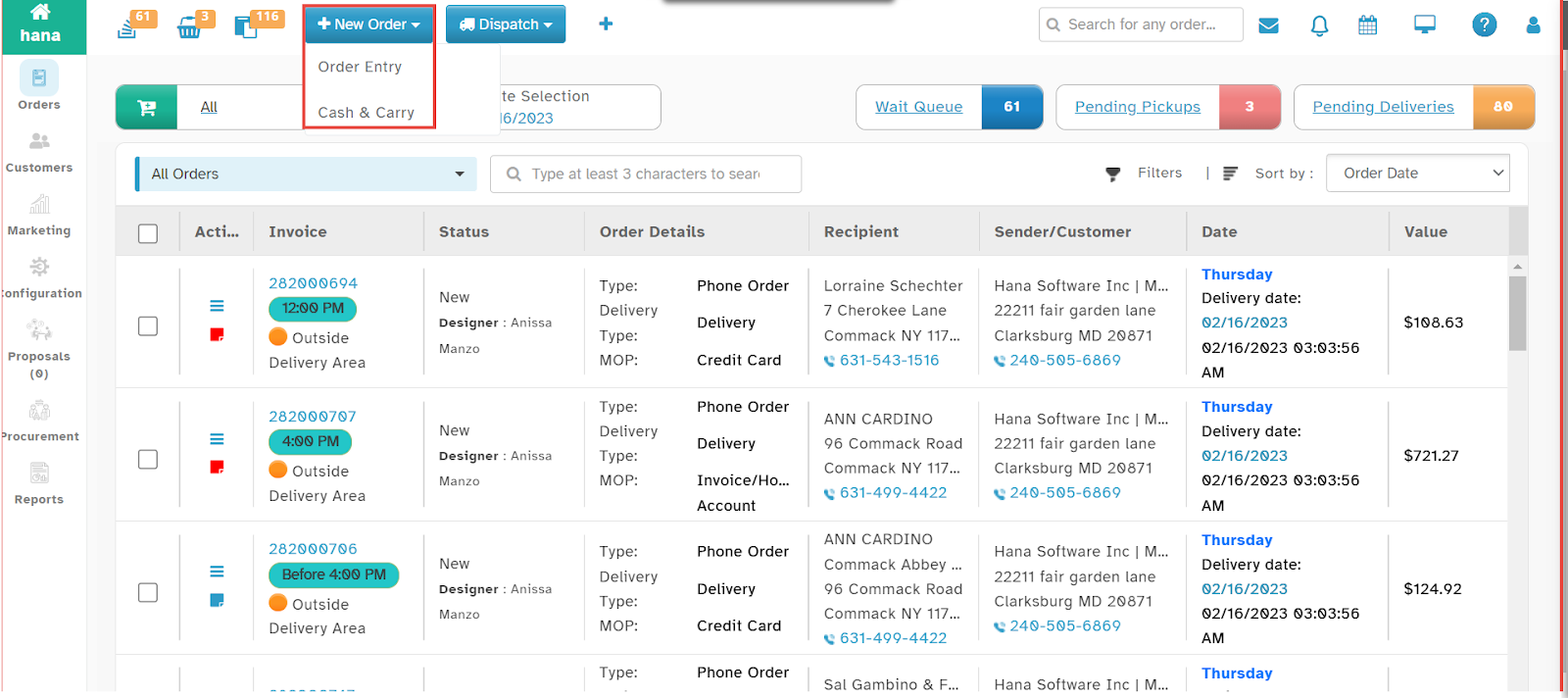
Navigate to New Order and select Cash & Carry from the dropdown list.
Note: This feature is available on all pages of Hana POS, allowing quick order creation from any screen.
The Cash & Carry Page will be displayed.
Step 2: Select Shop and Cash Register
Once on the Cash & Carry page:
Shop Dropdown: Choose the relevant shop location if you manage multiple locations.
Cash Register Dropdown: Select the cash register you're reconciling.
This ensures you're working with the correct cash drawer for the intended store and register.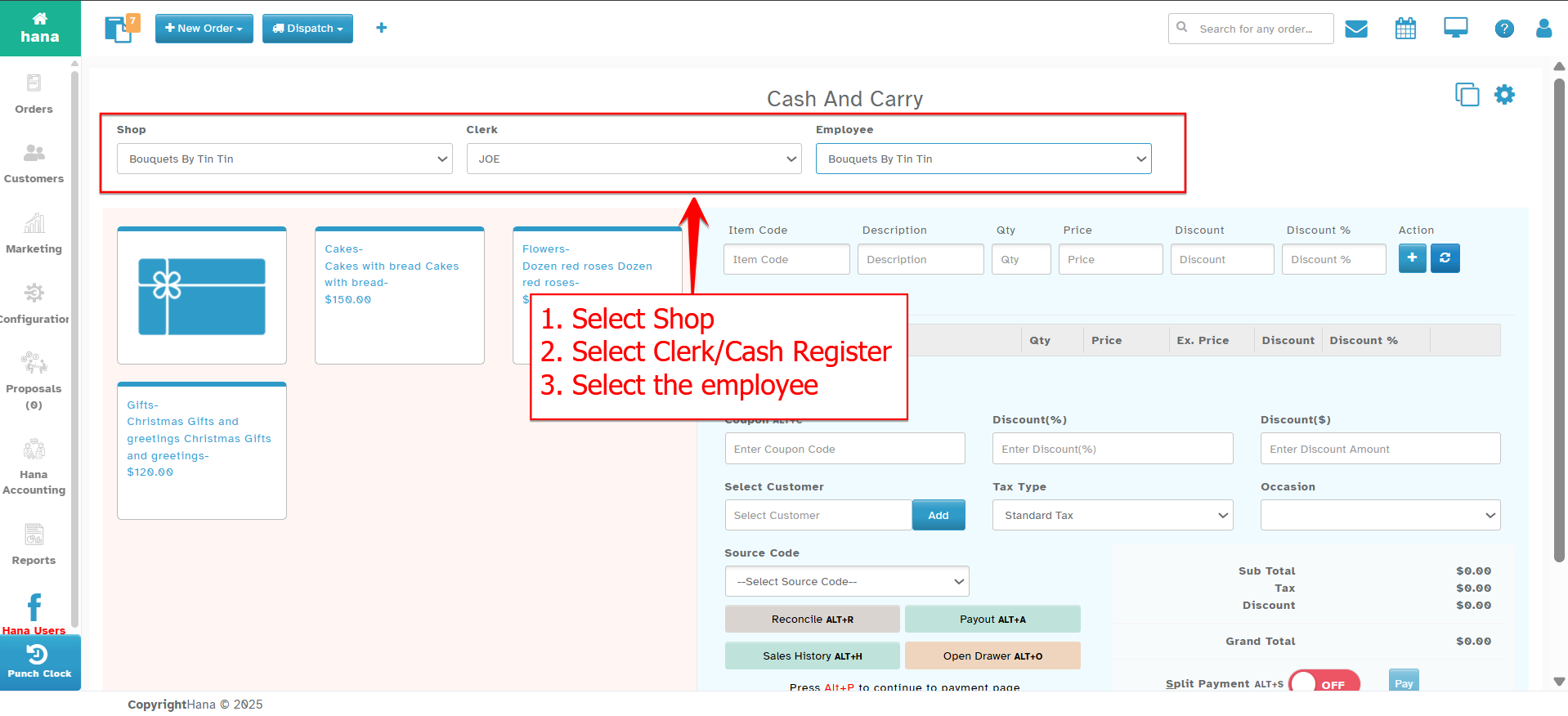
Step 3: Access the reconcile page
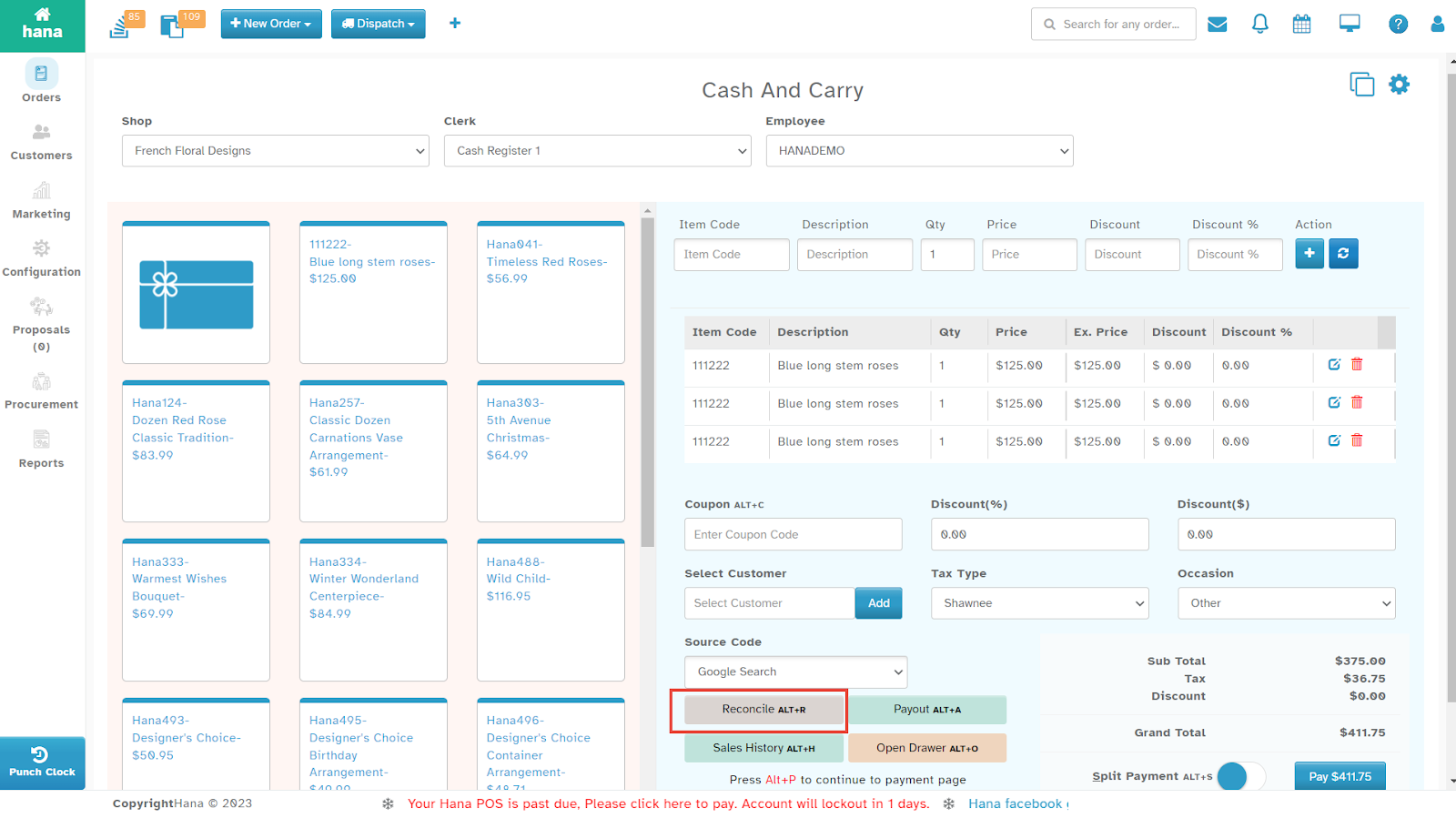
On the Cash and Carry Page, click Reconcile.
Shortcut: Press Alt + R for quick access.
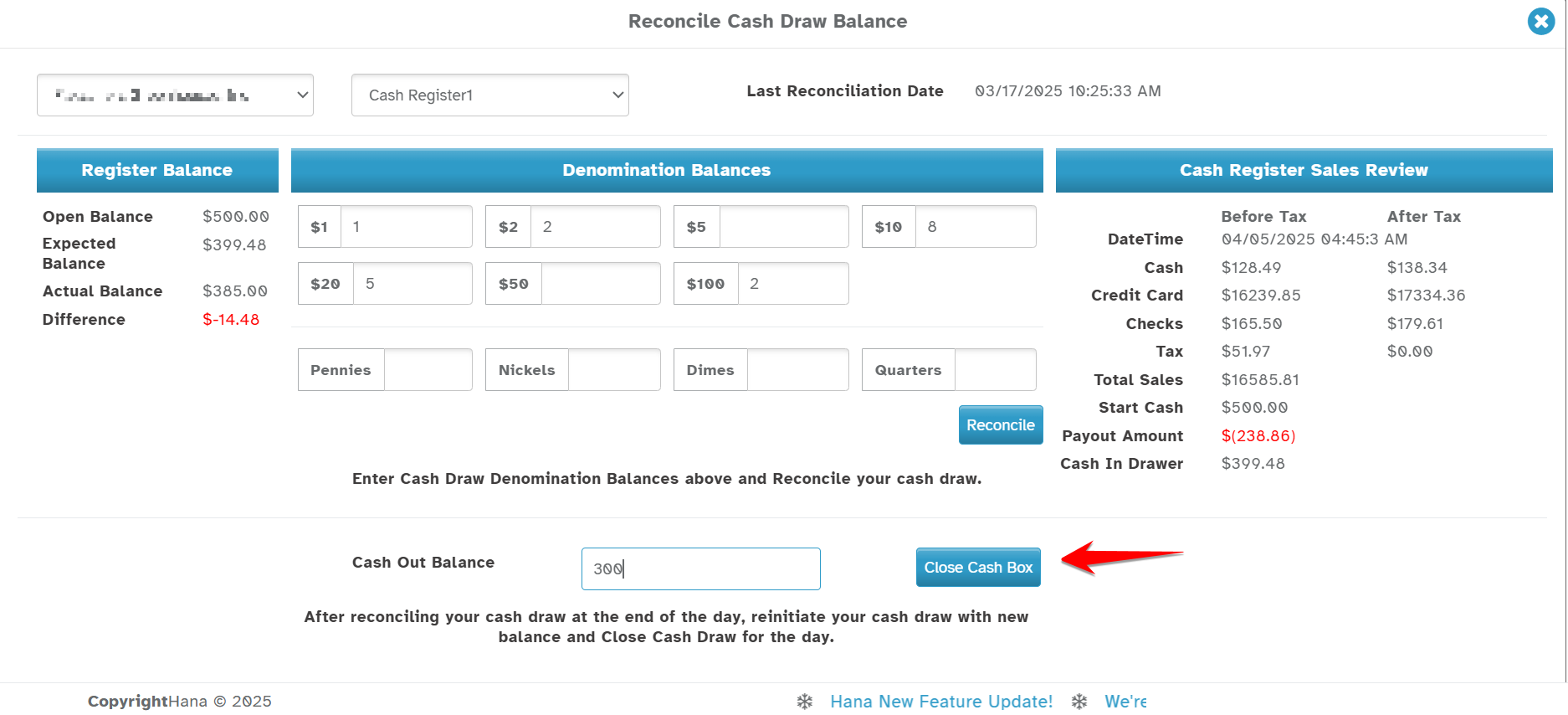
The Reconcile Cash Drawer Balance Dialog will appear.
The latest date and time of the last reconciliation and the current opening balance will be displayed.
Step 4: Review Current Reconciliation Information
When you open the Reconcile panel, you’ll see an overview of the last reconciliation and current values: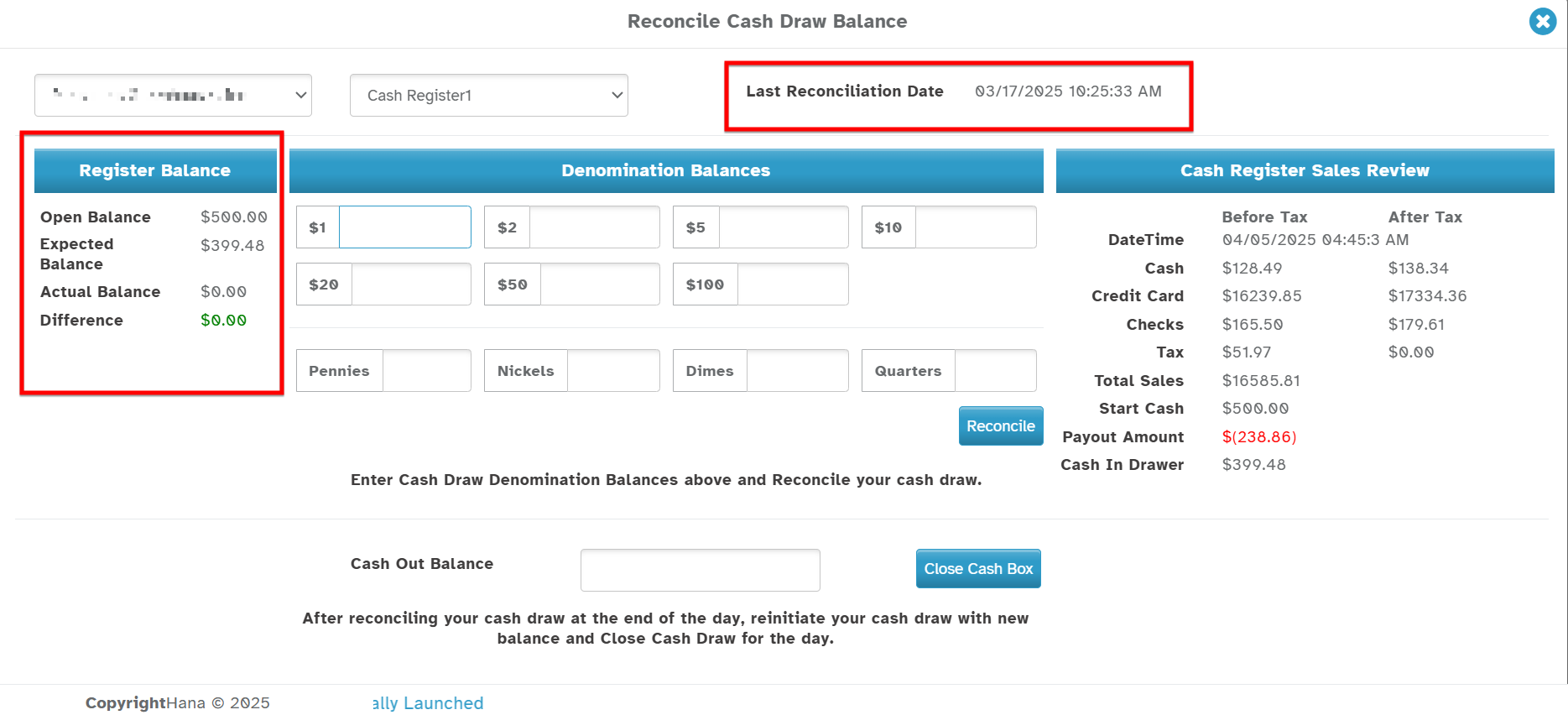
| Field | Explanation |
|---|---|
| Last Reconciliation Date | Shows the date and time when the register was last reconciled. Helps identify if this is a daily or delayed reconciliation. |
| Open Balance | The starting cash amount in the drawer when the day began. Pulled from the previous day’s “Cash Out Balance.” |
| Expected Balance | The amount the POS system expects based on sales and payouts. This includes the starting balance and all cash sales. |
| Actual Balance | This is calculated as you input your denomination counts (step below). The sum of all cash in drawer. |
| Difference | If there’s a mismatch between expected and actual balance, the difference will appear here. A negative number means cash is short. A positive number means excess cash is in the drawer. |
Step 5: Review Sales Summary for the Day
Next to the denomination section, you’ll see a Sales Review panel for the selected register: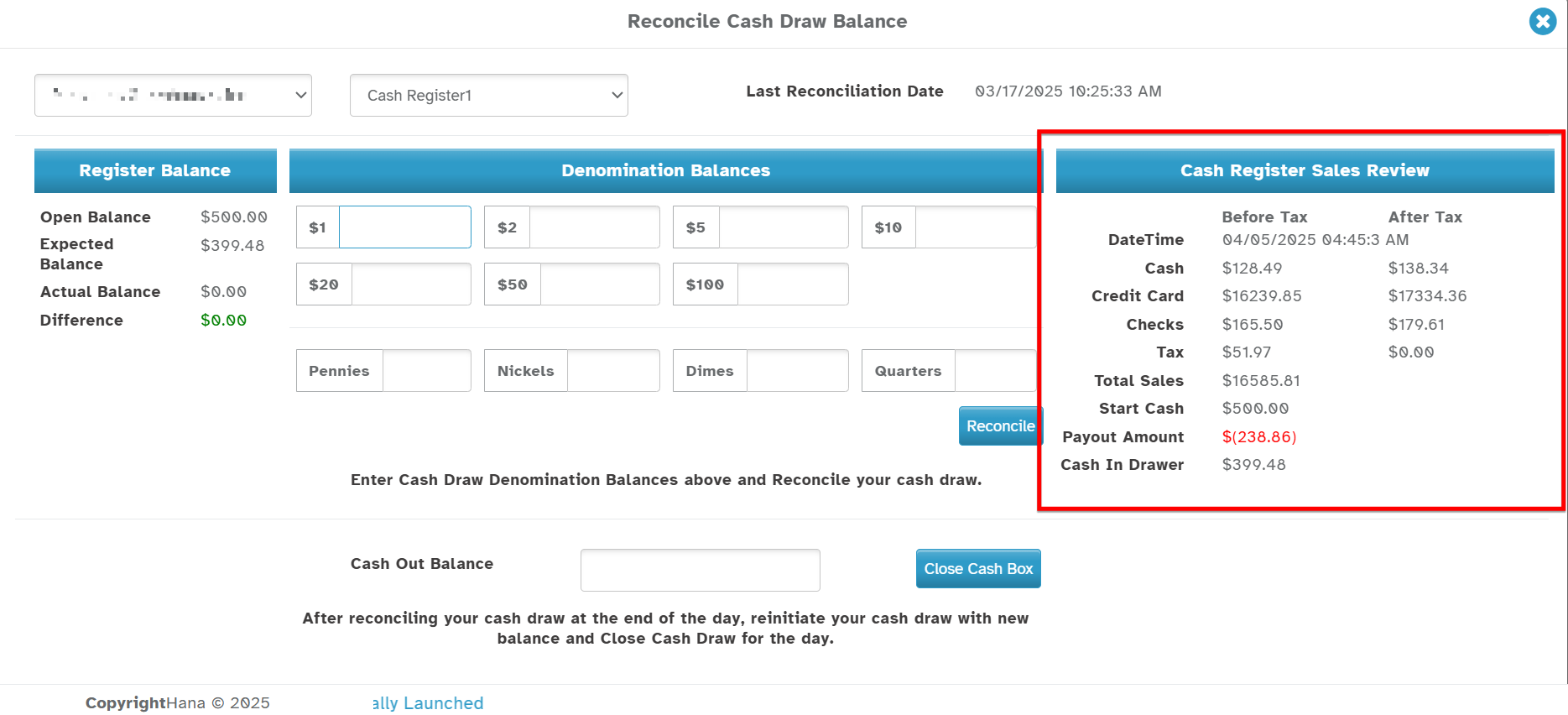
| Field | Explanation |
|---|---|
| DateTime | Timestamp of the report snapshot. |
| Cash / Credit Card / Checks | Total sales by payment method. Helps verify where payments went. |
| Tax | Total tax collected for the day. |
| Total Sales | Overall sales processed during the day. |
| Start Cash | Same as Open Balance. Used for comparison. |
| Payout Amount | Total payouts recorded during the day. Subtracted from cash total. |
| Cash in Drawer | Final cash amount the system expects after all adjustments. Matches Expected Balance above. |
Use this section to cross-check with sales activity and reconcile discrepancies, if any.
Step 6: Enter Denomination Balances
You will now enter physical cash counts based on denomination.
| Denominations Available |
|---|
| $1, $2, $5, $10, $20, $50, $100 bills |
| Pennies, Nickels, Dimes, Quarters |
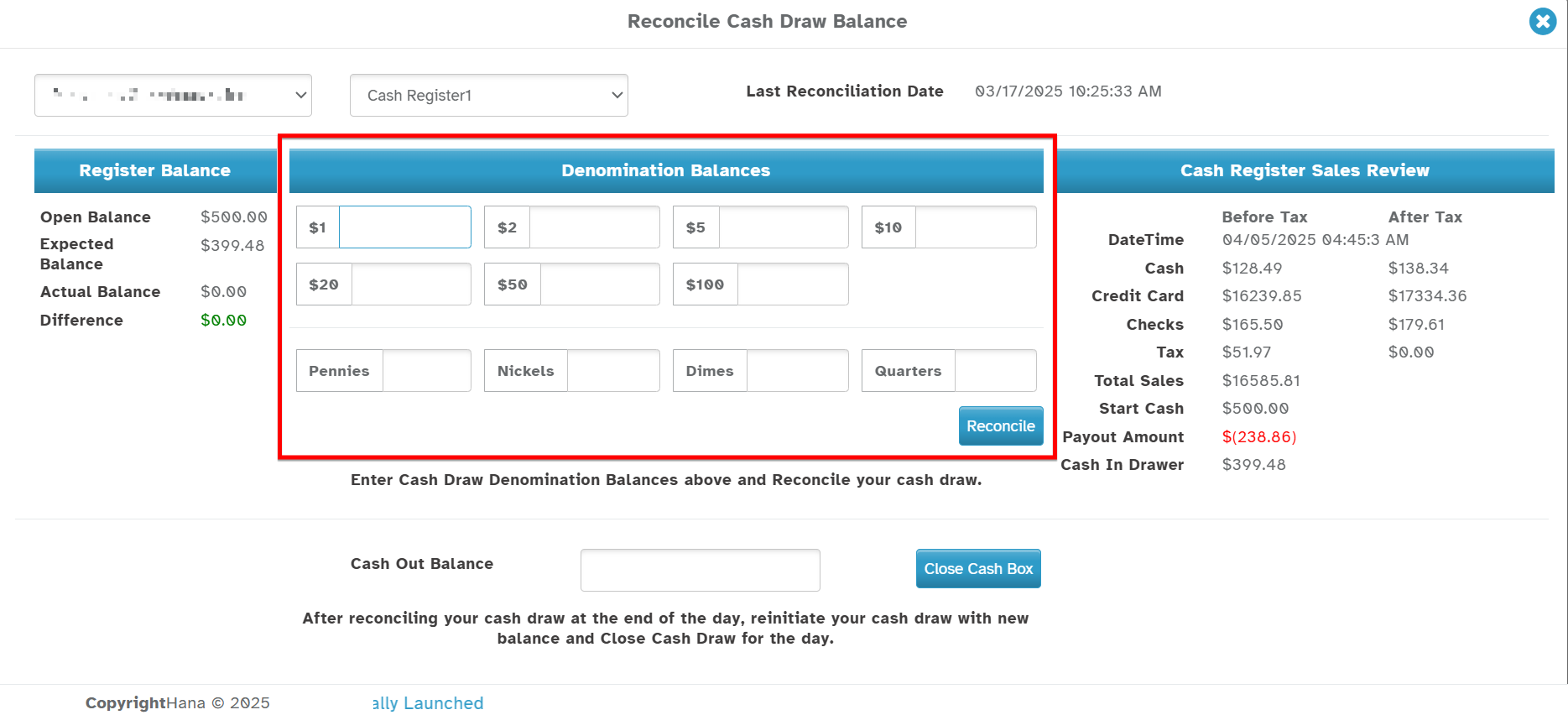
How it works:
Enter how many of each bill/coin you have in the drawer.
As you enter values, the Actual Balance auto-calculates.
The system compares it with the Expected Balance and shows any discrepancy.
This helps you verify if the physical cash matches what should be in the register based on your transactions.
Step 7: Reconcile and Close the Register
After verifying denomination totals and sales:
Click Reconcile
This locks in the cash count and records any difference.
Reconciled records are saved for reporting and audits.
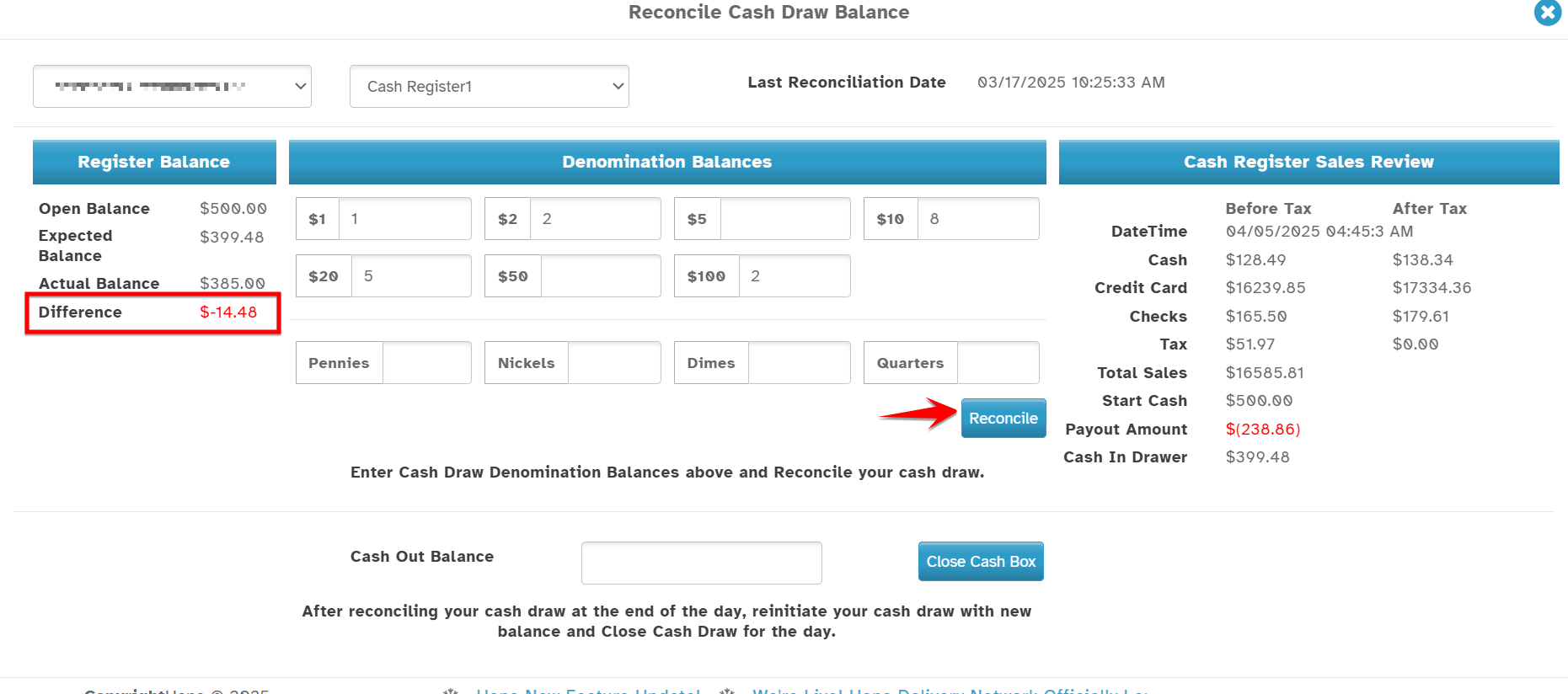
Reconciliation Formula in HANA POS
The Expected Balance is calculated using this formula:
Expected Balance = Open Balance + Cash Sales – Payouts
Open Balance: The amount of cash in the register at the start of the day. This is typically carried over from the previous day's Cash Out Balance.
Cash Sales: Total cash received from customer transactions during the day. This does not include credit card or check payments.
Payouts: Any cash that was taken out of the drawer for expenses, vendor payments, or other purposes.
Actual Balance
The Actual Balance is the amount of cash physically present in the drawer, calculated after entering the denomination counts and clicking the Reconcile button.
Discrepancy / Difference
Difference = Expected Balance – Actual Balance
If the difference is 0, the drawer is balanced.
If the difference is positive, there is more cash than expected (over).
If the difference is negative, there is less cash than expected (short).
Discrepancies should be reviewed and resolved before closing the register to ensure financial accuracy.
Enter Cash Out Balance
Enter how much cash will remain in the drawer for the next day (this becomes the next day's Open Balance).
Excess cash may be removed from the drawer at this time for safe storage or deposit.
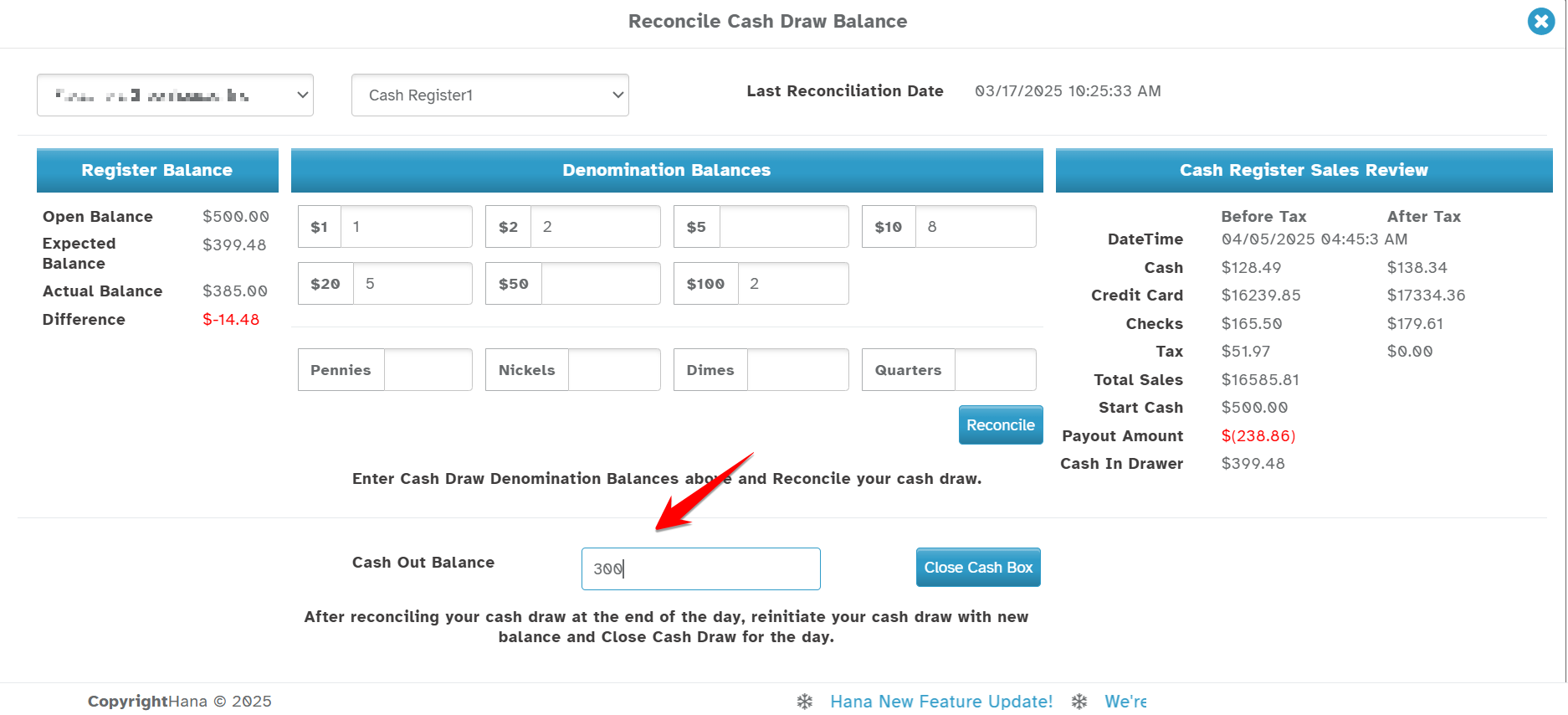
Click Close Cash Box
Finalizes the reconciliation and closes the cash register for the day.
 Once closed, the drawer is locked for transactions until the next day’s operations begin.
What Happens Behind the Scenes
The system saves a timestamped log of reconciliation activity for auditing.
Differences (if any) are recorded for future reporting.
The Cash Out Balance becomes the Open Balance for the next day's sales.
Users with proper permissions can view reconciliation history.
Best Practices
Always perform reconciliation at the end of each business day.
Have a supervisor or manager review discrepancies before closing.
Please make sure all payouts are recorded to avoid confusion regarding expected cash.
Keep denomination counts accurate for easier audits and banking.
Troubleshooting Tips
| Issue | Likely Cause |
|---|---|
| Difference showing in red | Missing payout entry, incorrect denomination input, or unrecorded sale |
| The actual balance is not updating. | Check if all denomination fields are filled correctly |
| Can’t close the cash box | Ensure reconciliation is completed and the Cash Out Balance is entered. |
Conclusion
Reconciliation is a daily accounting task that helps businesses track cash flow, prevent errors, and prepare registers for the next business day.
Was this article helpful?
That’s Great!
Thank you for your feedback
Sorry! We couldn't be helpful
Thank you for your feedback
Feedback sent
We appreciate your effort and will try to fix the article