The Sales History option in Hana POS allows you to view a sales summary for a specific date. This feature helps businesses track daily sales performance, monitor transactions, and maintain accurate financial records.
This guide outlines the steps to access and view the Sales History.
Steps to View Sales History
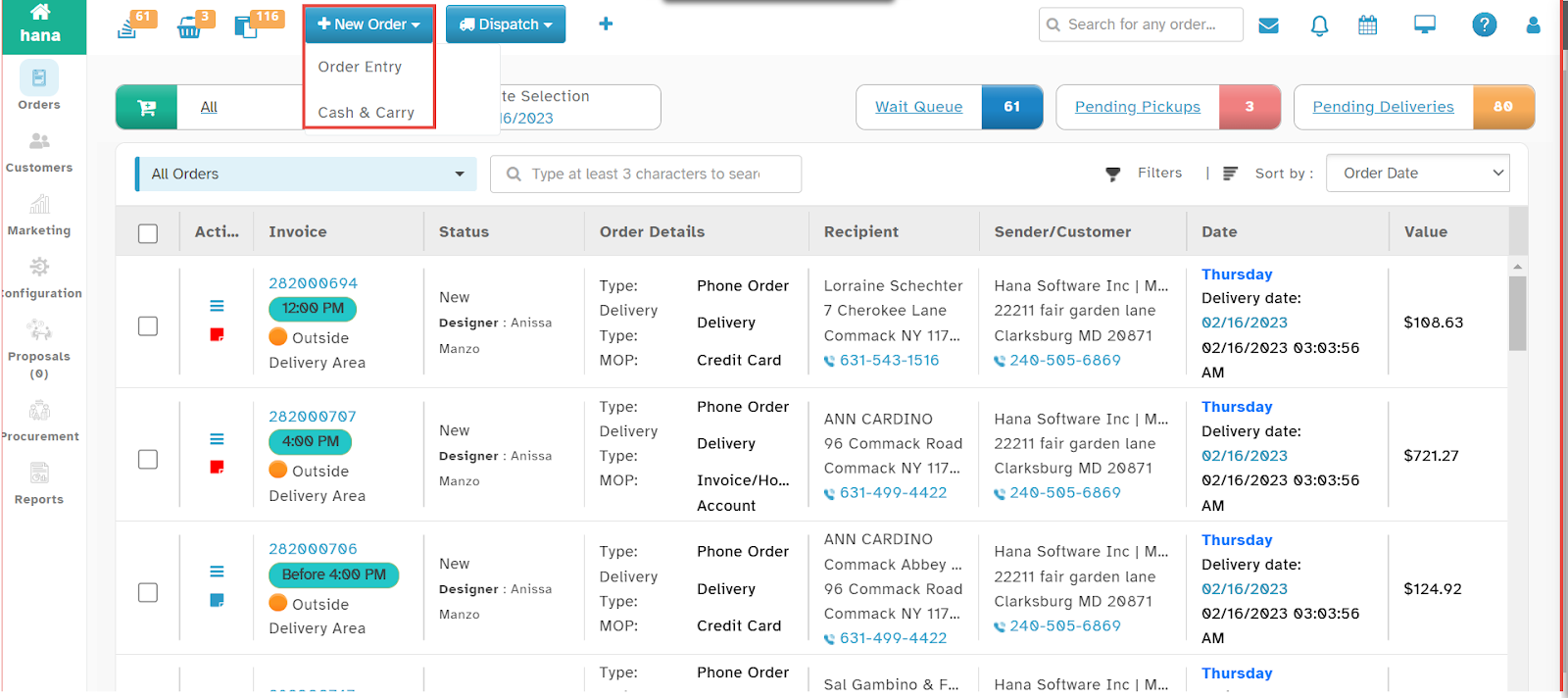
Step 1: Access the Cash & Carry Settings
Navigate to New Entry > Cash & Carry from the dropdown list.
Note: This feature is available on all pages of Hana POS, allowing quick order creation from any screen.
The Cash & Carry Page will be displayed.
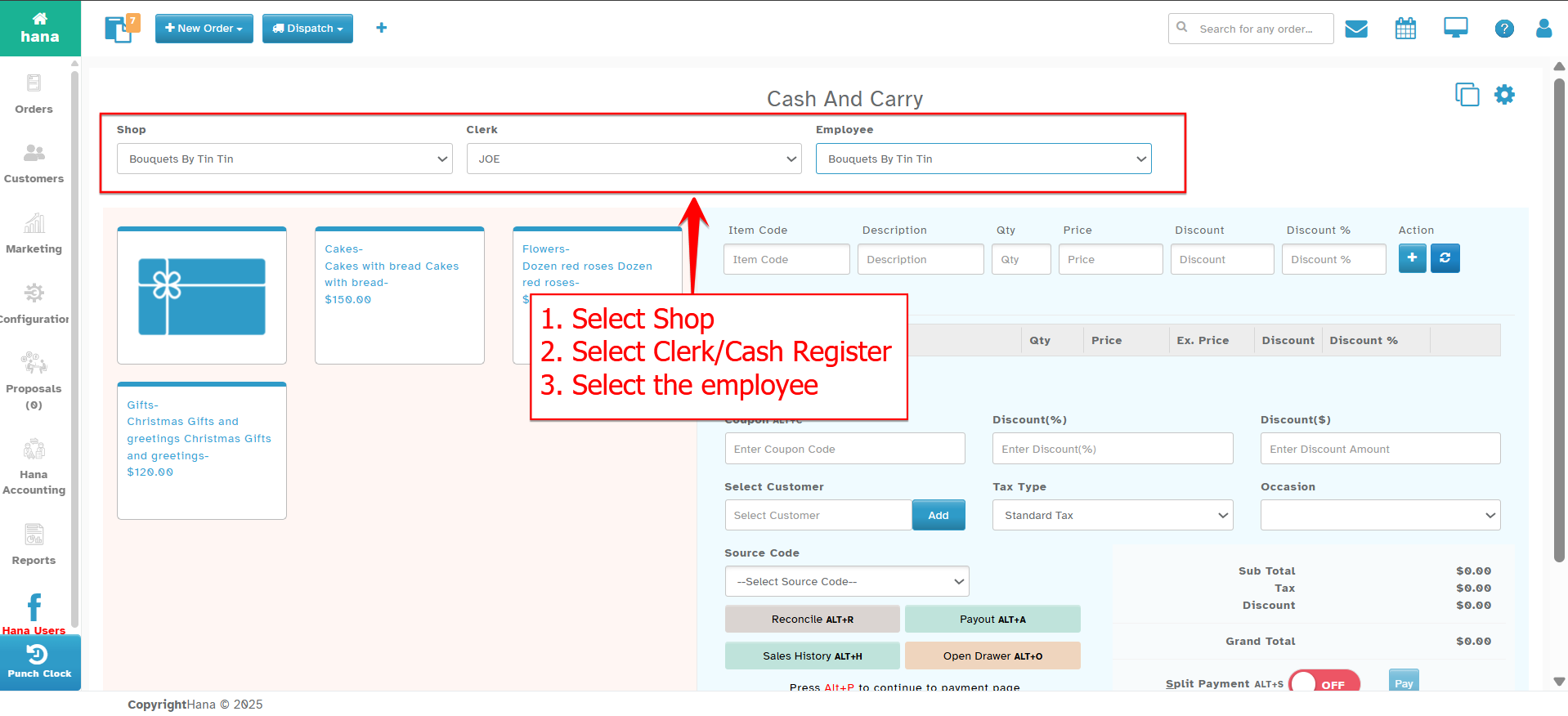
Step 2: Select Shop and Cash Register
Select the Shop from the Shop Dropdown List.
Select the Cash Register from the Cash Register Dropdown List.
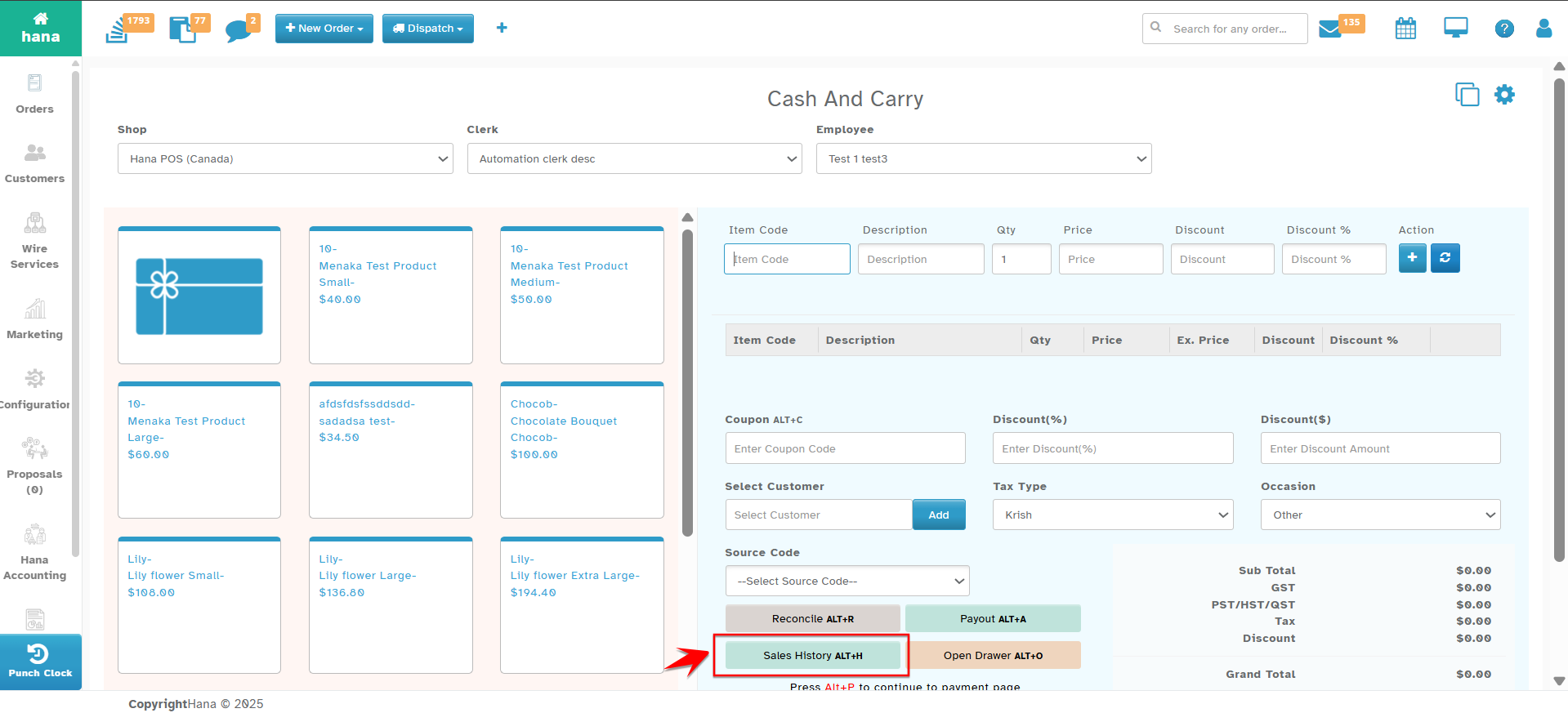
Step 3: Access the Sales History Page
On the Cash and Carry Page, click Sales History.
Shortcut: Press Alt + H for quick access.
The Sales History Page will be displayed.
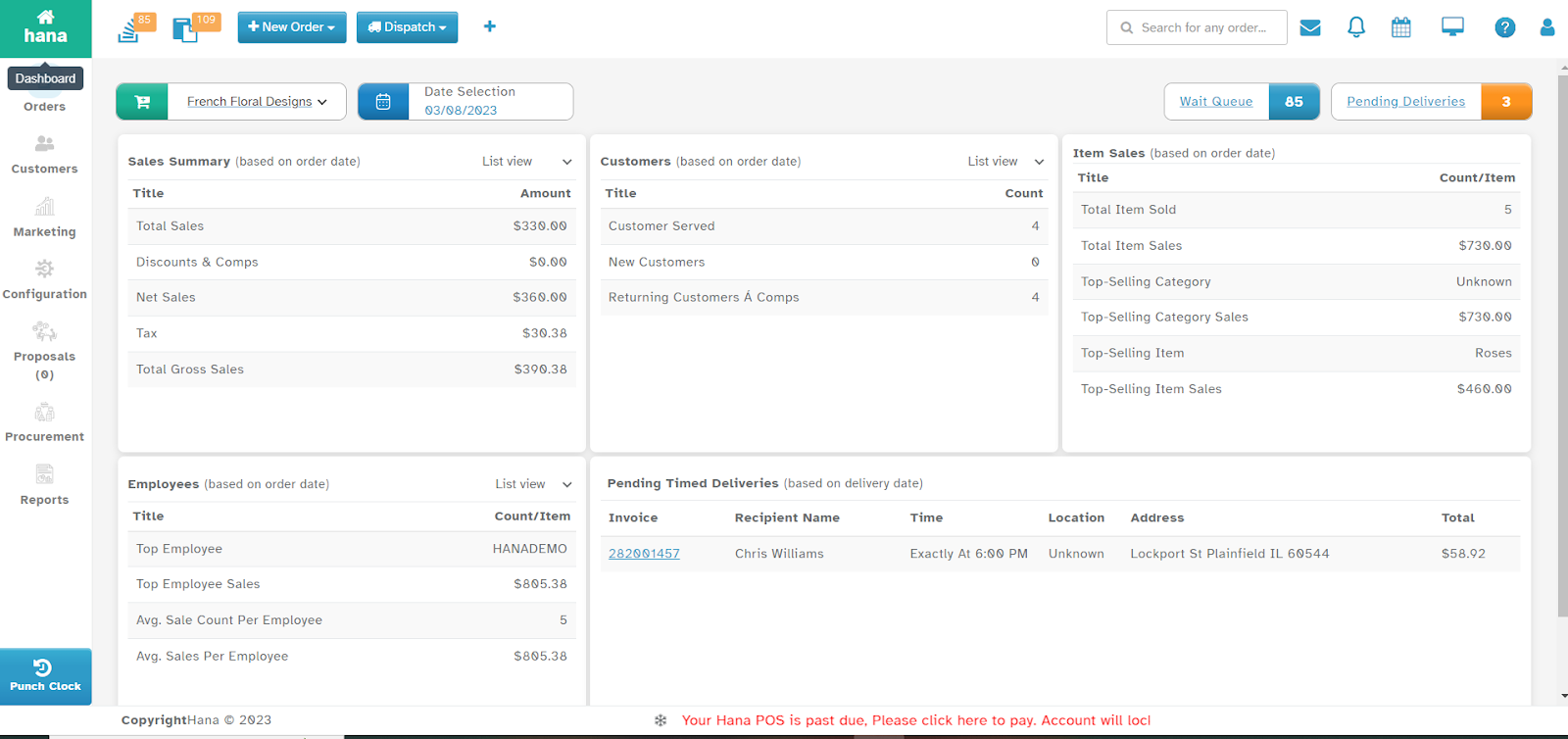
Step 4: Review Sales Summary
The Sales History Page includes multiple widgets that display the sales summary for a selected date.
You can analyze sales performance and track transactions, revenue, and order details.
By following these steps, you can efficiently review sales history and maintain accurate sales records within Hana POS.
Was this article helpful?
That’s Great!
Thank you for your feedback
Sorry! We couldn't be helpful
Thank you for your feedback
Feedback sent
We appreciate your effort and will try to fix the article