In Hana POS, you can assign a designer to an order for weddings, events, corporate projects, and other custom floral arrangements.
A designer can be assigned to orders in the Pending Orders list or orders in the Pending Deliveries list.
This guide outlines the steps to assign a designer to an order from the Pending Orders list. Similar steps can be followed for Pending Deliveries.
Steps to Assign a Designer to an Order
Step 1: Access the Orders Page
Navigate to Orders.
The Orders Page will be displayed.
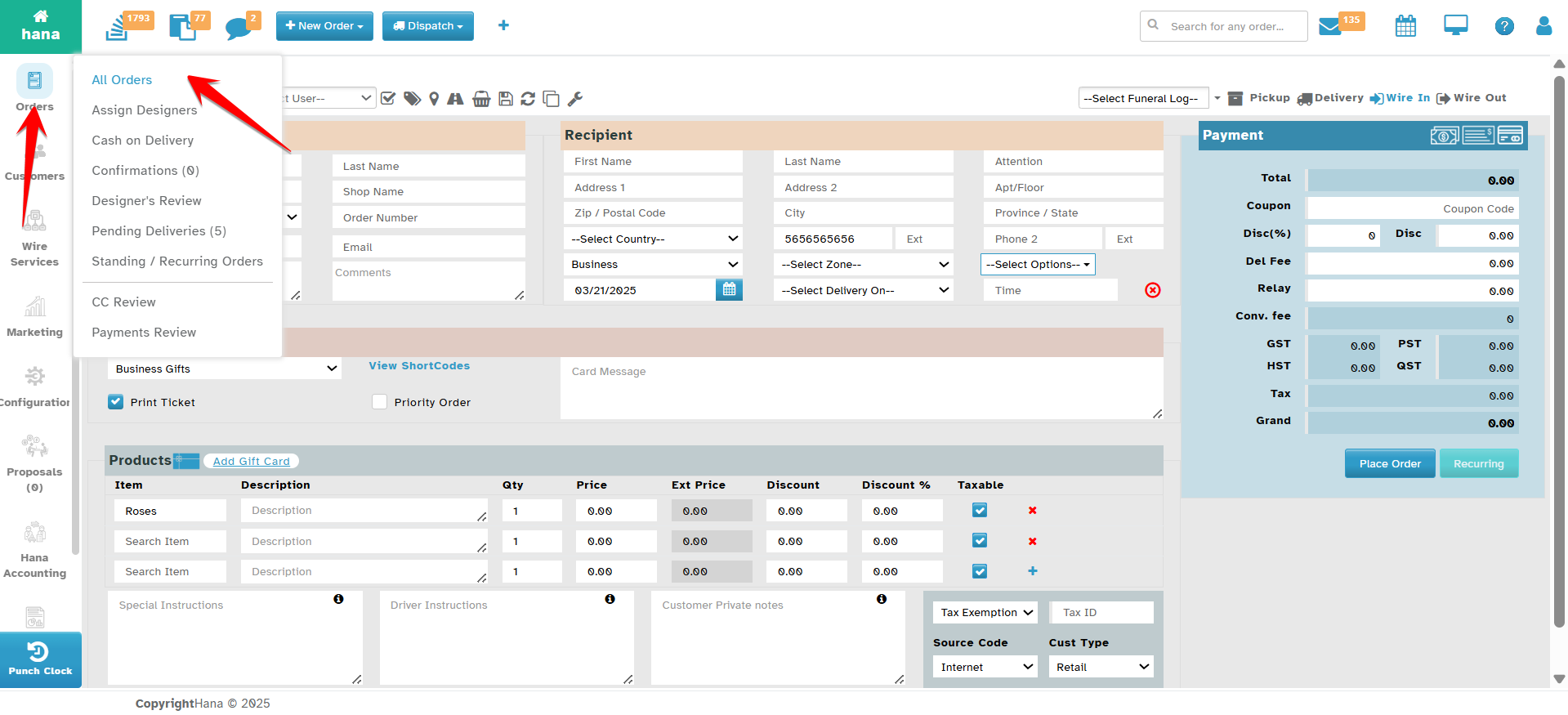
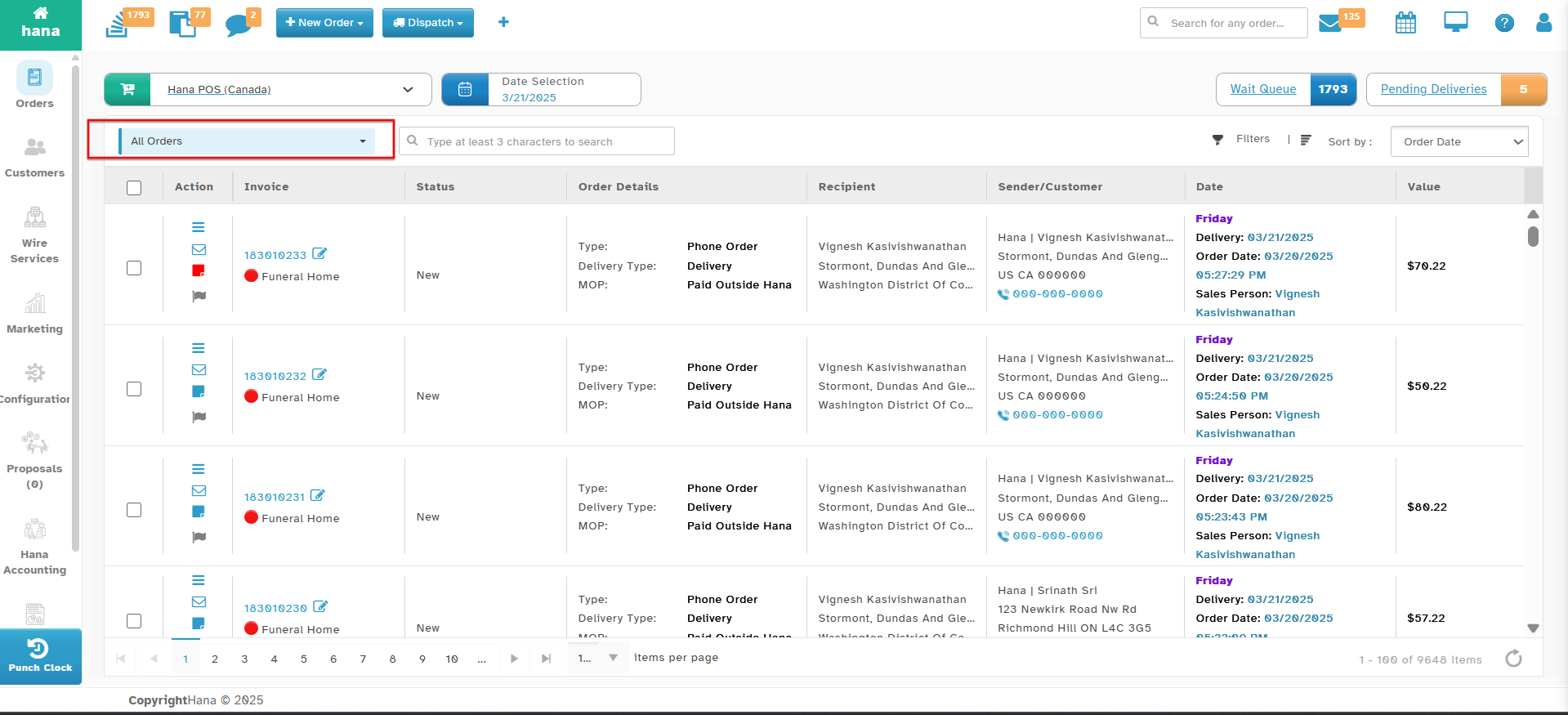
Step 2: Open the Pending Orders List
Click Pending Orders.
The list of pending orders will be displayed.
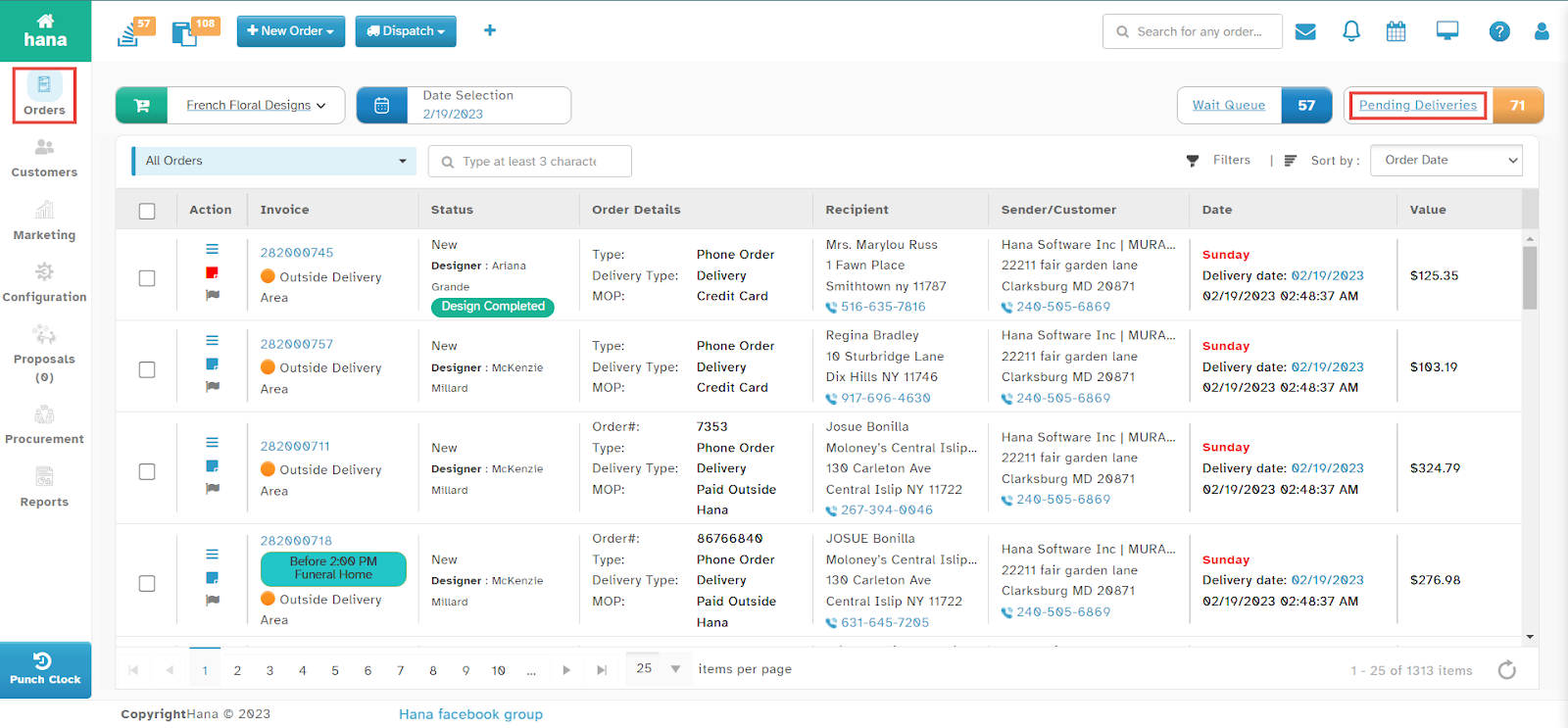
Step 3: Select Orders for Designer Assignment
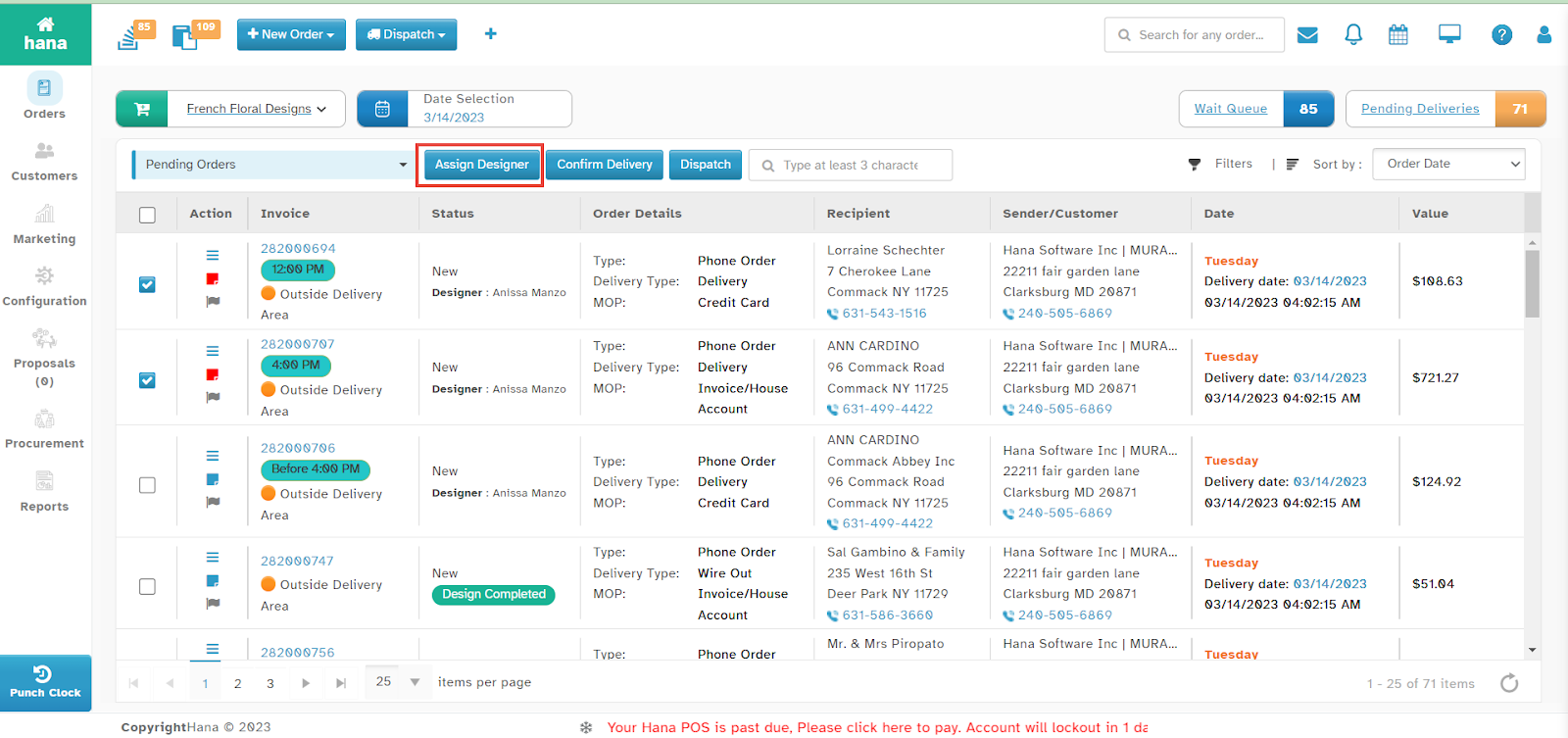
Check the box next to the order(s) you wish to assign a designer to.
Click Assign Designer.
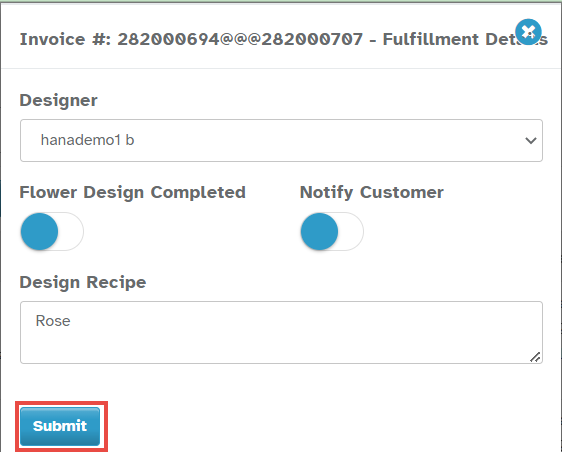
The Fulfillment Details Dialog will appear.
Step 4: Complete Fulfillment Details
For more information on fulfillment details, refer to How to Add Fulfillment Details of an Order?
By following these steps, you can efficiently assign designers to specific orders, ensuring smooth coordination and order fulfillment within Hana POS.
Was this article helpful?
That’s Great!
Thank you for your feedback
Sorry! We couldn't be helpful
Thank you for your feedback
Feedback sent
We appreciate your effort and will try to fix the article