Hana POS allows you to manually save a new order as a draft, ensuring that no order details are lost. Additionally, the system automatically saves the current order as a draft in case of interruptions.
This guide outlines the steps to save an order as a draft manually.
Steps to Save an Order as Draft
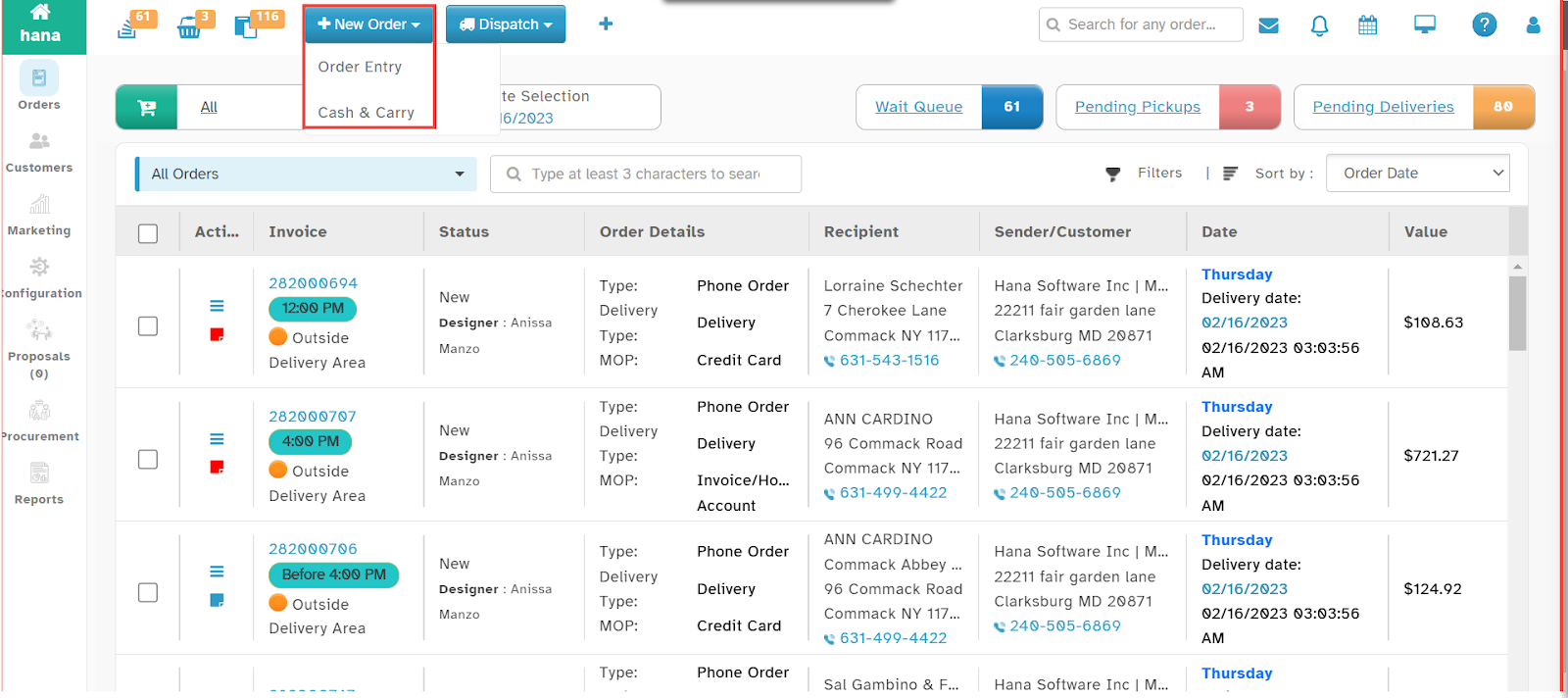
Step 1: Access the Order Entry Page
Navigate to New Order > Order Entry.
The Order Entry Page will be displayed.
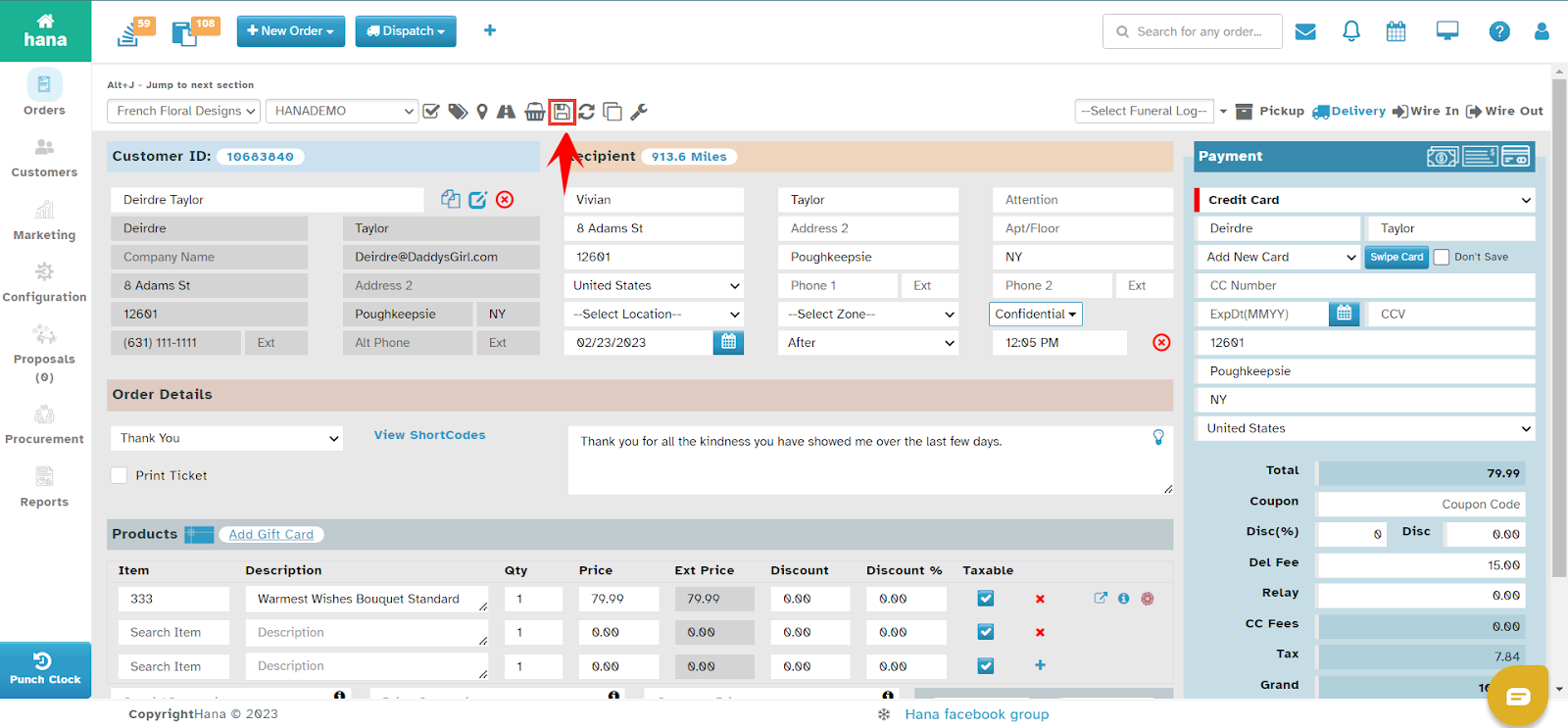
Step 2: Save the Order as Draft
Click the Save as Draft icon.
The order is now saved as a draft and can be accessed later.
By following these steps, you can efficiently store orders as drafts, ensuring smooth order management within Hana POS.
Was this article helpful?
That’s Great!
Thank you for your feedback
Sorry! We couldn't be helpful
Thank you for your feedback
Feedback sent
We appreciate your effort and will try to fix the article