Hana POS allows you to view and manage all saved draft orders. This feature enables users to resume order processing, send drafts to customers, print order details, or delete unnecessary drafts.
This guide outlines the steps to view and manage draft orders.
Steps to View Draft Orders
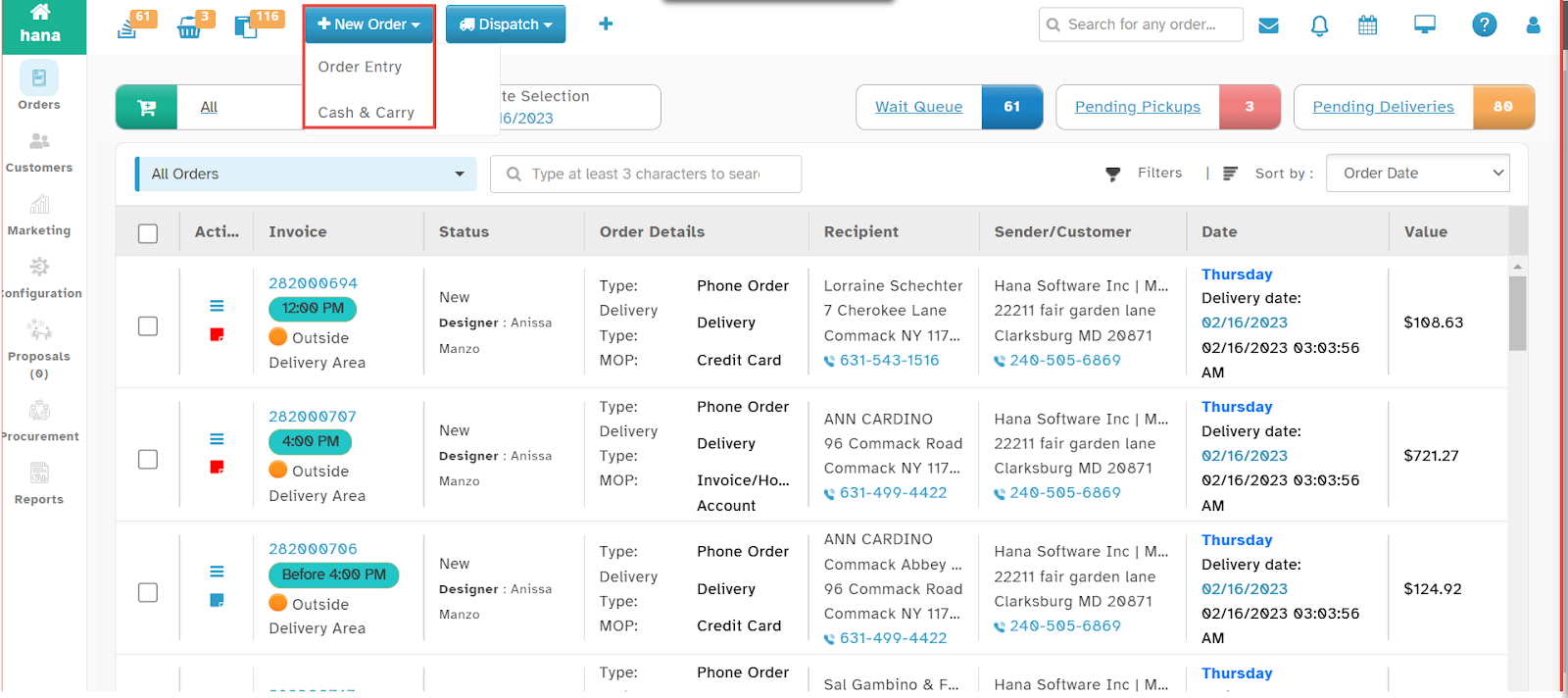
Step 1: Access the Order Entry Page
Navigate to New Order > Order Entry.
The Order Entry Page will be displayed.
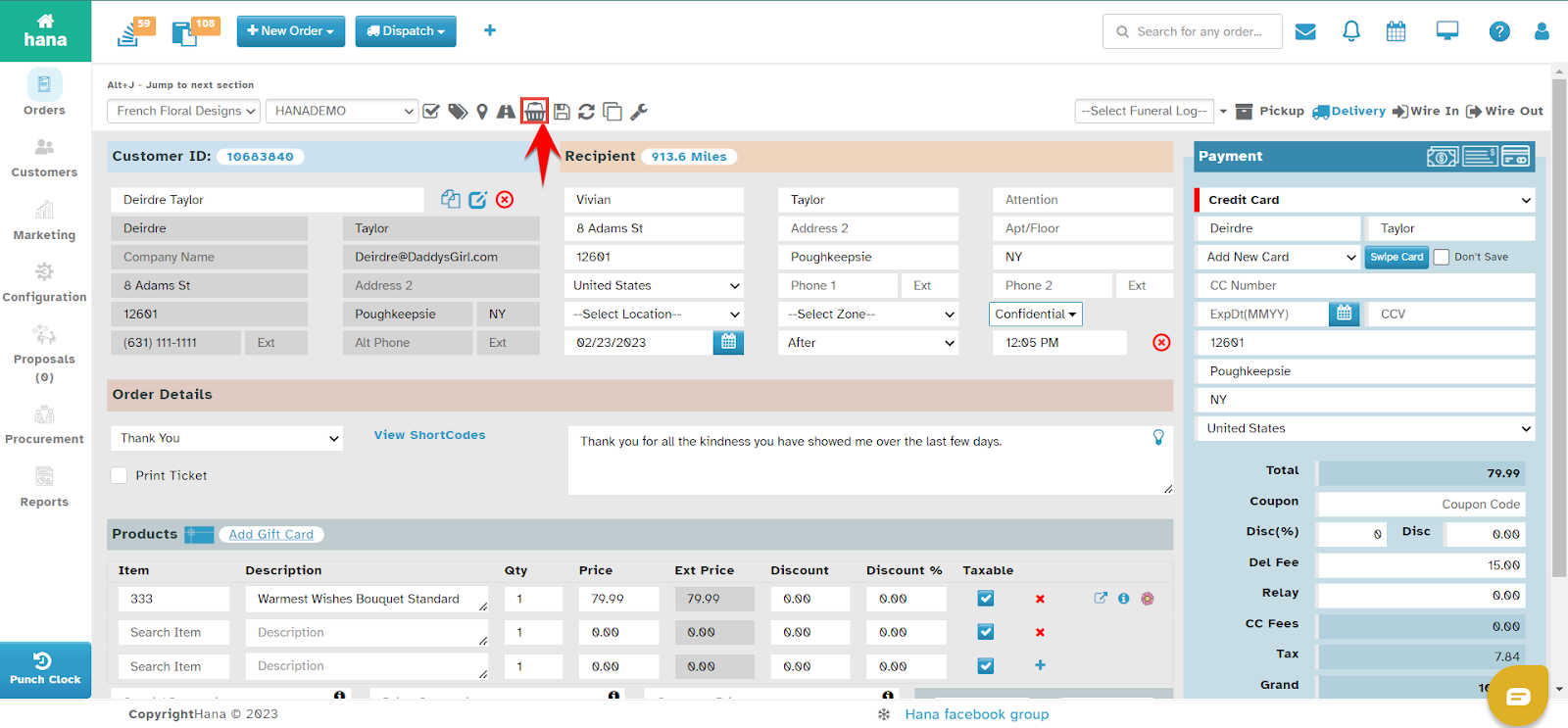
Step 2: Open the Draft Orders Dialog
Click the View Drafts icon.
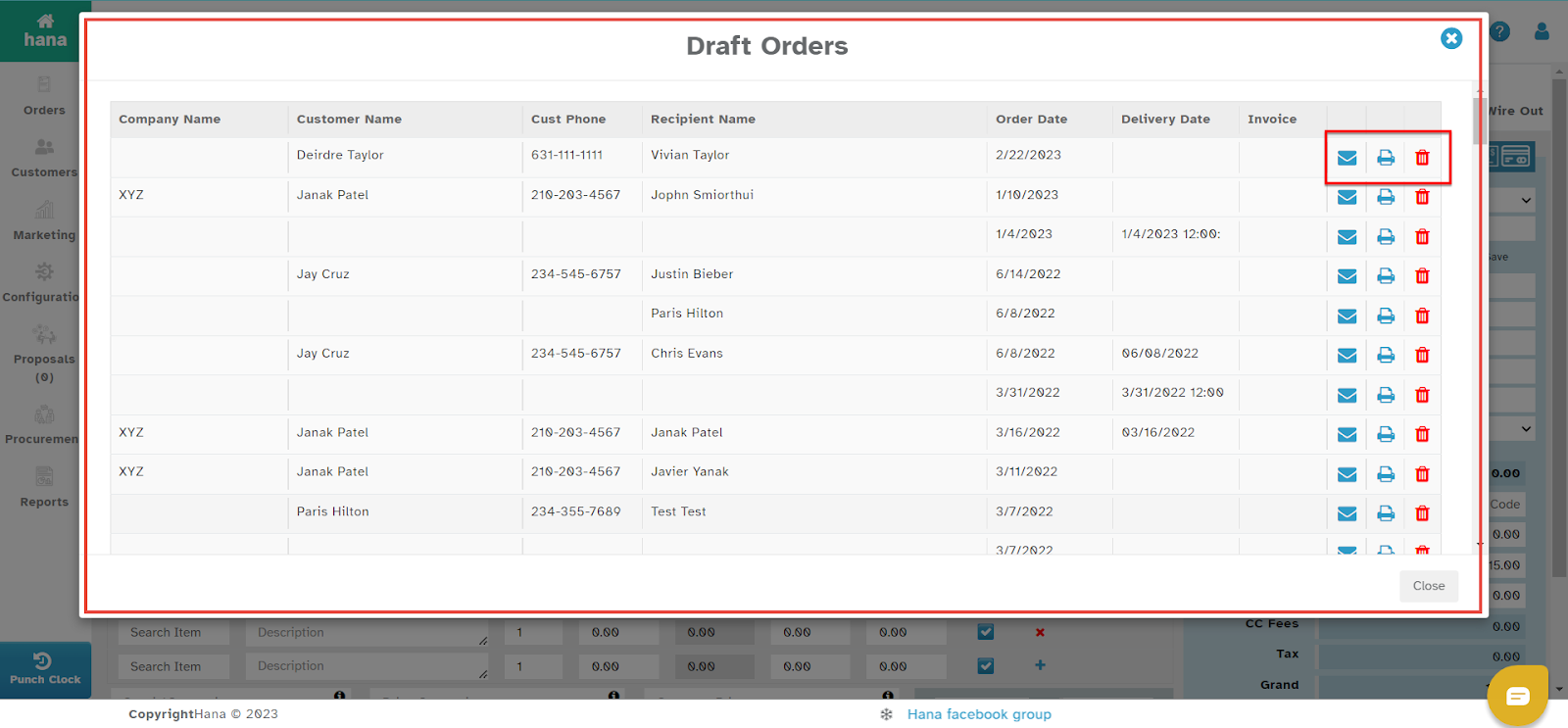
The Draft Orders Dialog will appear, displaying all saved draft orders.
Step 3: Manage Draft Orders
On the Draft Orders Dialog, you can perform the following actions:
A. Resume an Order
Click on a draft order to open and resume processing.
A confirmation dialog will appear asking if you want to load the draft.
Click Yes to open the order.
B. Send the Order via Email
Click the email icon next to the draft order.
A confirmation notification will appear indicating that the email has been sent.
C. Print the Draft Order
Click the print icon next to the draft order.
The Order Dialog will appear.
Click Print to generate a hard copy of the order.
D. Delete a Draft Order
Click the delete icon next to the draft order.
A confirmation dialog will appear asking to confirm deletion.
Click Yes to delete the draft order permanently.
By following these steps, you can efficiently manage and utilize draft orders within Hana POS, ensuring smooth order processing and record-keeping.
Was this article helpful?
That’s Great!
Thank you for your feedback
Sorry! We couldn't be helpful
Thank you for your feedback
Feedback sent
We appreciate your effort and will try to fix the article