Hana POS allows you to update order details as needed, ensuring accurate and up-to-date order management. This guide walks you through the steps to modify an order, whether adjusting customer information, modifying order items, or updating payment details.
Steps to Update an Order
Step 1: Access the Orders Page
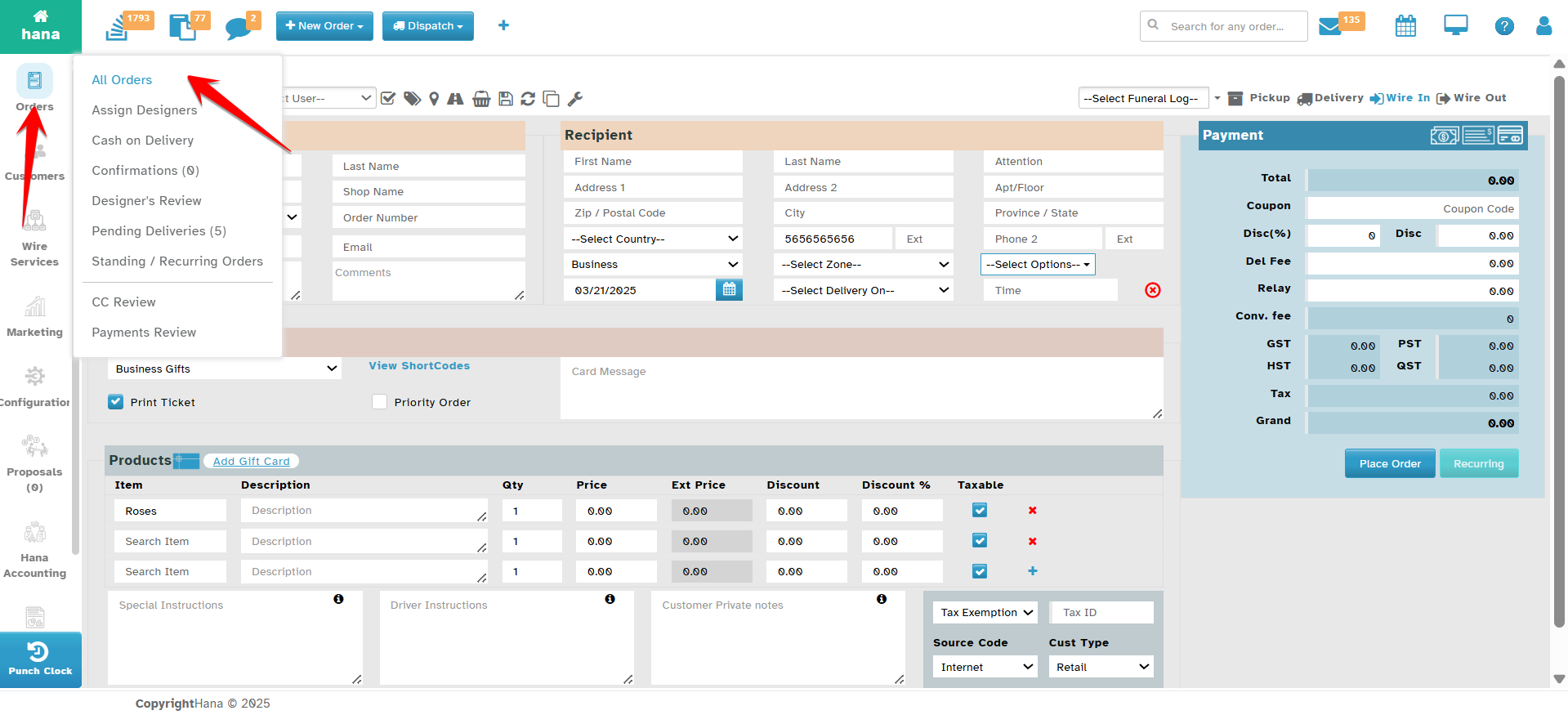
Navigate to Orders.
The Orders Page will be displayed.
Step 2: Open the Update Order Dialog
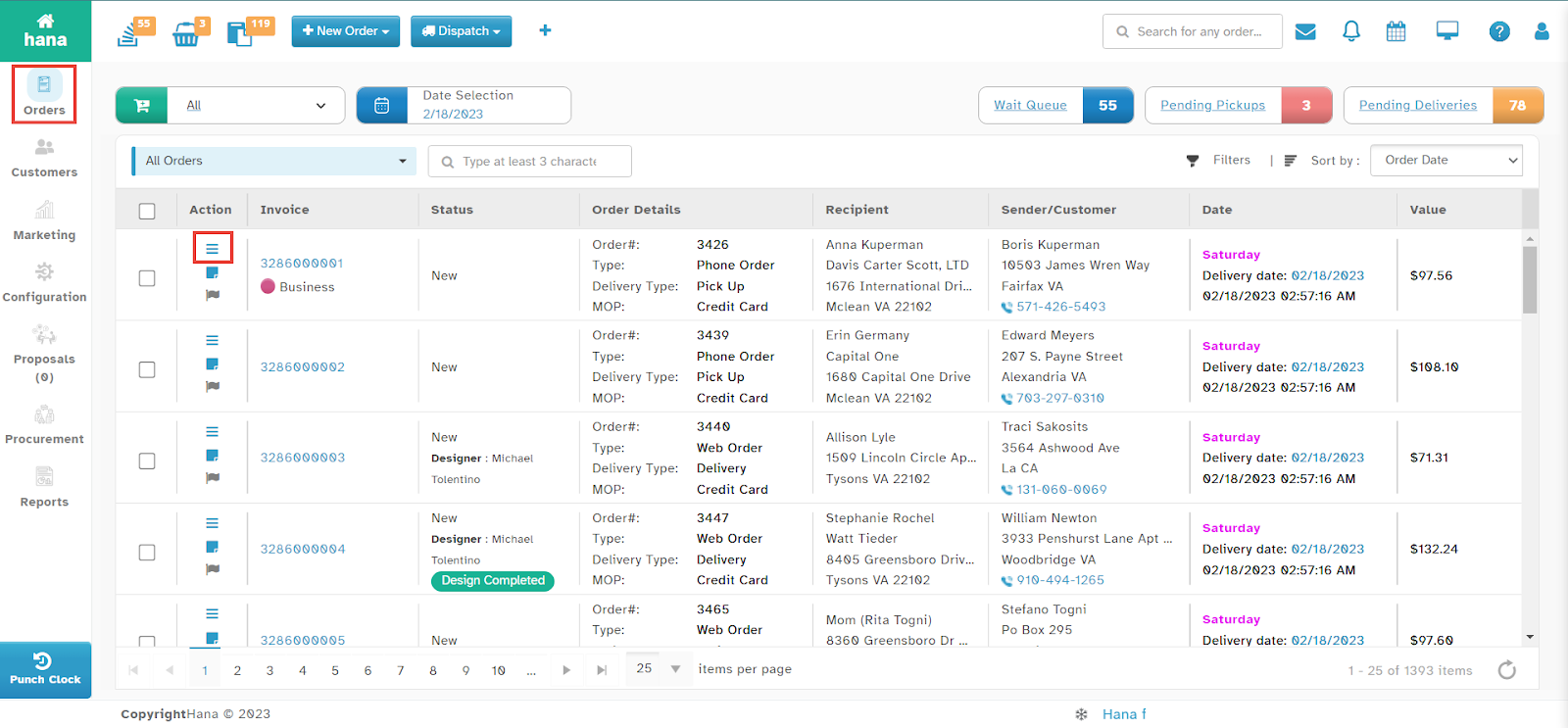
Locate the order you wish to update.
Click the actions icon in the order row.
The Actions Menu will be displayed.
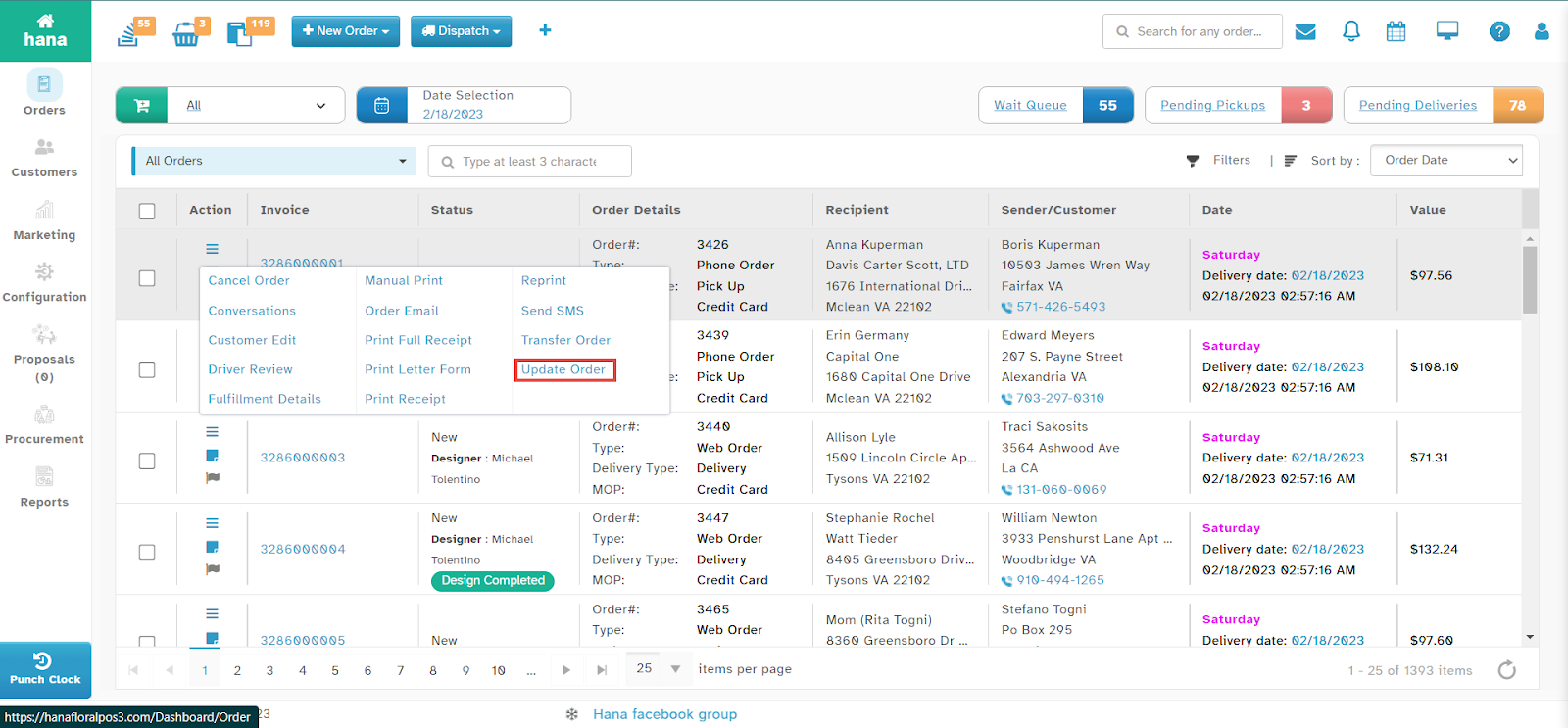
Click Update Order.
The Update Order Dialog will appear.
Note: You can also edit an order by clicking anywhere on its row, then clicking the actions icon > Update Order.
Step 3: Modify Order Details
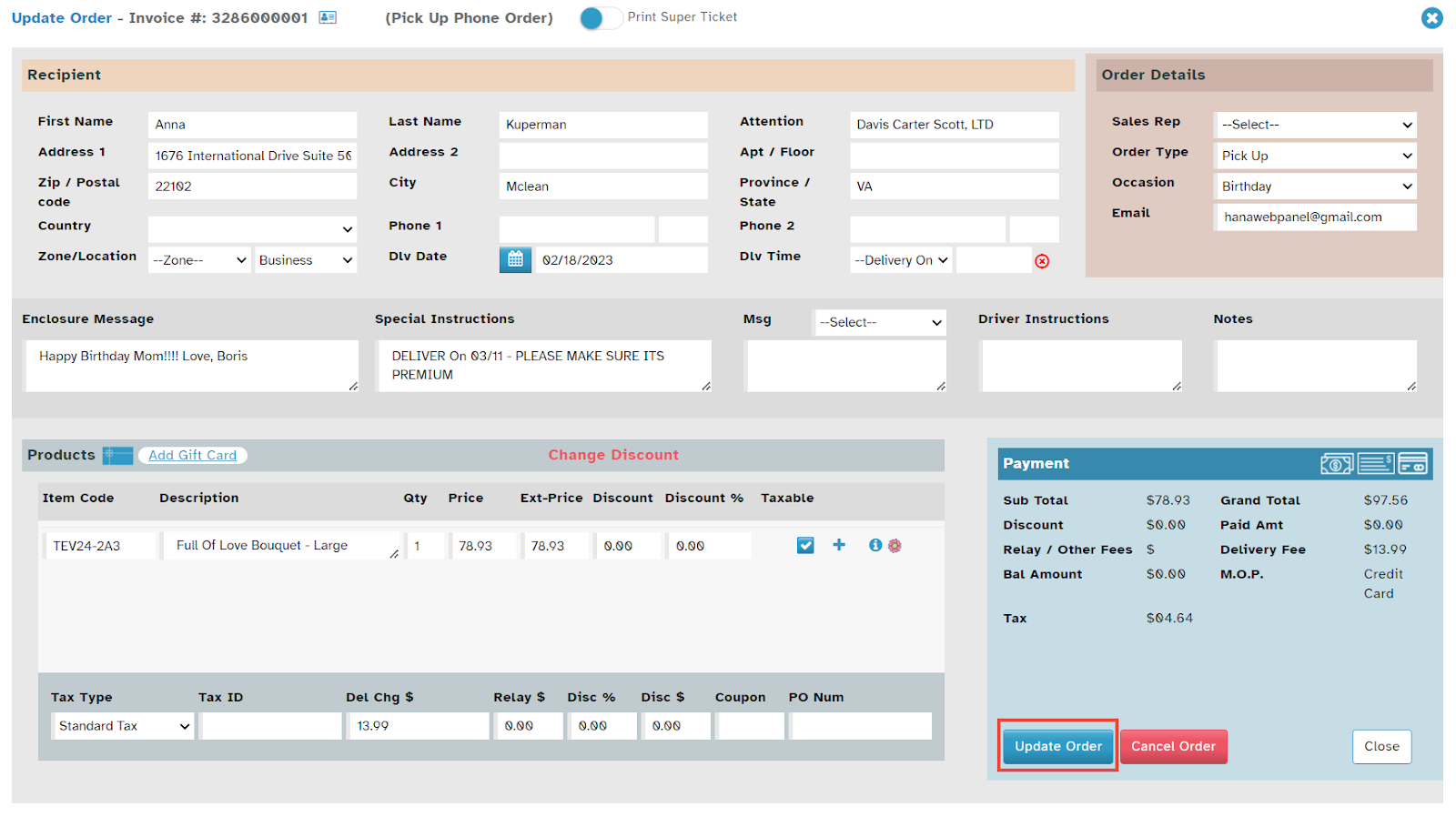
Make the necessary changes to the order details. (For more information, refer to How to Create an Order?)
Step 4: Save the Updated Order
Click Update Order.
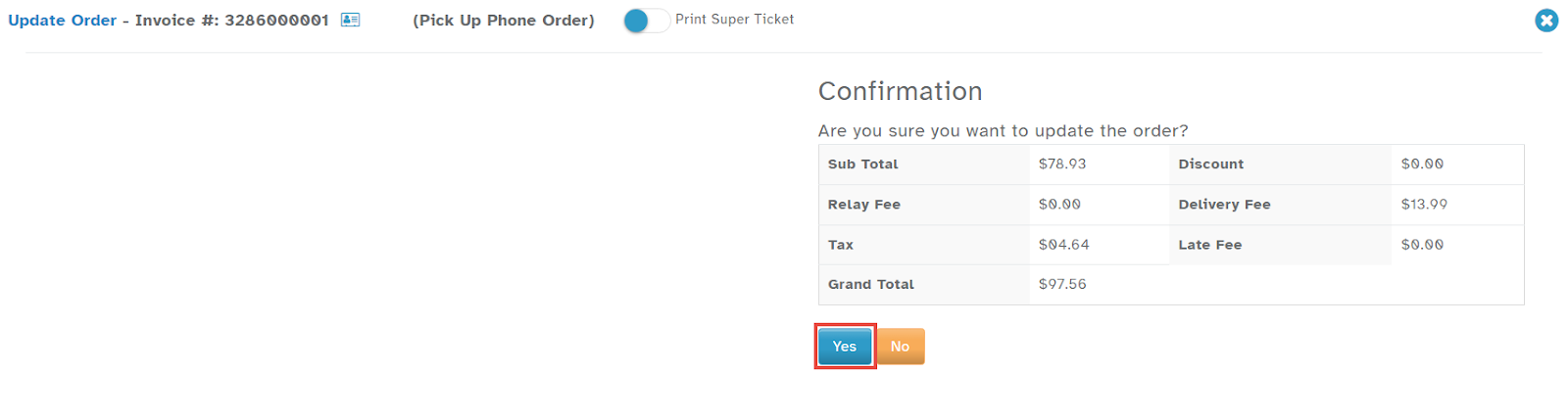
A confirmation dialog will be displayed.
Click Yes to confirm.
A success notification will confirm the order has been updated.
By following these steps, you can efficiently modify order details, ensuring seamless order management in Hana POS.
Was this article helpful?
That’s Great!
Thank you for your feedback
Sorry! We couldn't be helpful
Thank you for your feedback
Feedback sent
We appreciate your effort and will try to fix the article