Searching for an order in Hana POS allows you to quickly locate and review any existing order.
This feature is accessible from any page within the system, ensuring seamless order management.
Additionally, you can also find the search option under the All Orders page for more refined searches. This guide outlines the steps to efficiently search for orders using various criteria.
TABLE OF CONTENTS
Steps to Search for an Order
Step 1: Enter Search Criteria
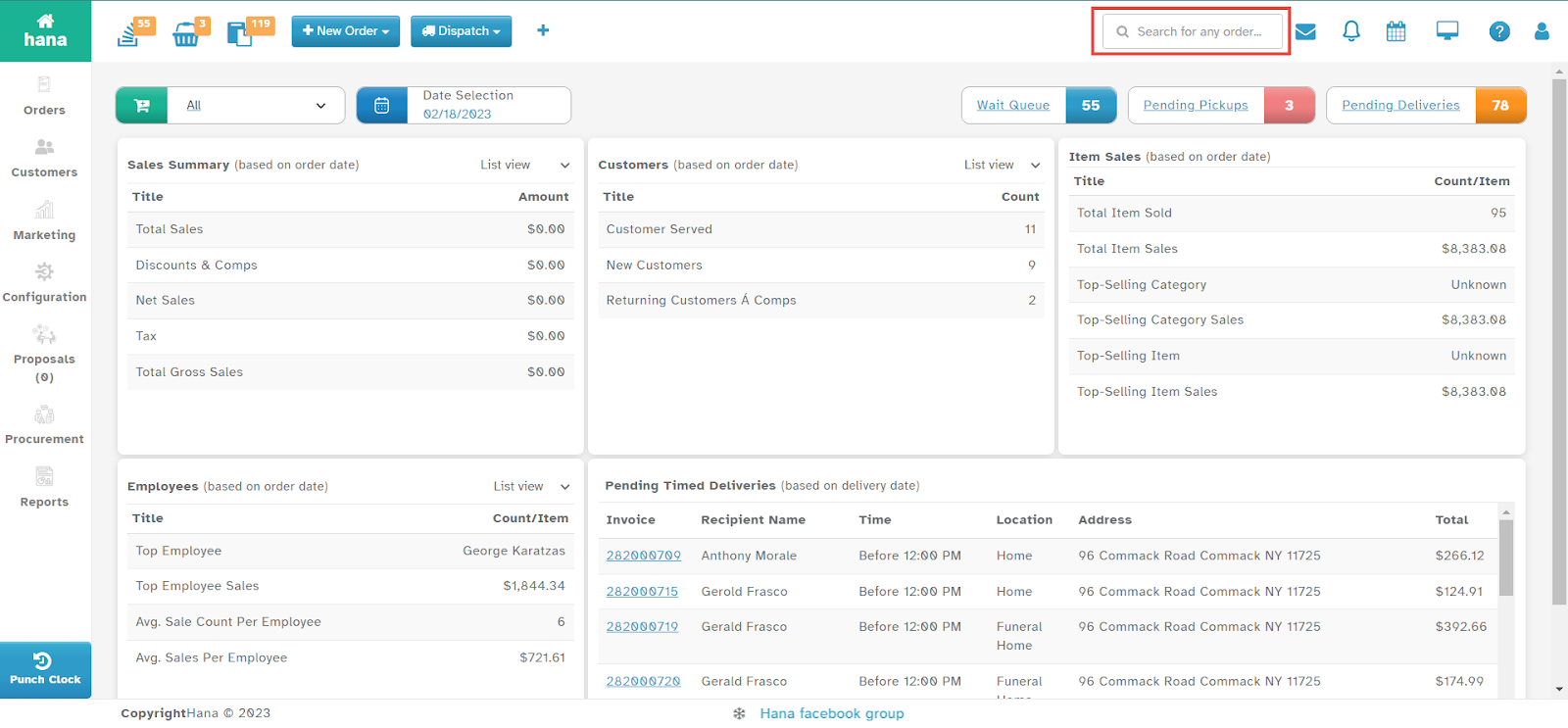
In the top right corner of the Dashboard, locate the Search for any order field.
Enter at least three characters of the order-related information.
Note: This feature is available from all pages of Hana POS, allowing quick access to any order.
Step 2: Use Searchable Fields
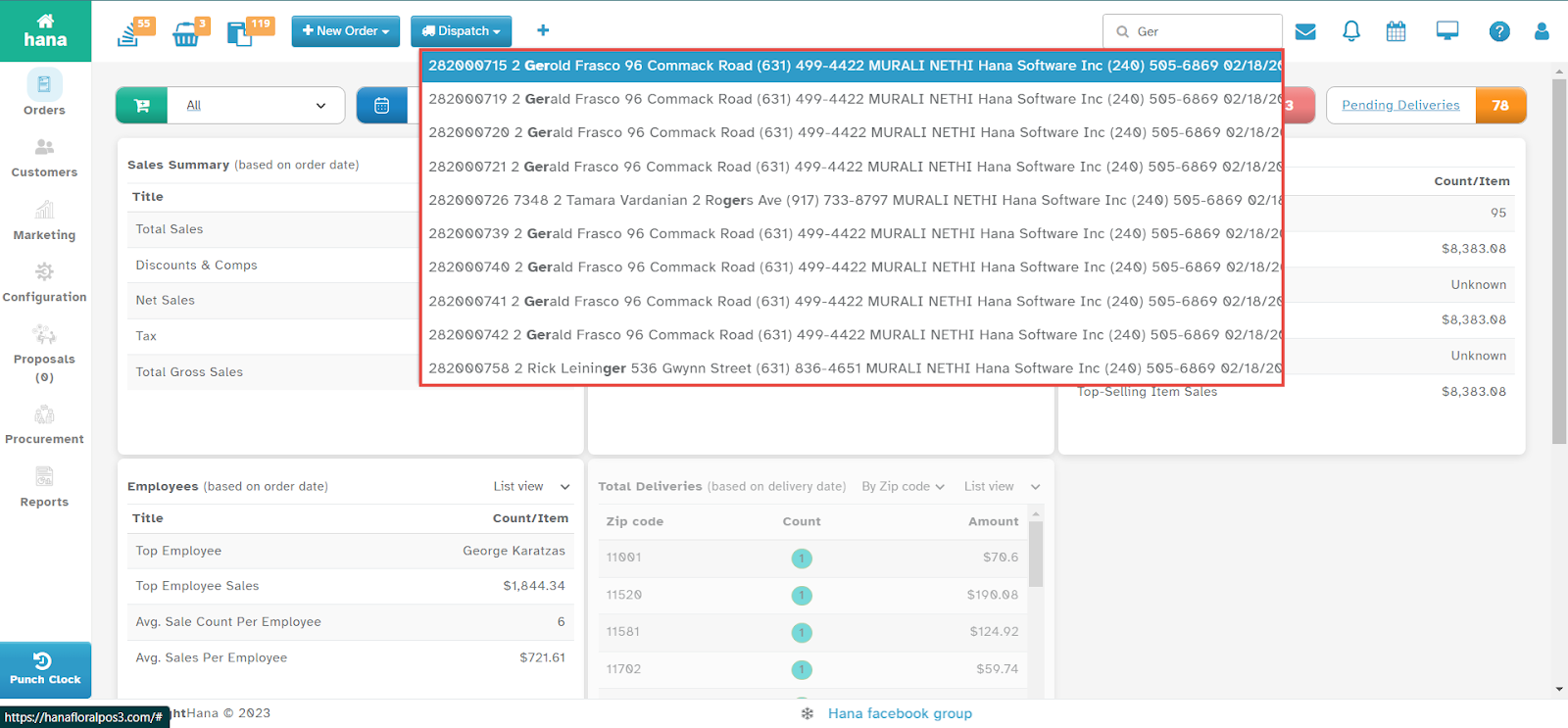
You can search for an order using any of the following criteria:
Customer Name (First and/or Last Name)
Company Name (as recorded in the customer record)
Customer Phone Number
Recipient Name (First and/or Last Name)
Recipient Phone Number
Hana Order Number
Wire Order Number (provided by the wire service)
Delivery Address
Step 3: Search via All Orders Page
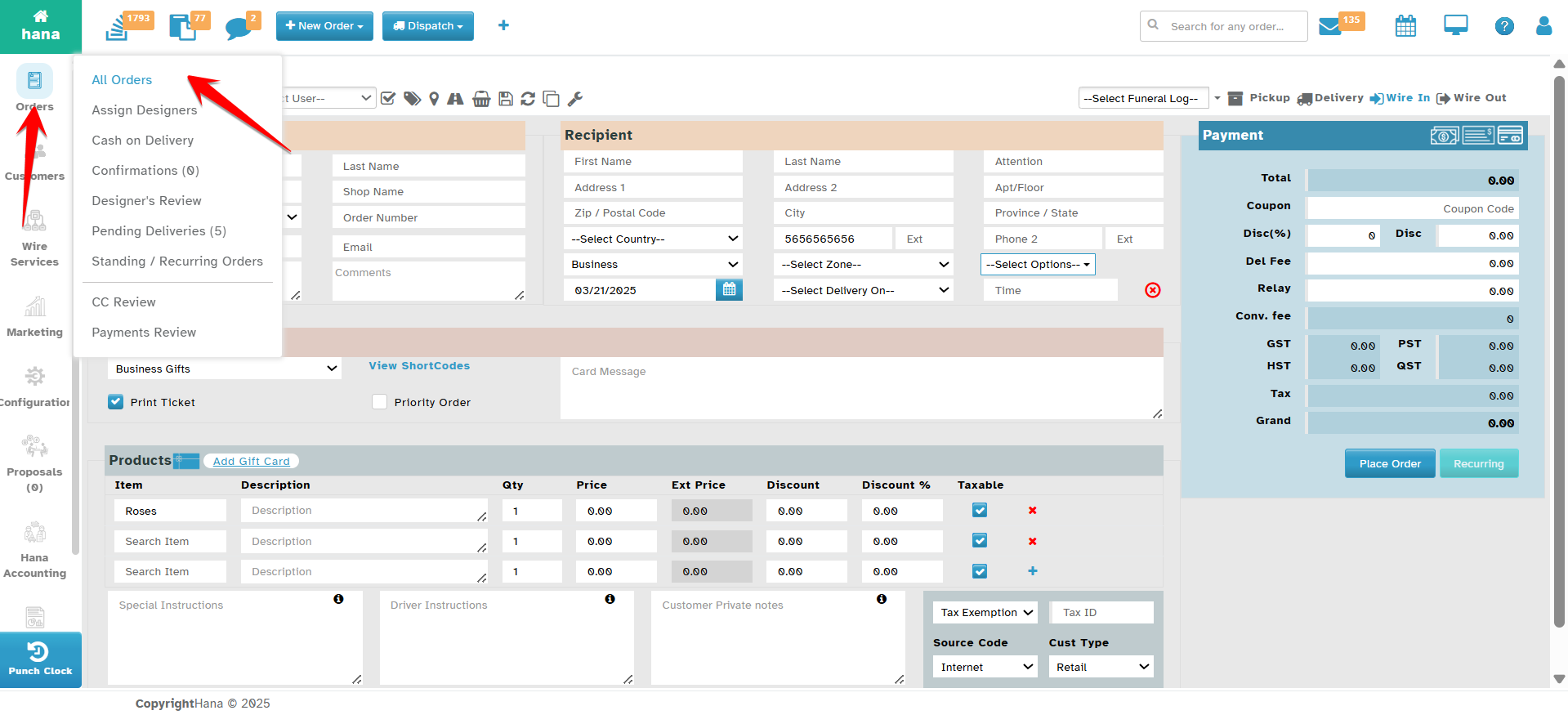
You can also search for orders from the All Orders page:
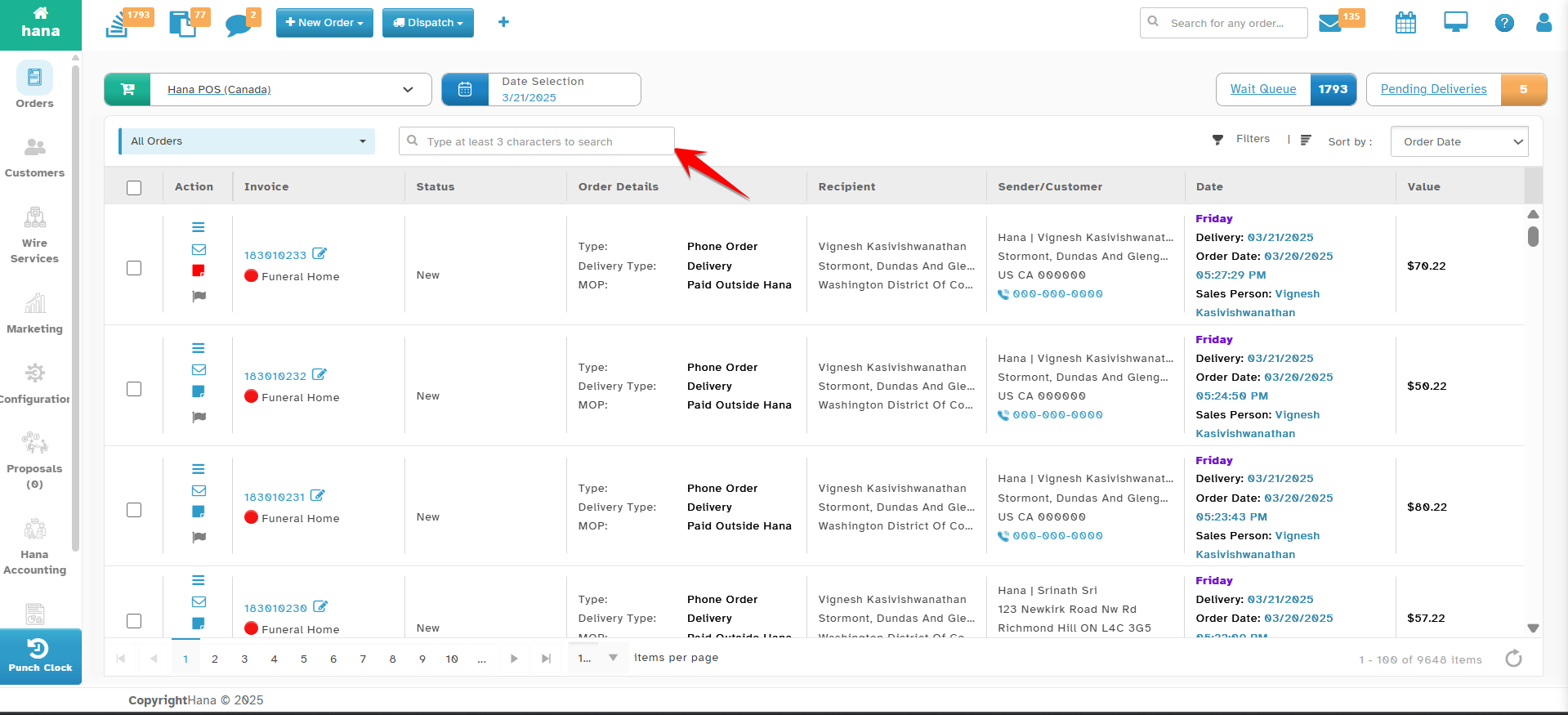
Navigation: Dashboard → Orders → All Orders → Search Box (located in the middle of the page).
Enter at least three characters in the search box to filter orders.
Step 4: View Search Results
The system will display a list of orders matching the entered criteria.
By following these steps, you can efficiently locate and access any order in Hana POS, ensuring smooth order tracking and management.
Was this article helpful?
That’s Great!
Thank you for your feedback
Sorry! We couldn't be helpful
Thank you for your feedback
Feedback sent
We appreciate your effort and will try to fix the article