Hana POS allows you to set required fields for the Order Entry Form, ensuring that essential details are always captured when creating a new order. This feature helps standardize data entry and prevents incomplete orders.
This guide outlines the steps to manage required fields on the order entry page.
Steps to Manage Required Fields
Step 1: Access the Required Fields Page
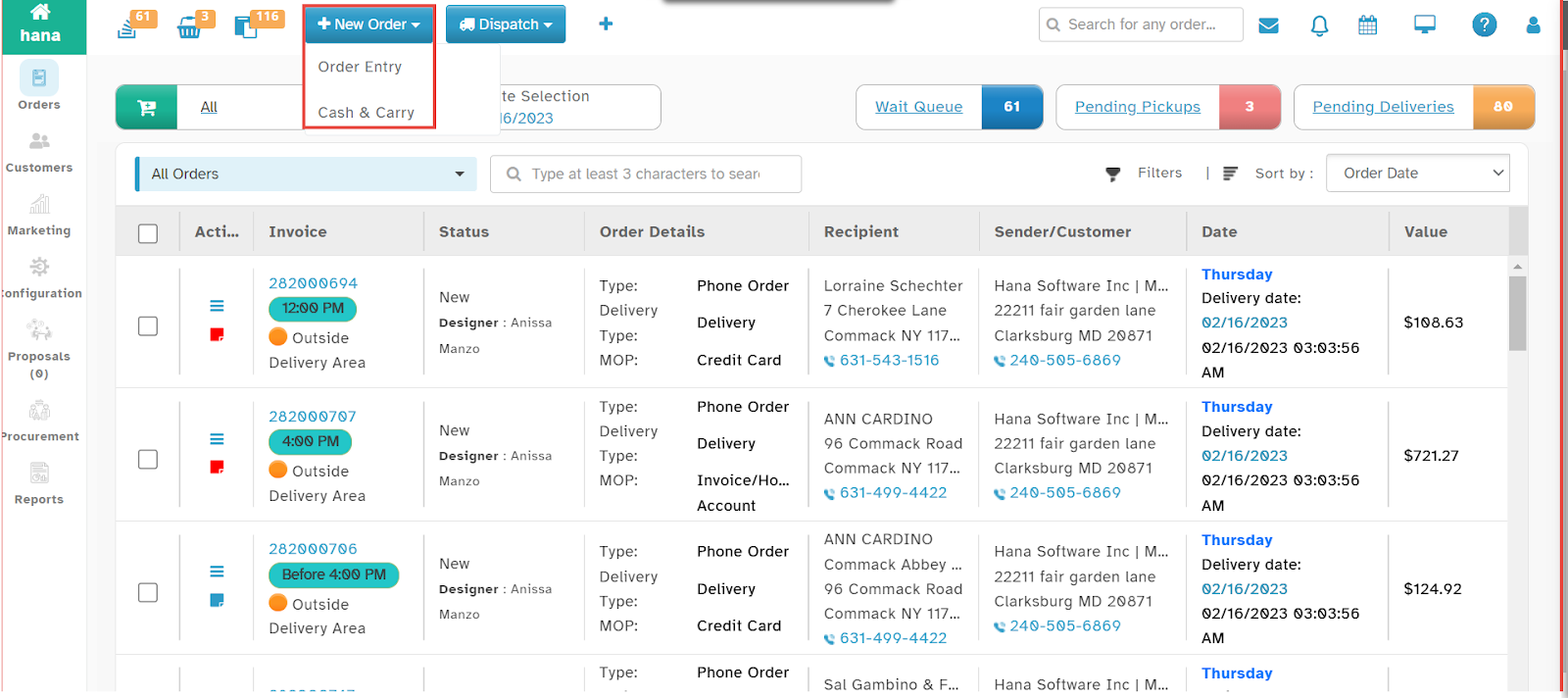
Navigate to New Order > Order Entry.
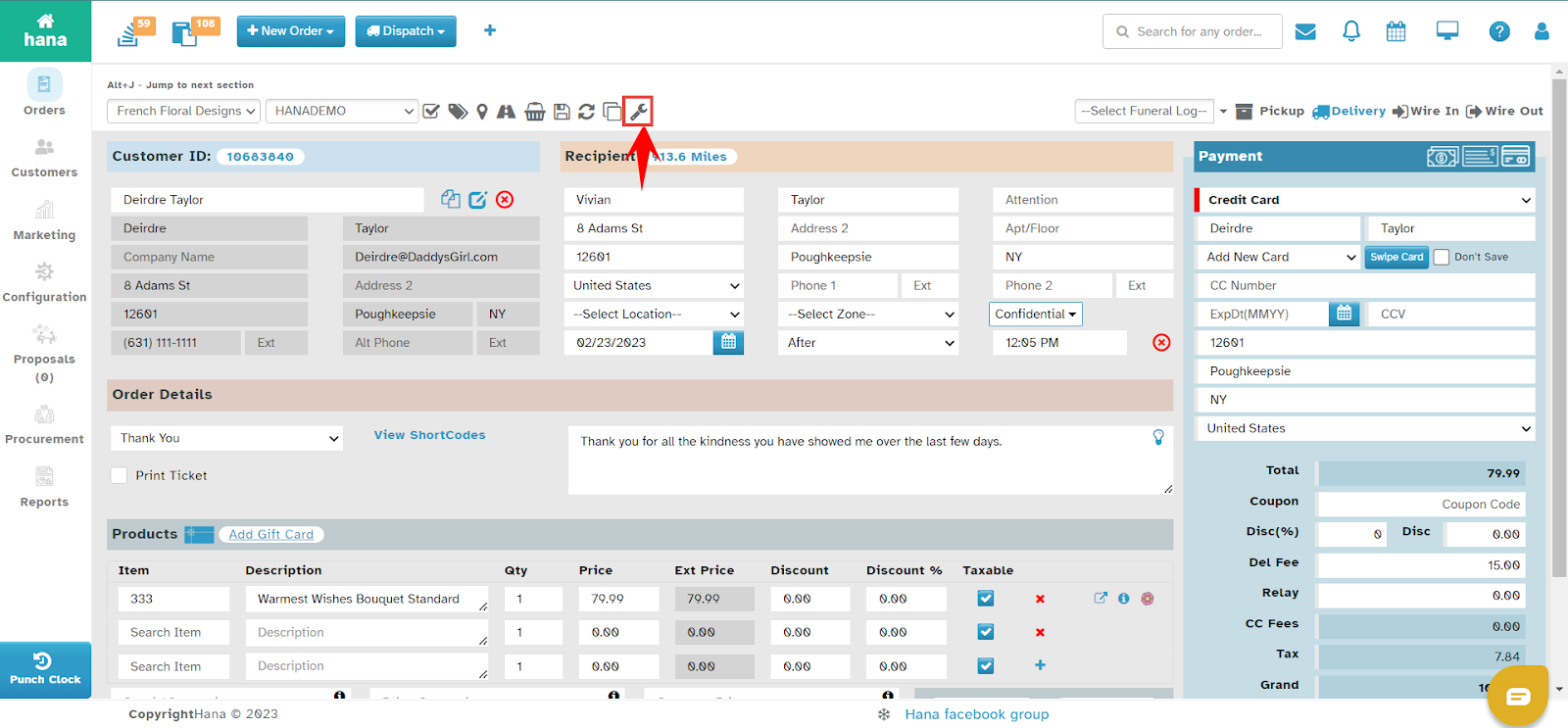
Click the Required Fields icon.
The Required Fields Page will be displayed.
Step 2: Edit Required Fields
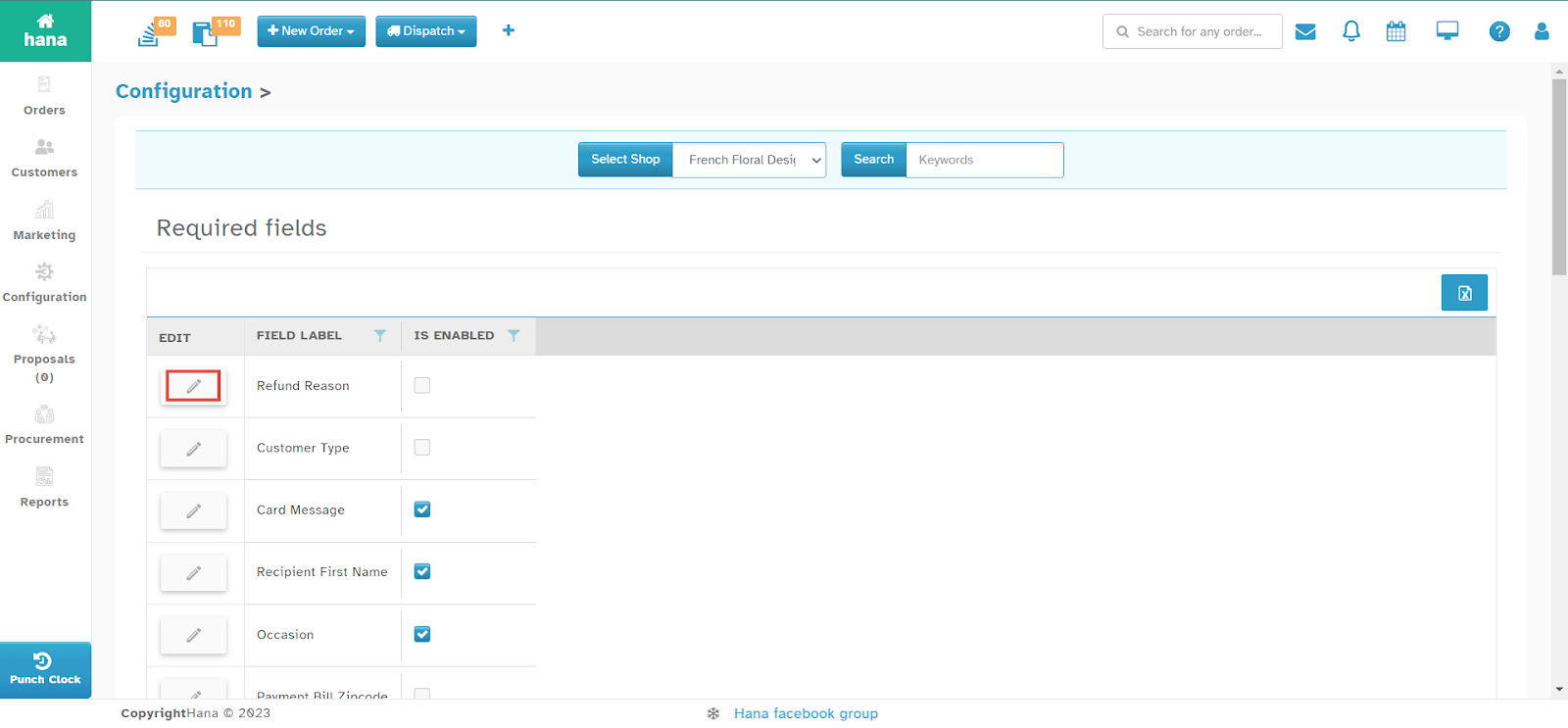
Click the Edit icon beside the field you wish to modify.
The Required Fields Update Record Dialog will appear.
Step 3: Enable or Disable Required Fields
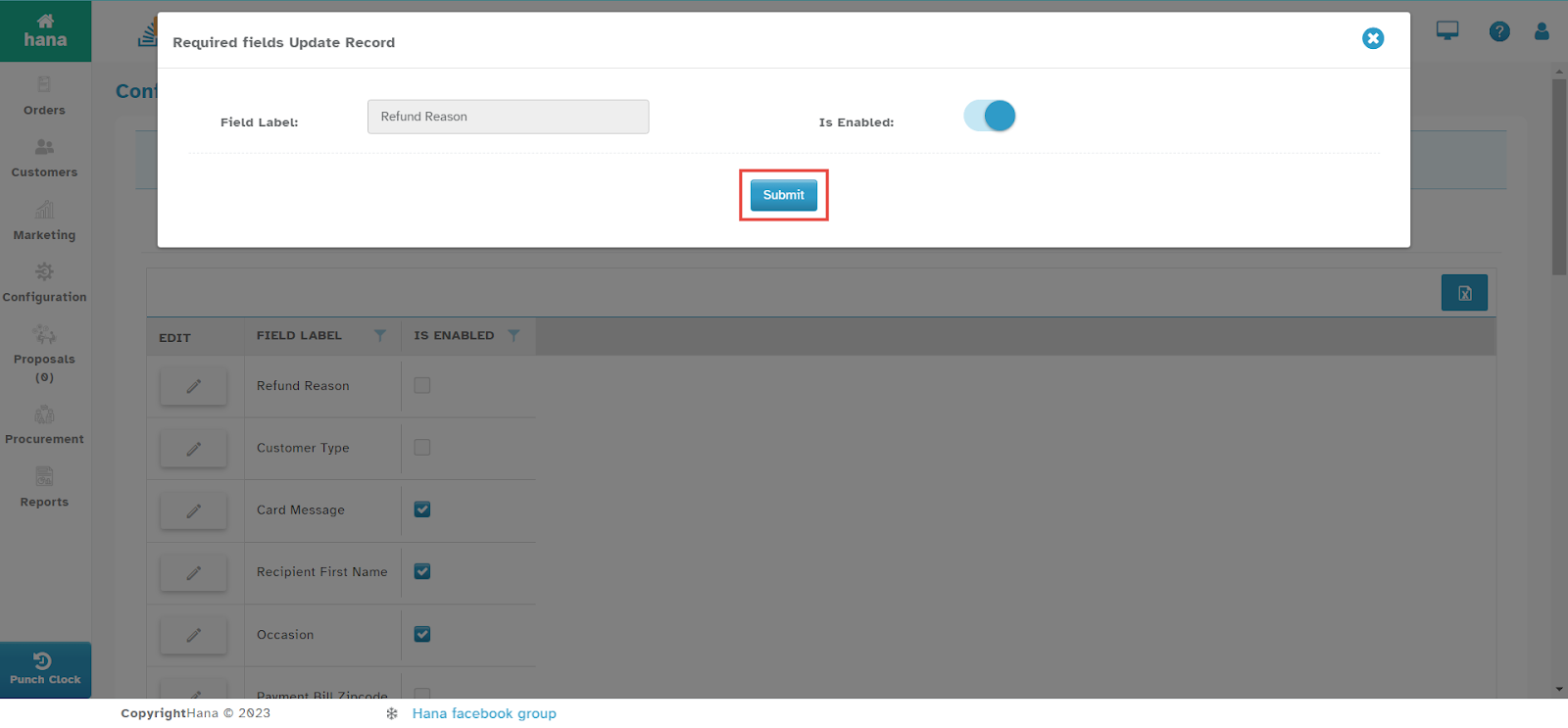
Toggle the Is Enabled switch to activate or deactivate the field.
Click Submit to save changes.
The updated required fields will now be displayed in the Order Entry Form.
By following these steps, you can efficiently customize required fields, ensuring accurate and complete order entry within Hana POS.
Was this article helpful?
That’s Great!
Thank you for your feedback
Sorry! We couldn't be helpful
Thank you for your feedback
Feedback sent
We appreciate your effort and will try to fix the article