Advanced Dispatch is a detailed and feature-rich dispatching tool that provides complete control over delivery routing and assignment.
Advanced Dispatch has multiple ways to add orders to a trip. This guide provides a comprehensive tutorial on adding orders to a trip and quickly sending your drivers for the route.
TABLE OF CONTENTS
Key Features of Advanced Dispatch:
Google Maps Integration:
Displays all pending deliveries as pins on the map.
Allows users to verify addresses before dispatching.
Comprehensive Order Management:
View and manage order statuses (Pending, Dispatched, Delivered, Not Delivered).
Sort orders by priority, delivery time, or payment status.
Flexible Trip Creation & Optimization:
Assign orders to drivers manually or use auto-optimization for the best route.
Supports multiple trips (as Google allows only 24 orders per trip).
Allows manual reordering of stops and the use of round-trip mode if the driver returns to the shop.
Different Methods to Add Orders to a Trip:
By clicking on the individual order on the left.
Add orders as a group from the left side Summary section
By clicking individual pins on the maps.
Barcode scanning (scan order super tickets to add them).
Polygon selection tool to select multiple orders within an area.
Live Driver Tracking:
Allows real-time tracking of driver locations.
Multiple Map Views:
Current Trip, All Deliveries, Pending Deliveries, Driver Tracking, etc.
Print & Export Options:
Remote Print & Manual Print to generate trip sheets.
Print route maps for drivers.
Best For:
Florists who handle high volumes of deliveries.
Shops that need precise control over trip routes and driver tracking.
Businesses that want automated and optimized delivery planning.
Accessing Dispatch
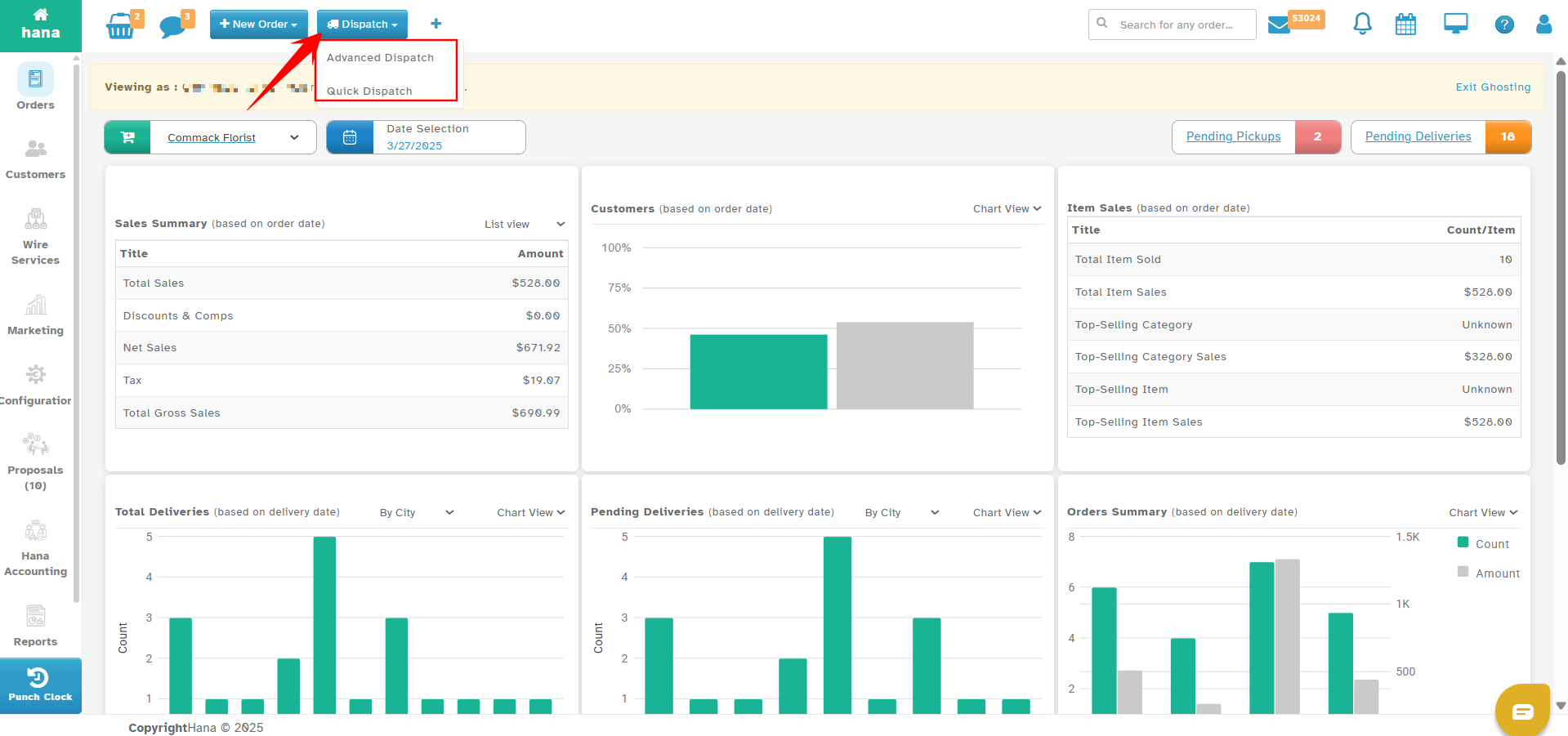
To access dispatch in Hana POS:
Open the Hana Dashboard.
Click the Dispatch tab at the top.
Select Advanced Dispatch
Ways to Add Orders to a Trip
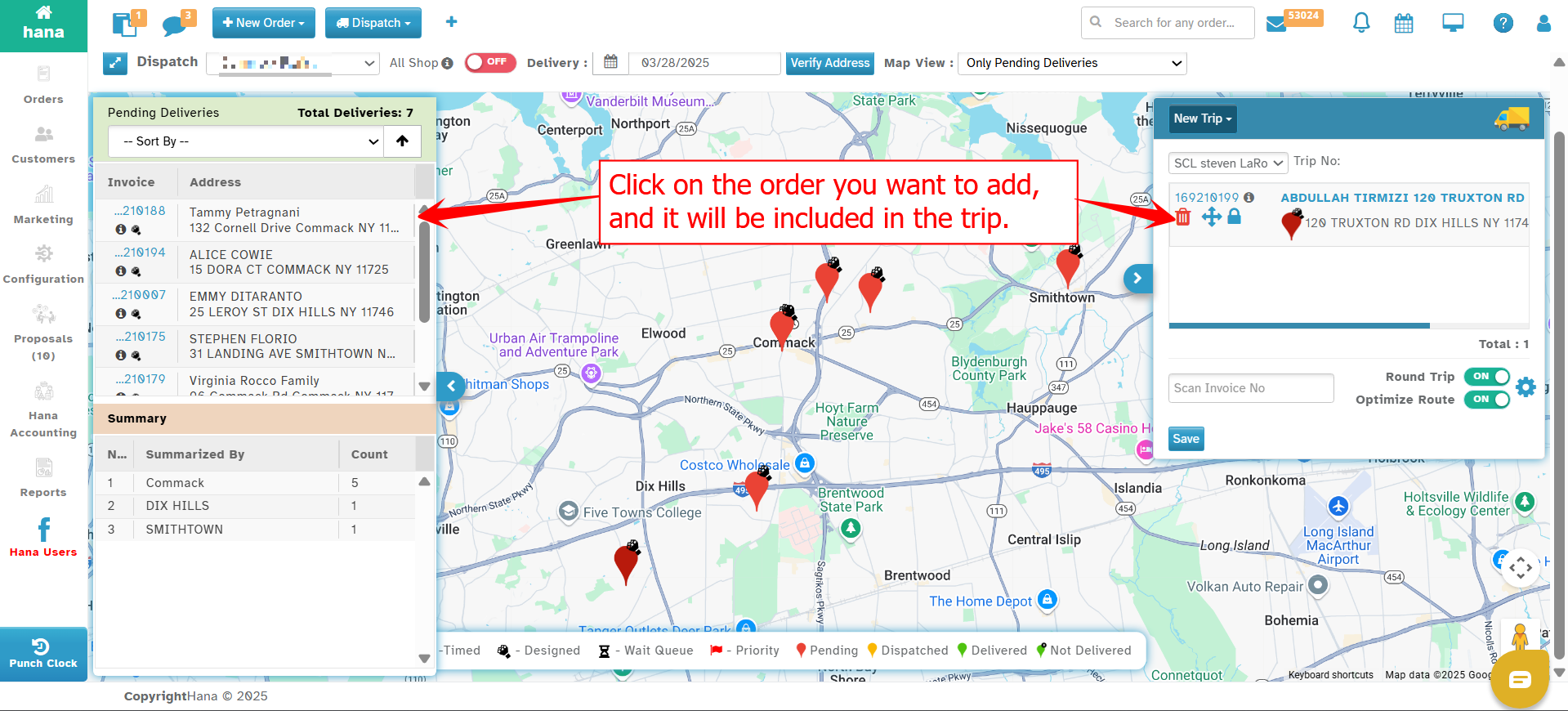
1. Selecting Pending Orders from the Left Window
Navigate to the Pending Deliveries window (left panel).
Click on an order to select it.
The selected order will be added to the trip.
Could you repeat the process to add multiple orders individually?
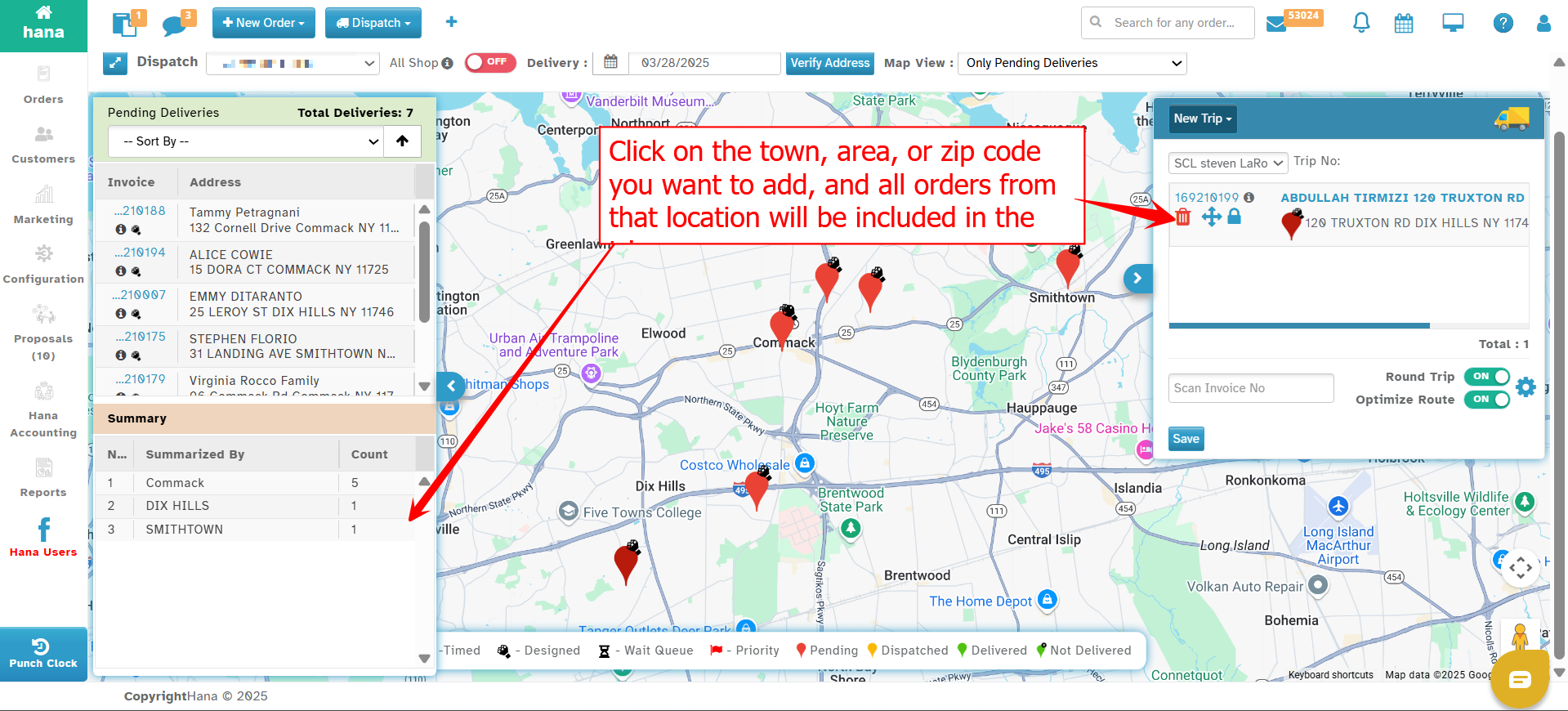
2. Adding Orders by Grouping (Same Town/Area/Zip Code)
If you want to group multiple orders from the same location:
Open the Summary Window (middle section).
Select a town, area, or zip code from the summary list.
All orders under the selected category will be automatically added to the trip.
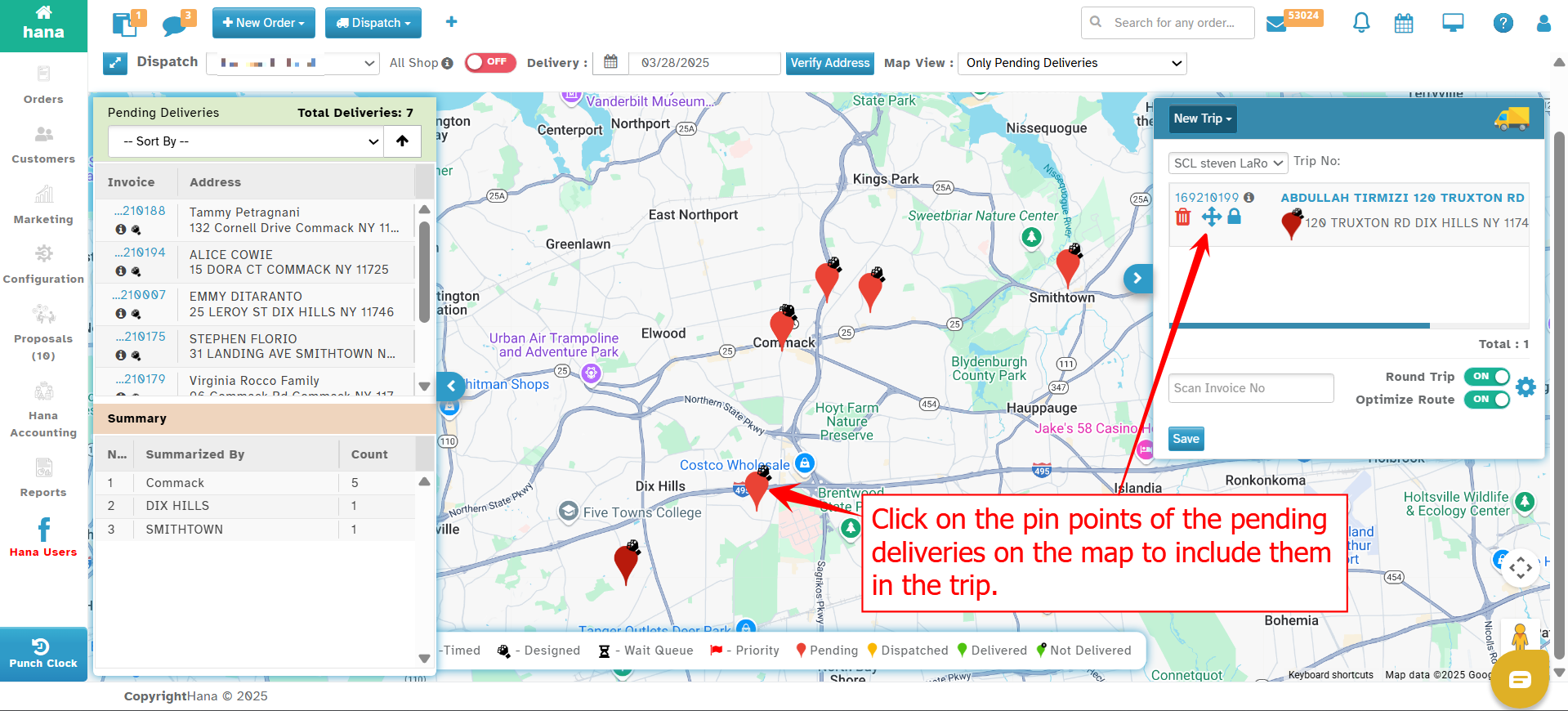
3. Selecting Orders Directly on the Map (Pin Points)
Locate orders on the Map View (Middle Section).
Click on the pinpoints representing the deliveries.
Each selected pin (order) will be added to the trip.
This method is useful when visually selecting orders near each other.
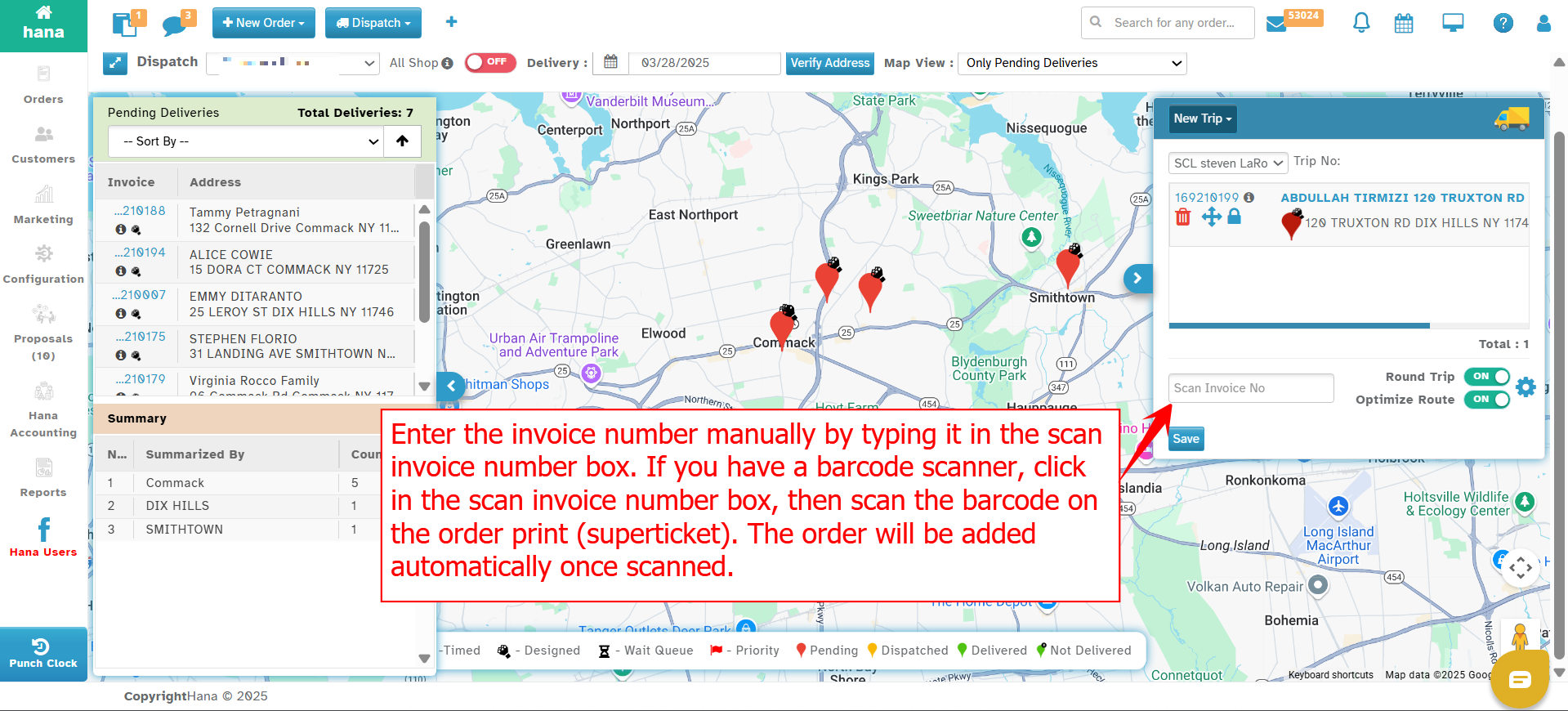
4. Entering Invoice Numbers (Manual or Barcode Scan)
Enter the invoice number manually in the Scan Invoice Number field.
If using a barcode scanner:
Click inside the Scan Invoice Number box.
Scan the barcode from the order print (superticket).
The scanned order will be automatically added to the trip.
5. Polygon Selection Tool
You can use the polygon selection tool to group deliveries visually on the map:
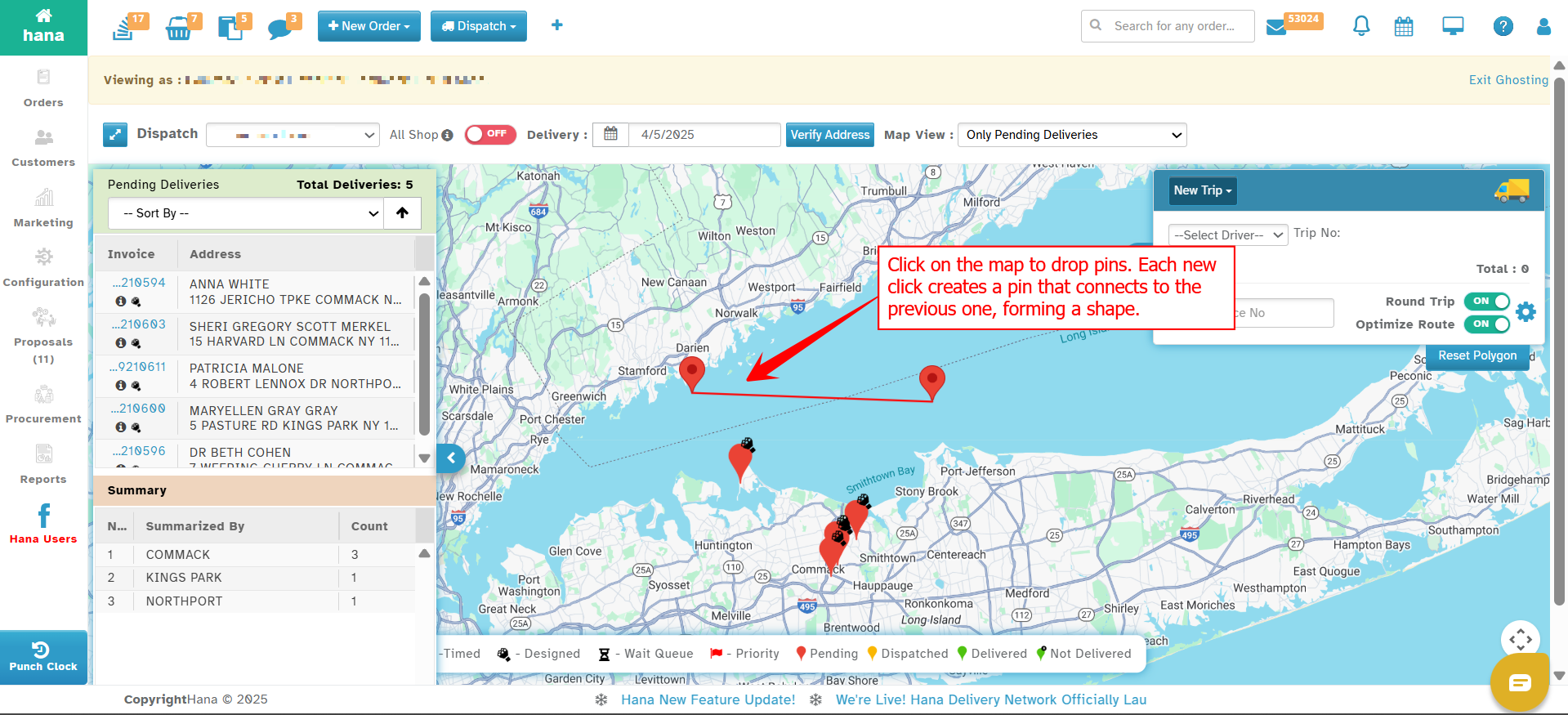
On the Advanced Dispatch Map, click to drop the first pin.
Continue clicking on the map to create more pins—each new click connects to the previous one.
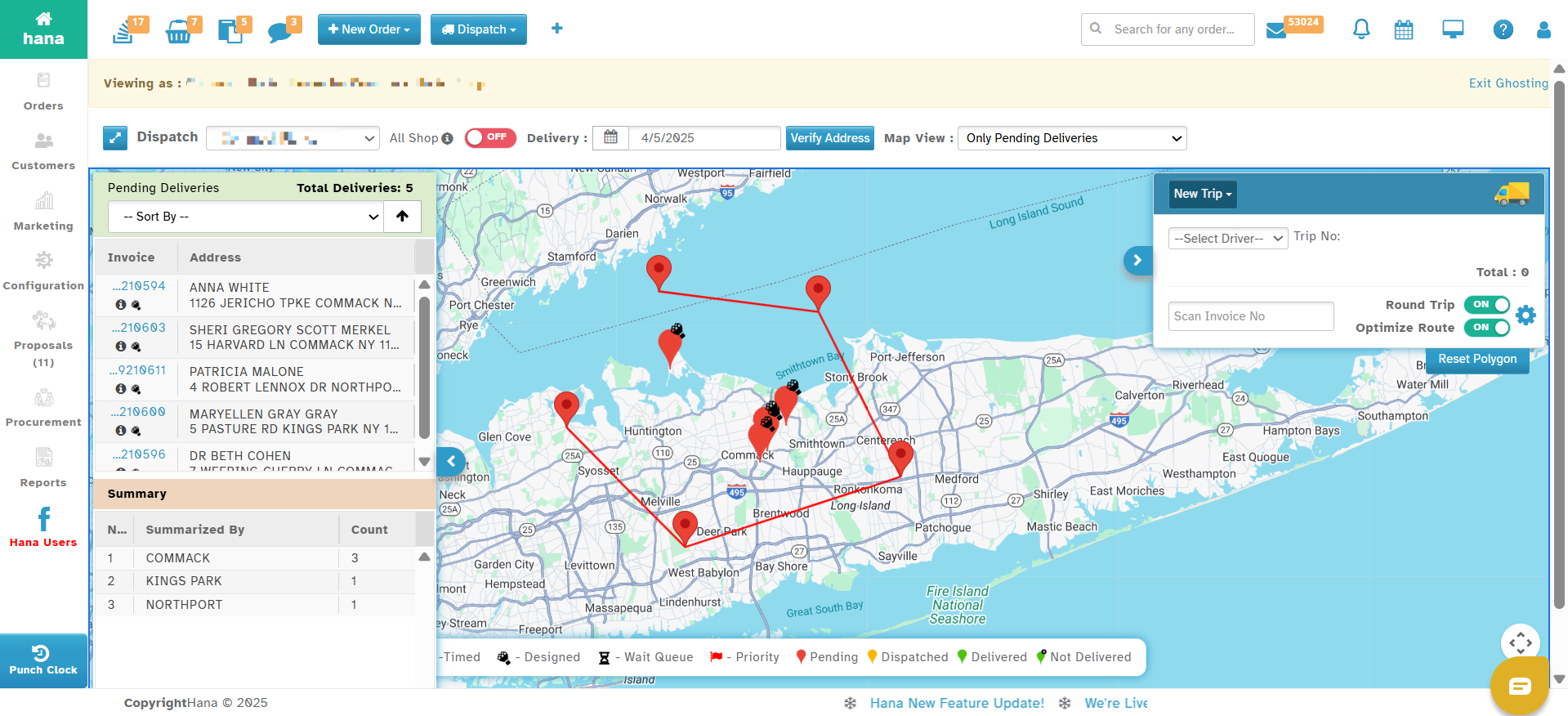
When you click back near the first pin, the shape will automatically close to form a polygon.
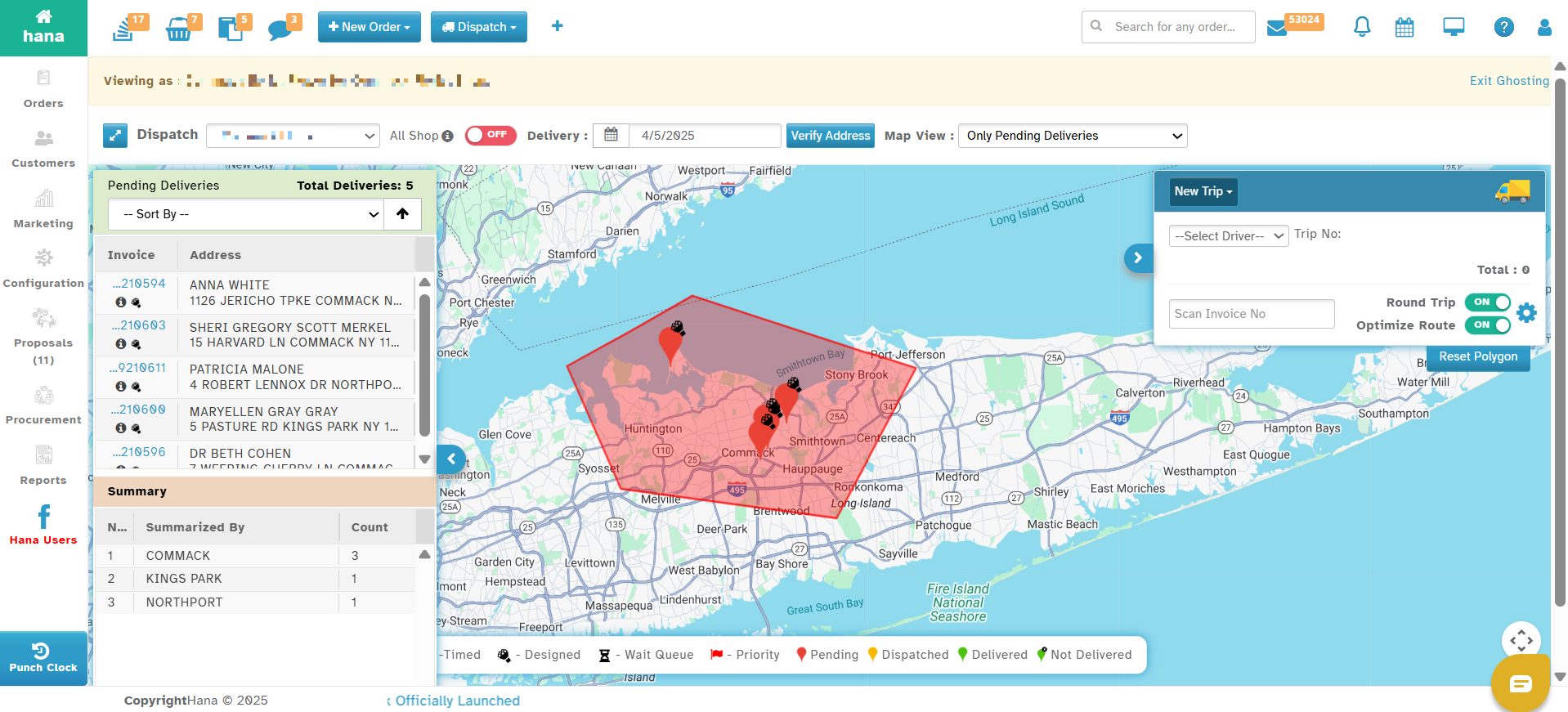
All pending delivery pins within the polygon will be automatically selected.
An "Add to Trip" window will appear, listing all the orders inside the selected area. You can review the list and choose which orders to include—by default, all are pre-selected. Simply uncheck any orders you don’t want to add.
Click Submit to finalize and add the selected orders to the trip.
This method is helpful for selecting clustered deliveries in a specific area without manually picking them one by one.
Assigning a Driver & Finalizing the Trip
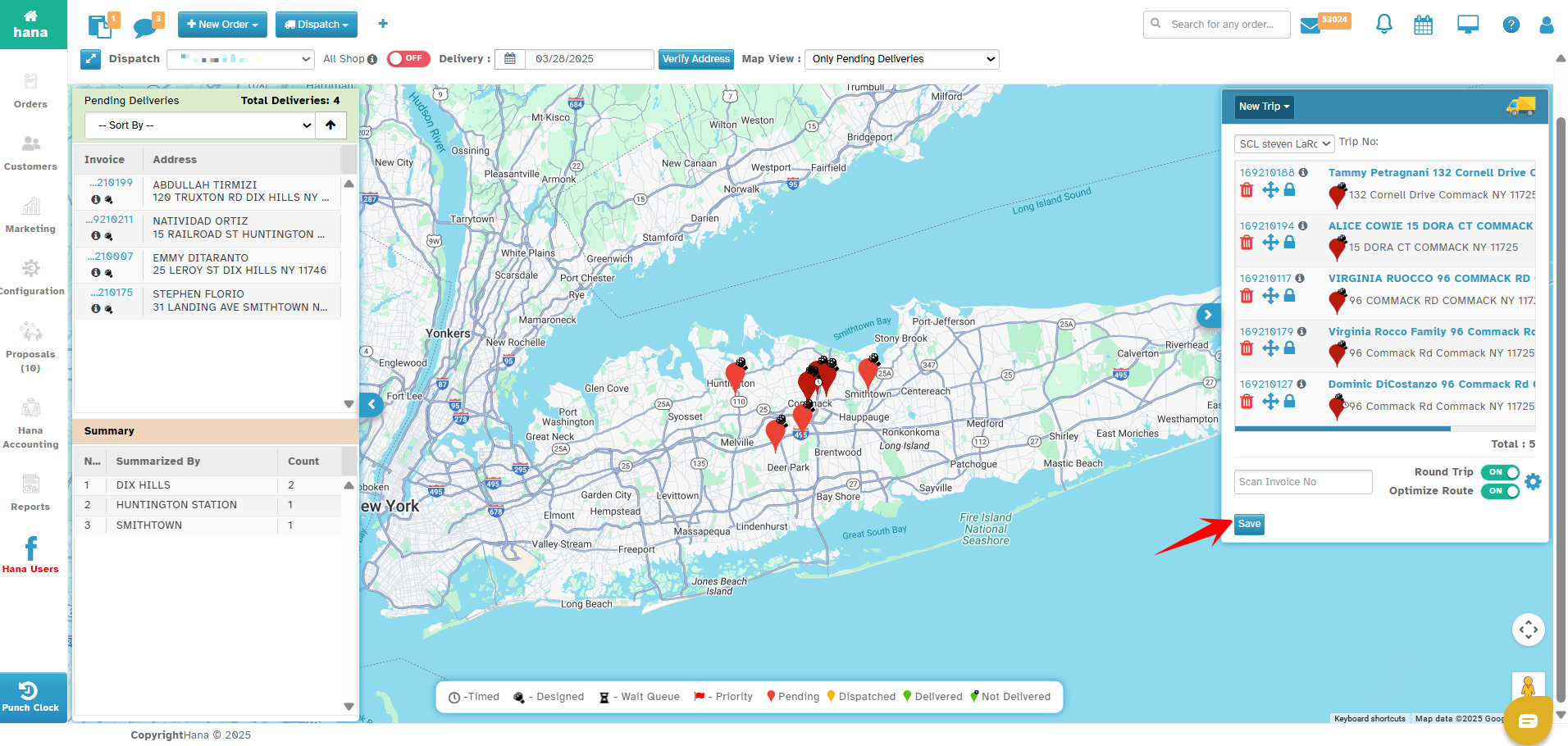
Once all orders are added, select a driver from the Driver Dropdown.
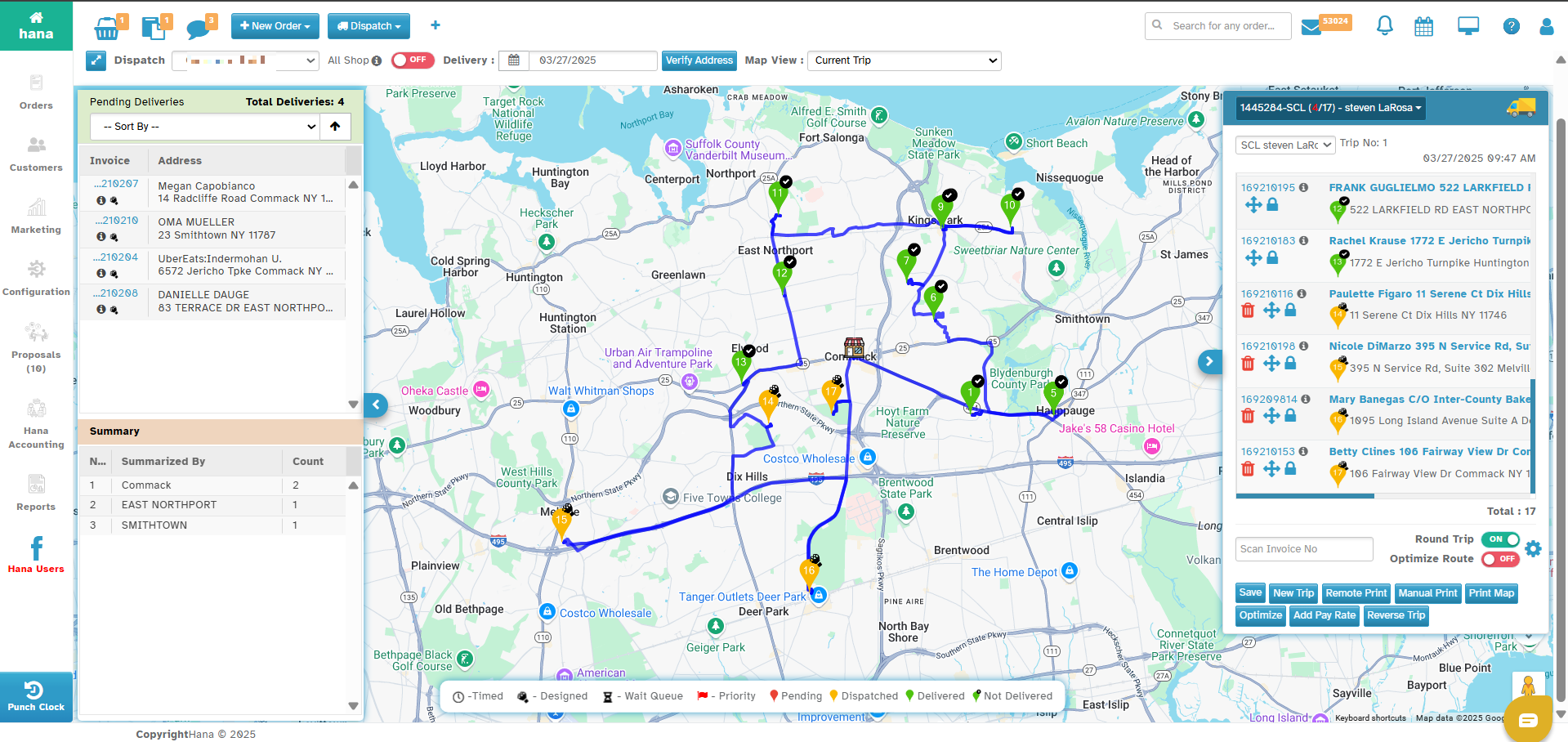
Click Save → The system will generate an optimized delivery route for the selected driver.
Printing Options for the Driver
1. Remote Print (For Auto Printing)
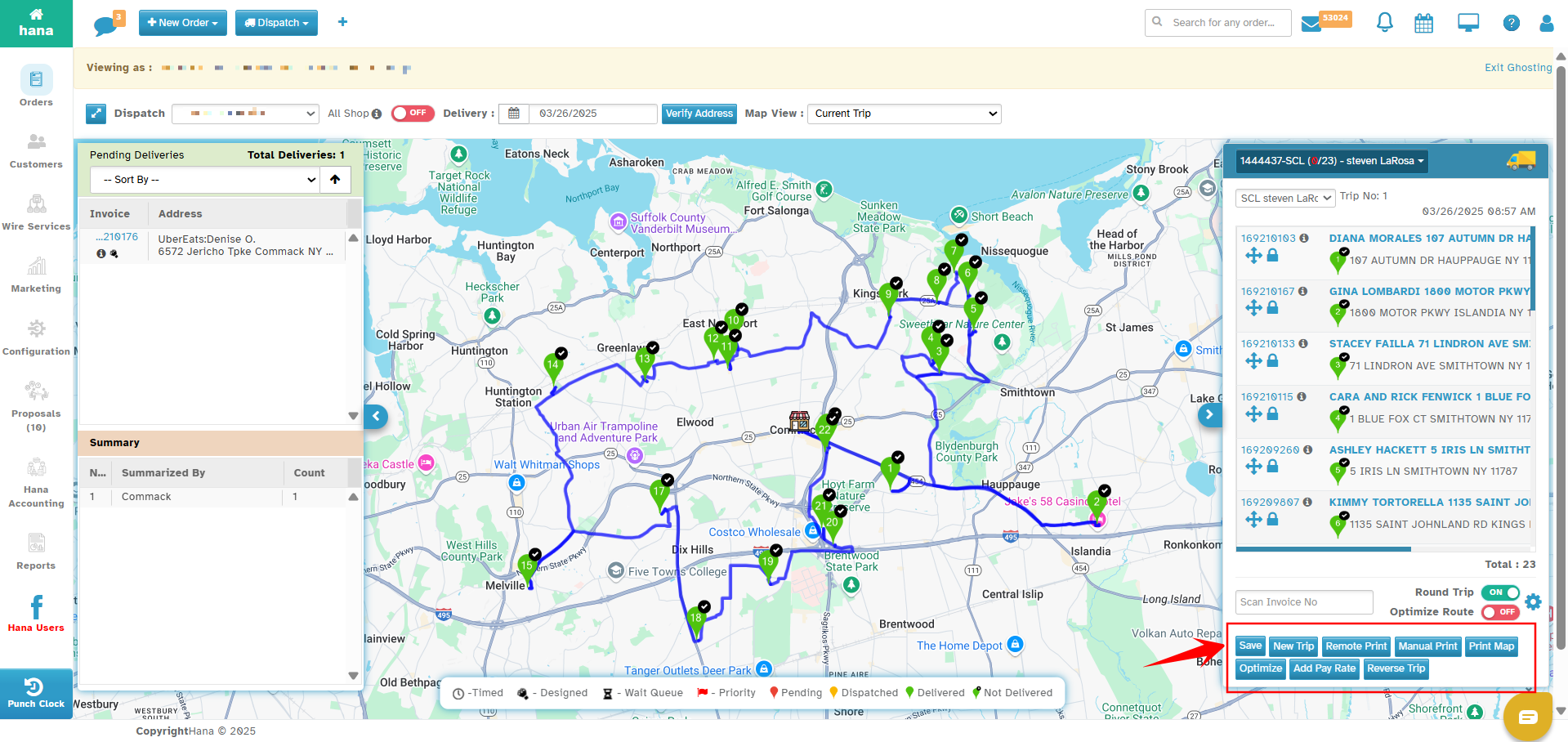
Click Remote Print to generate the Driver Manifesto and send it to the connected printer.
2. Manual Print (For PDF Generation)
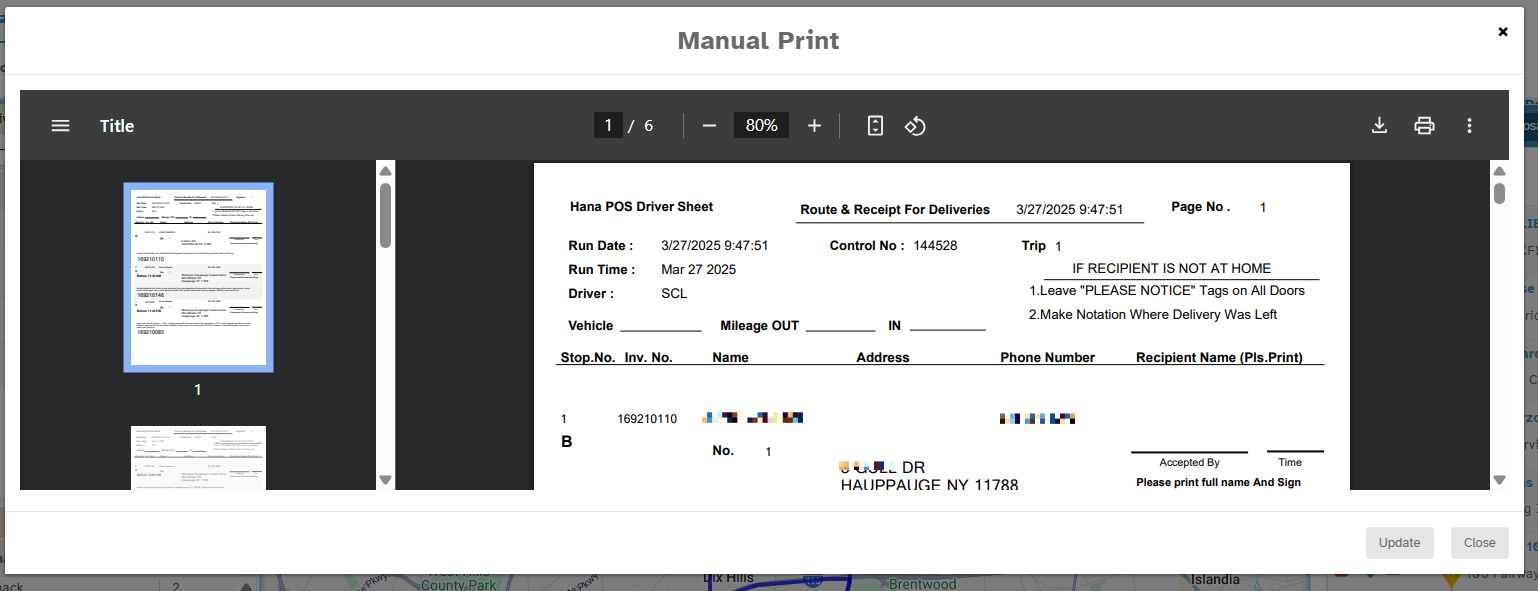
Click Manual Print → A PDF of the trip sheet will be generated.
Click the Printer Icon to print the driver sheet manually.
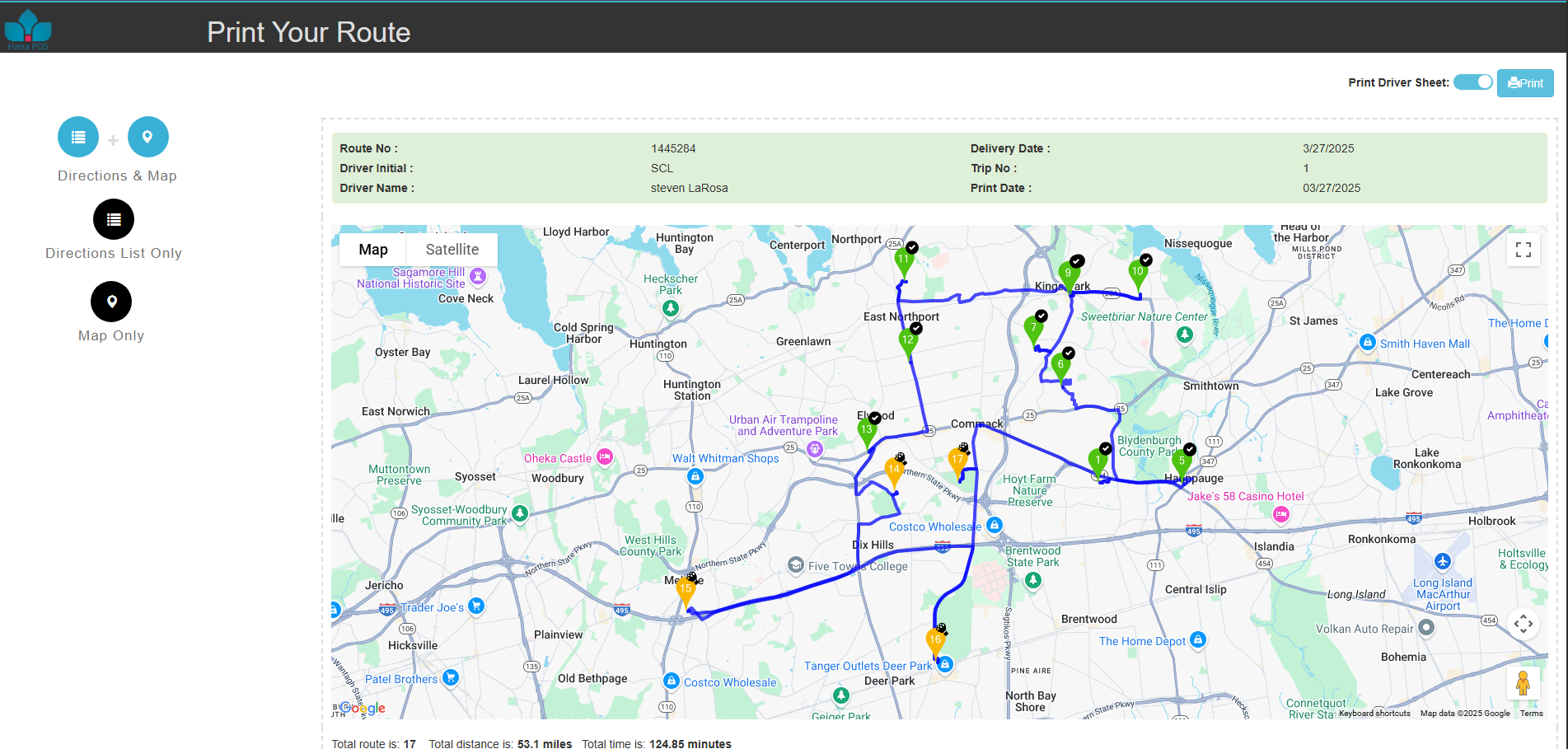
3. Printing the Map & Route Directions
Click Print Map → A new window opens showing the route details.
The window has a Print Option (top right corner) to print the map.
Was this article helpful?
That’s Great!
Thank you for your feedback
Sorry! We couldn't be helpful
Thank you for your feedback
Feedback sent
We appreciate your effort and will try to fix the article