Accessing Dispatch
To access dispatch in Hana POS:
Open the Hana Dashboard.
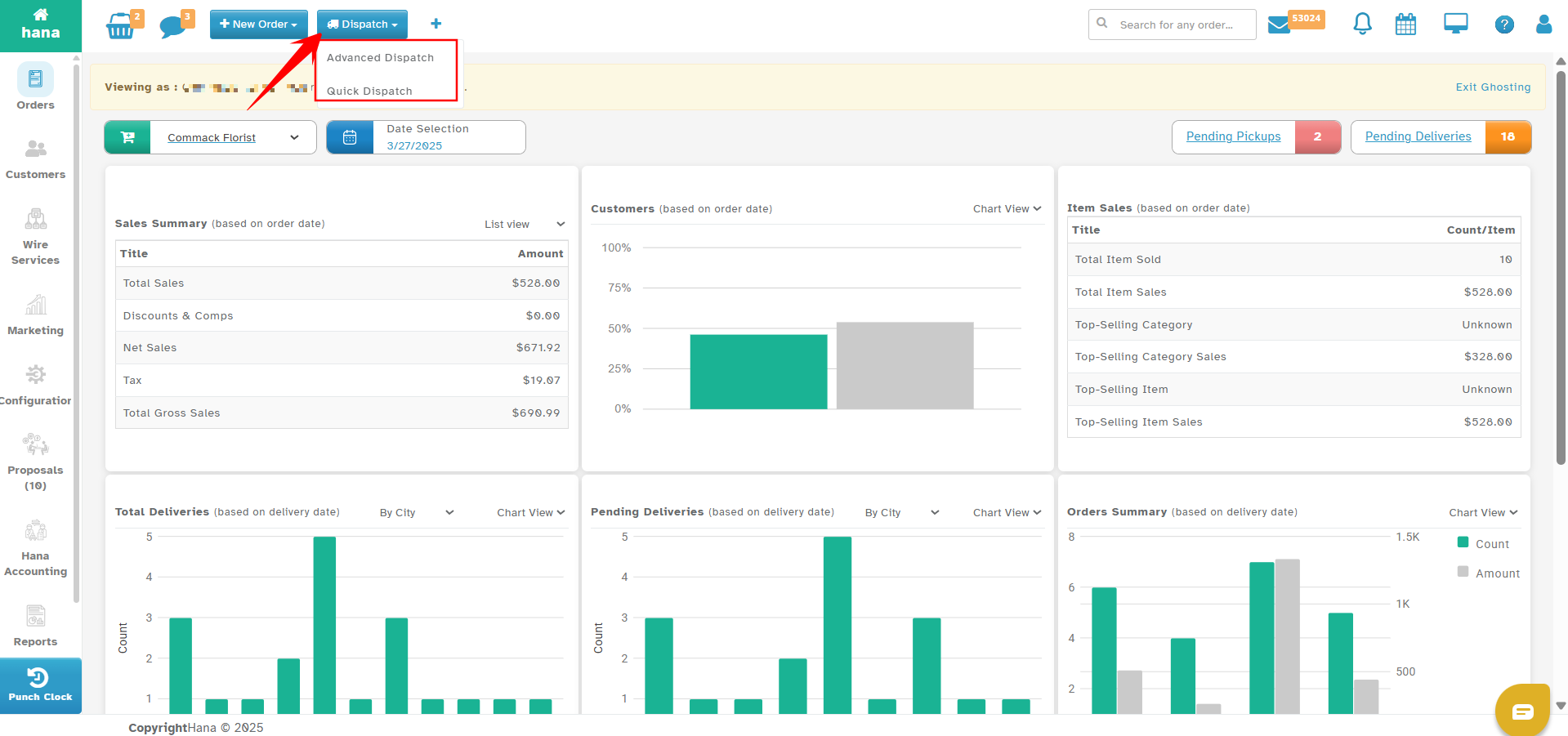
Click the Dispatch tab at the top.
Select Advanced Dispatch.
The Advanced Dispatch page opens with various features:
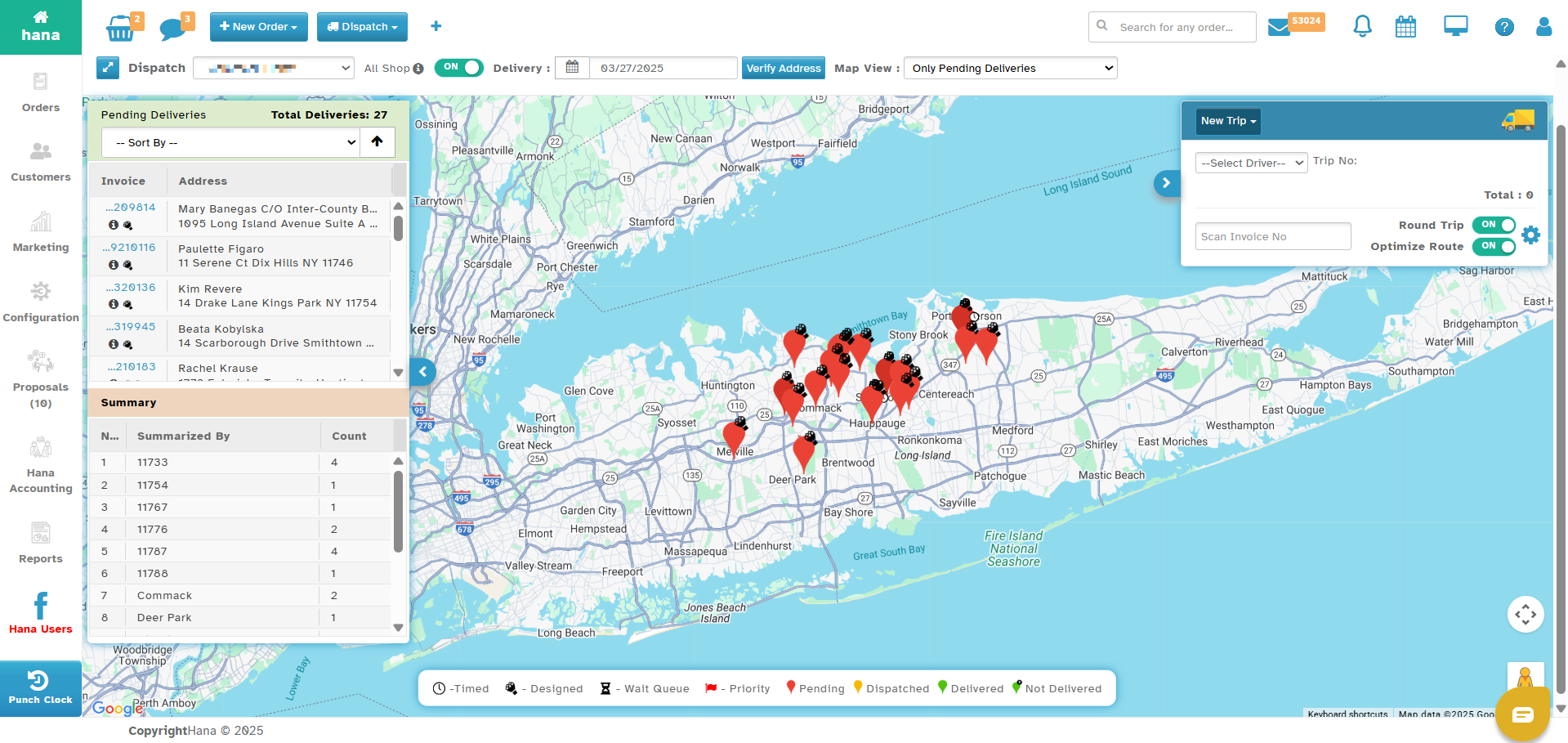
Top Section
Shop Selection Dropdown: If managing multiple shops, select the relevant shop.
All Shop Toggle: Turn this on to view all pending deliveries across multiple locations.
Date Selection: Choose the delivery date to display pending orders.
Verify Address Button: Uses Google API to verify delivery addresses.
Left Panel - Pending Deliveries & Summary
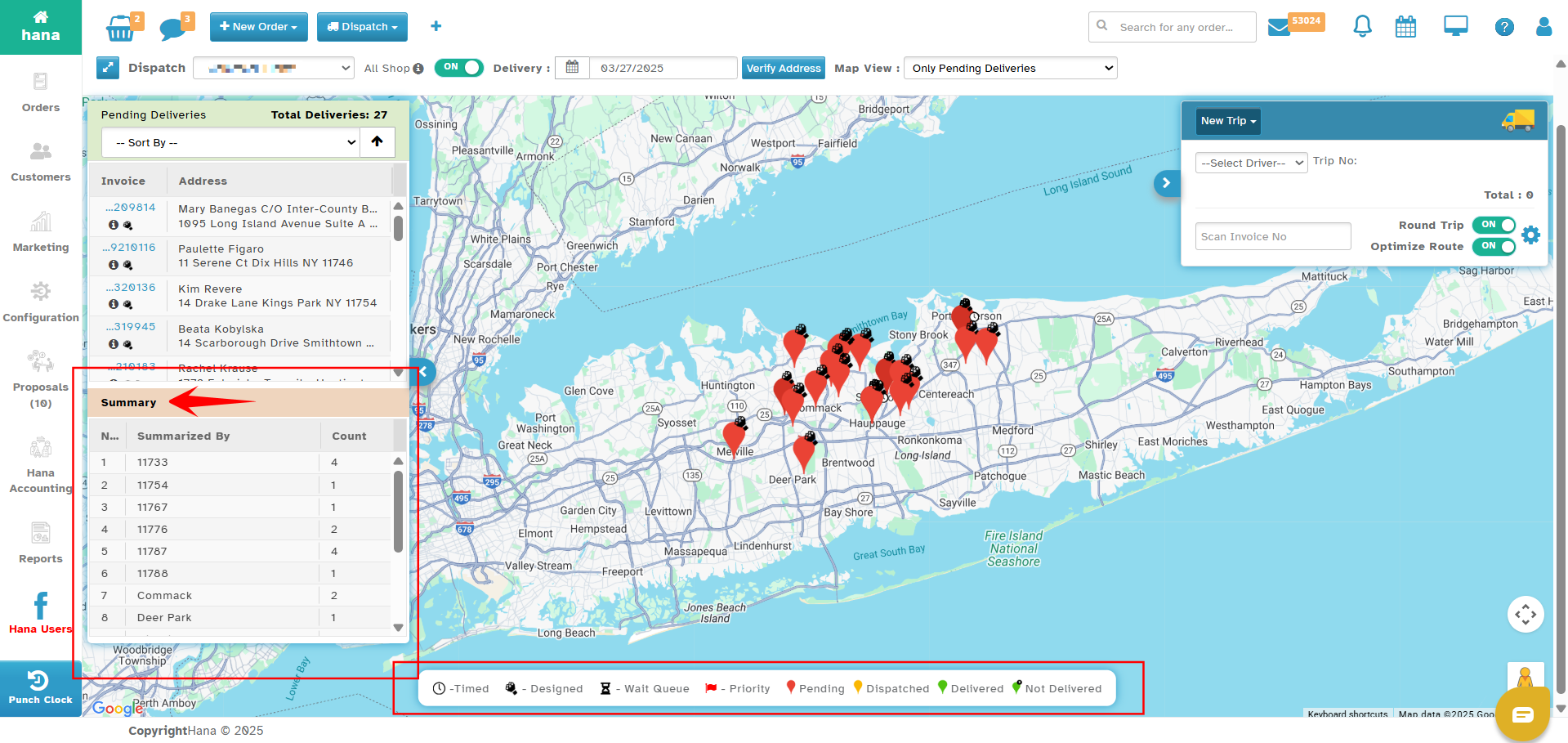
Pending Deliveries Window:
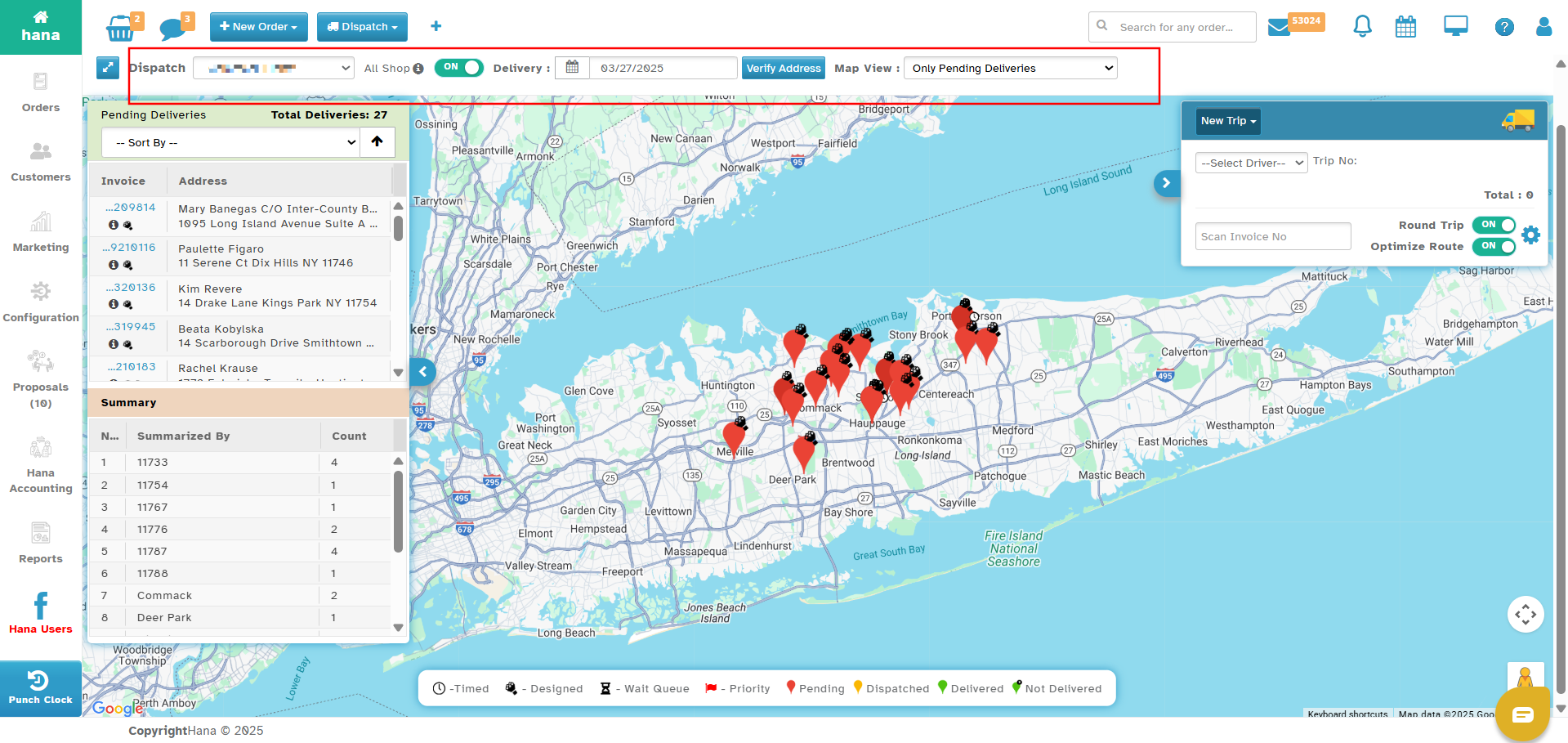
The Pending Deliveries Window in the Hana Advanced Dispatch page is a section on the left-hand side that displays all the orders that are yet to be dispatched. It provides a list of deliveries that need to be assigned to a driver for fulfillment.
Key Features of the Pending Deliveries Window:
Displays All Pending Orders: This section lists all delivery orders that haven't been dispatched yet.
Sorting Options: Users can sort the pending deliveries based on:
Timed Deliveries: Orders that have a specific delivery time.
Designed: Orders that have been marked as "design completed."
Created Date/Time: Orders sorted based on when they were created.
Payment Status: Orders sorted based on whether they have been paid, partially paid, or unpaid.
Icons & Indicators:
Clock Icon: Indicates a timed delivery.
Bouquet Icon: Shows if the design is completed.
Sand Clock Icon: Means the order is in the wait queue and needs to be accepted or rejected before dispatch.
Red Flag Icon: Represents priority orders that need urgent attention.
Purpose of the Pending Deliveries Window:
Helps florists manage and assign orders efficiently.
Allows sorting based on different parameters to prioritize deliveries.
Ensures that no order is missed by displaying all pending deliveries in one place.
Summary Section:
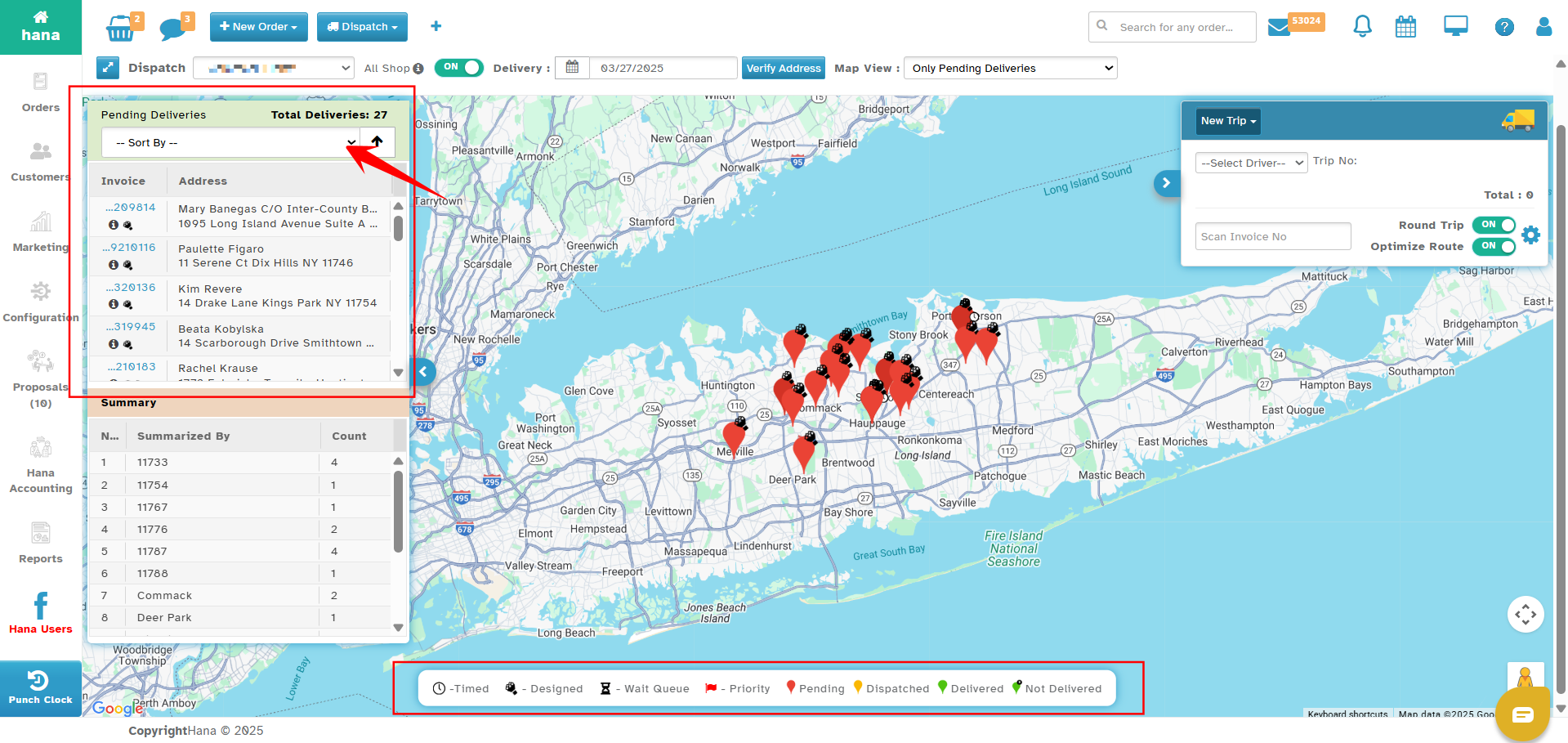
The Summary Window in the Hana Advanced Dispatch page is located below the Pending Deliveries Window on the left-hand side. It provides an overview of all pending deliveries, grouped by location.
Key Features of the Summary Window:
Displays a breakdown of pending deliveries by town, area or zip code
Helps florists quickly identify delivery clusters and plan trips accordingly.
Provides an at-a-glance view of how many deliveries are pending in each location.
Enhances route planning by allowing users to group deliveries efficiently.
Purpose of the Summary Window:
Helps florists prioritize deliveries based on location.
Allows users to optimize routes efficiently by identifying delivery hotspots.
Improves delivery planning by providing a quick overview of pending orders across different areas.
Middle Section - Map View
The Middle Section of the Advanced Dispatch page features a Google Map with order pins, providing a visual representation of all pending deliveries for the selected date. This section helps florists efficiently plan and manage deliveries using an interactive map-based approach.
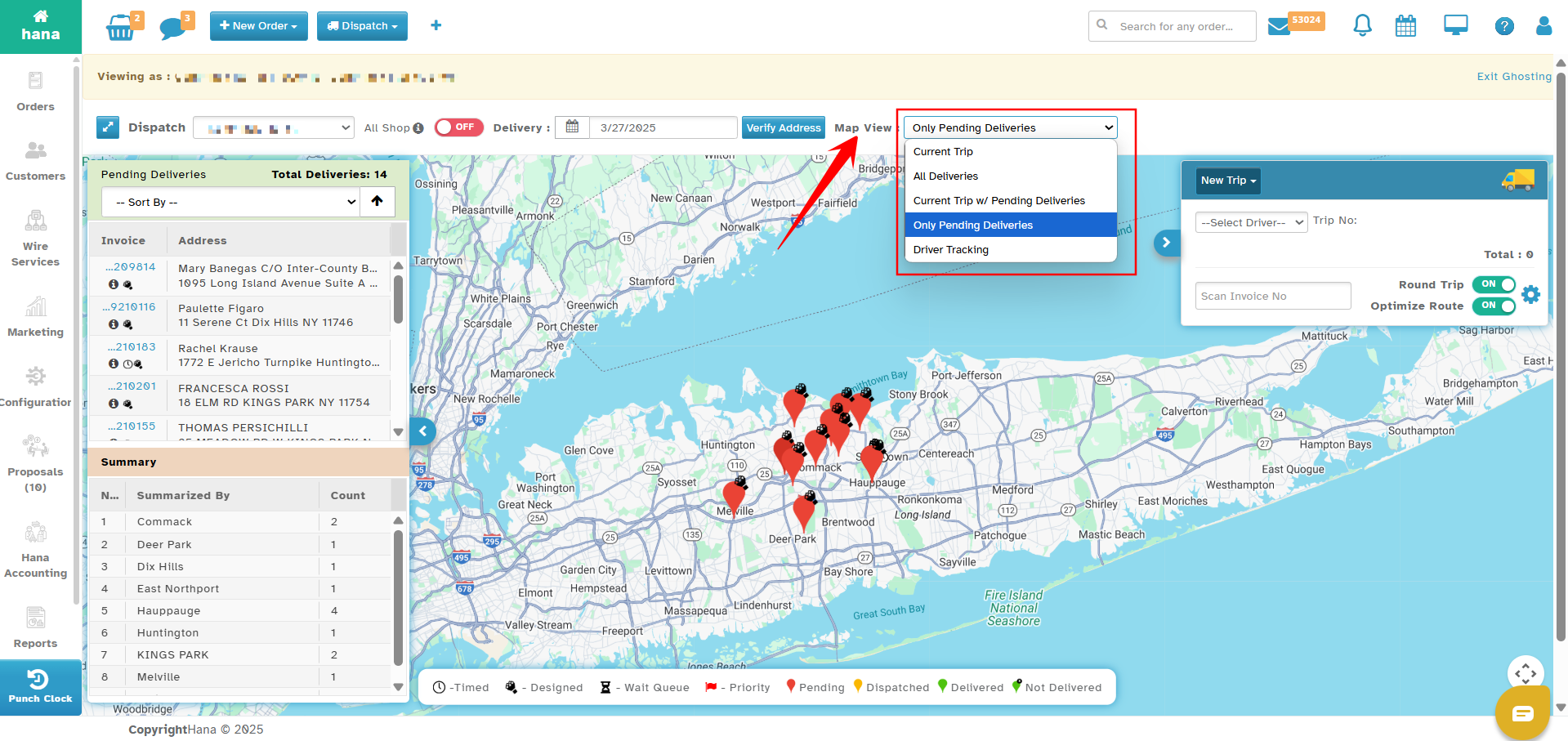
Map View Dropdown Options:
Located at the top of the map, the Map View dropdown allows users to filter which deliveries and trips are displayed. The available options are:
Current Trip: Shows only the deliveries assigned to the currently selected trip.
All Deliveries: Displays all pending and assigned deliveries on the map.
Current Trip with Pending Deliveries: Displays both the assigned deliveries of the selected trip and any remaining pending deliveries.
Only Pending Deliveries: Shows only deliveries that have not yet been assigned to a trip.
Driver Tracking: Provides real-time tracking of drivers who are currently delivering orders.
Purpose of the Map View:
Provides a visual overview of all deliveries.
Allows users to plan and optimize delivery routes efficiently.
Helps in quickly identifying priority or timed deliveries.
Supports real-time tracking when drivers are on the road.
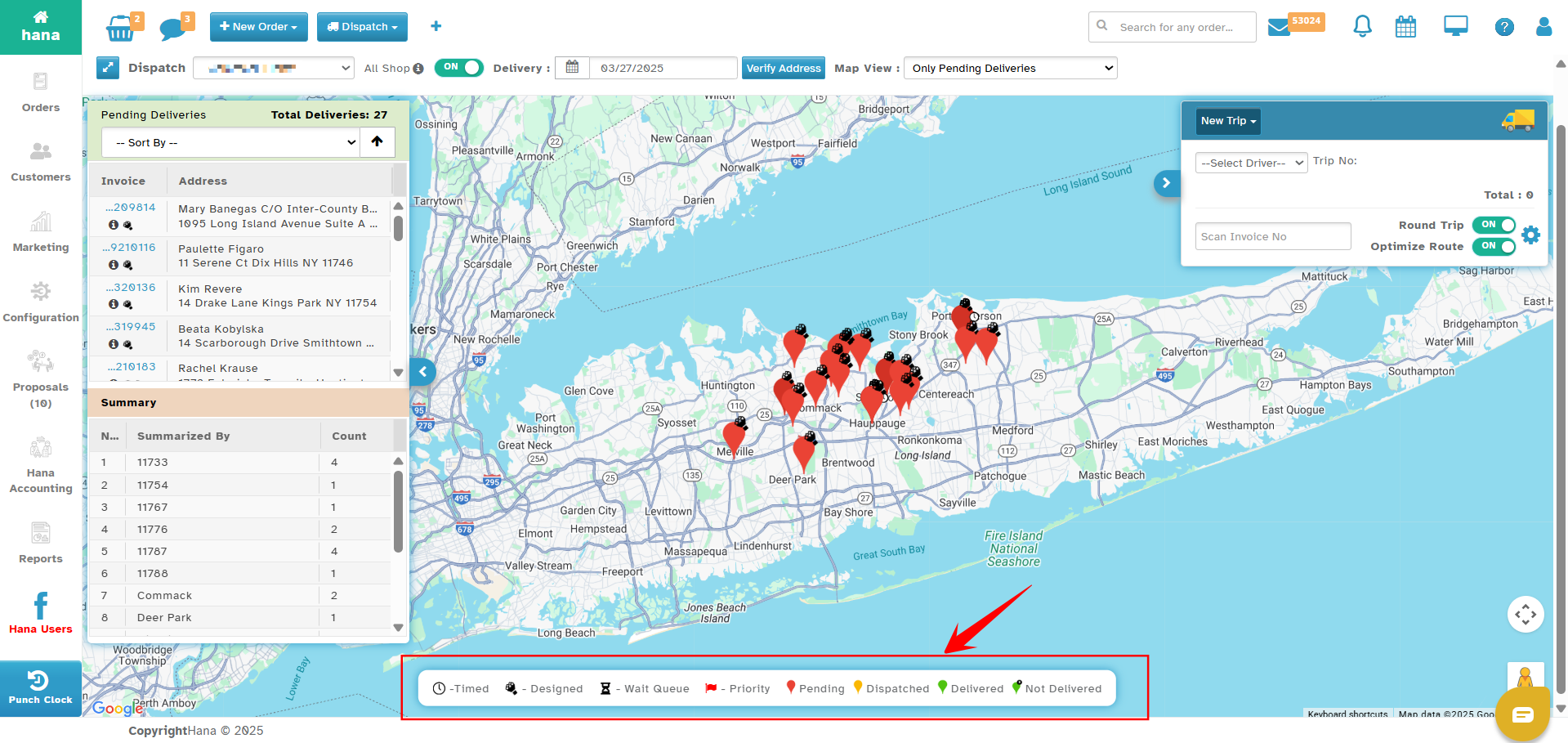
The map displays orders as color-coded pins:
Red: Pending for delivery.
Yellow: Dispatched.
Green: Delivered.
Green with Black X: Not delivered.
Icons on Pins:
Clock Icon: Timed delivery.
Bouquet Icon: Design completed.
Sand Clock: Order is in the wait queue (needs acceptance/rejection).
Red Flag: Priority order.
Right Panel - Trip Window
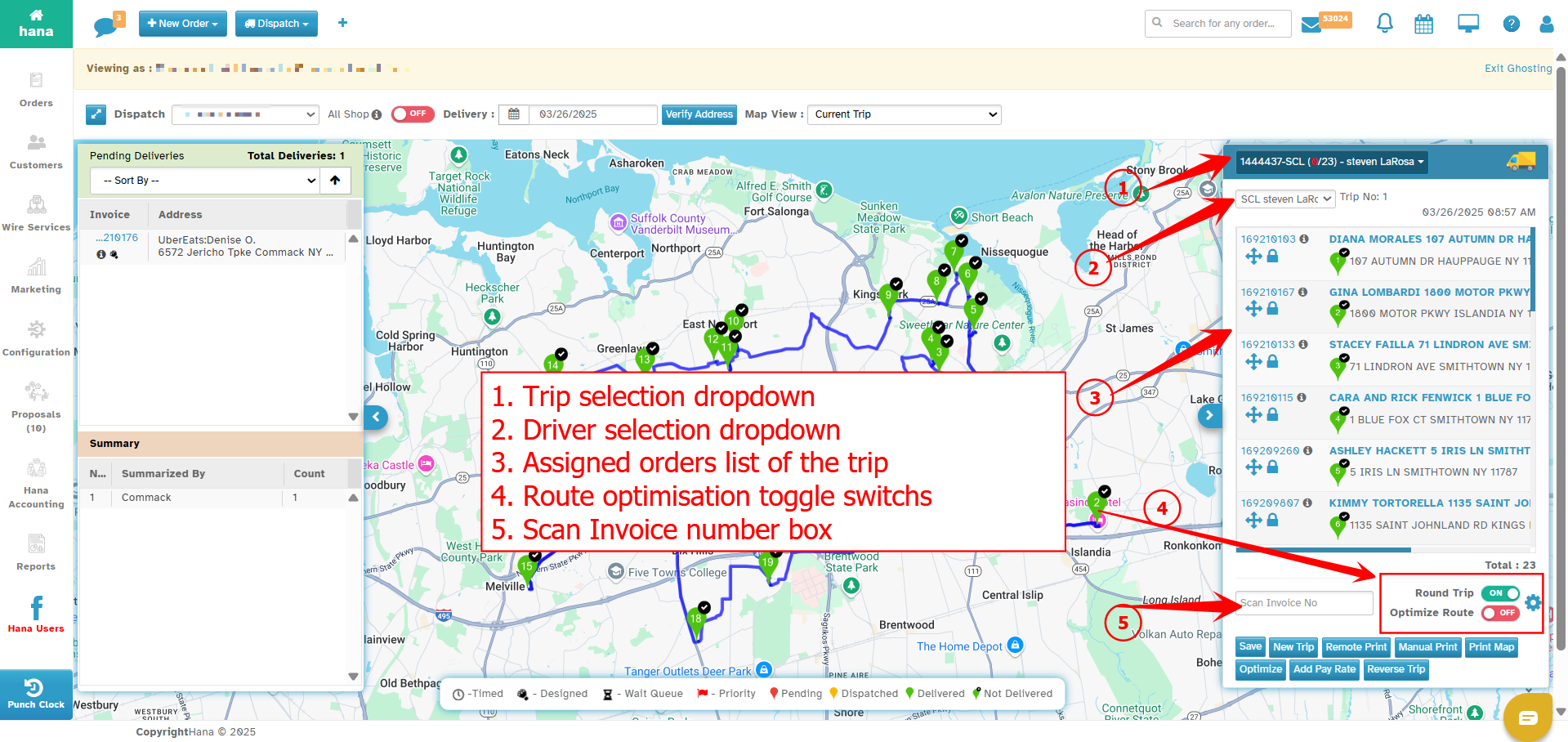
The Trip Window on the right side of the Advanced Dispatch page is where florists can create, manage, and optimize delivery trips for drivers. This section allows users to assign deliveries, organize routes, and configure trip settings efficiently.
Key Components of the Trip Window:
1. Trip Selection Dropdown
Displays a list of created trips for the selected date.
Allows users to select an existing trip or choose "New Trip" to create a fresh trip.
2. Driver Selection Dropdown
Assign a trip to a specific driver by selecting their name from the dropdown.
3. Assigned Orders List
Displays all orders assigned to the selected trip.
Orders are numbered automatically based on the optimized delivery route.
Users can drag and drop orders to manually adjust the delivery sequence.
4. Toggle Switches for Route Optimization:
Round Trip: If the driver needs to return to the shop after deliveries, turn this ON. The system will adjust the route accordingly.
Optimize Route: Hana automatically optimizes the trip, but users can disable it to manually arrange stops. If manual changes are made, turning this ON will re-optimize the route.
Lock Stops: Users can fix the starting and ending stops by clicking the lock icon next to an order. Once locked, the system will optimize only the stops in between.
5. Scan Invoice No. Box
Allows users to enter an order number manually or scan the barcode on a superticket to add the order to a trip automatically.
Bottom Action Buttons:
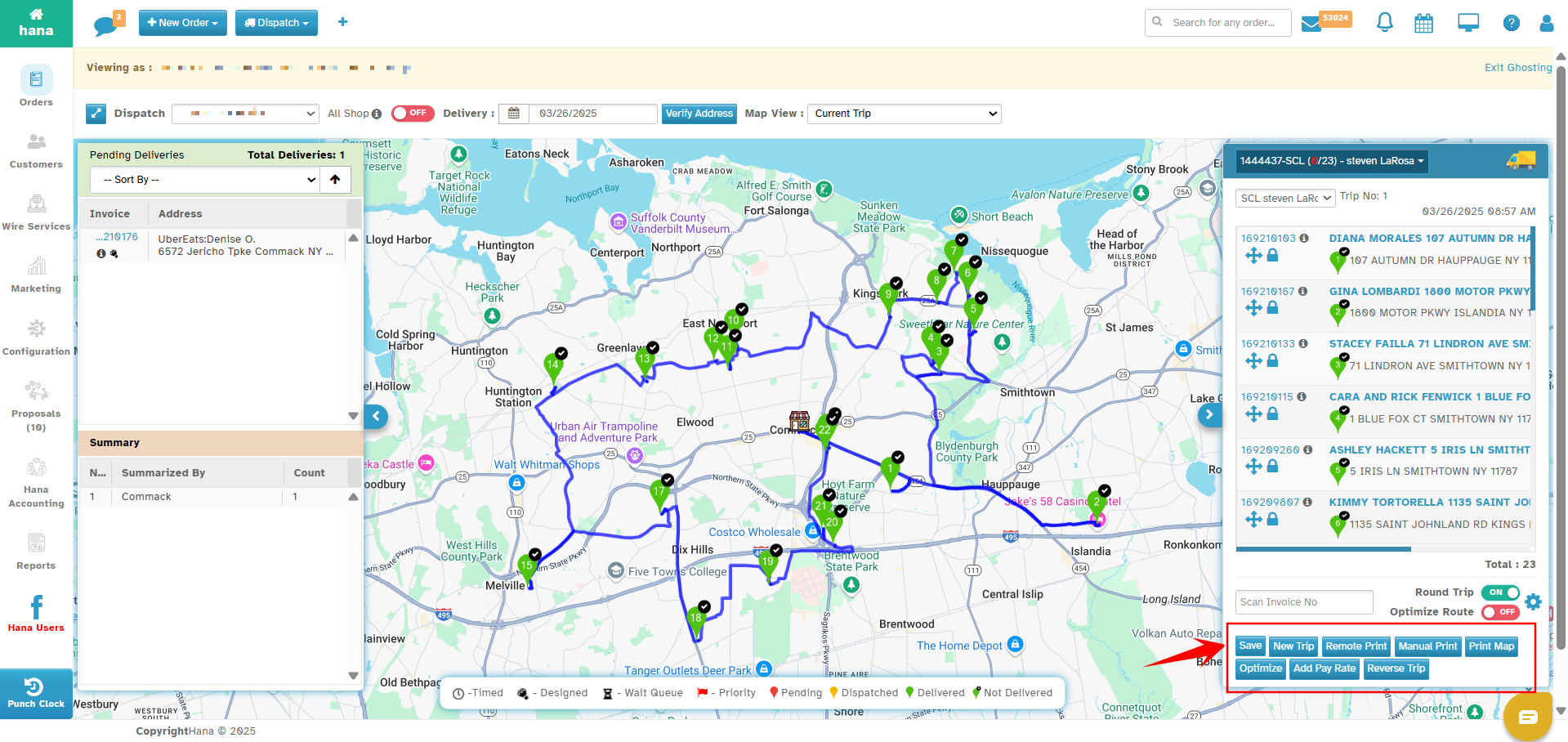
At the bottom of the Trip Window, several options help manage and finalize trips:
Save: Saves the trip with assigned orders.
New Trip: Creates a fresh trip for another batch of deliveries.
Remote Print: Automatically prints the trip route if auto-printing is enabled.
Manual Print: Generates a PDF of the route for manual printing.
Print Map: Prints the visual route displayed on the map.
Optimize: Re-optimizes the delivery sequence within the trip.
Add Pay Rate: Allows setting a pay rate for the driver (if applicable).
Reverse Trip: Reverses the current stop order in the trip.
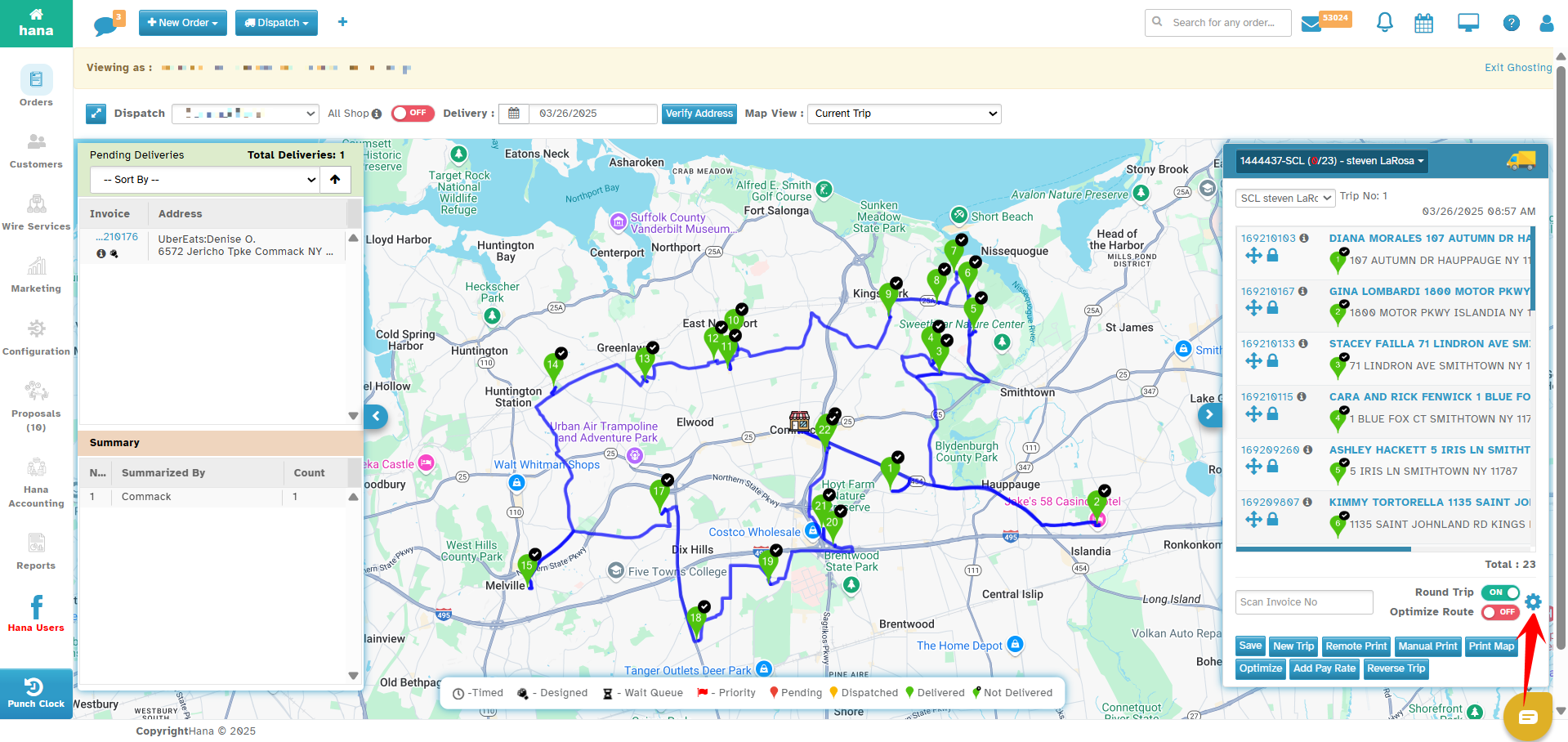
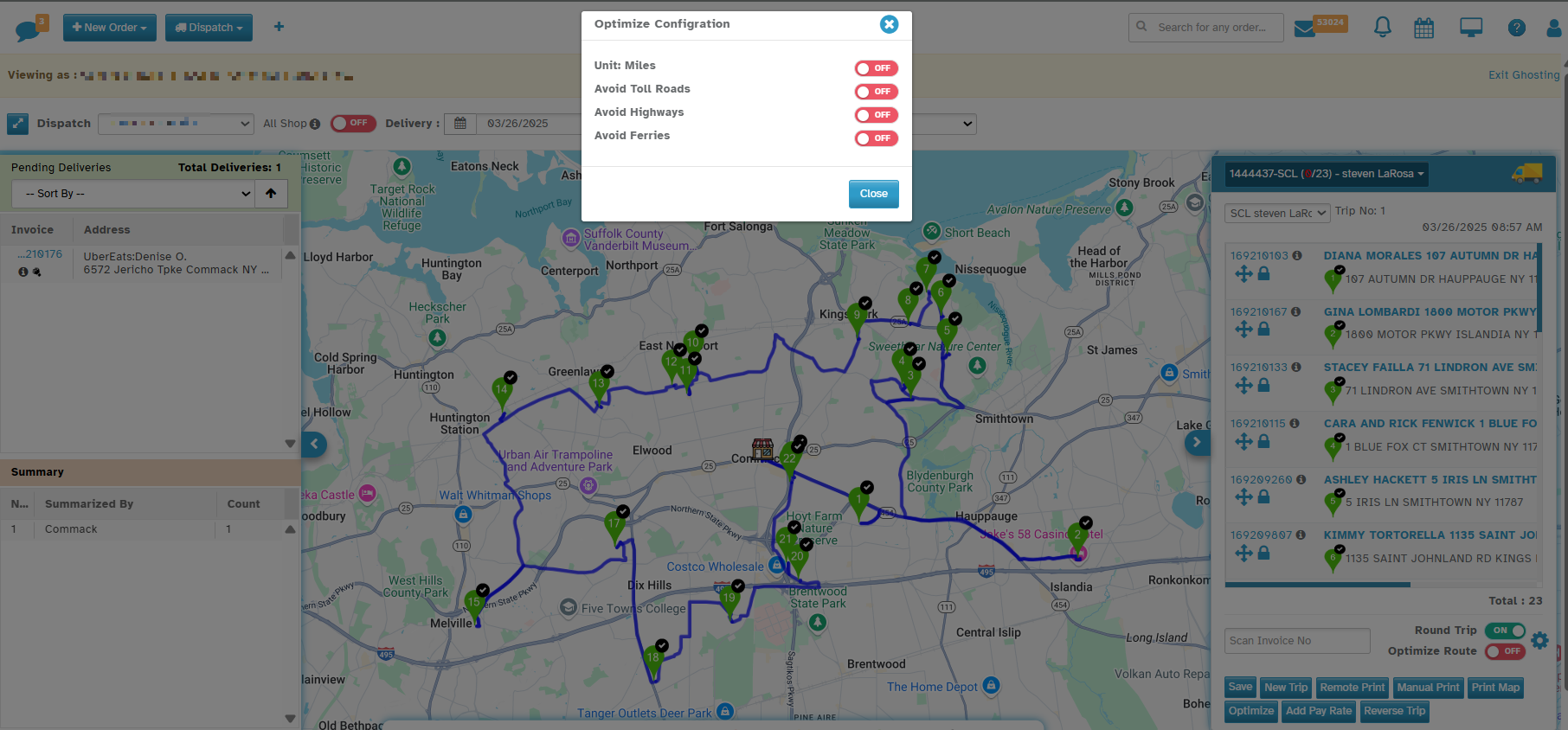
Trip Settings (Gear Icon - Optimize Configuration):
Users can access additional trip settings via the gear icon in the Trip Window:
Unit: Toggle between Miles or Kilometers for route distance.
Avoid Toll Roads: Enable to avoid toll routes while planning the trip.
Avoid Highways: Enable to use only local roads for deliveries.
Avoid Ferries: Enable to prevent routes from including ferry transportation.
Purpose of the Trip Window:
Streamlines the assignment of orders to delivery trips.
Optimizes routes automatically, reducing delivery time and fuel costs.
Provides flexibility to rearrange stops manually or lock key destinations.
Offers essential print and tracking options for drivers.
Was this article helpful?
That’s Great!
Thank you for your feedback
Sorry! We couldn't be helpful
Thank you for your feedback
Feedback sent
We appreciate your effort and will try to fix the article