Holiday Delivery Fees allow you to charge a special delivery rate for specific dates such as Valentine's Day, Mother’s Day, Christmas, or any other peak floral holiday. This fee will override all other delivery fee settings for orders scheduled on that date.
When to Use Holiday Delivery Fees
Use this feature when:
You expect high order volume during holidays.
You want to offset higher operational costs on those dates.
You need a temporary override of regular delivery fees.
How to Set Up Holiday Delivery Fees
Step 1: From your Hana dashboard, click on Configuration from the left-hand menu.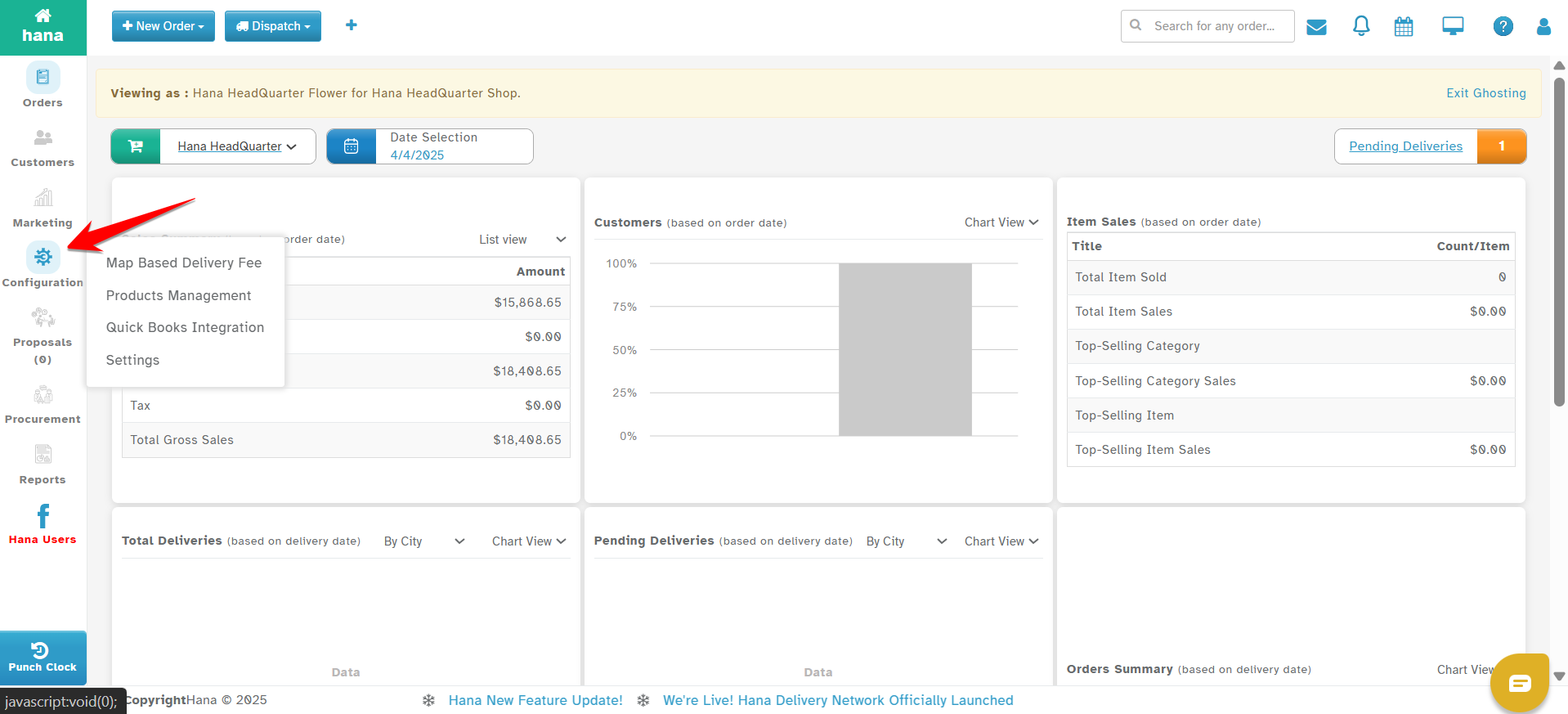
Step 2: Under Configuration, click on Settings.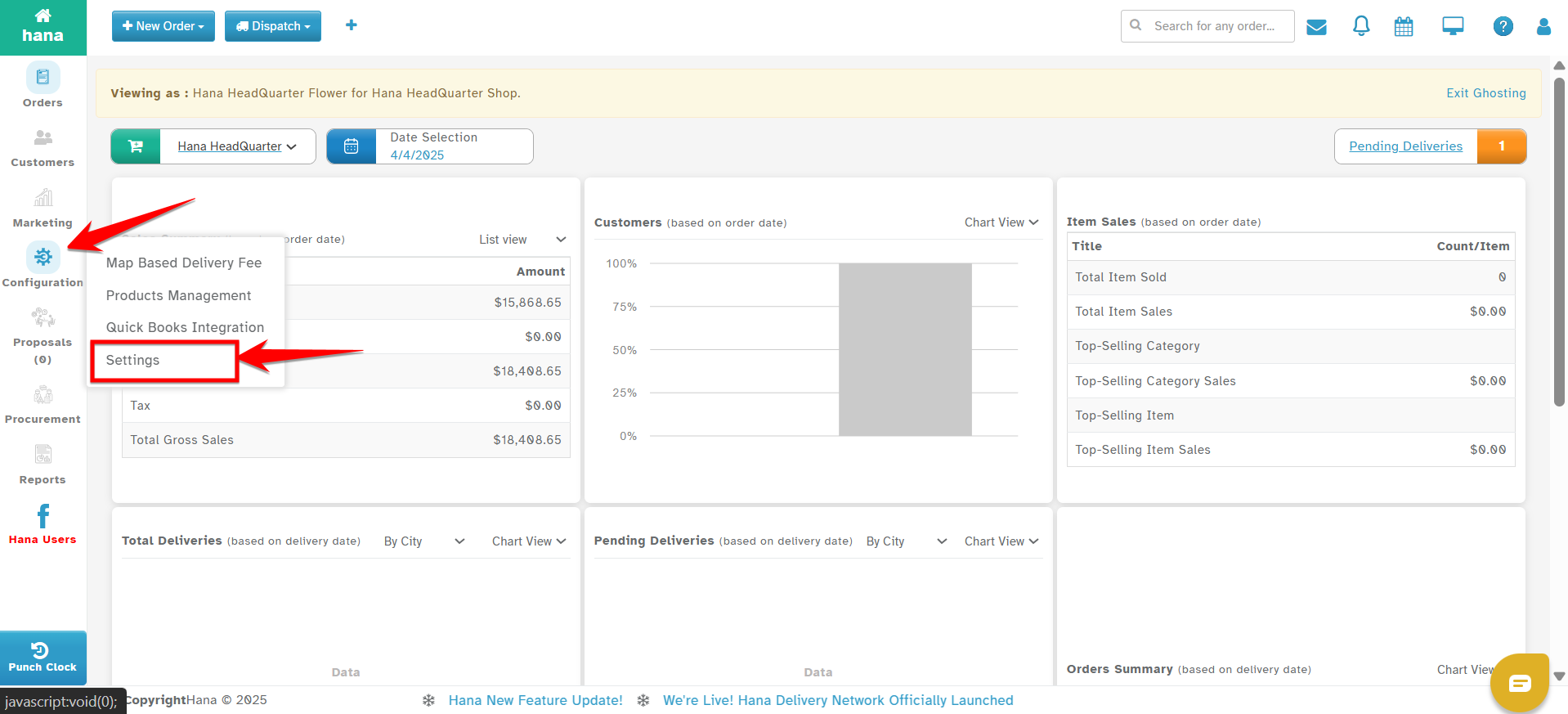
Step 3: In the Settings menu, go to Dispatch.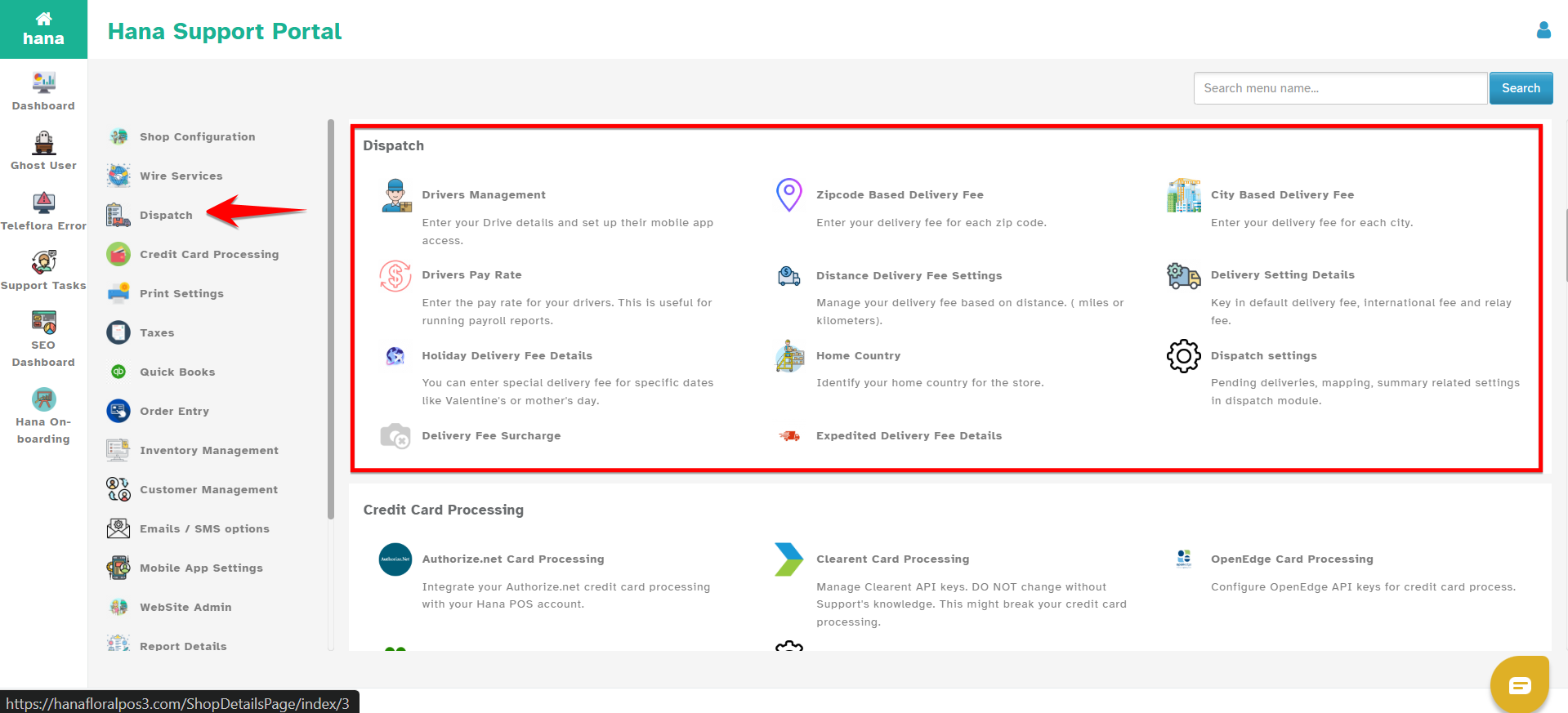
Step 4: Select Holiday Delivery Fee Details.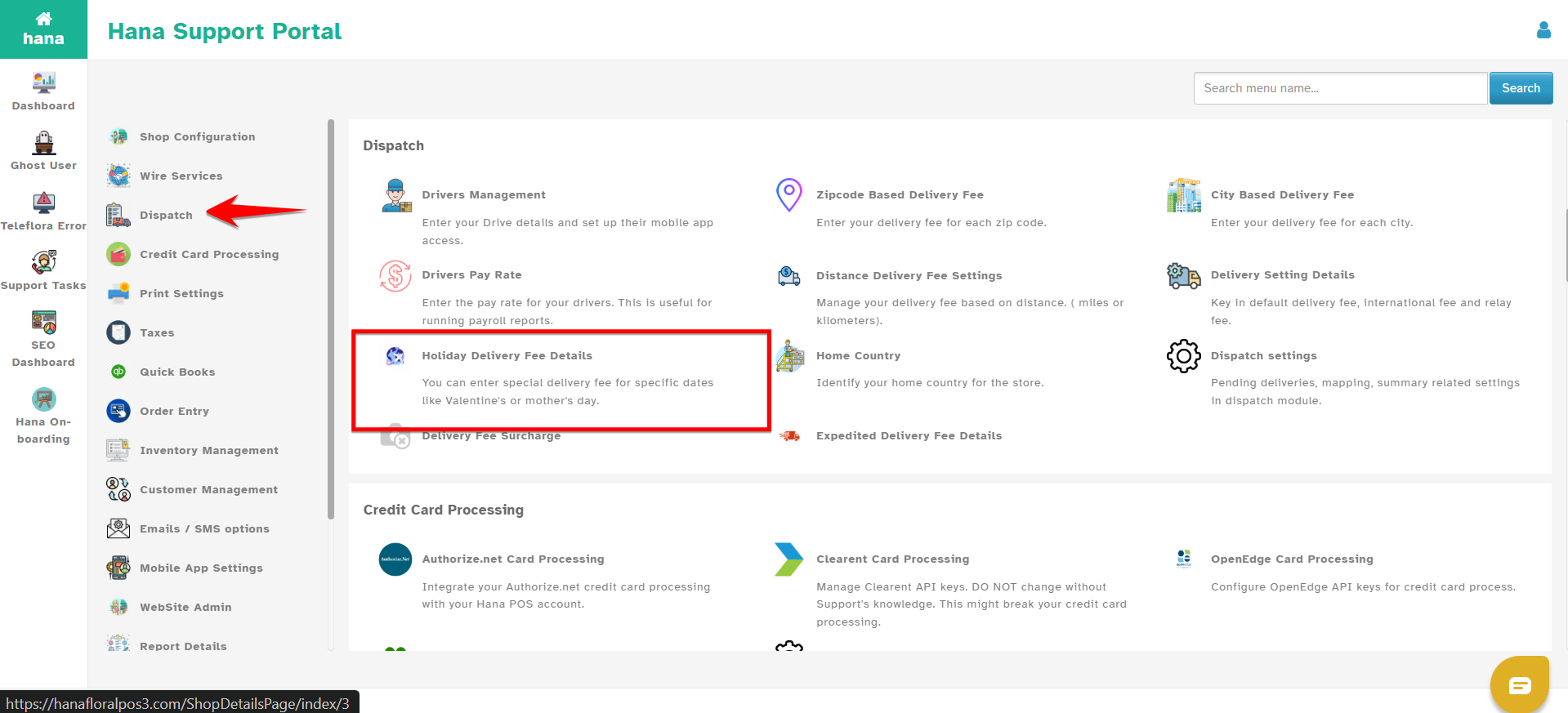
Step 5: Click Add New 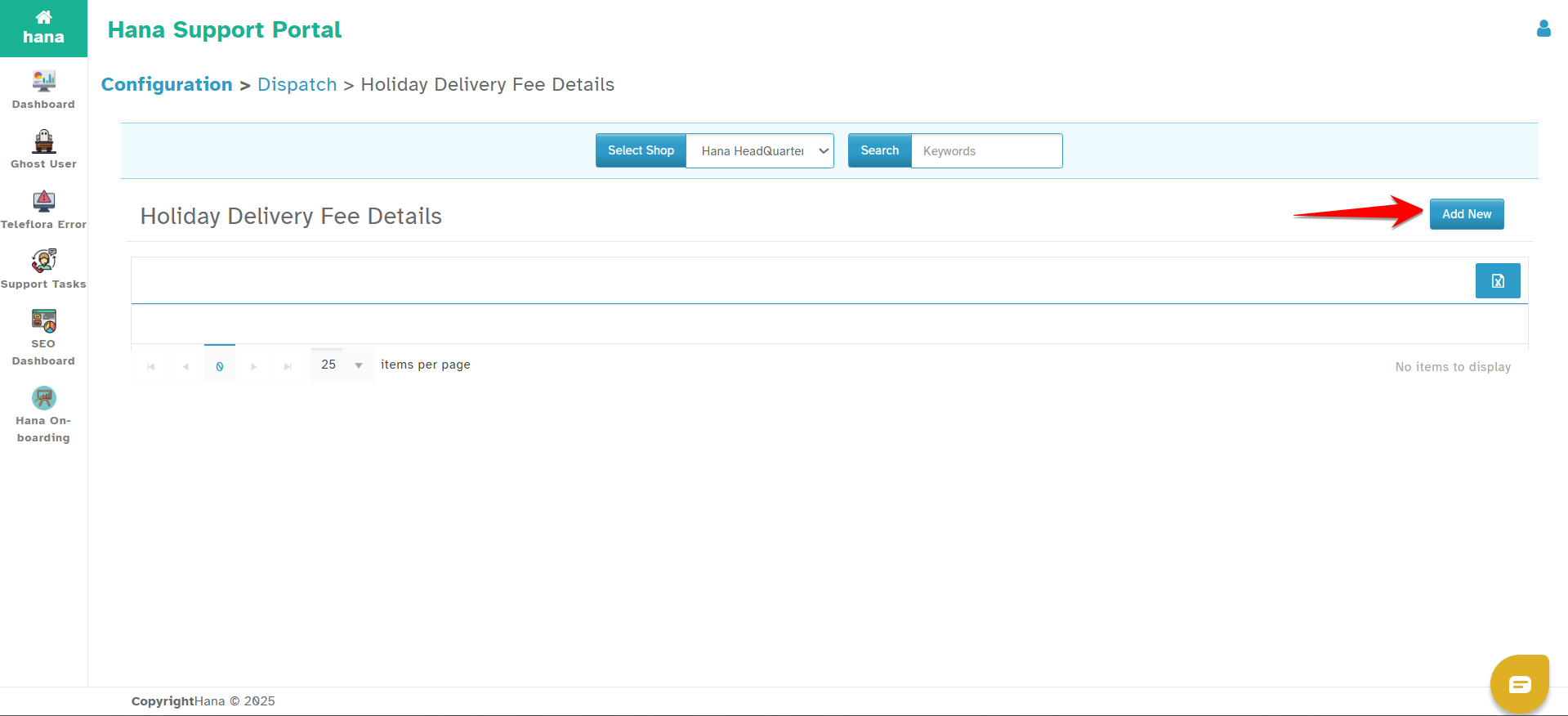
You will now see a form with the following fields: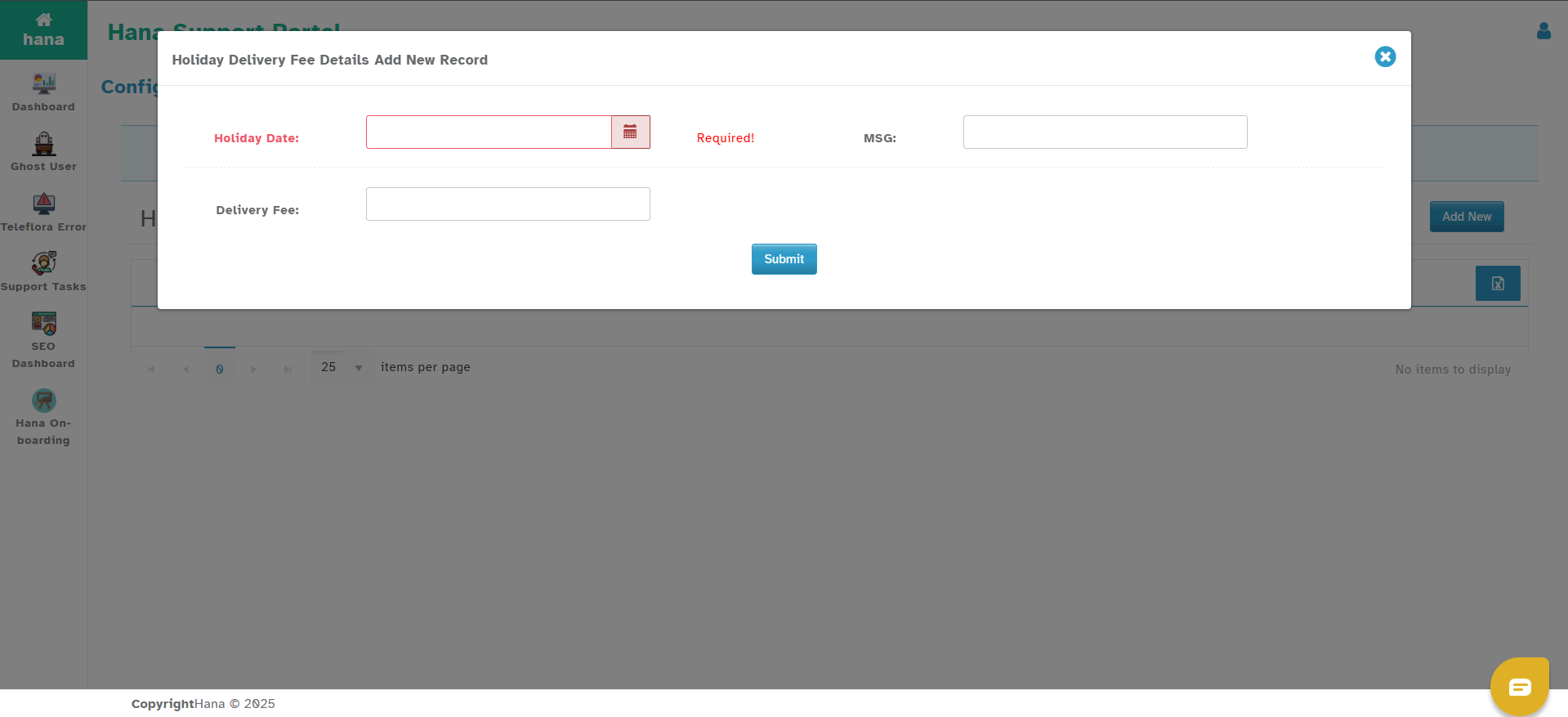
Holiday Date – Click on the calendar icon and select the date for which the holiday fee should apply.
Message – (Optional) Enter a short description (e.g., "Mother’s Day Fee").
Delivery Fee – Enter the special delivery fee amount for that date.
Step 6: Once all fields are filled, click on Submit.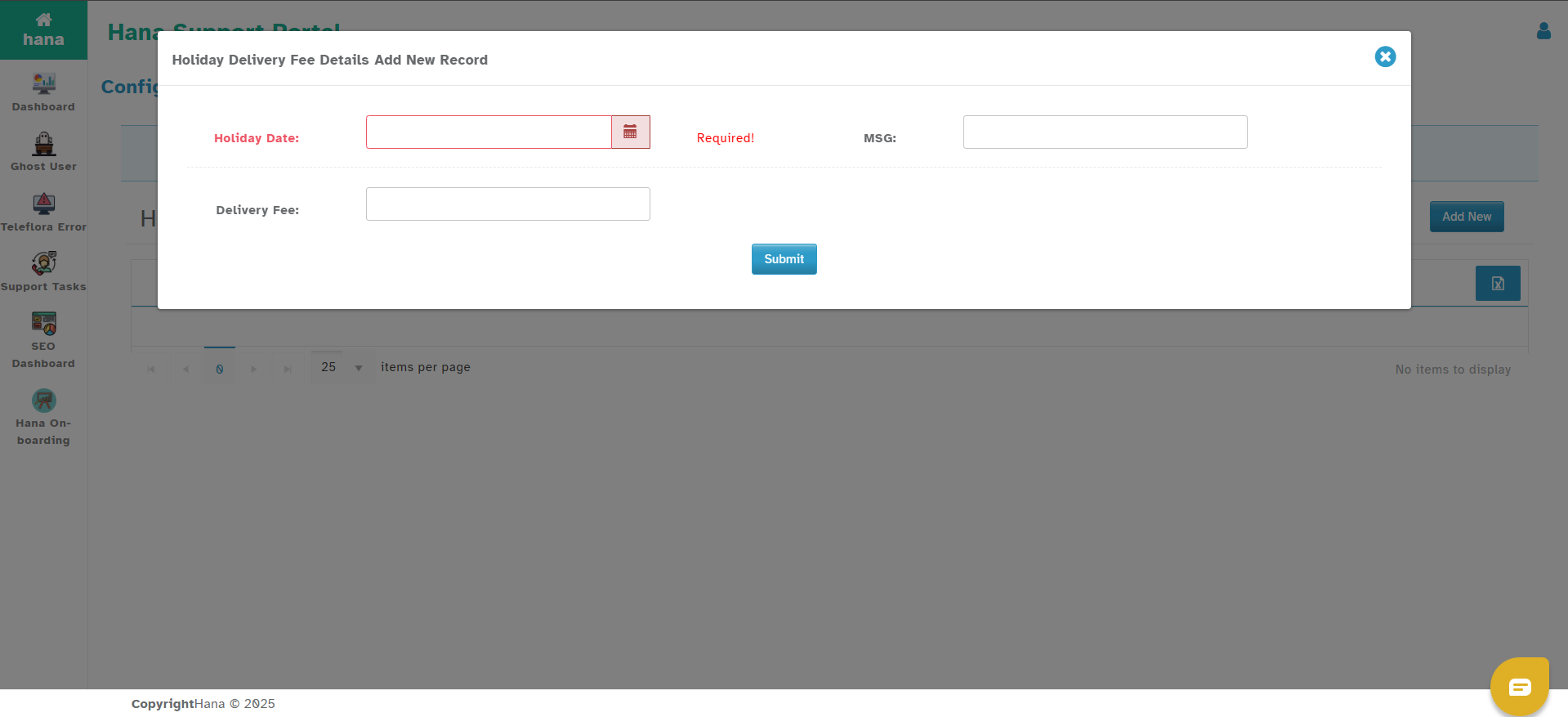
How It Works
This delivery fee will override all other delivery fee types (default, ZIP, city, distance, or map-based) for the selected date.
It applies to both POS and website orders.
Only orders scheduled for delivery on that exact date will use this fee.
Was this article helpful?
That’s Great!
Thank you for your feedback
Sorry! We couldn't be helpful
Thank you for your feedback
Feedback sent
We appreciate your effort and will try to fix the article